1. Inleiding
This manual provides detailed instructions for the installation, setup, and operation of your CAMECHO 4G+64G Android 15 Autoradio. Please read this manual thoroughly before using the product to ensure proper function and safety. This device is designed to enhance your driving experience with advanced navigation, entertainment, and connectivity features.
2. Toepasselijke modellen
This 7-inch double DIN car radio, featuring Android 15 with 4GB RAM and 64GB ROM, is specifically designed for the FIAT Panda models from 2013 to 2020.
Opmerking: To confirm perfect compatibility, especially if you are unsure, please send a photo of your car's central console and a photo of the back of your original CD player to customer support before purchase.

Image: Comparison of the car dashboard before and after installing the CAMECHO Autoradio in a FIAT Panda (2013-2020). The image highlights the seamless integration of the new unit.
3. Producteigenschappen
The CAMECHO Autoradio comes equipped with a range of features designed for convenience and performance:
- Weergave: 7-inch 1080P HD Touchscreen.
- Verwerker: 4-Core Chipset for smooth operation.
- Connectiviteit: Built-in WiFi, Bluetooth 5.0 for hands-free communication and audio streaming.
- Smartphone-integratie: Wireless and Wired CarPlay, Wireless and Wired Android Auto, and MirrorLink for seamless smartphone connectivity.
- Navigatie: Built-in GPS navigation (supports GPS/Beidou/Galileo/Glonass).
- Geluid: 32-Band Equalizer (EQ) for customized sound, FM/RDS Radio for real-time traffic, news, and weather.
- Controle: Steering Wheel Control compatibility, Voice Control support.
- Veiligheid: Ondersteunt AHD-achteruitrijcamera's View Camera input (camera optional).
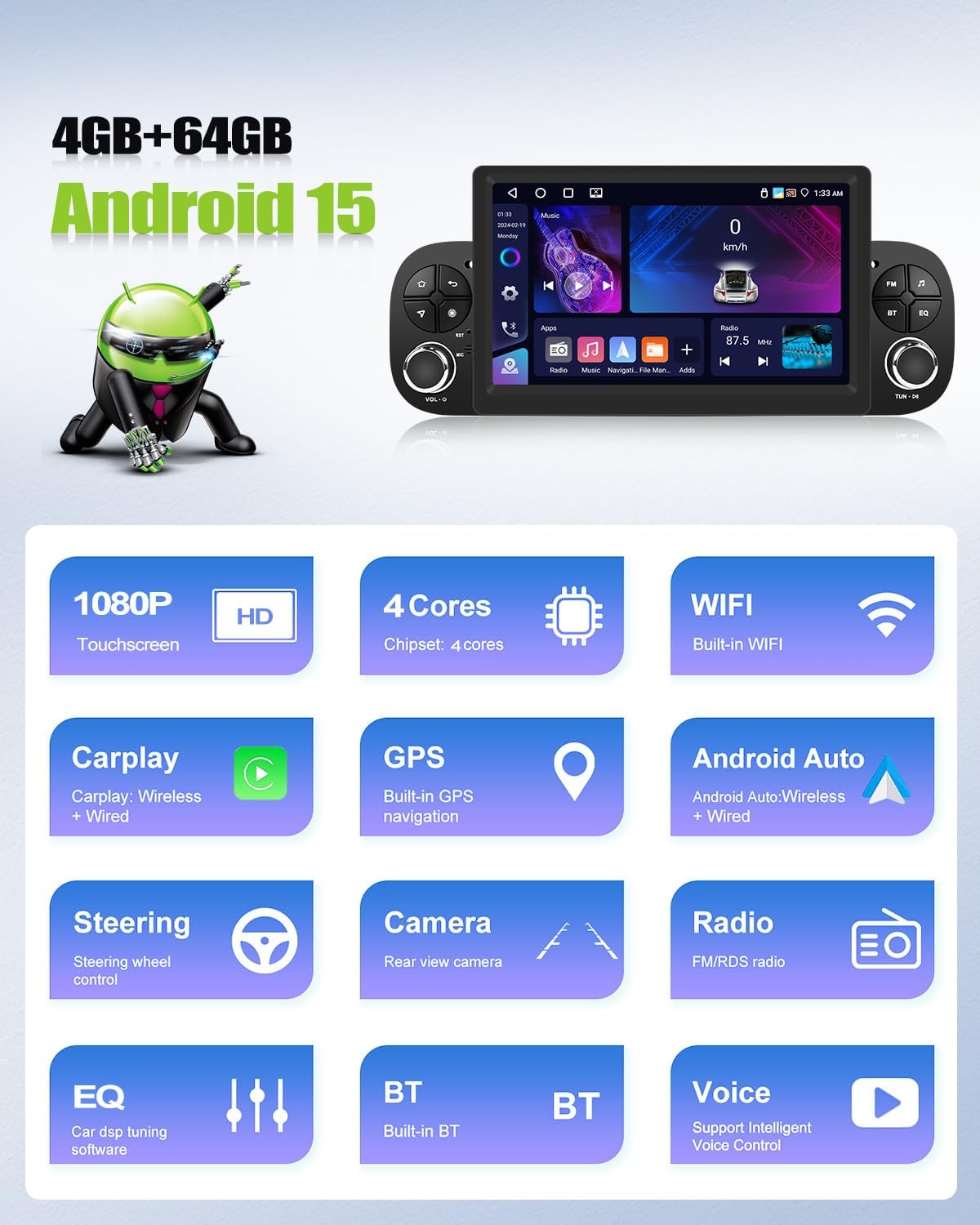
Image: Visual summary of the main features of the CAMECHO Autoradio, including display resolution, processor, connectivity, and integrated functions.
4. Installatie
4.1. Inhoud van het pakket
Controleer vóór de installatie of alle onderdelen aanwezig zijn:
- CAMECHO Autoradio Unit
- Stroomkabel
- RCA-ingangs-/uitgangskabels
- Ingangskabel voor achteruitrijcamera
- USB-kabels (2x)
- GPS-antenne
- Radio Antenne
- Original Car Camera Cable (if applicable)
- Gebruiksaanwijzing
- Canbus (indien vereist voor uw voertuig)
- Antenna Adapter (if required)
4.2. Dimensions and Connections
The unit measures approximately 247mm (9.7 inches) in width, 105mm (4.1 inches) in height, and 173mm (6.8 inches) in depth. Familiarize yourself with the rear panel connections:
- Stroomkabel aansluiting
- RCA Input/Output ports
- Ingang achteruitrijcamera
- USB Cable ports
- GPS-antennepoort
- Radio Antenna port

Afbeelding: Gedetailleerd view of the product dimensions, rear panel connections, and a list of all items included in the package.
Professionele installatie wordt aanbevolen om een correcte bedrading en werking te garanderen.
5. Instellen
5.1. Draadloze CarPlay / Android Auto
Om je smartphone draadloos te verbinden:
- Voor iPhone (CarPlay):
- Activeer Bluetooth op je iPhone en koppel deze met de autoradio.
- Open the 'Zlink' application on the car radio.
- If connection fails, connect your phone to the car stereo's hotspot, then click 'Zlink' again.
- Maintain both Bluetooth and Hotspot connections.
- For Android Phone (Android Auto):
- Zorg ervoor dat de Android Auto-app op je telefoon is geïnstalleerd.
- Activeer Bluetooth op je telefoon en koppel deze met de autoradio.
- Open the 'Zlink' application on the car radio.

Image: Step-by-step guide for establishing wireless CarPlay and Android Auto connections.
5.2. MirrorLink
MirrorLink allows you to duplicate your smartphone screen onto the car radio display.
- Voor iPhone:
- Activate your iPhone's hotspot.
- Connect the car radio to your phone's hotspot.
- Open the 'Phone Link' application on the device.
- Method 1: Enter the AirPlay function on your iPhone and select the car radio to mirror.
- Method 2: Scan the QR code to download the application on your phone and use the connection function.
- Voor Android-telefoons:
- Click on 'Phone Link' and scan the QR code to download the application.
- Follow the instructions to select the link via USB cable or WLAN.
- For USB connection: Go to your phone's developer options and enable 'USB debugging', then configure USB as data transmission.

Image: Guide on how to set up and use the MirrorLink feature for both iOS and Android devices.
5.3. WiFi / GPS Navigation
The car radio supports connection to WiFi or a mobile hotspot. Once connected, you can download necessary applications like Waze, YouTube, TikTok, etc., from the app store. The integrated GPS/Beidou/Galileo/Glonass system ensures fast, accurate, and stable location services.

Image: Demonstrates GPS navigation in action, the process of connecting to WiFi, and the split-screen feature.
6. In bedrijf
6.1. Bluetooth 5.0
Bluetooth 5.0 enables hands-free communication, voice chat, and wireless audio streaming. The system automatically loads your phonebook for convenience during your journey.
6.2. 32-bands equalizer (EQ)
Customize your audio experience with the professional 32-band equalizer. Adjust frequencies to make your music sound richer and more layered, tailored to your preferences.
6.3. FM/RDS-radio
The built-in FM/RDS radio provides access to real-time information such as traffic conditions, news, and weather forecasts, keeping you informed on the road.

Image: Illustrates the 32-band equalizer interface, Bluetooth connection screen, and the FM/RDS radio display.
6.4. Rear Camera Function
When reversing, the screen automatically switches to the AHD rear camera view, providing a clear image for safer parking and maneuvering. The camera (optional) offers HD image quality, is waterproof, and provides a wide-angle night vision view.
6.5. Bediening via het stuurwiel
The unit supports original steering wheel controls, allowing you to manage calls, change songs, adjust volume, and more without taking your hands off the wheel. To set up, enter the steering wheel control interface, press 'Start', then press the desired button on your steering wheel, and finally press 'Save'.
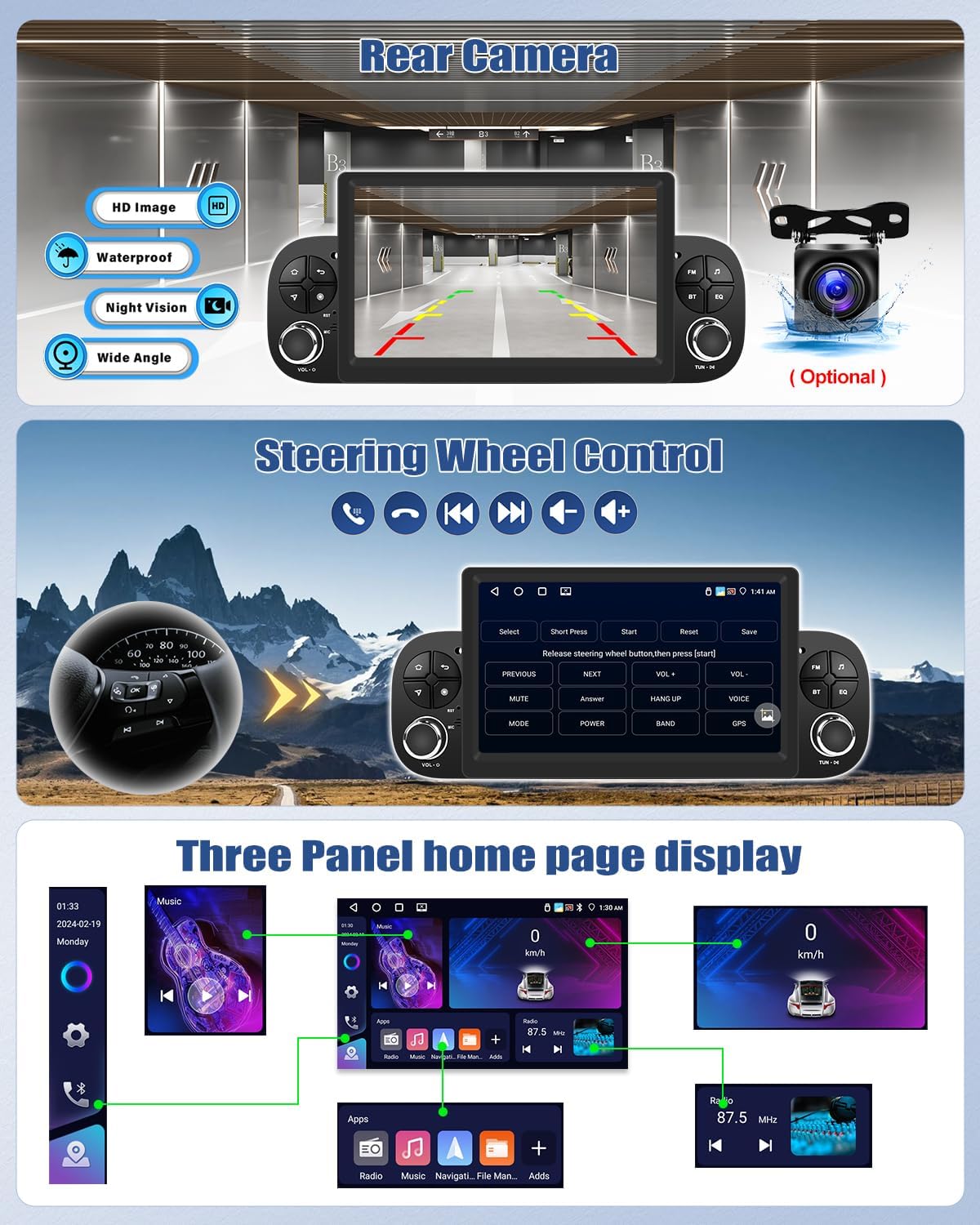
Image: Displays the rear camera functionality, the interface for programming steering wheel controls, and an example of the customizable three-panel home screen.
6.6. Gesplitst scherm
The split-screen feature allows you to run two applications simultaneously on the display, such as navigation and music, or a radio and a phone call interface, enhancing multitasking capabilities.
7. Optionele functies
The following functions are not included as standard but can be purchased separately to expand the capabilities of your Autoradio:
- DVR (digitale videorecorder): For recording driving footage.
- DAB+ (Digitale audio-uitzending): Voor een betere ontvangst van digitale radio.
- 360°-panoramische camera: Voor een uitgebreide view rondom uw voertuig.
- OBD2 (On-Board Diagnostics): For vehicle diagnostics and monitoring.
- Video-uitgang: To connect external displays.
- Externe microfoon: Voor een betere spraakverstaanbaarheid tijdens gesprekken of spraakopdrachten.
Please contact customer support for information on purchasing these optional accessories.

Image: Displays various optional accessories that can be integrated with the Autoradio to enhance its functionality.
8. Specificaties
| Functie | Specificatie |
|---|---|
| Merk | CAMECHO |
| Fabrikant | CAMECHO |
| Model | 4G+64G Android 15 Autoradio |
| Besturingssysteem | Androïde 15 |
| RAM | 4GB |
| ROM | 64GB |
| Schermgrootte | 7 inch |
| Weergaveresolutie | 1080P HD |
| Verwerker | 4 kernen |
| Connectiviteitstechnologie | Wifi, Bluetooth 5.0 |
| Uitgang Wattage | 180 Watt |
| Aantal kanalen | 4 |
| Productgewicht | 1.32 kg |
| Pakket afmetingen | 31.2x18.3x17.2cm |
| Compatibele apparaten | Smartphones |
| Speciale kenmerken | Touchscreen, GPS Navigation, CarPlay, Android Auto, MirrorLink, RDS/FM Radio, 32-Band EQ, Rear Camera Input, Steering Wheel Control |
| Land/regio van herkomst | China |
9. Onderhoud
Volg deze onderhoudsrichtlijnen om de levensduur en optimale prestaties van uw CAMECHO autoradio te garanderen:
- Schoonmaak: Gebruik een zachte, droge doek om het scherm en de buitenkant schoon te maken. Vermijd schurende reinigingsmiddelen of oplosmiddelen die het oppervlak kunnen beschadigen.
- Software-updates: Periodically check for software updates to ensure you have the latest features and bug fixes. Updates can usually be found through the system settings or the manufacturer's webplaats.
- Temperatuur: Zorg ervoor dat het apparaat niet gedurende langere tijd wordt blootgesteld aan extreme temperaturen, zowel warm als koud.
- Stroom: Zorg ervoor dat het elektrische systeem van het voertuig stabiel is. Schommelingen kunnen de prestaties van het systeem beïnvloeden.
10. Probleemoplossing
If you encounter issues with your Autoradio, refer to the following common solutions:
- Geen stroom: Controleer alle stroomaansluitingen en de zekeringkast van het voertuig. Zorg ervoor dat het contact aan staat.
- Geen geluid: Controleer de volume-instellingen, de luidsprekeraansluitingen en zorg ervoor dat de juiste audiobron is geselecteerd.
- Touchscreen reageert niet: Probeer het apparaat opnieuw op te starten. Als het probleem aanhoudt, is een fabrieksreset mogelijk nodig (let op: hiermee worden alle gebruikersgegevens gewist).
- GPS werkt niet: Zorg ervoor dat de GPS-antenne goed is aangesloten en een duidelijk zicht heeft view van de hemel. Controleer de GPS-instellingen in het systeem.
- Verbindingsproblemen met Bluetooth/CarPlay/Android Auto: Ensure Bluetooth is enabled on both devices. Try unpairing and re-pairing. Check the 'Zlink' app for specific connection steps. Ensure your phone's software is up to date.
- Achteruitrijcamera geeft niet weer: Controleer de stroom- en video-ingangsaansluitingen van de camera. Zorg ervoor dat het voertuig in de achteruitversnelling staat.
Neem bij aanhoudende problemen contact op met de klantenservice van CAMECHO.
11. Garantie en ondersteuning
CAMECHO products are covered by a standard manufacturer's warranty. Please refer to the warranty card included in your package or visit the official CAMECHO website voor gedetailleerde garantievoorwaarden.
For technical support, troubleshooting assistance, or inquiries regarding optional accessories, please contact CAMECHO customer service through the following channels:
- E-mailadres: Refer to your product packaging or the official CAMECHO webVoor het meest actuele contact-e-mailadres kunt u terecht op deze website.
- Online hulp: Visit the CAMECHO brand store on Amazon or their official website voor veelgestelde vragen en ondersteuningsbronnen.
When contacting support, please have your product model number (4G+64G Android 15 Autoradio) and purchase date ready.


