1. Inleiding
Welcome to the instruction manual for your Jectse WiFi 6 4G/5G CPE LTE Router. This document provides essential information on how to set up, operate, maintain, and troubleshoot your device. Please read this manual carefully before using the product to ensure optimal performance and longevity.
The Jectse WiFi 6 Router is designed to provide high-speed internet connectivity by converting a 4G LTE signal into a Wi-Fi hotspot, supporting multiple devices simultaneously. Its robust design with four antennas ensures stable and wide coverage.
2. Product voorbijview
2.1 Belangrijkste kenmerken
- 4G LTE-ondersteuning: Compatible with multiple 4G LTE bands, including FDD B1, B3, B5, B7, B8, B20, TDD B38, B40, B41, and WCDMA B1, B5, B8. This ensures versatile connectivity across various networks.
- Hoge snelheden: Experience 4G download speeds up to 150 Mbps and upload speeds up to 50 Mbps. Wireless transfer rates reach up to 300 Mbps for smooth streaming, gaming, and browsing.
- Eenvoudige installatie: Simply insert a standard SIM card to transform the 4G LTE signal into a Wi-Fi hotspot. Enjoy immediate internet access with minimal configuration.
- Hoge apparaatcapaciteit: Connect up to 32 devices simultaneously, including smartphones, tablets, and PCs, within a maximum coverage area of 300 square meters.
- 4-Antenna Design: Equipped with four antennas for enhanced signal coverage, faster network speeds, and stable connectivity throughout your space.
2.2 Pakketinhoud
Vink het vakje aan voor de volgende items:
- 1 x Jectse WiFi 6 4G/5G CPE LTE Router
- 1 x Stroomadapter
- 1 x Ethernet-kabel
- 1 x USB-kabel
- 1 x Gebruikershandleiding (dit document)

Image: Jectse WiFi 6 Router with its power adapter, Ethernet cable, and USB cable.
3. Installatie-instructies
Follow these steps to set up your Jectse WiFi 6 Router:
- De router uitpakken: Haal de router en alle accessoires voorzichtig uit de verpakking.
- Plaats simkaart: Locate the SIM card slot on the side of the router. Insert a standard-sized 4G LTE SIM card into the slot until it clicks into place. Ensure the SIM card is correctly oriented as indicated by the diagram near the slot.

Afbeelding: Zijkant view of the router highlighting the SIM card slot and USB/WAN/LAN ports.
- Sluit stroom aan: Connect the power adapter to the router's power input port and then plug the adapter into a wall outlet. The router will power on automatically.
- Inschakelen: Wait for the router's indicator lights to stabilize. The Wi-Fi and network status lights should indicate a successful connection.
- Optional: Wired Connection: If you prefer a wired connection, connect one end of the Ethernet cable to the WAN/LAN port on the router and the other end to your computer or another network device.
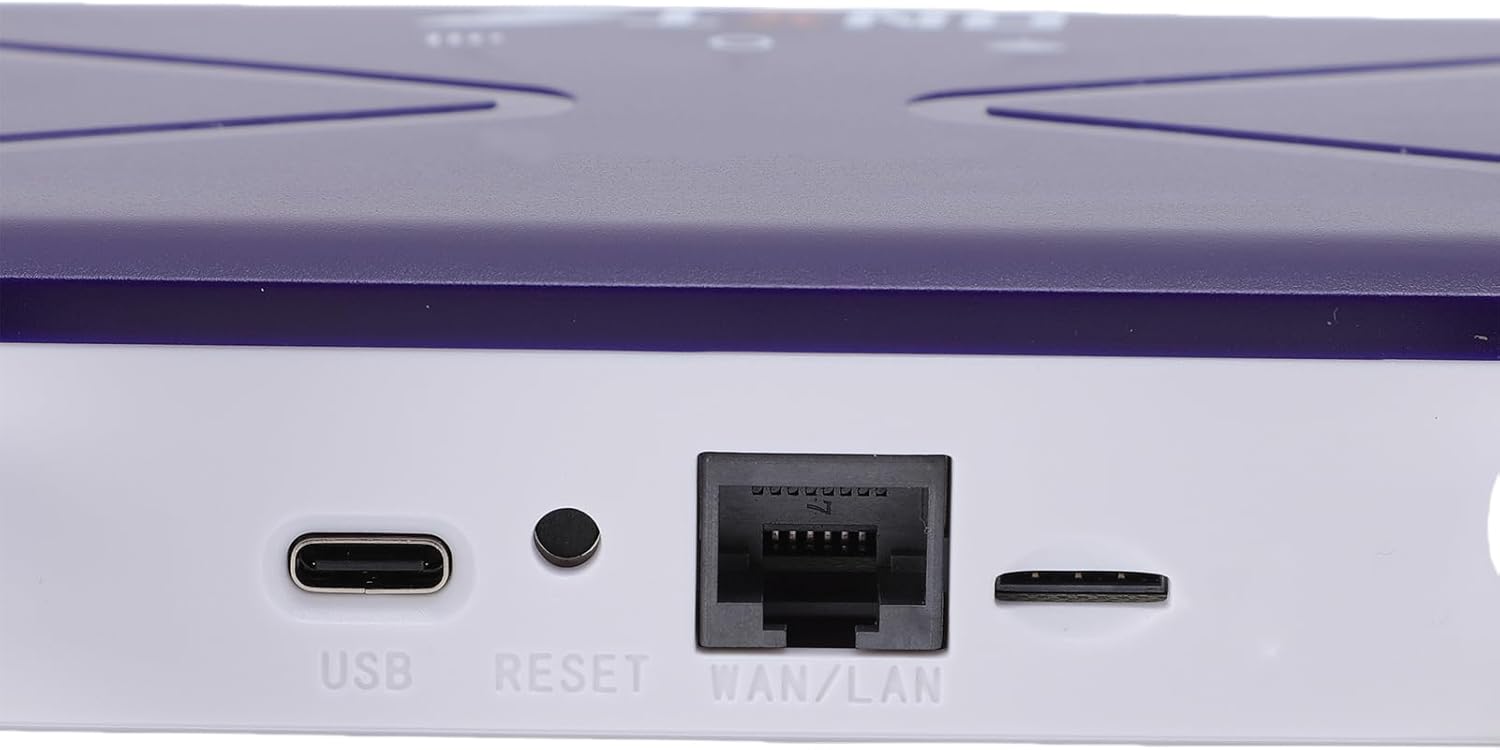
Image: Close-up of the router's rear panel showing the USB port, Reset button, and WAN/LAN port.
4. Gebruiksaanwijzing
4.1 Verbinding maken met wifi
To connect your devices to the router's Wi-Fi network:
- Open de wifi-instellingen op uw apparaat (smartphone, tablet, laptop).
- Zoeken naar available Wi-Fi networks. The router's default Wi-Fi network name (SSID) and password (Wi-Fi Key) are typically printed on a label on the bottom of the router.
- Select the router's SSID from the list.
- Enter the Wi-Fi Key when prompted. The default Wi-Fi Key is usually 1234567890.
- Zodra de verbinding tot stand is gebracht, zou uw apparaat internettoegang moeten hebben.

Image: Bottom label of the router displaying default Wi-Fi Key and Web IP-adres.
4.2 Toegang tot de routerinstellingen
To manage your router settings, such as changing the Wi-Fi name or password, or configuring advanced network options:
- Connect your device to the router's Wi-Fi network or via an Ethernet cable.
- Open een web browser (bijv. Chrome, Firefox, Edge).
- In the address bar, type the default Web IP-adres: 192.168.100.1 en druk op Enter.
- You will be prompted for a username and password. Refer to the label on the bottom of your router for default login credentials.
- Once logged in, you can customize your network settings.
4.3 Netwerkdekking
The router provides Wi-Fi wireless coverage and supports network port wired output for various environments.

Image: Diagram showing the router's Wi-Fi coverage and wired output capabilities.
5. Onderhoud
To ensure the optimal performance and longevity of your router, consider the following maintenance tips:
- Plaatsing: Plaats de router op een centrale locatie, uit de buurt van obstakels, grote metalen voorwerpen en andere elektronische apparaten die interferentie kunnen veroorzaken.
- Ventilatie: Ensure the router has adequate ventilation. Do not cover the ventilation holes or place it in an enclosed space.
- Schoonmaak: Gently clean the router's exterior with a soft, dry cloth. Avoid using liquid cleaners or aerosols.
- Firmware-updates: Controleer regelmatig de specificaties van de fabrikant website for firmware updates. Keeping your router's firmware up-to-date can improve performance, security, and add new features.
- Stroomcyclus: If you experience minor network issues, try power cycling the router by unplugging it from the power outlet for 10-15 seconds and then plugging it back in.
6. Probleemoplossing
Als je problemen ondervindt met je router, raadpleeg dan de volgende veelvoorkomende problemen en oplossingen:
- Geen internet verbinding:
- Controleer of de simkaart correct is geplaatst en geactiveerd.
- Verify that the router's network indicator lights are stable and show a connection.
- Zorg ervoor dat uw simkaart een actief data-abonnement heeft.
- Try power cycling the router.
- Trage wifi-snelheden:
- Ga dichter bij de router zitten om de signaalsterkte te verbeteren.
- Verminder het aantal verbonden apparaten als veel apparaten actief bandbreedte gebruiken.
- Controleer op interferentie van andere elektronische apparaten.
- Start de router opnieuw op.
- Kan geen verbinding maken met wifi:
- Ensure you are entering the correct Wi-Fi password (Wi-Fi Key).
- Check if the Wi-Fi function on the router is enabled (refer to router settings via web interface).
- Start zowel de router als het apparaat waarmee u verbinding maakt opnieuw op.
- Router reageert niet:
- Perform a hard reset by pressing and holding the 'RESET' button (located near the WAN/LAN port) with a pin for about 10 seconds until the lights flash. This will restore the router to factory default settings, including the default Wi-Fi name and password.
7. Specificaties
| Functie | Specificatie |
|---|---|
| Modelnummer | Jectseak28xtdzqf |
| Wi-Fi-standaard | 802.11b/g/n |
| Draadloze frequentie | 2.4 GHz |
| 4G LTE-banden (FDD) | B1, B3, B5, B7, B8, B20 |
| 4G LTE-banden (TDD) | B38, B40, B41 |
| WCDMA-banden | B1, B5, B8 |
| Maximale downloadsnelheid | 150 Mbps |
| Maximale uploadsnelheid | 50 Mbps |
| Wireless Transfer Rate | 300 Mbps |
| SIM-kaartsleuf | Standaard SIM |
| Antennes | 4 |
| Ingebouwde firewall | Ja |
| Maximaal aantal aangesloten apparaten | 32 |
| Dekkingsgebied | Tot 300 m² |
| Fabrikant | Jekt |
| Land van herkomst | China |
8. Garantie en ondersteuning
8.1 Garantie-informatie
This Jectse WiFi 6 4G/5G CPE LTE Router comes with a 2 jaar fabrieksgarantie Vanaf de aankoopdatum. Deze garantie dekt materiaal- en fabricagefouten bij normaal gebruik. Bewaar uw aankoopbewijs voor garantieclaims.
De garantie dekt geen schade veroorzaakt door verkeerd gebruik, ongelukken, ongeautoriseerde aanpassingen of externe factoren zoals stroompieken.
8.2 Klantenservice
For technical assistance, troubleshooting beyond this manual, or warranty inquiries, please contact your retailer or the Jectse customer support team. Refer to the contact information provided with your purchase or visit the official Jectse website voor ondersteuningsbronnen.