Invoering
The JamesDonkey J1 is a versatile low-profile mechanical keyboard designed for enhanced productivity and gaming. It features triple-mode connectivity, QMK/VIA customization, dual-OS compatibility, dynamic RGB backlighting, and durable PBT keycaps. This manual provides essential information for setting up, operating, maintaining, and troubleshooting your J1 keyboard.
Inhoud van het pakket
Controleer of alle artikelen in uw pakket aanwezig zijn:
- 1x JamesDonkey J1 Low-Profile Draadloos mechanisch toetsenbord
- 1x Type-A naar Type-C-kabel
- 1x Type-A 2.4GHz-ontvanger
- Gebruikershandleiding (dit document)
- Additional keycaps for Mac/Windows (if applicable)

Instellen
1. Het toetsenbord opladen
Connect the provided USB-C cable to the keyboard's USB-C port and the other end to a power source (e.g., computer USB port, USB wall adapter). The keyboard's indicator light will show charging status.
2. Verbindingsmodi
The J1 keyboard supports three connection modes:
- USB-C bedrade modus: Sluit het toetsenbord rechtstreeks aan op je apparaat met de USB-C-kabel. In deze modus wordt het toetsenbord ook opgeladen.
- 2.4 GHz draadloze modus: Insert the 2.4GHz USB receiver into your device's USB-A port. Switch the keyboard to 2.4G mode using the switch on the side/back of the keyboard.
- Bluetooth 5.2-modus: The keyboard can connect to up to three Bluetooth devices. Switch the keyboard to Bluetooth mode and follow your device's pairing instructions. Use Fn + 1/2/3 to switch between paired Bluetooth devices.

3. Compatibiliteit met besturingssysteem
The J1 keyboard is compatible with Windows, macOS, and Linux. Use the dedicated switch on the side/back of the keyboard to select your operating system for optimal key mapping.
Het toetsenbord bedienen
1. Belangrijkste functies
The J1 features a 75% layout with dedicated function keys and multimedia controls. Refer to the keycap legends for specific functions.
2. RGB-achtergrondverlichting
The keyboard features customizable RGB backlighting with over 22 dynamic effects. Use the designated key combinations (e.g., Fn + specific keys) to cycle through lighting modes, adjust brightness, and change colors.

3. QMK/VIA-aanpassing
The J1 supports QMK/VIA firmware, allowing for extensive customization of key assignments, macros, and lighting effects. Access the browser-based VIA Launcher to remap keys and create personalized layouts for Windows, macOS, or Linux.

Onderhoud
1. Schoonmaken
To clean the keyboard, disconnect it from all power sources. Use a soft, lint-free cloth dampened with a small amount of water or isopropyl alcohol to wipe down the keycaps and chassis. Avoid spraying liquids directly onto the keyboard.
2. Vervanging van toetsenkapjes en schakelaars
The J1 features hot-swappable switches and PBT keycaps. Use the provided keycap puller and switch puller (if included) to carefully remove and replace keycaps or switches. Ensure proper alignment when reinserting components.

Probleemoplossing
- Toetsenbord reageert niet: Ensure the keyboard is charged and properly connected (wired, 2.4G receiver, or Bluetooth). Check the mode switch.
- Problemen met Bluetooth-connectiviteit: Verify the keyboard is in Bluetooth mode and paired correctly. Try unpairing and re-pairing the device. Ensure no other devices are interfering.
- Achtergrondverlichting werkt niet: Check if the backlighting is enabled and brightness is adjusted. Refer to the manual for specific key combinations to control RGB effects.
- Sleutels registreren niet: If specific keys are not working, consider replacing the switch if you have spare hot-swappable switches.
Specificaties
| Functie | Detail |
|---|---|
| Model | J1 |
| Indeling | 75% |
| Connectiviteit | 2.4 GHz draadloos, Bluetooth 5.2, USB-C bedraad |
| Schakelaars | Brown Tactile (Hot-swappable) |
| keycaps | Dubbelschot PBT |
| Achtergrondverlichting | RGB (22+ effects) |
| Verenigbaarheid | Windows, macOS, Linux |
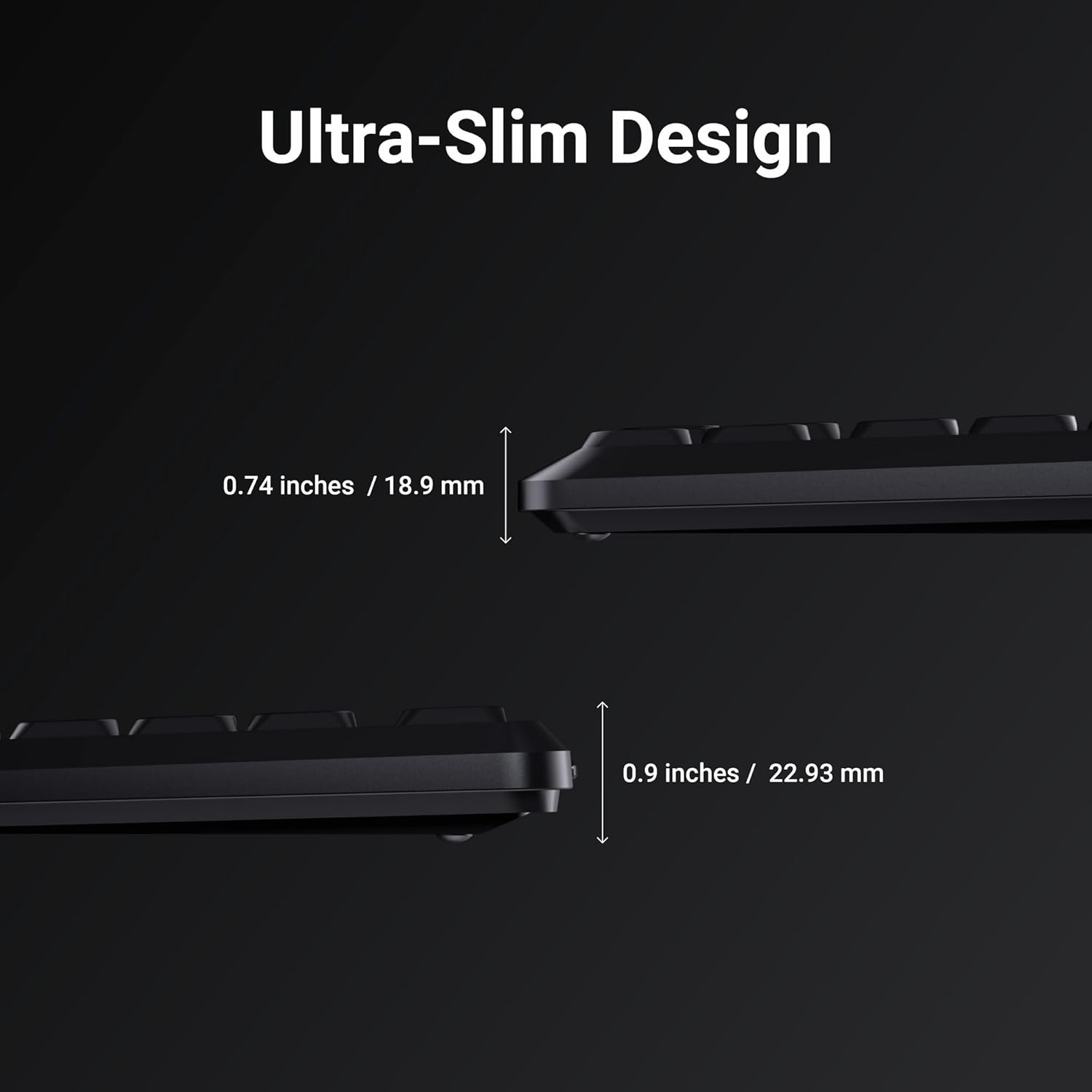
| Afmetingen | 14.3 x 7.2 x 1.7 inch |
| Artikelgewicht | 2.1 pond |


Garantie en ondersteuning
For warranty information and technical support, please refer to the official JamesDonkey webwebsite of neem contact op met hun klantenservice. Bewaar uw aankoopbewijs voor garantieclaims.
Online resources for QMK/VIA customization can be found at qmk.fm/via/.


