1. Product voorbijview
This manual provides detailed instructions for the MONTECH XR Wood ATX Mid-Tower PC Gaming Case. It covers setup, operation, maintenance, and specifications to ensure optimal performance and longevity of your PC case.

Figure 1.1: MONTECH XR Wood PC Gaming Case, showcasing its genuine black walnut front panel and pre-installed ARGB fans.
The MONTECH XR Wood case combines aesthetic appeal with high functionality, featuring a genuine black walnut front panel, extensive cooling support, and comprehensive dust filtration.
2. Belangrijkste kenmerken
- Genuine Black Walnut Front: Experience the elegance of American Walnut wood integration, seamlessly blending nature and modern design on the front panel.
- Superior Airflow & Cooling: Achieve superior airflow with extensive cooling support, accommodating up to 12 fans for maximum ventilation.
- Comprehensive Dust Filtration: 360° four-sided dust filter, ensuring all fans are shielded for optimal protection against dust accumulation.
- Spacious Compatibility: Designed for spacious compatibility and high-performance hardware, supporting up to a 360mm AIO cooler and the latest RTX 50 series GPUs.
- Pre-installed ARGB PWM Fans: Comes with four high-performance GF120 ARGB PWM fans, delivering optimized airflow and stunning customizable lighting.
- Robust I/O: Features two USB 3.0 ports and a USB Type-C port for faster transfers and wider device support.

Figure 2.1: The genuine black walnut front panel with fine laser engraving, highlighting the blend of nature and design.
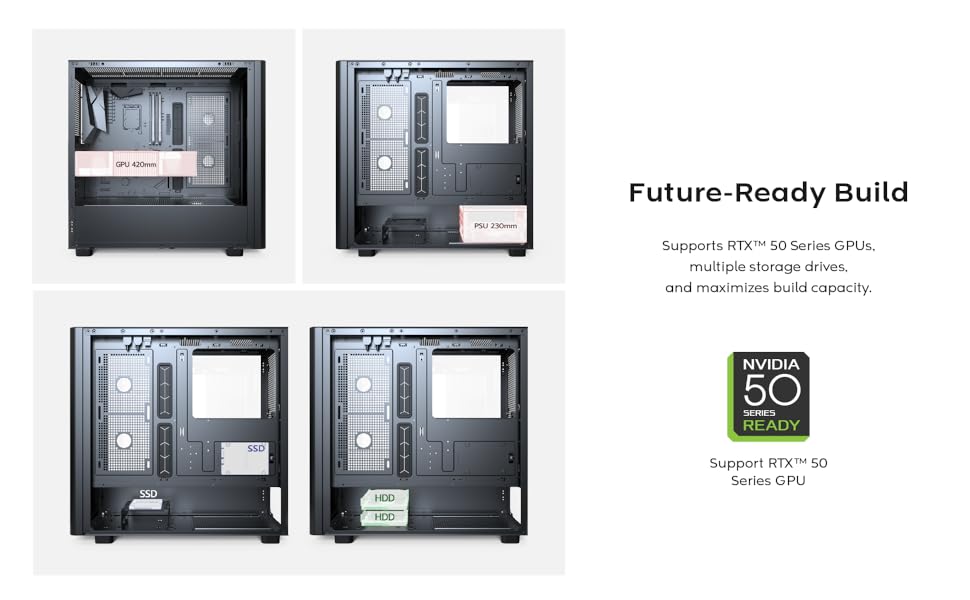
Figure 2.2: Illustration of the extensive cooling support, detailing fan and radiator placements for optimal thermal performance.

Figure 2.3: Internal layout demonstrating compatibility with large GPUs, including the latest RTX 50 series.

Figure 2.4: The robust top I/O panel, providing convenient access to essential ports and controls.
3. Installatiehandleiding
3.1 Uitpakken
Carefully remove the PC case from its packaging. Inspect the case for any signs of damage that may have occurred during transit. Retain the packaging for future transport or warranty purposes.
3.2 Componentinstallatie
Follow these general steps for installing your PC components into the MONTECH XR Wood case. Refer to your individual component manuals for specific installation details.
- Moederbord installatie: Align your ATX, Micro-ATX, or Mini-ITX motherboard with the standoffs inside the case. Secure it with the provided screws.
- Installatie voedingseenheid (PSU): Install the PSU into the bottom mount bay. Secure it with screws from the rear of the case.
- Installatie van opslagstation: Install 2.5" SSDs and 3.5" HDDs into the designated bays. The case supports multiple storage drives.
- Installatie grafische kaart (GPU): Insert your graphics card into the appropriate PCIe slot on the motherboard. Ensure it is securely seated and fastened with the retention clip or screw. The case supports GPUs up to 420mm in length.
- Kabelbeheer: Gebruik de kabeldoorvoeropeningen en bevestigingspunten achter de moederbordtray om kabels netjes te ordenen. Dit verbetert de luchtcirculatie en het uiterlijk.

Afbeelding 3.1: Intern view of the case demonstrating component installation and cable management possibilities.
4. Gebruiksaanwijzing
4.1 Inschakelen
After all components are installed and cables are connected, ensure the power switch on your Power Supply Unit (PSU) is in the 'ON' position. Then, press the power button located on the top I/O panel of the case to start your system.
4.2 ARGB-ventilatorregeling
The MONTECH XR Wood case comes with four pre-installed GF120 ARGB PWM fans. These fans offer customizable lighting effects. You can control the ARGB lighting in one of two ways:
- Moederbordsoftware: If your motherboard supports Addressable RGB (ARGB) synchronization (e.g., ASUS Aura Sync, MSI Mystic Light Sync, GIGABYTE RGB Fusion, ASRock Polychrome RGB), connect the fans' ARGB cables to the appropriate 3-pin 5V ARGB header on your motherboard. Use the motherboard's software to customize lighting effects and colors.
- RGB-knop op de behuizing: The case may feature a dedicated RGB button on the top I/O panel. Press this button to cycle through various pre-set lighting modes or to turn the RGB lighting on/off.

Figure 4.1: Illustration of optimized airflow provided by the four pre-installed GF120 ARGB PWM fans.
5. Onderhoud
5.1 Reiniging van het stoffilter
The MONTECH XR Wood case features a comprehensive 360° four-sided dust filter system to protect your components from dust accumulation and maintain optimal airflow. Regular cleaning of these filters is crucial for system longevity and performance.
Om de stoffilters schoon te maken:
- Uitschakelen: Ensure your PC is completely powered off and unplugged from the wall outlet before performing any maintenance.
- Filters verwijderen: Gently remove the magnetic dust filters located on the top, front, and bottom of the case. The side glass panel can also be removed for access to internal areas.
- Schone filters: Use a soft brush, a vacuum cleaner with a brush attachment, or compressed air to remove accumulated dust from the filters. Do not use water or liquid cleaners.
- Reattach Filters: Once clean and dry, reattach the filters securely to their respective positions.

Figuur 5.1: Geëxplodeerd view illustrating the comprehensive dust filtration system and removable panels for easy cleaning.
6. Technische specificaties
| Functie | Specificatie |
|---|---|
| Modelnaam | XR Wood |
| Artikelmodelnummer | 11-970-017 |
| Soort zaak | Mid Tower |
| Moederbordcompatibiliteit | ATX, Micro ATX, Mini ITX |
| Afmetingen (L x B x H) | 18.7 x 9.1 x 17.9 cm (47.5 x 23.1 x 45.5 inch) |
| Artikelgewicht | 15.1 pond (6.85 kg) |
| Voorgeïnstalleerde ventilatoren | 4 x 120mm GF120 ARGB PWM Fans |
| Max Fan-ondersteuning | Maximaal 12 fans |
| Maximale radiatorondersteuning | Up to 360mm AIO |
| GPU-klaring | Tot 420 mm |
| PSU-montagetype | Onderste montage |
| I/O-poorten | 2 x USB 3.0, 1 x USB Type-C, Audio, Mic, Reset Button, Power Button |
| Stoffilters | 360° four-sided (Top, Front, Bottom) |
7. Probleemoplossing
7.1 Geen stroom
- Ensure all power cables are securely connected to the PSU, motherboard, and wall outlet.
- Verify the power switch on the PSU is in the "ON" position.
- Controleer de verbinding van de aan/uit-knop op het voorpaneel met het moederbord.
7.2 Ventilatoren draaien niet / RGB werkt niet
- Controleer de stroomaansluitingen van de ventilator op het moederbord of de ventilatorcontroller.
- Ensure ARGB headers are correctly connected to the 3-pin 5V ARGB header on your motherboard.
- Verify that compatible motherboard RGB software is installed and configured correctly, or try cycling through modes using the case's RGB button.
7.3 Problemen met oververhitting
- Verify proper fan orientation for optimal airflow (intake vs. exhaust).
- Clean dust filters regularly to prevent airflow restriction.
- Ensure adequate space around the PC case for proper ventilation.
- Check CPU cooler and GPU fan functionality.
8. Garantie en ondersteuning
For detailed warranty information, technical support, and customer service inquiries regarding your MONTECH XR Wood PC Gaming Case, please visit the official Montech website or contact their authorized support channels. It is recommended to retain your proof of purchase for any warranty claims.
Montech Official Webwebsite: www.montechpc.com


