1. Inleiding
This manual provides essential information for setting up, operating, maintaining, and troubleshooting your LG gram 17 inch laptop. Please read this manual thoroughly before using your device to ensure proper functionality and longevity.
2. Instellen
2.1 Eerste keer inschakelen
- Pak de laptop uit: Carefully remove the LG gram 17 laptop and all accessories from its packaging.
- Sluit stroom aan: Plug the AC adapter into the laptop's power port (USB Type-C Thunderbolt 4 port) and then into a wall outlet.
- Inschakelen: Open het laptopscherm en druk op de aan/uit-knop, die zich meestal rechtsboven op het toetsenbord bevindt.
- Initial Windows 11 Pro Setup: Follow the on-screen prompts to complete the Windows 11 Pro setup, including language selection, network connection, and user account creation.
2.2 Randapparatuur aansluiten
The LG gram 17 offers various ports for connecting external devices:
- USB-apparaten: Use the 2x USB 3.2 Gen 2 Type-A ports for mice, keyboards, or external storage.
- USB-C / Thunderbolt Devices: Use the 2x Thunderbolt 4 USB 4.0 Gen 3 Type-C ports for high-speed data transfer, external displays, or charging.
- Externe weergave: Connect an external monitor via the HDMI port or a Thunderbolt 4 port (with appropriate adapter, if needed).
- Geluid: Use the 3.5mm headphone-out jack for headphones or external speakers.
- Micro SD kaart: Insert a Micro SD card into the dedicated slot for additional storage or data transfer.

Afbeelding: Overview of the LG gram 17 laptop's connectivity ports, including USB Type-A, USB Type-C Thunderbolt 4, HDMI, headphone-out, and Micro SD slot.
3. Kenmerken
3.1 Weergave
The LG gram 17 features a large 17-inch WQXGA (2560 x 1600) IPS touchscreen display with DCI-P3 99% color gamut support, providing vibrant colors and sharp details.

Image: The LG gram 17's 17-inch WQXGA IPS display, highlighting its 16:10 aspect ratio and DCI-P3 99% color accuracy.
3.2 Prestaties
Powered by the Intel Core Ultra 7 processor with 47 NPU TOPS, 32GB DDR5 RAM, and a 2TB PCIe SSD, the laptop delivers responsive performance for multitasking, productivity, and demanding applications.

Image: The LG gram 17 laptop, emphasizing its Intel Core Ultra processor and AI capabilities with up to 47 TOPS NPU.
3.3 Design and Input
The LG gram 17 is designed to be ultra-thin and lightweight, making it highly portable. It features a backlit keyboard for comfortable typing in various lighting conditions and a precision touchpad with scroll and gesture functions.

Afbeelding: Een gedetailleerde view of the LG gram's backlit keyboard, illustrating the illumination of the keys for use in low-light environments.
3.4 Levensduur van de batterij
Equipped with a 77WHr Lithium Ion battery, the laptop offers up to 23.5 hours of video playback, ensuring extended usage on a single charge.

Image: The LG gram laptop screen showing "23.5 hrs" to represent its long battery life, with a visual of the laptop in use.
3.5 Operating System and AI Features
The LG gram 17 comes with Windows 11 Pro pre-installed, featuring AI-driven tools for enhanced productivity, creativity, and accessibility, including Copilot+PC functionalities.
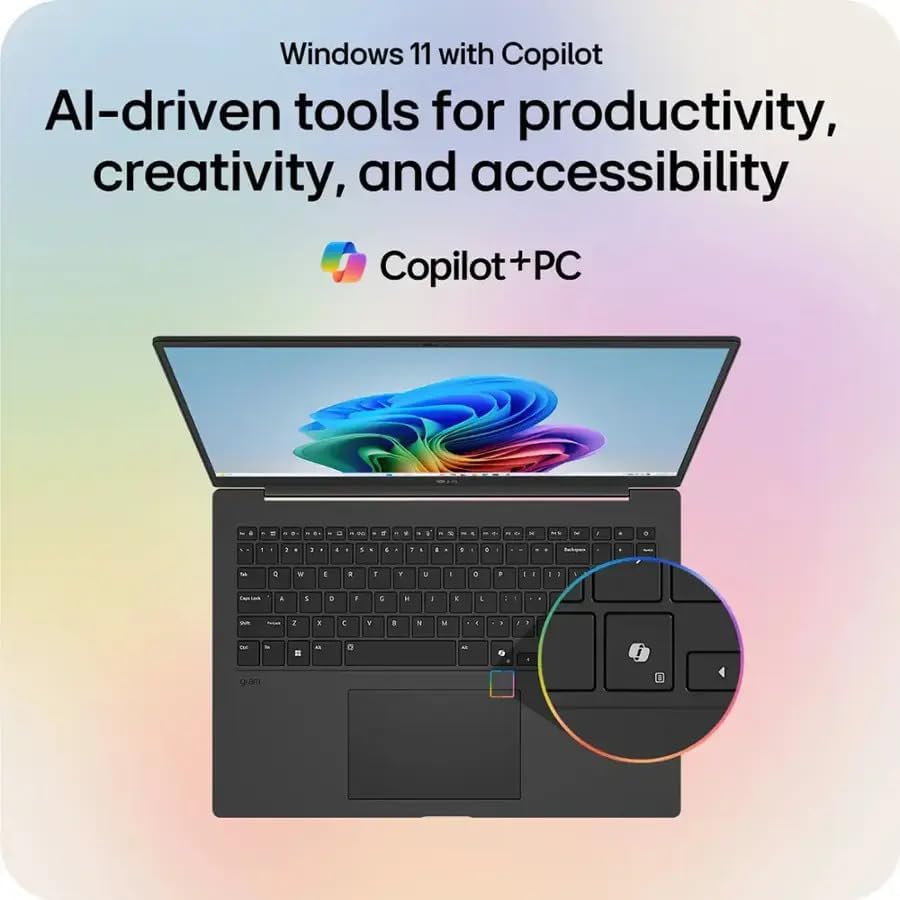
Image: The LG gram laptop showcasing the Windows 11 interface with Copilot, emphasizing its AI-driven tools for productivity and creativity.
3.6 Touchscreenfunctionaliteit
The 17-inch WQXGA display is a touchscreen, allowing for intuitive interaction using your fingers or a compatible stylus.
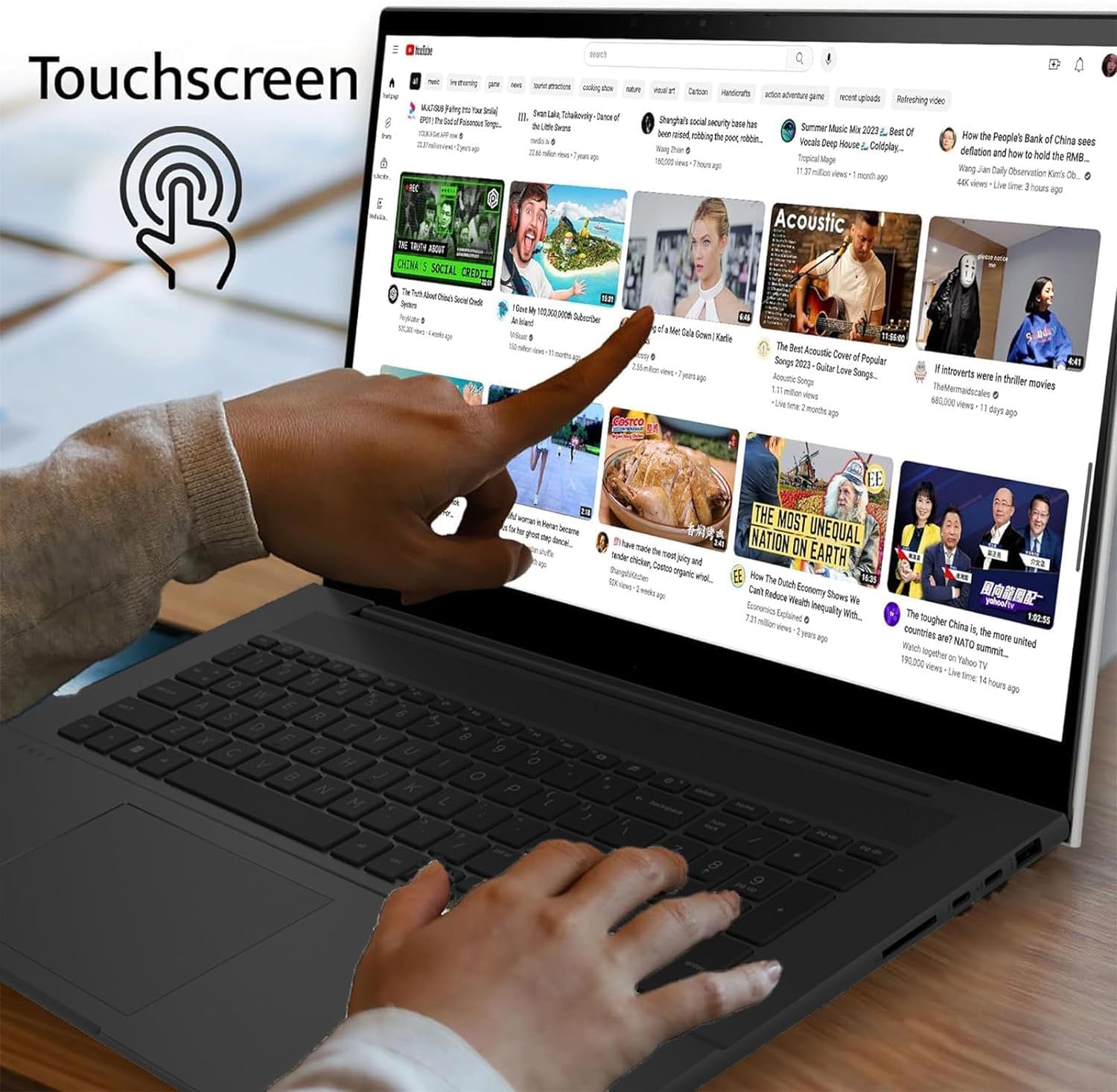
Image: A user's hand touching the screen of the LG gram laptop, illustrating its touchscreen capability.
4. Gebruiksaanwijzing
4.1 Basisgebruik
- Toetsenbord: Use the full-size backlit keyboard for typing. Function keys (F1-F12) often have secondary actions (e.g., volume, brightness) accessible by pressing the Fn key.
- Aanraakscherm: The precision touchpad supports multi-touch gestures for navigation, scrolling, and zooming.
- Aanraakscherm: Interact directly with the display using touch gestures. Swipe, tap, pinch-to-zoom, and other gestures are supported.
4.2 Energiebeheer
- Opladen: Connect the AC adapter to any Thunderbolt 4 (USB-C) port for charging. The battery indicator light will show charging status.
- Slaapstand: Sluit het deksel of druk kort op de aan/uit-knop om de laptop in de slaapstand te zetten.
- Uitschakelen: To turn off the laptop, go to Start > Power > Shut down.
4.3 Netwerkconnectiviteit
- Wifi: The laptop supports Intel Wi-Fi 7. To connect, click the Wi-Fi icon in the taskbar, select your network, and enter the password.
- Bluetooth: Enable Bluetooth in Windows settings to pair with wireless accessories like headphones or mice.
5. Onderhoud
5.1 Reinigen
- Scherm: Gebruik een zachte, pluisvrije doek die lichtjes is schoongemaakt.ampReinig met water of een schermreiniger. Vermijd agressieve chemicaliën.
- Toetsenbord en behuizing: Gebruik een zachte, droge doek. Voor hardnekkig vuil een licht damp Er kan een doek worden gebruikt, zodat er geen vloeistof in de openingen terechtkomt.
5.2 Batterijonderhoud
- Vermijd extreme temperaturen.
- Ontlaad de batterij niet te vaak volledig.
- Bij langdurige opslag laadt u de batterij op tot ongeveer 50-60%.
5.3 Software-updates
Regularly check for and install Windows updates and LG driver updates to ensure optimal performance and security. Go to Start > Settings > Windows Update.
6. Probleemoplossing
- Laptop start niet op:
- Ensure the AC adapter is securely connected and the outlet is functional.
- Probeer een ander stopcontact.
- If the battery is completely drained, it may take a few minutes of charging before it can power on.
- Weergaveproblemen:
- If the screen is blank, try pressing Fn + F10 (or the appropriate function key for display output) to cycle through display modes.
- Zorg ervoor dat de beeldschermstuurprogramma's up-to-date zijn.
- Geen wifi-verbinding:
- Controleer of Wi-Fi is ingeschakeld in de Windows-instellingen.
- Start uw router en modem opnieuw op.
- Voer de Windows-probleemoplosser voor netwerken uit.
- Trage prestaties:
- Sluit onnodige applicaties.
- Controleer op achtergrondprocessen die veel bronnen verbruiken (Taakbeheer).
- Zorg voor voldoende vrije ruimte op de SSD.
- Voer een virusscan uit.
7. Specificaties
| Functie | Detail |
|---|---|
| Modelnaam | LG gram 17 |
| Besturingssysteem | Windows 11 Pro |
| Verwerker | Intel Core Ultra 7 258V (3.7 GHz) |
| Grafisch | Intel Arc Graphics (geïntegreerd) |
| RAM | 32 GB DDR5-RAM |
| Opslag | 2TB PCIe-SSD |
| Weergave | 17.3-inch WQXGA (2560 x 1600) IPS Touchscreen, DCI-P3 99% |
| Draadloze technologie | Intel Wi-Fi 7 + Bluetooth |
| Havens | 2x Thunderbolt 4 USB 4.0 Gen 3 Type-C, 2x USB 3.2 Gen 2 Type-A, 1x HDMI, 1x Headphone-out, 1x Micro SD Slot |
| Toetsenbord | Verlicht toetsenbord |
| Batterij | 77WHr Lithium Ion, up to 23.5 hours (video playback) |
| Afmetingen (LxBxH) | 14 x 11 x 0.7 inch |
| Gewicht | 3.19 pond |
8. Garantie en ondersteuning
The LG gram 17 laptop comes with a standard warranty. Specifically, a 1-year standard warranty is provided on the upgraded SSD. For detailed warranty terms and conditions, please refer to the documentation included with your product or visit the official LG support webplaats.
For technical assistance, troubleshooting, or service inquiries, please contact LG customer support.