Invoering
This manual provides essential information for setting up, operating, maintaining, and troubleshooting your HP Envy 17-DA000 Laptop. Please read this guide thoroughly to ensure proper use and to maximize the performance and longevity of your device.

Image: The HP Envy 17-DA000 Laptop with its 17.3-inch display open, showing the Windows 11 operating system desktop.
Instellen
1. Uitpakken en eerste inspectie
Carefully remove the laptop and all accessories from the packaging. Inspect the laptop for any physical damage. The manufacturer box may have been opened for professional customization and testing.
2. Aansluiten op stroom
- Sluit de netadapter aan op de voedingsaansluiting van de laptop.
- Steek de stekker in een stopcontact.
- Laat de batterij minimaal 30 minuten opladen vóór het eerste gebruik, of totdat de batterij-indicator een voldoende lading aangeeft.
3. Eerste keer inschakelen en Windows 11-installatie
- Druk op de aan/uit-knop om de laptop aan te zetten.
- Volg de instructies op het scherm om de installatie van Windows 11 Home te voltooien. Dit omvat het selecteren van uw regio en taal, het verbinden met een wifi-netwerk en het aanmaken van een gebruikersaccount.
4. Randapparatuur aansluiten
Connect external devices such as a mouse, external keyboard, or monitor to the available ports on your laptop. Refer to the 'Ports and Connectors' section for port identification.
Gebruiksaanwijzing
1. Keyboard and Touchscreen
- Verlicht toetsenbord: The keyboard features backlighting for use in low-light conditions. Adjust brightness settings through the function keys or Windows settings.
- Numpad: Een apart numeriek toetsenbord is geïntegreerd voor efficiënte gegevensinvoer.
- Aanraakscherm: The 17.3-inch FHD display supports touch input. Use gestures for navigation and interaction within Windows 11.
2. Poorten en connectoren
Your HP Envy 17-DA000 laptop is equipped with various ports for connectivity:
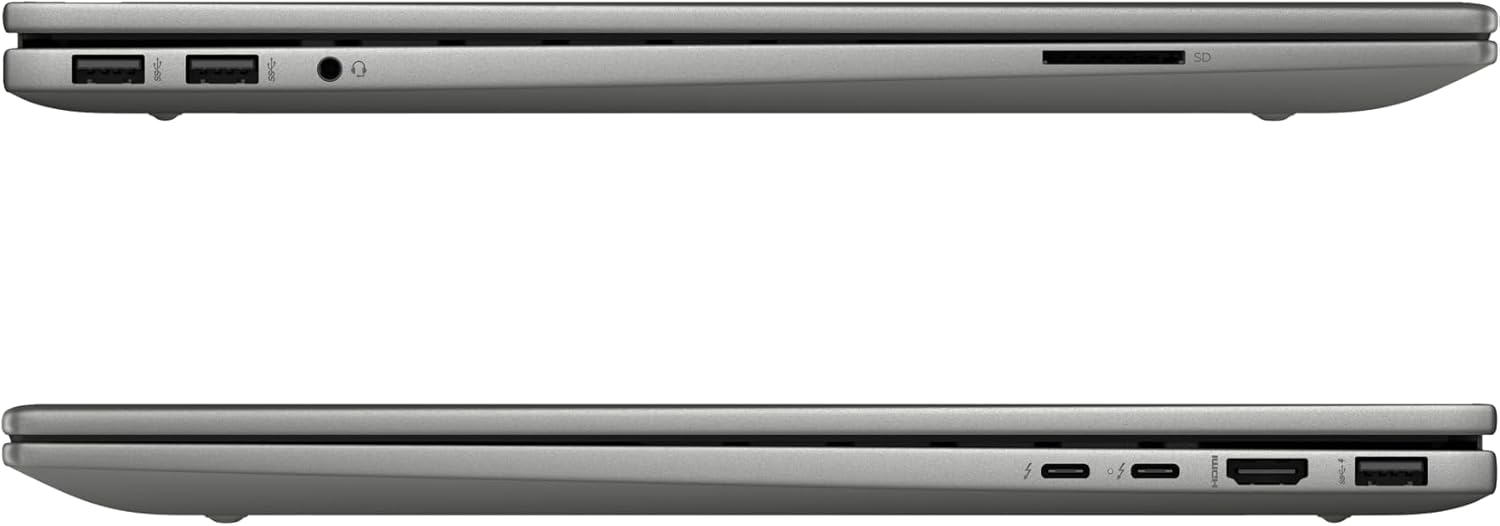
Image: Left side of the laptop, featuring two USB 3.2 Gen 2 ports, a headphone/microphone combo jack, and an SD card reader.
- Linkerkant:
- 2x USB 3.2 Gen 2 (10Gbps)
- 1x hoofdtelefoon/microfoon combo-aansluiting
- 1x SD-kaartlezer

Image: Right side of the laptop, featuring two USB-C Thunderbolt 4 ports, an HDMI 2.1 port, and one USB 3.2 Gen 2 port.
- Rechterkant:
- 2x USB-C Thunderbolt 4 / USB4 40Gbps (with Power Delivery and DisplayPort 1.4, Power-off Charging)
- 1x USB 3.2 Gen 2 (10Gbps, with Power-off Charging)
- 1x HDMI v2.1
3. Draadloze connectiviteit
- Wi-Fi 6E AX211 (2x2): Maak verbinding met draadloze netwerken voor internettoegang.
- Bluetooth 5.3: Pair with compatible Bluetooth devices such as headphones, speakers, or mice.
4. Webnokkenas
The HP Wide Vision 5MP IR camera includes a privacy shutter. Slide the shutter to cover the camera lens when not in use to ensure privacy.
Onderhoud
1. De laptop schoonmaken
- Gebruik een zachte, pluisvrije doek dampmet water of een schermreiniger om het scherm schoon te maken.
- Gebruik voor het toetsenbord en de behuizing een zachte, droge doek. Vermijd agressieve chemicaliën of schurende materialen.
- Gebruik periodiek perslucht om stof uit ventilatieopeningen en poorten te verwijderen.
2. Software-updates
Regularly check for and install updates for Windows 11 and HP drivers to ensure optimal performance and security. Access Windows Update through the Settings menu.
3. Batterijverzorging
- Zorg ervoor dat de batterij niet te vaak volledig ontladen wordt.
- Bewaar de laptop op een koele, droge plaats als u deze langere tijd niet gebruikt.
- Use only the provided 100W AC adapter for charging.
4. Opslagbeheer
The 1TB NVMe M.2 SSD provides fast storage. Regularly back up important data and manage files to maintain sufficient free space for system performance.
Probleemoplossing
Veelvoorkomende problemen en oplossingen
- Laptop start niet op: Ensure the AC adapter is securely connected and the battery has sufficient charge. Try a different power outlet.
- Weergaveproblemen: Als het scherm zwart blijft, probeer dan een externe monitor aan te sluiten om te controleren of het probleem bij het beeldscherm van de laptop ligt. Pas de beeldscherminstellingen in Windows aan.
- Geen wifi-verbinding: Check if Wi-Fi is enabled in Windows settings. Restart the laptop and your wireless router. Ensure drivers are up to date.
- Trage prestaties: Sluit onnodige applicaties, controleer op malware, zorg voor voldoende vrije opslagruimte en update stuurprogramma's.
Voor complexere problemen kunt u contact opnemen met de HP-ondersteuning. webwebsite of neem contact op met de klantenservice.
Specificaties
| Functie | Detail |
|---|---|
| Model | HP Envy 17-DA000 |
| Verwerker | Intel Core Ultra 7 155U (Up to 4.8 GHz, 12 Cores, 14 Threads) |
| Weergave | 17.3-inch FHD (1920 x 1080) LED-backlit Touchscreen, 60Hz, 300 nits, 45% NTSC |
| Grafisch | NVIDIA GeForce RTX 3050 4GB GDDR6 |
| Geheugen | 32 GB DDR5 SDRAM 5600 MHz |
| Opslag | 1TB SSD NVMe M.2 |
| Besturingssysteem | Windows 11 Startpagina |
| Toetsenbord | Verlicht toetsenbord met numeriek toetsenblok |
| Draadloze connectiviteit | Intel Wi-Fi 6E AX211 (2x2), Bluetooth 5.3 |
| Havens | 2x USB-C Thunderbolt 4, 3x USB 3.2 Gen 2, 1x HDMI v2.1, 1x Headphone/microphone combo, 1x SD Card Reader |
| Webnokkenas | HP Wide Vision 5MP IR camera with Privacy Shutter |
| Batterij | 55Wh lithium-ionbatterij |
| Afmetingen (LxBxH) | 15.59 x 10.18 x 0.77 inch |
| Gewicht | 5.55 pond |
| Kleur | Platina Zilver |
Garantie-informatie
Dit product wordt geleverd met een 12 maanden garantie. This warranty covers manufacturing defects and issues arising from normal use. Please retain your proof of purchase for warranty claims. The warranty does not cover damage caused by misuse, accidents, or unauthorized modifications.
Steun
If you require technical assistance, have questions about your laptop, or need to make a warranty claim, please contact our support team. You can find contact information on the official HP support webwebsite of via de documentatie die bij uw product is geleverd.
Voor online bronnen kunt u terecht op de volgende website: HP-ondersteuning Webplaats.