1. Inleiding
Thank you for choosing the Mecer 23.8 Inch Full HD LED Monitor. This manual provides essential information for setting up, operating, and maintaining your monitor. Please read it thoroughly before use to ensure proper functionality and longevity of your device.
This monitor features a 23.8-inch Full HD (1920 x 1080) display, offering crisp and clear visuals. It incorporates TFT LED panel technology for energy efficiency and vibrant colors, with a 16:9 aspect ratio suitable for widescreen viewing. Connectivity options include VGA and HDMI, making it compatible with various devices. Built-in speakers provide basic audio, and wide 178° viewing angles ensure comfortable use. With a 2ms response time, it is suitable for general computing and multimedia consumption.
2. Veiligheidsinformatie
- Energiebron: Gebruik uitsluitend de voedingsadapter die bij de monitor is geleverd. Zorg ervoor dat het stopcontact goed geaard is.
- Ventilatie: Blokkeer de ventilatieopeningen niet. Zorg voor voldoende ruimte rondom de monitor voor een goede luchtcirculatie om oververhitting te voorkomen.
- Plaatsing: Plaats de monitor op een stabiele, vlakke ondergrond. Vermijd direct zonlicht, warmtebronnen of omgevingen met veel stof of vochtigheid.
- Schoonmaak: Disconnect the power cord before cleaning. Use a soft, dry cloth for the screen and a slightly damp cloth for the casing. Vermijd het gebruik van schurende reinigingsmiddelen of oplosmiddelen.
- Vloeibare blootstelling: Keep liquids away from the monitor. If liquid enters the monitor, disconnect power immediately and contact qualified service personnel.
- demontage: Probeer de monitor niet zelf te demonteren of te repareren. Laat alle onderhoudswerkzaamheden uitvoeren door gekwalificeerd servicepersoneel.
3. Inhoud van het pakket
Controleer de inhoud van het pakket om er zeker van te zijn dat alle artikelen aanwezig zijn:
- Mecer 23.8 Inch LED Monitor
- Monitorstandaard (voet en nek)
- Voedingsadapter en kabel
- HDMI-kabel
- VGA-kabel
- Gebruikershandleiding (dit document)
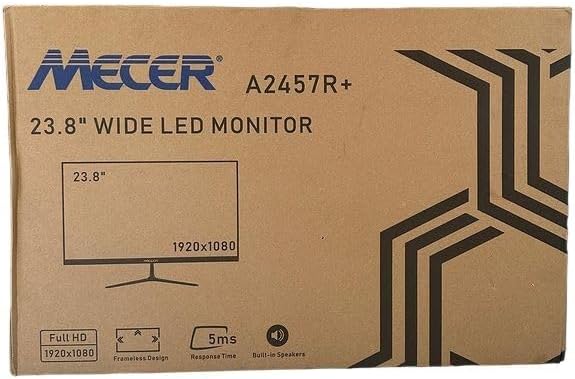
Afbeelding 3.1: The monitor packaging box, indicating the model A2457R+ and key features like 23.8" display, Full HD 1920x1080 resolution, frameless design, 5ms response time, and built-in speakers.
4. Instellen
4.1. De monitorstandaard monteren
- Haal de monitor en de standaard voorzichtig uit de verpakking.
- Bevestig de standaardhals aan het monitorpaneel door de lipjes uit te lijnen en stevig aan te drukken totdat deze vastklikt.
- Attach the stand base to the stand neck, securing it with the provided screw (usually hand-tightened).
- Plaats de gemonteerde monitor op een stabiel, vlak oppervlak.

Afbeelding 4.1: Voorkant view of the Mecer 23.8 Inch LED Monitor with its stand assembled, ready for connection.
4.2. Verbinding maken met een computer
De monitor ondersteunt zowel HDMI- als VGA-aansluitingen. Kies de juiste kabel voor uw computer.
- HDMI-aansluiting: Connect one end of the HDMI cable to the HDMI port on your computer's graphics card and the other end to the HDMI port on the monitor. HDMI transmits both video and audio signals.
- VGA-aansluiting: Connect one end of the VGA cable to the VGA port on your computer's graphics card and the other end to the VGA port on the monitor. VGA transmits only video signals.

Afbeelding 4.2: Achterkant view of the Mecer 23.8 Inch LED Monitor, showing the input ports including HDMI and VGA, as well as the power input.
4.3. Stroomaansluiting
- Connect the power adapter cable to the DC IN port on the back of the monitor.
- Sluit de stroomadapter aan op een stopcontact.
5. Gebruiksaanwijzing
5.1. In-/uitschakelen
Press the power button, typically located on the bottom right side or rear of the monitor, to turn the monitor on or off. The power indicator light will illuminate when the monitor is on.
5.2. Selectie ingangsbron
If you have multiple devices connected, you may need to manually select the input source. Use the monitor's control buttons (usually located near the power button) to navigate to the input selection menu and choose between HDMI or VGA.
5.3. OSD-menu (On-Screen Display)
The OSD menu allows you to adjust various display settings. Use the monitor's control buttons to:
- Open het OSD-menu.
- Navigate through menu options (e.g., Brightness, Contrast, Color Settings, Input Source).
- Adjust values or select options.
- Verlaat het OSD-menu.
Veelvoorkomende instelbare opties zijn onder andere:
- Helderheid/contrast: Pas de algehele helderheid en het verschil tussen lichte en donkere gebieden aan.
- Kleurinstellingen: Adjust color temperature, RGB values, or select preset color modes.
- Beeldverhouding: Change between 16:9, 4:3, or other available options.
- Geluid: Adjust volume for the built-in speakers.
5.4. Ingebouwde luidsprekers
The monitor includes built-in speakers for basic audio output. If using an HDMI connection, audio will be transmitted automatically. For VGA connections, ensure your computer's audio output is configured correctly. Adjust the volume through the OSD menu or your computer's operating system.
6. Onderhoud
6.1. De monitor schoonmaken
- Haal altijd de stekker van de monitor uit het stopcontact voordat u hem schoonmaakt.
- Scherm: Veeg het scherm voorzichtig af met een zachte, pluisvrije doek. Bij hardnekkige vlekken lichtjes afnemen.ampMaak de doek nat met water of een speciale schermreiniger (zorg ervoor dat deze alcohol- en ammoniakvrij is) en veeg voorzichtig. Spuit geen vloeistof rechtstreeks op het scherm.
- Casing: Gebruik een zachte, droge doek om de monitor schoon te vegenasing. Indien nodig, een licht damp Je kunt een doek gebruiken, gevolgd door een droge doek.
6.2. Opslag
Als u de monitor voor langere tijd opbergt, koppel dan alle kabels los, pak hem in de originele verpakking (indien beschikbaar) en bewaar hem op een koele, droge plaats, uit de buurt van direct zonlicht en extreme temperaturen.
7. Probleemoplossing
Als u problemen ondervindt met uw monitor, raadpleeg dan de volgende veelvoorkomende problemen en oplossingen:
- Geen stroom:
- Zorg ervoor dat de stroomkabel goed is aangesloten op de monitor en op het stopcontact.
- Controleer of het stopcontact werkt door er een ander apparaat op aan te sluiten.
- Controleer of de voedingsadapter goed werkt.
- Geen signaal:
- Zorg ervoor dat de videokabel (HDMI of VGA) stevig is aangesloten op zowel de monitor als de computer.
- Verify that the correct input source is selected on the monitor (via the OSD menu).
- Controleer of uw computer is ingeschakeld en een videosignaal uitzendt.
- Probeer indien mogelijk een andere videokabel.
- De afbeelding is wazig of vervormd:
- Zorg ervoor dat de resolutie van de monitor is ingesteld op de native resolutie (1920 x 1080) in de beeldscherminstellingen van uw computer.
- Adjust the monitor's OSD settings for brightness, contrast, and sharpness.
- For VGA connections, use the 'Auto Adjust' function in the OSD menu if available.
- Geen geluid uit de ingebouwde luidsprekers:
- Zorg ervoor dat het volume van de monitor niet is gedempt of te laag is ingesteld in het OSD-menu.
- Controleer de audio-uitvoerinstellingen van uw computer om er zeker van te zijn dat de monitor is geselecteerd als afspeelapparaat.
- If using VGA, ensure your computer's audio is routed to an external speaker system, as VGA does not carry audio.
8. Specificaties
| Functie | Specificatie |
|---|---|
| Merk | Mecer |
| Modelnummer | A2457R+ |
| Weergaveformaat | 23.8 inch |
| Oplossing | 1920 x 1080 pixels (Full HD) |
| Weergavetype | LED (TFT LED Panel) |
| Beeldverhouding | 16:9 |
| Reactietijd | 2 milliseconden |
| Vernieuwingsfrequentie | 75Hz |
| Viewing hoeken | 178° horizontaal / 178° verticaal |
| Connectiviteit | 1x HDMI, 1x VGA |
| Ingebouwde luidsprekers | Ja |
| Kleur | Zwart |
| Productafmetingen (D x B x H) | 560D x 42W x 410H millimetres |
| Speciale kenmerken | High performance intelligent multi-frequency scanning, Micro Computer digital technology control, no radiation, no glare, Comply with VESA DPMS international power saving regulation, Support DDC 1/2B and Windows PNP Plug and Play |
9. Garantie en ondersteuning
This Mecer monitor comes with a 1 jaar beperkte garantie Vanaf de aankoopdatum. Bewaar uw aankoopbewijs voor garantieclaims.
For technical support, service, or warranty inquiries, please contact your retailer or the authorized Mecer service center in your region. Do not attempt to repair the product yourself, as this may void your warranty.


