1. Inleiding
This manual provides comprehensive instructions for the setup, operation, maintenance, and troubleshooting of your MAXHUB Interactive Flat Panel 75". Please read this manual thoroughly before using the product to ensure proper functionality and safety.

Figuur 1.1: Voorzijde view of the MAXHUB Interactive Flat Panel 75". This image shows the large display screen with a digital clock and icons for folders, settings, notes, and more, indicating its interactive capabilities.
2. Veiligheidsinformatie
Houd u altijd aan de volgende veiligheidsrichtlijnen om schade aan het product of letsel aan uzelf en anderen te voorkomen:
- Do not expose the panel to water or excessive humidity.
- Ensure proper ventilation around the panel.
- Gebruik alleen de voedingsadapter die bij het apparaat is geleverd.
- Avoid placing heavy objects on the panel.
- Schakel de stroom uit voordat u het apparaat reinigt of onderhoudt.
3. Productcomponenten en -kenmerken
The MAXHUB Interactive Flat Panel 75" is designed with several key features for enhanced usability and durability.
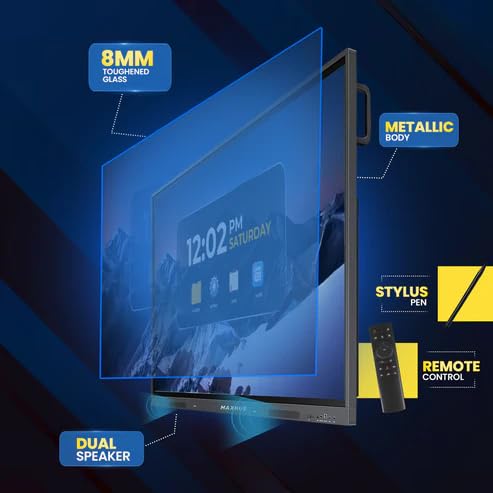
Figuur 3.1: Geëxplodeerd view diagram highlighting key components. This image illustrates the 8mm toughened glass, metallic body, dual speakers, stylus pen, and remote control that come with the interactive flat panel.
- 8mm Toughened Glass: Provides durability and protection for the display.
- Metalen behuizing: Ensures structural integrity and a premium finish.
- Dubbele luidsprekers: Levert heldere audio-uitvoer.
- Stylus pen: For precise interaction and writing on the screen.
- Afstandsbediening: Voor comfortabele bediening op afstand.
Figuur 3.2: Zijkant view detailing connectivity options. This image shows the power supply input, VGA connection, OPS slot, connecting port, and front connectors for easy access.
- OPS-slot: For integrating an optional OPS (Open Pluggable Specification) module.
- VGA-aansluiting: For traditional video input.
- Voeding: Hoofdvoedingsingang.
- Front Connectors: Easily accessible ports for peripherals.
4. Installatie en installatie
Follow these steps for proper installation of your MAXHUB Interactive Flat Panel:
- Uitpakken: Carefully remove the panel from its packaging. Retain all packaging materials for future transport or storage.
- Montage: Securely mount the panel using a compatible VESA wall mount or floor stand (sold separately). Ensure the mounting surface can support the weight of the panel.
- Stroom aansluiten: Connect the power cable to the panel's power input and then to a grounded electrical outlet.
- Randapparatuur aansluiten: Connect any necessary peripherals such as computers, cameras, or external storage devices to the appropriate ports (HDMI, USB, USB Type-C). The versatile USB Type-C integrates 65-watt power charge, video, audio, touch, and internet access features into one interface.
- Eerste keer inschakelen: Press the power button on the panel or remote control to turn on the device.
5. Gebruiksaanwijzing
The MAXHUB Interactive Flat Panel offers a user-friendly interface and advanced features for various applications.
5.1 Basisbediening
- Aan/uit: Use the power button on the panel or remote.
- Bronselectie: Navigate through input sources (HDMI, VGA, OPS) using the input button on the remote or on-screen menu.
- Aanraakinteractie: Use your finger or the provided stylus for direct interaction with the screen. The panel features less than 40ms writing latency for a natural writing experience.
5.2 Geavanceerde functies
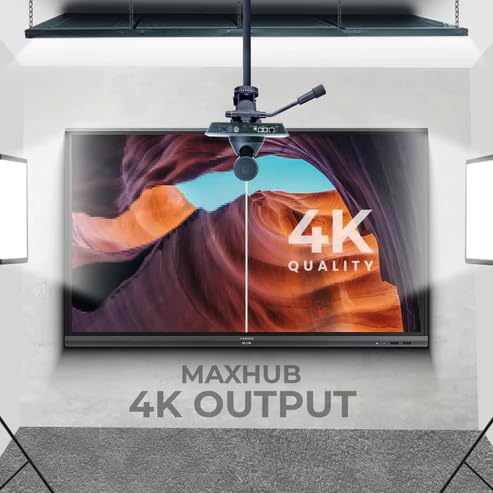
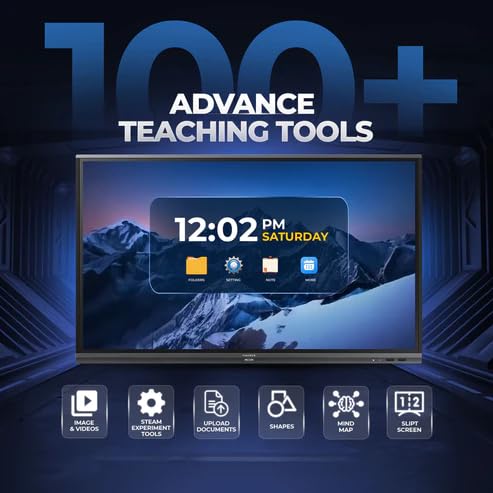
Figure 5.1: Display showing a variety of advanced teaching tools. This image highlights features like image and video integration, STEAM experiment tools, document upload, shapes, mind mapping, and split screen functionality.
- Professional 4K Display: Experience high color accuracy (AE≤2) and NTSC 72% wide color gamut for vivid visuals.
- Pre-installed Course Delivery Apps: Utilize built-in applications and widgets for productive teaching and presentations.
- Oogzorgtechnologie: Features TUV Low Blue light and TUV Flicker-free with an ambient light sensor and anti-glare glass to reduce eye strain.
- Responsive Hardware: Equipped with a powerful built-in 2.0Ghz quad-core CPU and 4GB RAM, along with a high-speed 1000Base-T network adapter for smooth performance.
- Hygiënisch ontwerp: Incorporates SGS-certified antibacterial components for a cleaner environment.

Figure 5.2: The interactive flat panel being used in a hybrid teaching environment. This image demonstrates its suitability for both in-person and online educational settings.
6. Onderhoud en verzorging
Regular maintenance ensures the longevity and optimal performance of your interactive flat panel.
- Het scherm schoonmaken: Gebruik een zachte, pluisvrije doek die lichtjes is schoongemaakt.ampened with a non-abrasive, screen-safe cleaner. Do not spray cleaner directly onto the screen.
- Het lichaam reinigen: Wipe the exterior with a dry, soft cloth. Avoid harsh chemicals.
- Ventilatie: Zorg ervoor dat de ventilatieopeningen vrij zijn van stof en vuil om oververhitting te voorkomen.
- Software-updates: Periodically check for and install software updates to ensure optimal performance and security.
7. Probleemoplossing
This section addresses common issues you might encounter with your MAXHUB Interactive Flat Panel.
| Probleem | Mogelijke oorzaak | Oplossing |
|---|---|---|
| Geen stroom | Stroomkabel losgekoppeld; probleem met stopcontact. | Controleer de aansluiting van het netsnoer. Probeer een ander stopcontact. |
| Geen weergave | Incorrect input source selected; Cable connection issue. | Verify input source; Check HDMI/VGA/USB-C cable connections. |
| Touchscreen reageert niet | Calibration needed; Software glitch. | Recalibrate touchscreen via settings; Restart the panel. |
| Slechte beeldkwaliteit | Resolution mismatch; Dirty screen. | Adjust display resolution on connected device; Clean the screen. |
8. Technische specificaties
| Functie | Specificatie |
|---|---|
| Merk | MAXHUB |
| Modelnummer | MaxHub Interactive Flat Panel 75" | OPS |
| Weergaveformaat | 75 inch |
| Weergavetechnologie | LCD |
| Weergaveresolutie | 3840x2160 (4K UHD) |
| Reactietijd | 40 milliseconden |
| CPU | 2.0Ghz Quad-core |
| RAM | 4GB |
| Connectiviteit | Wi-Fi, USB Type-C, HDMI, USB 3.0 |
| Speciale kenmerken | Ultrawide Screen, TUV Low Blue Light, TUV Flicker-free, Anti-glare glass, SGS-certified antibacterial components |
| Pakket afmetingen | 180x114x20cm |
9. Garantie-informatie
The MAXHUB Interactive Flat Panel 75" comes with a standard manufacturer's warranty. Please refer to the warranty card included with your product for specific terms and conditions, including coverage duration and limitations.
An extended warranty option may be available. For details, please contact your retailer or visit the official MAXHUB webplaats.
10. Klantenservice
For technical assistance, service, or further inquiries, please contact MAXHUB customer support through the following channels:
- Webwebsite: Visit the official MAXHUB webWebsite met veelgestelde vragen, stuurprogramma's en ondersteuningsbronnen.
- E-mailadres: Refer to your product documentation for the support email address.
- Telefoon: Contact the customer service hotline provided in your product's packaging.
When contacting support, please have your product model number (MaxHub Interactive Flat Panel 75" | OPS) and serial number ready.


