1. Inleiding
Bedankt voor uw aankoopasing the WiMiUS S27 Pro Mini Projector. This manual provides detailed instructions for setting up, operating, and maintaining your projector to ensure optimal performance and longevity. The S27 Pro features 4K support, 1080P native resolution, 18000LM brightness, 270° rotation, automatic keystone correction, Wi-Fi 6, and Bluetooth 5.3 connectivity, offering a versatile and immersive viewervaring.
2. Veiligheidsinformatie
- Kijk niet rechtstreeks in de projectorlens als de lamp is aan, omdat het oogletsel kan veroorzaken.
- Zorg voor voldoende ventilatie rond de projector om oververhitting te voorkomen. Blokkeer de ventilatieopeningen niet.
- Gebruik uitsluitend de stroomadapter die bij de projector is geleverd.
- Houd de projector uit de buurt van water, vocht en extreme temperaturen.
- Probeer de projector niet zelf te demonteren of te repareren. Neem contact op met gekwalificeerd servicepersoneel voor hulp.
- Houd de projector buiten bereik van kinderen.
3. Product voorbijview
3.1. Componenten en poorten
The WiMiUS S27 Pro Mini Projector is designed for portability and ease of use. It features a compact design with various ports for connectivity.

Afbeelding: Achterkant view of the WiMiUS S27 Pro Projector, highlighting the HDMI, USB, and Audio ports for connecting various devices.
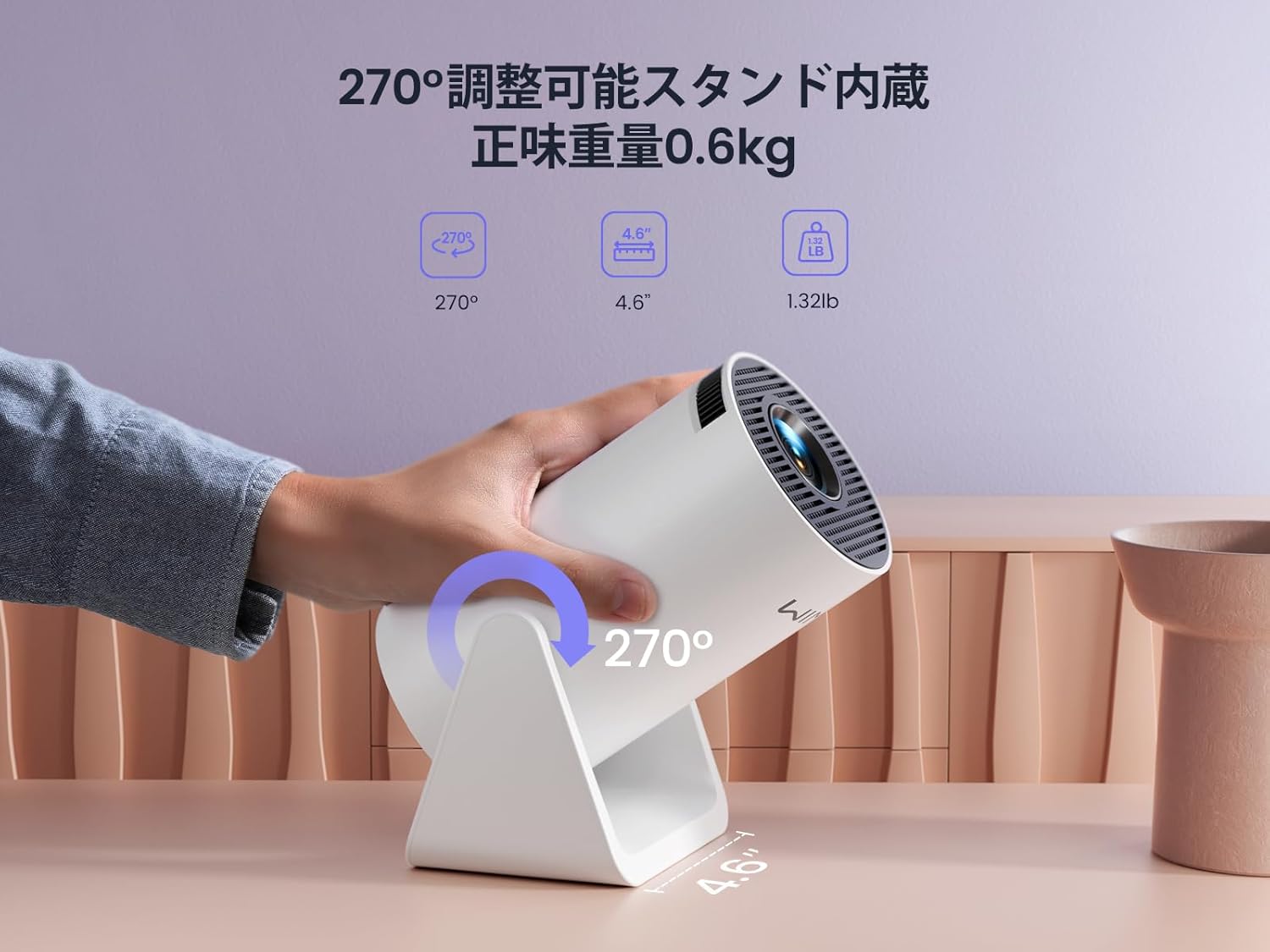
Image: The WiMiUS S27 Pro Projector on its integrated 270° adjustable stand, demonstrating its flexible projection angles and compact size (0.6kg).
4. Instellen
4.1. Plaatsing
The S27 Pro's 270° rotatable stand allows for flexible placement, including ceiling projection. Position the projector between 0.8 meters and 5 meters from the projection surface to achieve a screen size of 40 to 200 inches.

Image: The projector displaying an image on a wall, demonstrating its automatic vertical keystone correction feature for a perfectly rectangular picture.
4.2. Stroomaansluiting
Connect the provided power adapter to the projector's DC input port and then plug it into a power outlet.
4.3. Eerste keer inschakelen
Press the power button on the projector or the remote control to turn on the device. The projector will display the main menu.
4.4. Focus- en Keystone-correctie
- Automatische verticale trapeziumcorrectie: The projector automatically corrects vertical image distortion.
- Handmatige scherpstelling: Stel de scherpstelring op de projectorlens zo af dat het beeld scherp is.
- Digitale zoom: Use the remote control to adjust the image size from 85% to 100% to fit your screen.

Image: A projected image demonstrating the 85% to 100% zoom function, allowing adjustment for various room sizes.
5. Gebruiksaanwijzing
5.1. Navigatie
Use the remote control to navigate through the projector's menu and select desired functions.
5.2. Wifi verbinding
The S27 Pro supports ultra-fast Wi-Fi 6 (5G and 2.4G dual-band) for stable and quick streaming.
- From the homepage, select "Set" (Settings).
- Enter the "WiFi" menu and turn on the WiFi function.
- Wait for the projector to detect available WiFi networks.
- Select your home WiFi network and enter the password to connect.

Image: The projector's interface displaying options for Wi-Fi 6 and Bluetooth 5.3, indicating advanced wireless connectivity.
5.3. Bluetooth-verbinding
The built-in Bluetooth 5.3 chip allows connection to headphones, speakers, and AirPods for enhanced audio.
- From the homepage, select "Set" (Settings).
- Enter the "BT Model" (Bluetooth) menu and turn on Bluetooth.
- Zoeken naar available Bluetooth devices and select your device to pair.

Image: The WiMiUS S27 Pro Projector connected wirelessly to headphones and a smart speaker via Bluetooth 5.2, illustrating its audio connectivity options.
5.4. Schermspiegeling
Mirror your smartphone, tablet, or PC screen wirelessly to the projector.
- From the homepage, select "Mirroring".
- Choose "Wireless screen" for wireless mirroring.
- Voor iOS-apparaten: Connect your iPhone to the same Wi-Fi network as the projector. Open Control Center, tap "Screen Mirroring", and select the projector from the list (e.g., "VB6_3AF9_itv").
- Voor Android-apparaten: Connect your Android device to the same Wi-Fi network as the projector. Open the screen mirroring function (often called "Smart View", "Cast", "Wireless Display", etc.) and select the projector.

Image: A smartphone wirelessly mirroring its screen content to the WiMiUS S27 Pro Projector, demonstrating the seamless screen mirroring function.
Video: iPhone Screen Mirroring Method
Video: This video demonstrates the steps to connect your iPhone to the WiMiUS S27 Pro Projector using the screen mirroring function.
5.5. Externe apparaten aansluiten
The projector supports various wired connections:
- HDMI: Connect devices like TV Sticks, PS5, Switch, iPad, or PCs.
- USB-poort: Connect USB drives or smartphones for media playback.
- 3.5 mm audio-uitgang: Connect external speakers, headphones, or earphones.
Video: Connecting with TV Stick
Video: This video illustrates how to connect a TV Stick to the WiMiUS S27 Pro Projector via the HDMI port for streaming content.
6. Onderhoud
- Lensreiniging: Gebruik een zachte, pluisvrije doek en een lensreinigingsvloeistof om de lens voorzichtig af te vegen. Vermijd schurende materialen.
- Ventilatie: Regularly check and clean the ventilation openings to prevent dust buildup, which can affect performance and lead to overheating. The projector features a dustproof design to minimize internal dust accumulation.
- Software-updates (OTA): The projector supports Online Over-The-Air (OTA) updates. Check for new firmware versions in the settings menu to ensure your device has the latest features and improvements.
7. Probleemoplossing
- Afbeelding is wazig: Adjust the manual focus ring on the lens. Ensure the projector is within the recommended projection distance (0.8m-5m).
- Geen signaal: Check if the correct input source (HDMI, USB) is selected. Verify all cables are securely connected.
- Problemen met de wifi-/bluetoothverbinding: Ensure the projector and your device are connected to the same Wi-Fi network. Restart both devices and try reconnecting.
- Cannot play copyrighted content (Netflix, Prime Video, Hulu): Due to copyright restrictions, these apps cannot be mirrored directly from a smartphone. Use an external streaming device like a TV Stick or Roku connected via HDMI.
- Oververhitting: Ensure the projector has adequate ventilation and that the vents are not blocked. Allow the projector to cool down if it becomes excessively hot.
- Image distortion: The projector features automatic vertical keystone correction. If horizontal distortion occurs, adjust the projector's physical position.
8. Specificaties
| Merk | WiMiUS |
| Model | S27 Pro |
| Productgrootte | 9x11x17cm |
| Gewicht | 600 gram |
| Oorspronkelijke resolutie | 1920 x 1080 (volledig HD) |
| Ondersteunde resolutie | Tot 3840 x 2160 (4K) |
| Helderheid | 18000LM (400 ANSI) |
| Connectiviteit | Wi-Fi 6 (5G/2.4G), Bluetooth 5.3, HDMI, USB, 3.5mm Audio Out |
| Projectieverhouding | 1.26:1 (korte worp) |
| Projectiegrootte | 40-200 inch |
| Keystone Correctie | Automatic Vertical |
| Zoom-functie | 50% Digital Zoom (85%-100%) |
| Stroomverbruik | 59.99 W |
9. Garantie en ondersteuning
The WiMiUS S27 Pro Mini Projector comes with a 3 jaar garantie. If you encounter any issues or have questions regarding your product, please contact our customer support team. For technical assistance or warranty claims, refer to the contact information provided in your purchase documentation or visit the official WiMiUS webplaats.