1. Product voorbijview
The Google Nest Hub 7” Smart Display 2nd Generation is designed to be the central hub of your helpful home. It offers a seamless way to manage your smart devices, enjoy entertainment, and stay organized. Its compact design and subtle charcoal grey color allow it to blend into any room, whether it's the kitchen, living room, or bedroom.

Figuur 1: Voorzijde view of the Google Nest Hub 2nd Generation, showcasing zijn weergave.
Belangrijkste kenmerken:
- Entertainmenthub: Play music, catch up on your favorite shows and videos from services like Netflix and YouTube, and listen to podcasts and audiobooks on the enhanced speaker.
- Slimme huisbediening: Control your compatible lights, TVs, and other smart devices with a simple tap on the screen or using your voice with Google Assistant.
- Family Connection: Broadcast messages across your home, chat from room to room, and make Duo audio calls to keep everyone in sync.
- Personal Organizer: View your calendar, create reminders and to-do lists, and get quick answers to your questions.
- Slaap bijhouden: With Nest Hub on your bedside table, Sleep Sensing can track your sleep patterns, including when you go to bed, when you wake up, and how long you've slept.
- Privacyfuncties: Easily turn off the microphone at any time with the mic switch and clear your Google Assistant history whenever desired.
2. Instellen
Before setting up your Google Nest Hub, ensure you have a stable Wi-Fi network, a nearby electrical outlet, and a compatible mobile device (Android or iOS) with the Google Home app installed.
Initiële installatiestappen:
- Inschakelen: Plug your Nest Hub into a nearby electrical outlet using the provided power cable. The device will power on automatically.
- Download de Google Home-app: If you haven't already, download the Google Home app from your mobile device's app store.
- Apparaat toevoegen: Open the Google Home app and follow the on-screen prompts to add a new device. Select your Nest Hub from the list of nearby devices.
- Scan QR-code: The app may prompt you to scan a QR code displayed on your Nest Hub's screen. This helps in quickly connecting and configuring the device.
- Verbinden met wifi: Follow the instructions in the Google Home app to connect your Nest Hub to your home Wi-Fi network. Ensure you select the correct network and enter the password accurately.
- Volledige configuratie: The app will guide you through personalizing settings, linking your Google account, and setting up voice match.
- Software-updates: Allow the Nest Hub to download and install any available software updates. This may require a reboot.
If the device starts in a foreign language, adding it through the Google Home app and scanning the QR code should automatically correct the language setting to English. If you experience issues connecting to Wi-Fi or the device freezes during the initial tour, try rebooting the Nest Hub via the Google Home app and allowing it to update.
3. Gebruiksaanwijzing
The Google Nest Hub is designed for intuitive voice and touch control. Here's how to get the most out of your device:
Voice Commands with Google Assistant:
- To activate Google Assistant, simply say "Hey Google" or "Ok Google".
- Slimme huisbediening: "Hey Google, turn off the living room lights." "Ok Google, set the thermostat to 72 degrees."
- Vermaak: "Hey Google, play jazz music." "Ok Google, play The Office on Netflix." "Hey Google, play the latest news."
- Information & Organization: "Ok Google, what's the weather like today?" "Hey Google, set a timer for 10 minutes." "Ok Google, add milk to my shopping list."
Touchscreen-navigatie:
- Naar beneden swipen: Access quick settings and controls for brightness, volume, Do Not Disturb, and more.
- Omhoog scrollen: View notifications and recent activities.
- Veeg naar links/rechts: Navigate through different cards on the home screen, such as Your Morning, Home Control, Media, and Communicate.
- Home Control Dashboard: Tap the "Home control" tab to access a visual dashboard for managing all your connected smart devices, including lights, cameras, speakers, and climate control.
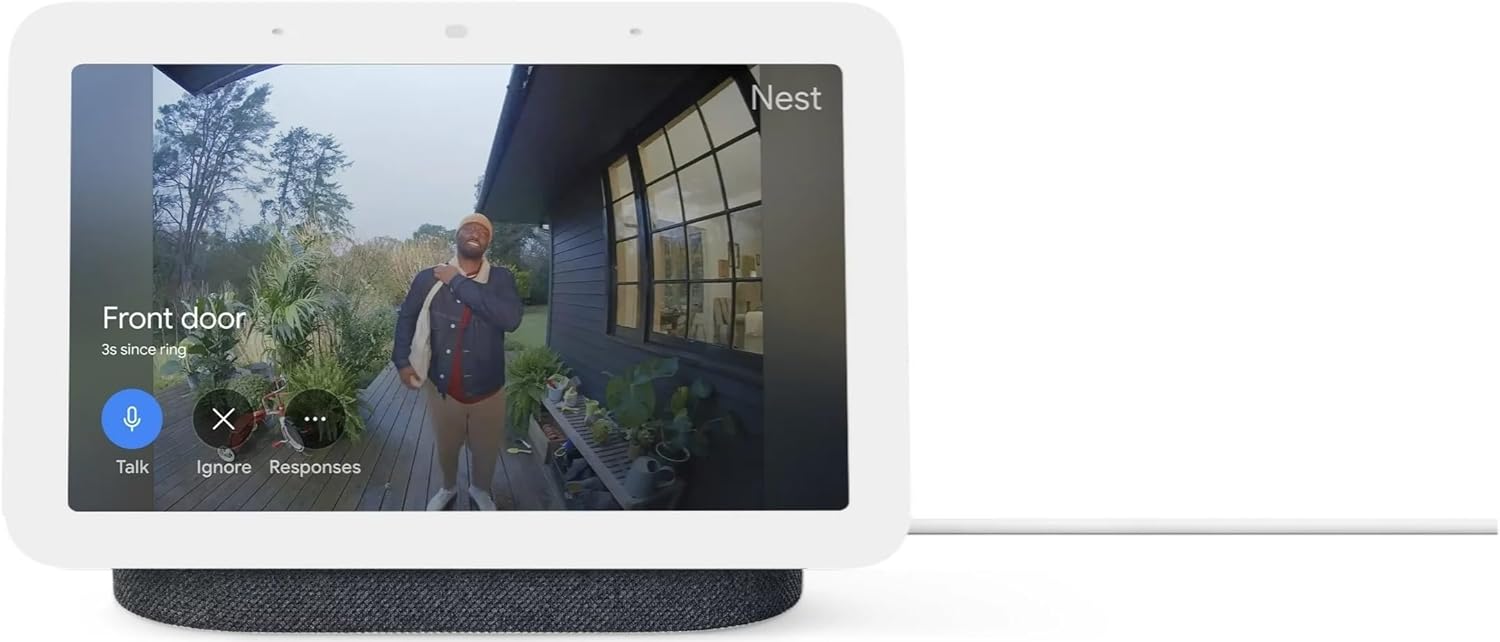
Figure 2: The Nest Hub displaying a live feed from a connected doorbell camera, allowing for visual monitoring and interaction.
Specifieke functies:
- Videogesprekken: Use Google Duo for video calls. The built-in camera allows for clear communication.
- Kitchen Companion: Follow step-by-step recipes, set multiple timers, and watch instructional cooking videos hands-free.
- Photo Frame: Display your favorite photos from Google Photos when not in active use.
- Sleep Sensing: Place the Nest Hub on your bedside table to utilize Sleep Sensing technology, which tracks your sleep without requiring wearables.
4. Onderhoud
To ensure the longevity and optimal performance of your Google Nest Hub, follow these simple maintenance guidelines:
- Het scherm schoonmaken: Gebruik een zachte, pluisvrije doek, licht dampened with water, to gently wipe the screen. Avoid using abrasive cleaners, solvents, or aerosol sprays, as they can damage the display.
- Cleaning the Fabric Base: For the charcoal grey fabric base, use a dry, soft brush or a lint roller to remove dust and debris. For minor stains, a slightly damp cloth with mild soap can be used, but ensure the fabric is not oversaturated.
- Afstoffen: Regularly dust the device, especially around the speaker grille and ports, to prevent dust buildup that could affect performance.
- Plaatsing: Place the Nest Hub on a stable, flat surface away from direct sunlight, heat sources, and excessive moisture. Ensure adequate ventilation around the device.
- Software-updates: Keep your device's software updated. Updates often include performance improvements and bug fixes. The Nest Hub typically updates automatically when connected to Wi-Fi.
5. Probleemoplossing
If you encounter issues with your Google Nest Hub, try the following troubleshooting steps:
Veelvoorkomende problemen en oplossingen:
- Device Not Responding / Frozen Screen:
- Oplossing: Reboot the device. You can do this by unplugging it from the power outlet, waiting for 10 seconds, and then plugging it back in. Alternatively, use the Google Home app to remotely reboot the device.
- Problemen met de Wi-Fi-verbinding:
- Oplossing: Ensure your Wi-Fi network is active and within range. Try moving the Nest Hub closer to your router. Check if other devices can connect to the Wi-Fi. If issues persist, try restarting your Wi-Fi router.
- Onjuiste taal weergegeven:
- Oplossing: This can occur during initial setup. Use the Google Home app on your mobile device to add the Nest Hub and scan the QR code displayed on its screen. The app will guide you to set the correct language.
- Google Assistent reageert niet:
- Oplossing: Ensure the microphone switch on the back of the device is not turned off. Check your internet connection. Try re-calibrating your voice match in the Google Home app.
- Problemen met audiokwaliteit:
- Oplossing: Check the volume level on the device and in the Google Home app. Ensure there are no obstructions blocking the speakers.
Raadpleeg de ondersteuningspagina van Google Nest voor verdere hulp. webwebsite of neem contact op met de klantenservice.
6. Specificaties
Detailed technical specifications for the Google Nest Hub 7” Smart Display 2nd Generation:
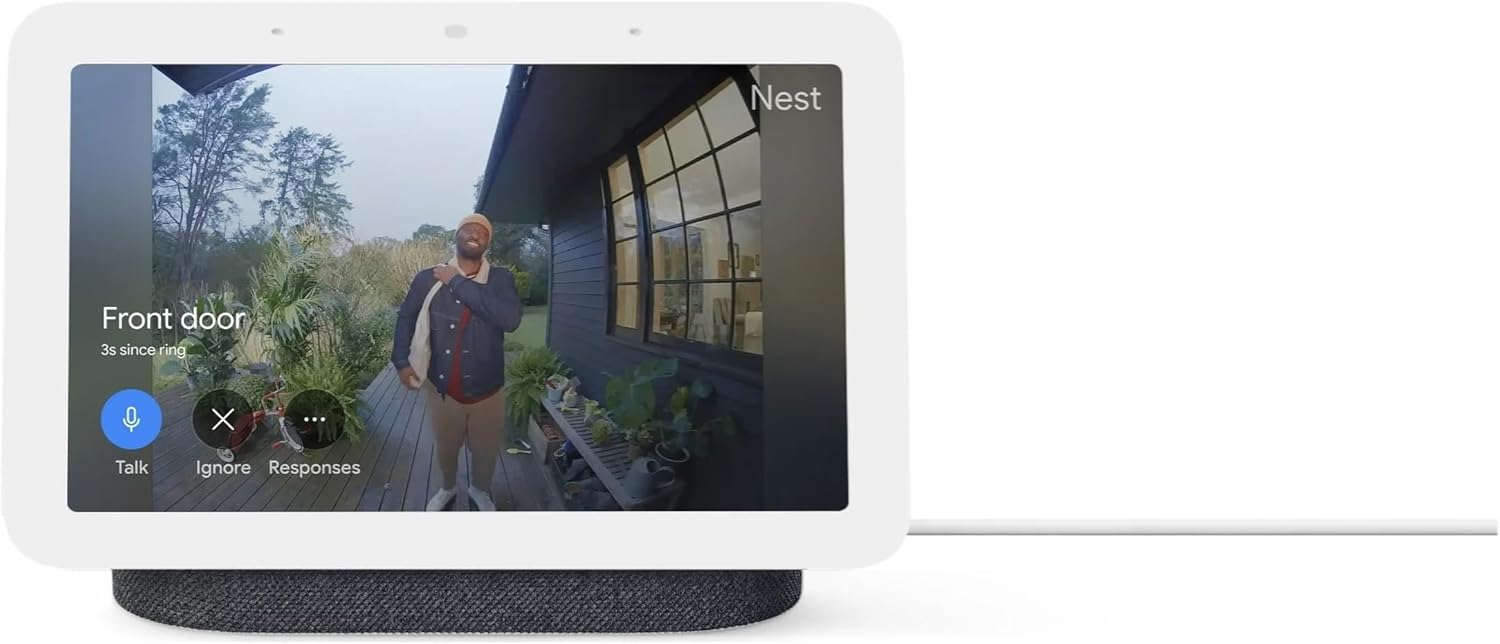
Afbeelding 3: Achterkant en zijkant views of the Google Nest Hub 2nd Generation, highlighting its design and fabric base.
| Functie | Detail |
|---|---|
| Fabrikant | |
| Onderdeelnummer | GA01892-VS |
| Artikelgewicht | 2.25 pond |
| Productafmetingen | 4 x 4 x 2 inch |
| Artikelmodelnummer | GUIK2-GA01892INTL |
| Kleur | Grijs |
| Energiebron | Elektrische kabel |
| Hoeveelheid artikelpakket | 1 |
| Montagetype | Tafelblad |
| Speciale kenmerken | Bluetooth |
| Meegeleverde componenten | Power Cable and Quick Start Guide |
| Batterijen inbegrepen? | Nee |
| Zijn batterijen nodig? | Nee |
| Datum eerste beschikbaarheid | 2 januari 2023 |
7. Garantie en ondersteuning
Garantie-informatie:
The Google Nest Hub 7” Smart Display 2nd Generation comes with a 90 dagen garantie Vanaf de aankoopdatum. Deze garantie dekt materiaal- en fabricagefouten bij normaal gebruik. Bewaar uw aankoopbewijs voor garantieclaims.
Klantenservice:
For technical support, troubleshooting assistance beyond this manual, or warranty inquiries, please visit the official Google Nest support website or contact Google customer service directly. You can find contact information and detailed support resources on the Google support portal.


