Product voorbijview
The VIISAN DL8 is an innovative document scanner designed for efficiency and high-quality capture. It features a 13MP camera, asymmetric lighting technology, and powerful scanning software compatible with both Windows and macOS. This device is ideal for scanning documents, books, and for use in remote learning environments.

The VIISAN DL8 document scanner positioned over a scanning mat with documents, showcasing its compact design and readiness for use.
Belangrijkste kenmerken
- Excellent Scanning Quality: 13MP super high-resolution output (4208x3156 pixels) for detailed captures.
- Powerful Scanning Software: VIISAN OfficeCam software offers automatic flattening of curled pages, finger image erasure, background purification, and automatic page splitting.
- OCR Capabilities: Convert scanned documents or books into searchable PDF or editable Word, Excel, and Text formats with its embedded OCR engine.
- Unique Text to Speech (TTS): Assistive technology for word-by-word reading and listening to any document, beneficial for users with dyslexia or for language learning.
- Full Lighting Coverage: Innovative asymmetric LED lighting evenly illuminates the scanning area, reducing reflections and ensuring clear visibility in low-light conditions.
- Desk Saving Design: Compact short-arm design and triangular base save valuable desk space.
- Distance Learning Ready: UVC/UAC compliant, allowing live demonstrations of physical objects via third-party video conferencing software like Zoom, Google Meet, and Microsoft Teams.

The compact design of the VIISAN DL8, highlighting its short camera arm (118mm) and stable triangular base, designed to save desk space.
Installatiehandleiding
Follow these steps to set up your VIISAN DL8 Document Scanner:
- Inhoud uitpakken: Carefully remove the DL8 Document Camera, USB cable, Scan Pad, and Quick Start Guide from the packaging.
- Positioneer de scanner: Place the DL8 scanner on a stable, flat surface. Ensure there is enough space for the scan pad and documents.
- Verbinden met computer: Connect the provided USB cable from the DL8 scanner's USB Type-C port to an available USB port on your Windows or macOS computer.
- Installeer de software: Download and install the VIISAN OfficeCam scanning software from the official VIISAN website. Refer to the Quick Start Guide for specific download instructions.
- Place Scan Pad: Position the included scan pad directly under the scanner's camera, ensuring it is centered and flat.

The VIISAN DL8 scanner connected to a laptop, illustrating its compatibility with both Windows and macOS operating systems.
Gebruiksaanwijzing
Once set up, you can begin using your VIISAN DL8 for various scanning tasks:
- Lanceringssoftware: Open the VIISAN OfficeCam software on your computer.
- Plaats document: Place the document or book you wish to scan on the scan pad, ensuring it is within the camera's view.
- Verlichting aanpassen: If needed, press the LED touch button on the scanner to activate the built-in high-brightness LED light. It features 3-level brightness control for optimal illumination.
- Scannen: Use the software interface to initiate the scan. The software will automatically process the image, including features like auto-flattening for curled pages and deskewing.
- Gebruik OCR: After scanning, you can use the embedded OCR engine to convert the image into editable text formats (Word, Excel, Text) or searchable PDFs.
- Tekst-naar-spraak: For accessibility or learning, activate the Text-to-Speech feature within the software to have the scanned document read aloud.
- Samenwerking op afstand: For live demonstrations or remote learning, the DL8's UVC/UAC compliance allows seamless integration with video conferencing platforms.

The VIISAN DL8 scanner connected to a laptop, demonstrating its powerful OCR capabilities to convert scanned documents into various editable formats like DOC, TXT, XLS, and PDF.

A boy using the VIISAN DL8 scanner with a laptop, illustrating the unique Text to Speech (TTS) feature that reads documents aloud, aiding in learning and accessibility.

Various applications of the VIISAN DL8, including remote cooperation, learning from home, live demonstrations, and efficient book scanning, highlighting its versatility.
Onderhoud
Proper maintenance ensures the longevity and optimal performance of your VIISAN DL8 scanner:
- Schoonmaak: Regularly wipe the scanner's body and camera lens with a soft, dry, lint-free cloth. Avoid using abrasive cleaners or solvents.
- Software-updates: Periodically check the official VIISAN website for software updates to ensure you have the latest features and performance enhancements.
- Opslag: Bewaar de scanner, wanneer deze niet in gebruik is, op een schone, droge plaats, uit de buurt van direct zonlicht en extreme temperaturen.
Probleemoplossing
If you encounter issues with your VIISAN DL8, refer to the following common solutions:
- Scanner niet herkend:
- Ensure the USB cable is securely connected to both the scanner and your computer.
- Probeer verbinding te maken met een andere USB-poort.
- Start uw computer opnieuw op.
- Verify that the necessary drivers and VIISAN OfficeCam software are correctly installed.
- Software Not Loading/Operating:
- Ensure your operating system meets the software's minimum requirements.
- Reinstall the VIISAN OfficeCam software, ensuring you download the correct version for your OS.
- Temporarily disable antivirus or firewall software during installation, then re-enable.
- Poor Scan Quality (Dark/Orange Images, Curled Pages):
- Ensure the document is placed flat on the scan pad.
- Adjust the LED lighting brightness using the touch button on the scanner.
- Verify that the asymmetric lighting is properly illuminating the document and reducing glare.
- Utilize the software's automatic flattening and background purification features.
- OCR Not Working Correctly:
- Zorg ervoor dat de gescande afbeelding duidelijk en goed belicht is.
- Check the language settings in the OCR software to match the document's language.
Technische specificaties
| Functie | Specificatie |
|---|---|
| Modelnaam | DL8 |
| Scannertype | Document |
| Oplossing | 4208 x 3156 pixels (13 MP) |
| Connectiviteitstechnologie | USB |
| Productafmetingen | 11.8 x 9.8 x 30.5 cm (4.65"D x 3.86"B x 12.01"H) |
| Artikelgewicht | 2.2 pond (1 kilogram) |
| Bladformaat | Up to 16.5 x 11.7 Inches (A3) |
| Kleurdiepte | 24 bits |
| Wattage | 5 watt |
| Fabrikant | VIISAN |
| Land van herkomst | Taiwan |
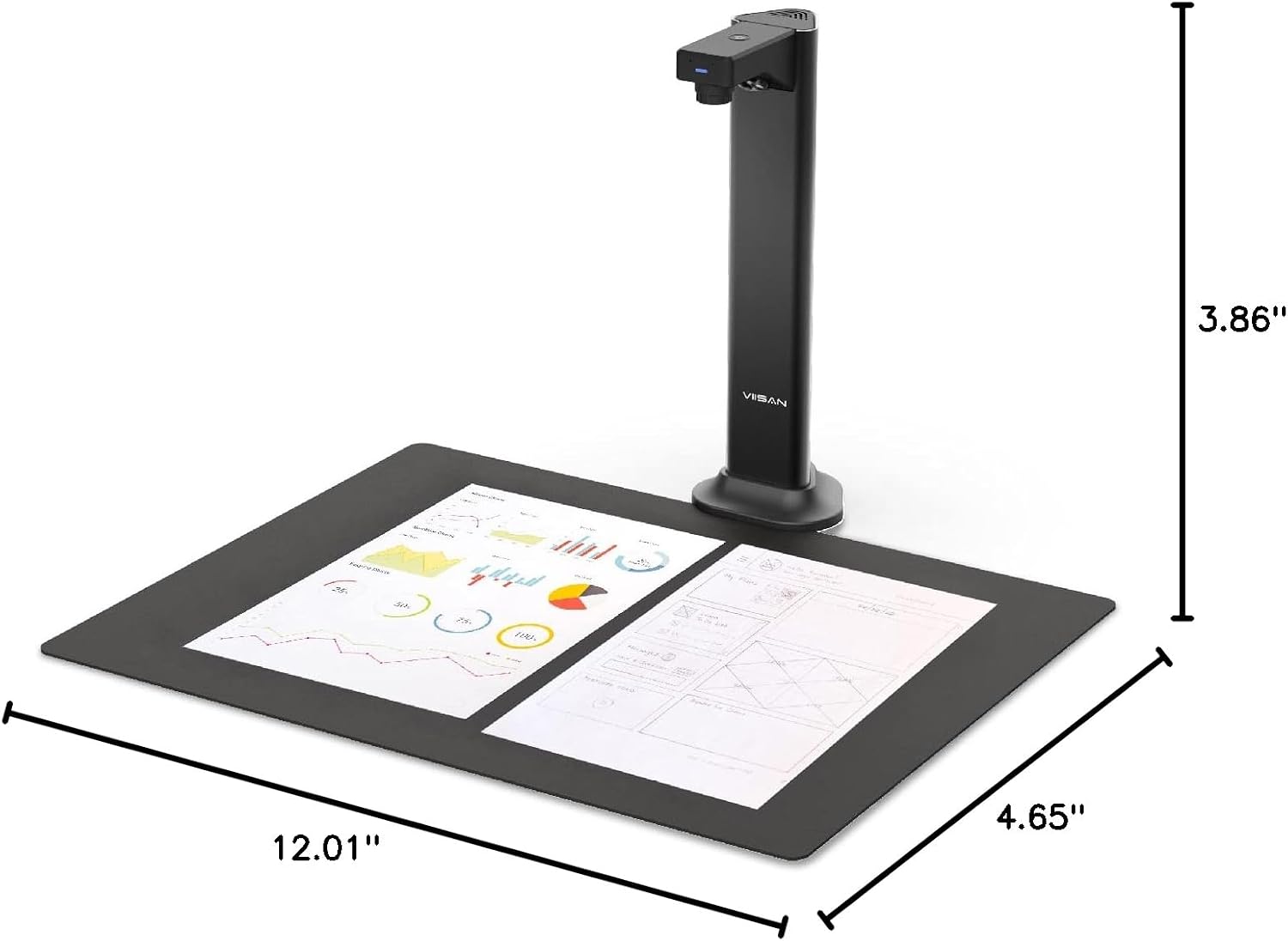
Detailed dimensions of the VIISAN DL8 document scanner, showing its compact footprint.
Inhoud van het pakket
The VIISAN DL8 package includes:
- DL8 documentcamera
- USB-kabel
- Scan Pad
- Snelstartgids
Garantie en ondersteuning
VIISAN is committed to providing excellent customer service and product support:
- Garantie: The VIISAN DL8 comes with a 1-year warranty from the date of purchase.
- Retourneren: Voor dit product geldt een retourbeleid van 30 dagen zonder kosten.
- Technische ondersteuning: For any technical assistance or inquiries, please contact the responsible VIISAN technical support team. Refer to the Quick Start Guide or the official VIISAN webwebsite voor contactgegevens.


