1. Inleiding
The ECOWITT WittCam HP10 is an outdoor weather camera designed for continuous monitoring of various environmental conditions. It is suitable for observing plant growth, weather changes, water levels, and other outdoor phenomena. Featuring IP66 waterproofing and a 150-degree wide-angle lens, the camera connects via Wi-Fi for remote access and data management through a dedicated app and webplaats.

Figuur 1: Voorzijde view of the ECOWITT WittCam HP10 Outdoor Weather Camera.
2. Product voorbijview
2.1. Components
- WittCam HP10 Camera Unit: The main camera device.
- Montagebasis: For securing the camera to a surface.
- USB-netsnoer: Provides power to the camera.
- Gebruiksaanwijzing: Deze instructiehandleiding.
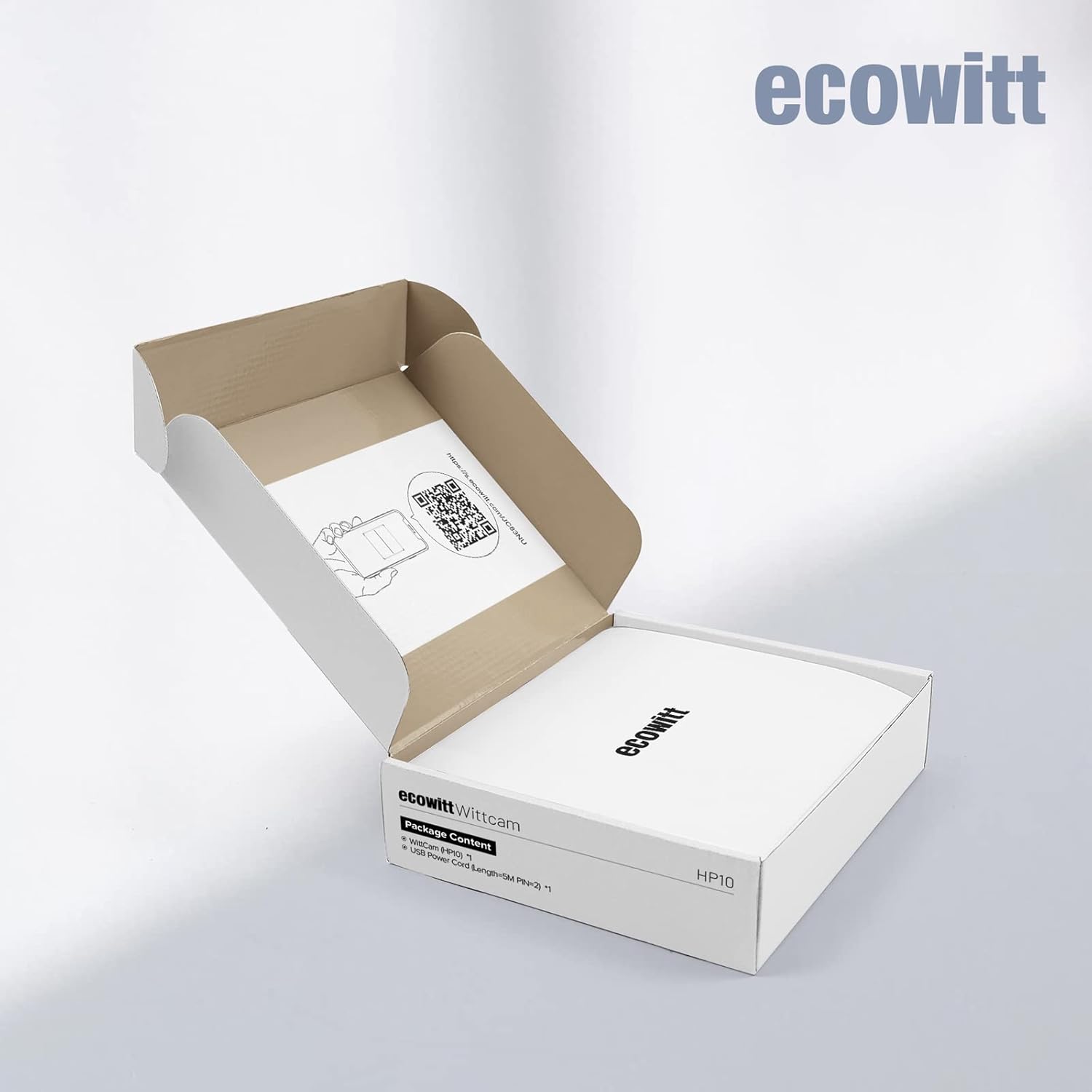
Figure 2: The ECOWITT WittCam HP10 camera connected to its USB power cable.
2.2. Belangrijkste kenmerken
- Picture Hosting: Images are hosted on www.ecowitt.net, with automatic time-elapsed video generation for daily activity.
- HTTP GET Command Support: Allows retrieval of the last taken picture.
- Draadloze connectie: Supports 2.4 GHz Wi-Fi (802.11 b/g/n) with a transmission distance of up to 30 meters (100 feet) in open fields.
- Duurzaamheid: IP66 waterproof rating ensures protection against dust and strong jets of water.
- Groothoeklens: Groothoek van 150 graden view voor uitgebreide monitoring.
- Hoge resolutie: 1080p video capture resolution.
- App-bediening: Beheren en view camera feeds via a dedicated mobile application.
- No Local Storage: The camera does not support Micro SD card storage.

Figure 3: Key features of the WittCam HP10, including Wi-Fi connectivity and wide-angle lens.
3. Instellen
3.1. Uitpakken en eerste inspectie
Pak alle onderdelen voorzichtig uit en controleer of de volgende onderdelen aanwezig zijn:
- ECOWITT WittCam HP10 Camera
- Montagebasis
- USB Power Cord (approximately 2 meters / 6.56 feet)
- Quick Start Guide / User Manual (digital version available via QR code or at s.ecowitt.com/JC83NU)
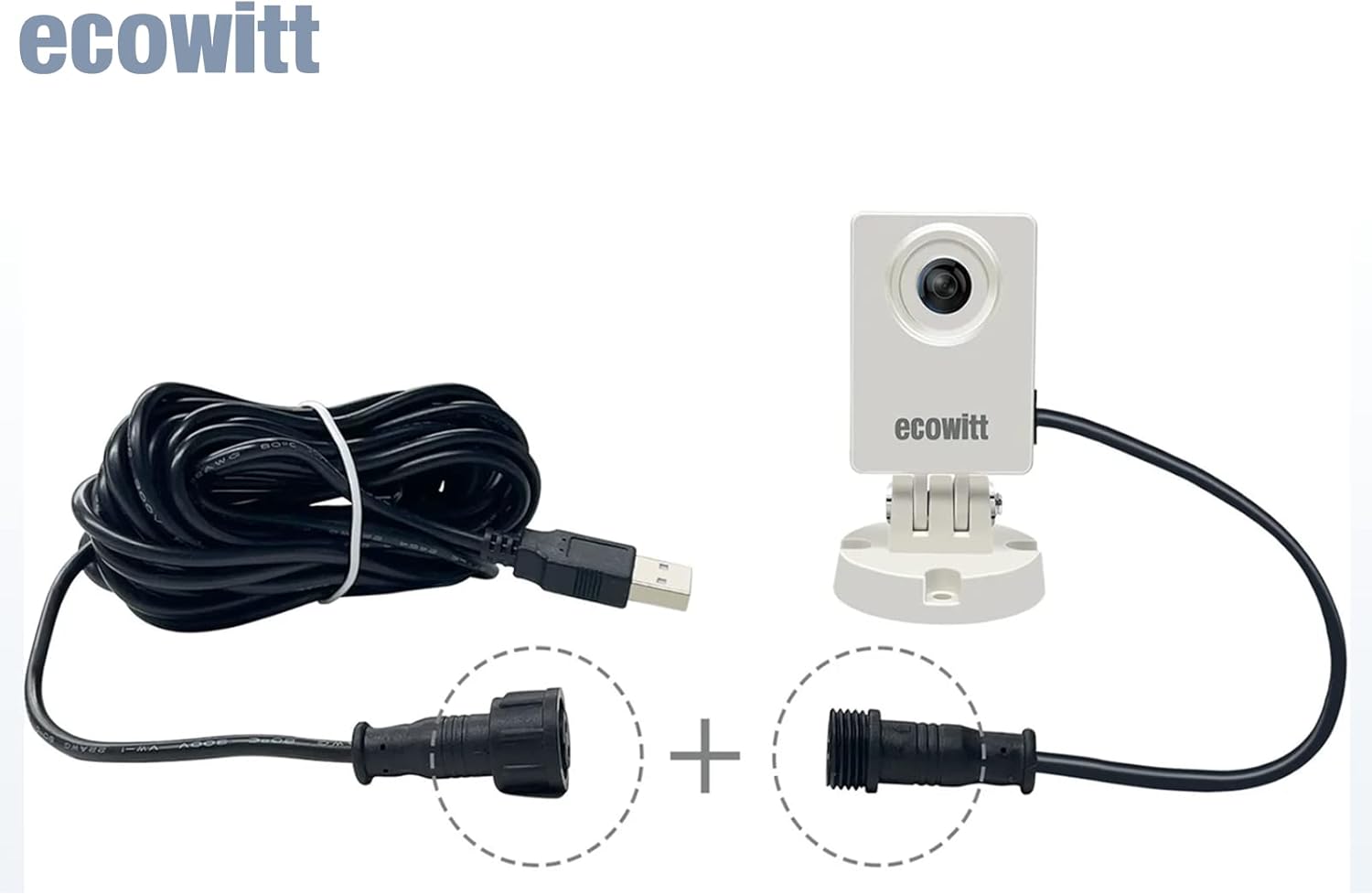
Figure 4: The WittCam HP10 packaging and included items.
3.2. Fysieke installatie
- Kies een locatie: Select an outdoor location that provides a clear view of the area you wish to monitor. Ensure the location is within range of your 2.4 GHz Wi-Fi network.
- Monteer de camera: Use the provided mounting base to securely attach the camera to a wall or other stable surface. Ensure the camera is positioned to capture the desired field of view.
- Sluit stroom aan: Connect the USB power cord to the camera and plug it into a suitable power source. The camera requires a continuous power supply.

Afbeelding 5: Example of the WittCam HP10 mounted outdoors for environmental monitoring.
3.3. Wi-Fi Connection and App Integration
- Download de app: Zoeken naar the "ECOWITT" app on your smartphone's app store (iOS or Android) and install it.
- Maak een account aan: Open the ECOWITT app and follow the instructions to create a new account or log in if you already have one.
- Apparaat toevoegen: In the app, select the option to add a new device. Follow the on-screen prompts to connect your WittCam HP10 to your 2.4 GHz Wi-Fi network. This typically involves scanning a QR code on the camera or entering Wi-Fi credentials.
- Controleer de verbinding: Once connected, the camera's status indicator should confirm a successful Wi-Fi connection. You should be able to view live snapshots or recent images within the app.

Figure 6: The WittCam HP10 indicating a strong Wi-Fi signal.
4. Gebruiksaanwijzing
4.1. Monitoringmogelijkheden
The WittCam HP10 is designed for various monitoring applications:
- Plantengroei: Observe the development of plants over time.
- Weather Changes: Monitor cloud formations, precipitation, and other atmospheric conditions.
- Waterpeil: Track changes in water bodies or containers.
- Sneeuwdiepte: Measure snow accumulation.
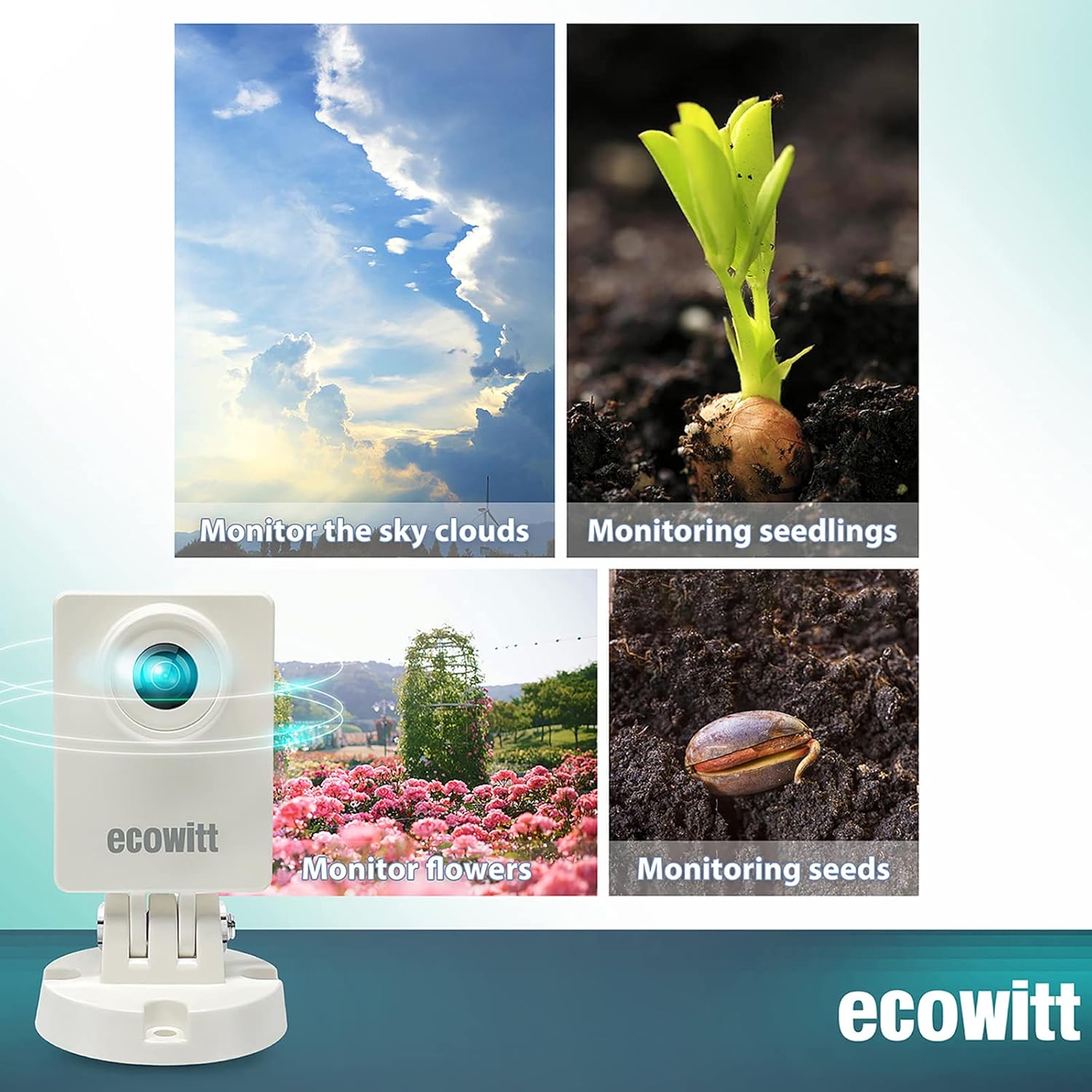
Figure 7: Monitoring plant growth stages with the WittCam HP10.

Afbeelding 8: Examples of monitoring weather conditions and seedlings.

Figure 9: The WittCam HP10 observing an agricultural environment.
4.2. Picture Hosting and Time-Lapse Video
The camera uploads pictures to www.ecowitt.net. De website organizes received pictures for the current day. If the time exceeds 24 hours, it automatically generates a time-elapsed video for easier review of changes.
4.3. HTTP GET Command
The camera supports HTTP GET commands for reading the last picture taken. To utilize this feature, the device's IP address must be obtained.
5. Onderhoud
- Lensreiniging: Maak de cameralens regelmatig schoon met een zachte doek.amp cloth to ensure clear image quality. Avoid abrasive materials.
- Stroomaansluiting: Regularly check that the USB power cord is securely connected to both the camera and the power source.
- Wi-Fi-signaal: Ensure the camera maintains a stable Wi-Fi connection. If signal strength is low, consider repositioning the camera or Wi-Fi router.
- Bedrijfstemperatuur: The camera is designed to operate within a temperature range of 0°C to 50°C (32°F to 122°F).
6. Probleemoplossing
- Camera maakt geen verbinding met wifi:
Ensure your Wi-Fi network is 2.4 GHz. Verify the Wi-Fi password. Move the camera closer to the router. Restart both the camera and your router. - No Images or Snapshots in App/Webwebsite:
Check the camera's power supply and Wi-Fi connection. Confirm the camera is properly added to your ECOWITT account. Allow some time for images to upload, as the camera primarily takes snapshots, not live streaming video. - Problemen met de beeldkwaliteit:
Maak de cameralens schoon. Zorg ervoor dat er geen obstakels in het cameraveld zitten. view. - Geen nachtzicht:
Please note that this camera does not feature dedicated night vision capabilities. It is primarily designed for daytime monitoring. - Difficulty with Setup:
Refer to the digital user manual at s.ecowitt.com/JC83NU for detailed setup instructions. Ensure all steps are followed precisely.
7. Specificaties
| Functie | Specificatie |
|---|---|
| Modelnummer | HP10 |
| Energiebron | Elektrische kabel |
| Connectiviteitsprotocol | Wi-Fi (2.4 GHz) |
| Montagetype | Muurbevestiging |
| Resolutie video-opname | 1080p |
| Kleur | Wit |
| Internationale Beschermingsgraad | IP66 |
| Controlemethode | Toepassing |
| Artikelgewicht | 8.2 ons |
| Pakket afmetingen | 5.94 x 4.88 x 2.28 inch |
| Flash-geheugentype | NO Micro SD |
| Focustype | Handmatige focus |
| Video-opname-indeling | MPEG-4 |
| Aanbevolen toepassingen | Toezicht |
| Speciale functie | Afstandsbediening |
| Compatibele apparaten | Ecowitt WiFi Gateway |

Figure 10: Dimensions of the ECOWITT WittCam HP10.
8. Garantie en ondersteuning
For warranty information, please refer to the documentation included with your purchase or visit the official ECOWITT website. For technical support, frequently asked questions, and additional resources, please visit www.ecowitt.net.


