1. Inleiding
This manual provides comprehensive instructions for the setup, operation, and maintenance of your Cherry MW 9100 Wireless Rechargeable Mouse. The MW 9100 is a compact, versatile mouse offering dual connectivity options (Bluetooth or 2.4 GHz USB receiver) and a convenient rechargeable battery.
Belangrijkste kenmerken zijn:
- Compact design with charging functionality.
- Flexible operation: use while charging via USB-C cable.
- Dual connectivity: Bluetooth or 2.4 GHz USB receiver.
- Magnetic storage for the USB receiver, ideal for travel.
- Adjustable DPI settings for varied usage.
2. Inhoud van het pakket
Controleer of alle artikelen in het pakket aanwezig zijn:
- Cherry MW 9100 Wireless Rechargeable Mouse
- USB-C-oplaadkabel
- 2.4 GHz USB-ontvanger
- Beschermend etui
- Gebruiksaanwijzing (dit document)
3. Instellen
3.1 De muis opladen
The Cherry MW 9100 mouse features a built-in rechargeable battery. Before initial use, or when the battery is low, connect the included USB-C cable to the mouse and to a USB power source (e.g., computer USB port, USB wall adapter). The mouse can be used normally while charging.

Afbeelding 3.1: Bovenkant view of the Cherry MW 9100 mouse, showing the charging indicator light.
3.2 De muis aansluiten
The MW 9100 offers two connection methods: 2.4 GHz wireless via USB receiver or Bluetooth.
3.2.1 Draadloze 2.4 GHz-verbinding
- Locate the USB receiver. It is magnetically stored in a compartment on the underside of the mouse.
- Steek de USB-ontvanger in een beschikbare USB-poort op uw computer.
- On the underside of the mouse, slide the switch to the "RF" position.
- De muis zou automatisch verbinding moeten maken met uw computer.
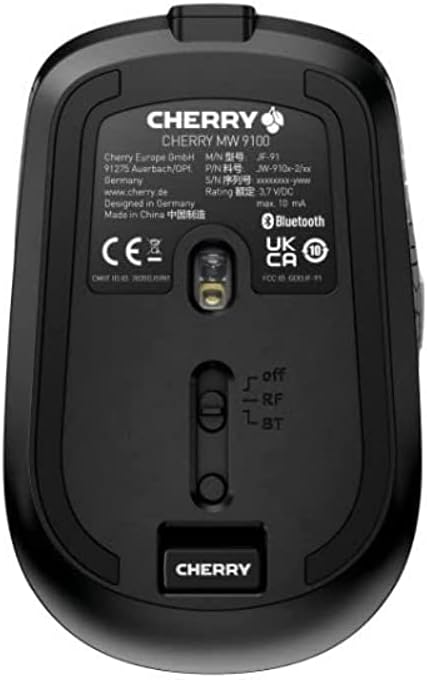
Afbeelding 3.2: Underside of the Cherry MW 9100 mouse, highlighting the USB receiver storage and the connection mode switch.
3.2.2 Bluetooth-verbinding
- On the underside of the mouse, slide the switch to the "BT" (Bluetooth) position.
- Press and hold the small pairing button located near the connection switch on the underside of the mouse until the LED indicator on the mouse starts blinking, indicating pairing mode.
- Open de Bluetooth-instellingen op je computer of apparaat en zoek naar nieuwe apparaten.
- Select "Cherry MW 9100" from the list of available devices to complete the pairing process.
4. Gebruiksaanwijzing
4.1 Basisfuncties
The Cherry MW 9100 mouse features standard left and right click buttons, a scroll wheel (which also functions as a middle click button), and two side buttons for navigation (typically forward/back).
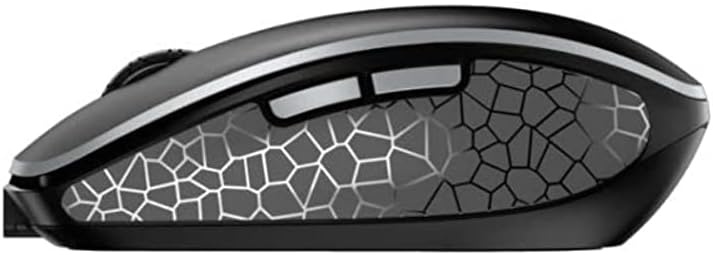
Afbeelding 4.1: Kant view of the Cherry MW 9100 mouse, illustrating the ergonomic design and side buttons.
4.2 DPI-aanpassing
The mouse includes a DPI (Dots Per Inch) button, usually located near the scroll wheel, allowing you to adjust the cursor sensitivity. Press this button to cycle through different DPI settings to match your preference or task requirements.

Afbeelding 4.2: A hand demonstrating the comfortable grip on the Cherry MW 9100 mouse during use.
5. Onderhoud
To ensure optimal performance and longevity of your Cherry MW 9100 mouse:
- Schoonmaak: Gebruik een zachte, droge doek om het oppervlak van de muis schoon te maken. Voor hardnekkig vuil kunt u een iets drogere doek gebruiken.amp Je kunt een doek gebruiken, maar zorg ervoor dat er geen vocht in het apparaat komt. Vermijd agressieve chemicaliën of schurende materialen.
- Opslag: When not in use, especially during travel, store the mouse in the provided protective pouch to prevent scratches and damage.
- batterij zorg: Ontlaad de batterij niet te vaak volledig. Laad de muis op wanneer de batterij-indicator verschijnt.
6. Probleemoplossing
| Probleem | Mogelijke oorzaak | Oplossing |
|---|---|---|
| Muis reageert niet | Low battery, incorrect connection mode, USB receiver not connected, Bluetooth not paired. |
|
| Intermittent connection (Bluetooth) | Interference, device driver issues, distance from device. |
|
| De cursor beweegt onregelmatig of traag. | Dirty optical sensor, low battery, incorrect DPI setting. |
|
7. Specificaties
| Functie | Detail |
|---|---|
| Merk | Kers |
| Modelnummer | JW-9100US-2 |
| Connectiviteitstechnologie | Bluetooth, 2.4 GHz USB Wireless |
| Bewegingsdetectie | Optisch |
| Speciale kenmerken | Lichtgewicht, draagbaar, oplaadbaar |
| Productafmetingen | 4 x 3 x 2 inch |
| Artikelgewicht | 6.4 ons |
| Kleur | Zwart |
8. Garantie en ondersteuning
Voor garantie-informatie en technische ondersteuning kunt u terecht bij de officiële Cherry-website. website or contact Cherry customer service directly. Keep your proof of purchase for warranty claims.
Fabrikant: KERS
Webwebsite: www.kers.de


