1. Inleiding
This manual provides comprehensive instructions for the setup, operation, and maintenance of your TSC TE 310 Barcode Printer and LS450 1D Scanner. The TSC TE 310 is a versatile thermal transfer/direct thermal printer designed for various labeling applications, while the LS450 is a robust handheld 1D barcode scanner for efficient data capture.

Figuur 1.1: The complete package including the TSC TE 310 Barcode Printer, LS450 1D Scanner, a label roll, and a wax ribbon.
Please read this manual thoroughly before using the devices to ensure proper functionality and to prevent damage.
2. Inhoud van het pakket
Controleer of alle onderstaande artikelen in uw pakket aanwezig zijn:
- 1 x TSC TE 310 Barcode Printer
- 1 x LS450 1D Scanner
- 2 x Spindle (for label roll and ribbon)
- 1 x USB Cable (for printer and scanner connection)
- 1 x External Power Supply (for printer)
- 1 x Snelstartgids
- 1 x Wax Ribbon
- 1 x Label Roll
3. Installatie-instructies
3.1. TSC TE 310 Barcode Printer Setup
- Sluit stroom aan: Connect the external power supply to the printer and then to a power outlet. Do not power on the printer yet.
- Labelrol laden:
Open the printer cover. Place the label roll onto the designated spindle. Ensure the labels feed correctly through the printer mechanism. Refer to the quick start guide for detailed diagrams.

Figuur 3.1: A roll of blank labels, ready for installation in the printer.
- Load Wax Ribbon:
If using thermal transfer labels, install the wax ribbon onto its spindle, following the directional arrows inside the printer. Ensure the ribbon is taut and properly aligned.
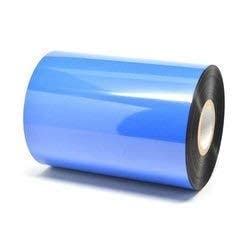
Figuur 3.2: A blue wax ribbon, used for thermal transfer printing to ensure durable label prints.
- Verbinden met computer: Sluit het ene uiteinde van de USB-kabel aan op de USB-poort van de printer en het andere uiteinde op een beschikbare USB-poort op uw computer.
- Installeer stuurprogramma's: Power on the printer. Your operating system may automatically detect and install necessary drivers. If not, refer to the included driver CD or download the latest drivers from the TSC official webplaats.
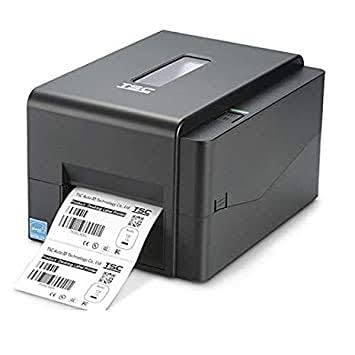
Figuur 3.3: The TSC TE 310 Barcode Printer, shown with labels exiting the front slot.
3.2. LS450 1D Scanner Setup
- Verbinden met computer: Connect the USB cable from the LS450 scanner to an available USB port on your computer or POS system.
- Automatische herkenning: The scanner is designed for plug-and-play operation. Your system should automatically recognize it as a keyboard input device, requiring no additional driver installation.
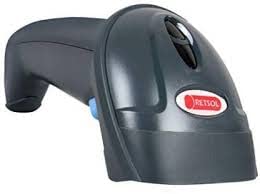
Figuur 3.4: The LS450 1D Barcode Scanner, a handheld device for efficient data capture.
4. Gebruiksaanwijzing
4.1. TSC TE 310 Barcode Printer Operation
- Software Configuratie: Open your label design software or application that supports barcode printing. Select the "TSC TE 310" as your printer.
- Design Labels: Create or load your label design. The TE 310 supports a wide variety of labels, including shipping labels, compliance labels, and general-purpose product identification tags.
- Afdrukken: Send the print job from your software. The printer will process and print the labels. The TE 310 offers multiple printer language emulations, making it compatible with various existing label printing systems.
- Toepassingen: This printer is suitable for use in automobile service shops, shipping and mail centers, and for inventory control in stock rooms.
4.2. LS450 1D Scanner Operation
- Scannen: Point the scanner's light beam at the 1D barcode you wish to scan. Press the trigger button.
- Gegevensoverdracht: Upon a successful scan, the data will be transmitted to your connected computer or POS system, appearing as if typed via a keyboard.
- Omgeving: The LS450 can effectively scan barcodes in various lighting conditions, including bright sunlight or dark environments, and even on curved surfaces.
5. Onderhoud
5.1. TSC TE 310 Barcode Printer Maintenance
- De printkop reinigen: Regularly clean the print head with an alcohol swab to ensure optimal print quality. Refer to the printer's quick start guide for specific instructions.
- Replacing Labels and Ribbons: Replace label rolls and wax ribbons as they run out. Ensure correct loading to prevent jams and maintain print quality.
- Algemene schoonmaak: Houd de printer vrij van stof en vuil. Gebruik een zachte, droge doek om de buitenkant af te vegen.
5.2. LS450 1D Scanner Maintenance
- Het scanvenster reinigen: Gently wipe the scan window with a soft, lint-free cloth to remove dust or smudges that might affect scanning performance.
- Fysieke bescherming: The scanner features a durable protective cover, designed to withstand drops from up to 1.5 meters. While robust, avoid unnecessary impacts.
- Kabelonderhoud: Ensure the USB cable is not bent sharply or subjected to excessive strain to prevent internal wire damage.
6. Probleemoplossing
6.1. TSC TE 310 Barcode Printer Troubleshooting
- Printer reageert niet:
Check power connection and ensure the printer is turned on. Verify the USB cable is securely connected to both the printer and the computer. Restart both devices.
- Slechte afdrukkwaliteit:
Clean the print head. Ensure the label roll and ribbon (if used) are loaded correctly and are of good quality. Adjust print darkness settings in your software.
- Etiketten worden niet correct ingevoerd:
Check for label jams. Ensure the label roll is properly seated on the spindle and the labels are threaded through the guides correctly.
6.2. LS450 1D Scanner Troubleshooting
- Scanner leest barcodes niet:
Ensure the scanner is properly connected via USB. Check if the barcode is a 1D type and not damaged. Clean the scan window. Ensure sufficient lighting.
- Geen gegevensuitvoer:
Verify the USB connection. Test the scanner on a different USB port or computer. Ensure the application you are using is ready to receive keyboard input.
7. Specificaties
| Functie | Detail |
|---|---|
| Merk | TSC |
| Printermodel | TE310 |
| Scannermodel | LS450 |
| Printer Dimensions (LxWxH) | 41x29x25cm |
| Connectiviteit | USB 2.0 |
| Scannertype | 1D handheld barcodescanner |
| Scanner Drop Resistance | Tot 1.5 meter |
| Datum eerste beschikbaarheid | 14 december 2021 |
8. Garantie en ondersteuning
The TSC TE 310 Barcode Printer and LS450 1D Scanner come with a 1 jaar garantie vanaf de aankoopdatum. Deze garantie dekt fabricagefouten en storingen bij normaal gebruik.
For technical support, warranty claims, or further assistance, please contact your vendor or visit the official TSC website voor ondersteuningsbronnen en contactinformatie.
Bewaar uw aankoopbewijs als aankoopbewijs voor garantiedoeleinden.


