Invoering
The Microsoft Modern USB-C Headphones are designed to provide high-quality audio for calls, meetings, and general use, particularly optimized for Microsoft Teams. They offer clear sound, a noise-reducing microphone, and intuitive controls for enhanced productivity and communication.
Inhoud van het pakket
- Microsoft Modern USB-C Headset
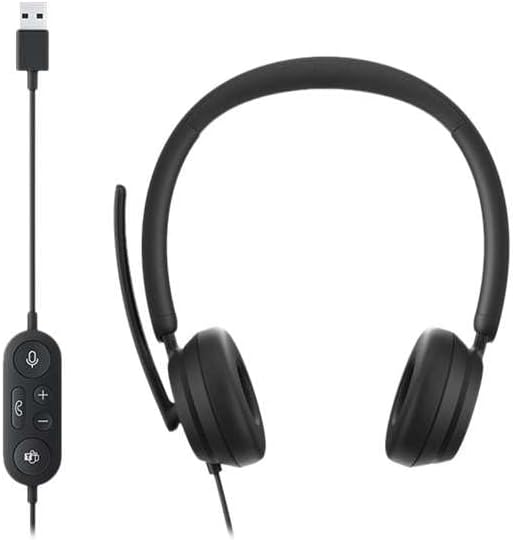
Image: The Microsoft Modern USB-C Headphones, featuring the headset with its attached USB-C cable and inline control unit. The control unit has buttons for mute, volume up/down, call answer/end, and a Microsoft Teams button.
Instellen
De headset aansluiten
- Locate an available USB-C port on your computer or compatible device.
- Plug the USB-C connector of the headset into the USB-C port.
- Your operating system (Windows 11/10/8.1/8 or Mac OS 11.0/10.15) should automatically detect and install the necessary drivers.
Microfoonafstelling
- The microphone boom is flexible. Position it approximately one inch from your mouth for optimal voice pickup.
- The microphone features noise reduction to minimize background distractions during calls.

Afbeelding: Een close-up view of the earcups and the adjustable microphone boom of the Microsoft Modern USB-C Headphones.
De headset bedienen
Inline-bediening
The inline control unit provides convenient access to essential functions:
- Stilteknop: Press to mute or unmute your microphone. An indicator light on the control unit may show mute status.
- Knoppen volume omhoog / omlaag: Pas het luistervolume aan.
- Belknop: Druk op om een oproep te beantwoorden of te beëindigen.
- Microsoft Teams-knop: Quickly launch or bring Microsoft Teams to the foreground.

Afbeelding: Een gedetailleerde view of the inline control unit, showing the microphone mute, volume up/down, call, and Microsoft Teams buttons.
Comfort en design
The headset features padded and lightweight earcups designed for extended wear, ensuring comfort during long calls or work sessions.

Image: A close-up showing the soft, padded earcup of the Microsoft Modern USB-C Headphones, highlighting its comfortable design.
Onderhoud
- Schoonmaak: Gebruik een zachte, droge doek om de headset schoon te maken. Vermijd het gebruik van agressieve chemicaliën of schurende materialen.
- Opslag: Bewaar de headset op een koele, droge plaats wanneer u deze niet gebruikt. Vermijd extreme temperaturen.
- Kabelonderhoud: Buig of trek niet te hard aan de USB-C-kabel om beschadiging te voorkomen.
Probleemoplossing
| Probleem | Oplossing |
|---|---|
| Geen geluid uit de headset |
|
| Microfoon werkt niet |
|
| De headset wordt niet herkend door de computer. |
|
Specificaties
| Merk | Microsoft |
| Modelnaam | I6N-00009 |
| Artikelmodelnummer | 2026 |
| Connectiviteitstechnologie | Bedraad (USB-C) |
| Plaatsing van de oren | Over het oor |
| Vormfactor | Op het oor |
| Materiaal | Kunstleer |
| Controletype | Oproepbeheer |
| Compatibele apparaten | USB-C-compatibele apparaten |
| Compatibiliteit met besturingssystemen | Windows 11 / 10 / 8.1 / 8, Mac OS 11.0/10.15 |
| Productafmetingen | 16x3.99x24.99cm |
| Artikelgewicht | 390 gram |
| Waterbestendigheidsniveau | Waterbestendig |
Garantie en ondersteuning
Voor garantie-informatie en technische ondersteuning kunt u terecht bij de officiële Microsoft-ondersteuningswebsite. website or contact Microsoft customer service. Details regarding specific warranty periods and terms are typically provided with your purchase documentation or available online.
You can find support resources at the official Microsoft support page: support.microsoft.com


