Invoering
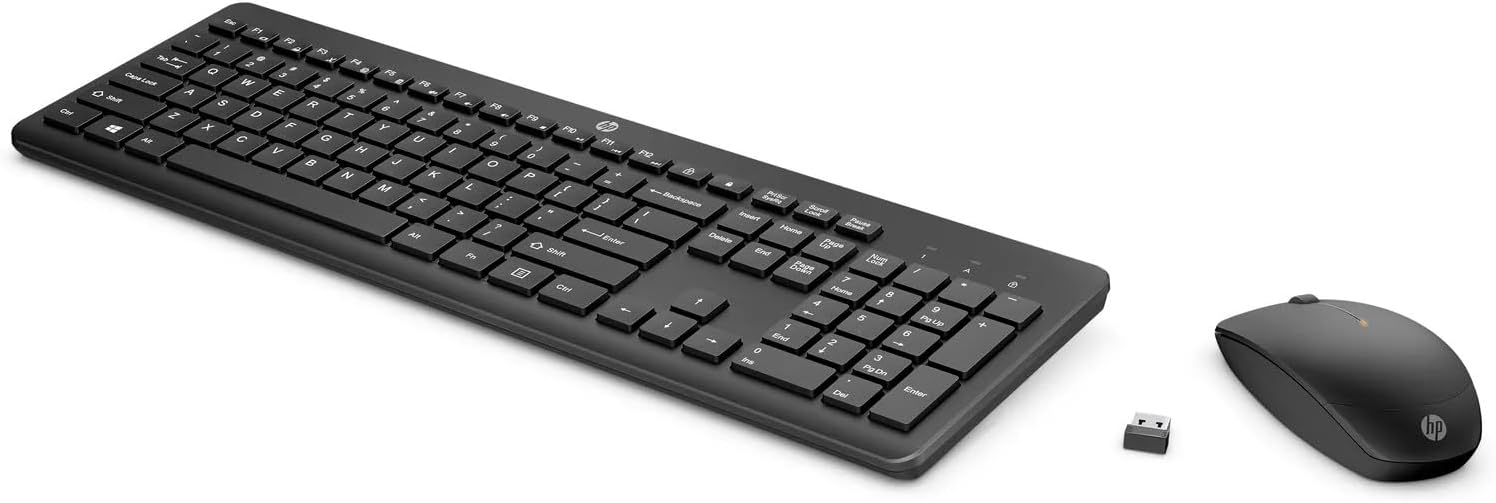
This manual provides instructions for setting up, operating, and maintaining your HP 235 Wireless Keyboard and Mouse Combo. Please read this guide thoroughly before using the product to ensure proper functionality and longevity.
Inhoud van het pakket
- HP Wireless Keyboard
- HP draadloze muis
- USB Type-A Wireless Receiver
- AA Batteries (pre-installed or included separately)
Instellen
Follow these steps to set up your HP 235 Wireless Keyboard and Mouse Combo:
- Batterijen plaatsen: If not already installed, open the battery compartments on the underside of both the keyboard and the mouse. Insert the AA batteries, ensuring correct polarity. Close the compartments.
- USB-ontvanger aansluiten: Locate an available USB Type-A port on your computer. Insert the USB wireless receiver into the port. Your computer should automatically detect the device.
- Inschakelen: Turn on the keyboard and mouse using their respective power switches, usually located on the underside. The devices should connect automatically to the receiver.

Het toetsenbord bedienen
The HP 235 Wireless Keyboard features a standard layout with additional function keys.
- Standaardsleutels: Use the alphanumeric keys for typing text and numbers.
- Functietoetsen (F1-F12): These keys may have secondary functions (e.g., volume control, media playback, brightness adjustment) when pressed in combination with the Fn key. Refer to your computer's documentation for specific Fn key combinations.
- Numeriek toetsenbord: The dedicated numeric keypad on the right provides quick entry for numbers and calculations. Ensure Num Lock is active for numeric input.
De muis bedienen
The HP 235 Wireless Mouse provides precise cursor control.
- Linkerknop: Primary click function, typically used for selecting items or opening applications.
- Rechterknop: Secondary click function, typically used for context menus.
- Muis wieltje: Roll the wheel to scroll through documents or web pagina's. Het scrollwieltje kan ook functioneren als een middelste muisklikknop.
Onderhoud
Proper maintenance ensures the longevity of your wireless combo.
- Schoonmaak: Gebruik een zachte, droge doek om de oppervlakken van het toetsenbord en de muis schoon te maken. Voor hardnekkig vuil kunt u de doek lichtjes gebruiken.ampMaak de doek schoon met water. Vermijd agressieve chemicaliën of schurende materialen.
- Batterij vervangen: When performance degrades (e.g., delayed response, intermittent connection), replace the batteries in both the keyboard and mouse with new AA batteries. Dispose of old batteries according to local regulations.
- Opslag: When not in use for extended periods, turn off the devices to conserve battery life. Store the USB receiver in a safe place, possibly inside the mouse's battery compartment if available.
Probleemoplossing
If you encounter issues with your HP 235 Wireless Combo, try the following solutions:
| Probleem | Oplossing |
|---|---|
| Toetsenbord/muis reageert niet |
|
| Intermitterende verbinding |
|
| Muiscursor beweegt onregelmatig of niet soepel |
|
Specificaties
- Merk: HP
- Model: 235
- Connectiviteitstechnologie: Wireless (USB Type A receiver)
- Compatibiliteit met besturingssysteem: Vensters 10
- Artikelgewicht: Ongeveer 1.83 pond (0.83 kg)
- Productafmetingen (LxBxH): Ongeveer 18 x 8.8 x 1.9 inch (45.7 x 22.4 x 4.8 cm)
- Energiebron: Werkt op batterijen (AA-batterijen)
Garantie en ondersteuning
For warranty information and technical support, please visit the official HP support webGa naar de website of neem contact op met de klantenservice van HP. Bewaar uw aankoopbewijs voor garantieclaims.
Meer informatie en ondersteuningsbronnen vindt u op www.hp.com/support.