1. Inleiding
This manual provides detailed instructions for the installation, operation, and maintenance of your Xigmatek Aero Black Micro-ATX Case. Please read this manual thoroughly before beginning assembly to ensure proper setup and to maximize the lifespan of your components.
2. Product voorbijview
The Xigmatek Aero is a compact Micro-ATX PC case designed for efficient component housing and airflow. It features a simple and stylish design, incorporating a tempered glass front panel and an acrylic side panel for visibility of internal components.
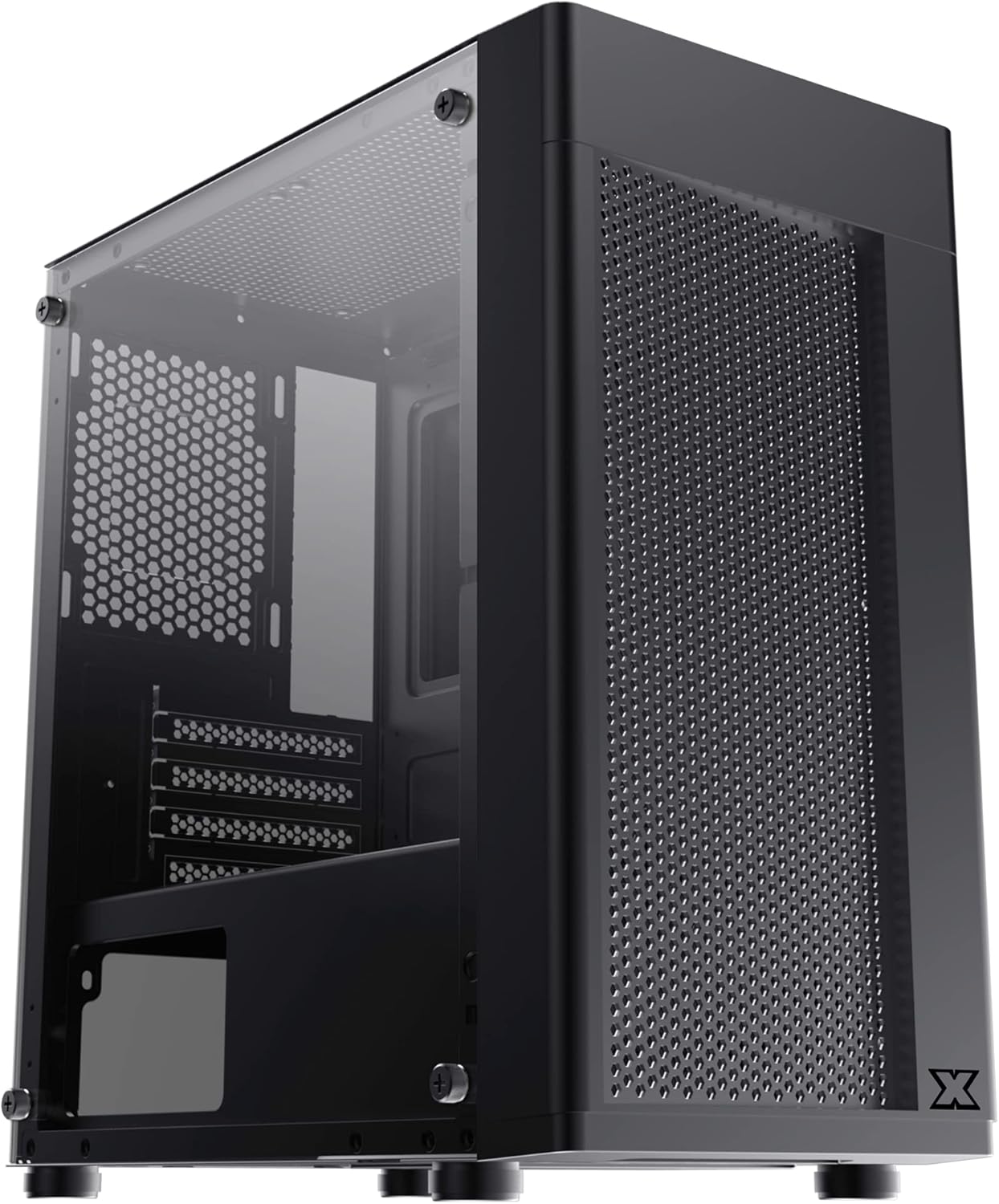
Figuur 2.1: Voor-links view of the Xigmatek Aero Black Micro-ATX Case, showcasing the tempered glass front panel and acrylic side panel.
3. Belangrijkste kenmerken
- Zijpaneel van gehard glas: Geeft een helder view van interne componenten.
- Bottom Mounted PSU: Dedicated compartment for power supply unit, aiding in thermal management and cable routing.
- Mesh Design Front Panel: Enhances airflow for improved cooling performance.
- Eenvoudig kabelbeheer: Designed with routing options and a PSU shroud to facilitate neat cable organization.
- Compact Micro-ATX Form Factor: Optimized for smaller builds while maintaining compatibility with standard components.
4. Inhoud van het pakket
Controleer of alle onderdelen in het pakket aanwezig zijn voordat u met de installatie begint:
- Xigmatek Aero Black Micro-ATX Case
- Accessory Box (containing screws, standoffs, zip ties)
- Gebruikershandleiding (dit document)
5. Installatie en installatie
Follow these steps carefully for proper installation of your PC components into the Xigmatek Aero case.
5.1 De zaak voorbereiden
- Plaats de koffer op een vlakke, stabiele ondergrond.
- Carefully remove the tempered glass side panel by unscrewing the four thumb screws. Set the panel aside on a soft, non-abrasive surface to prevent scratches.
- Remove the rear side panel (solid metal panel) by unscrewing the two thumb screws at the back and sliding it off. This provides access for cable management.
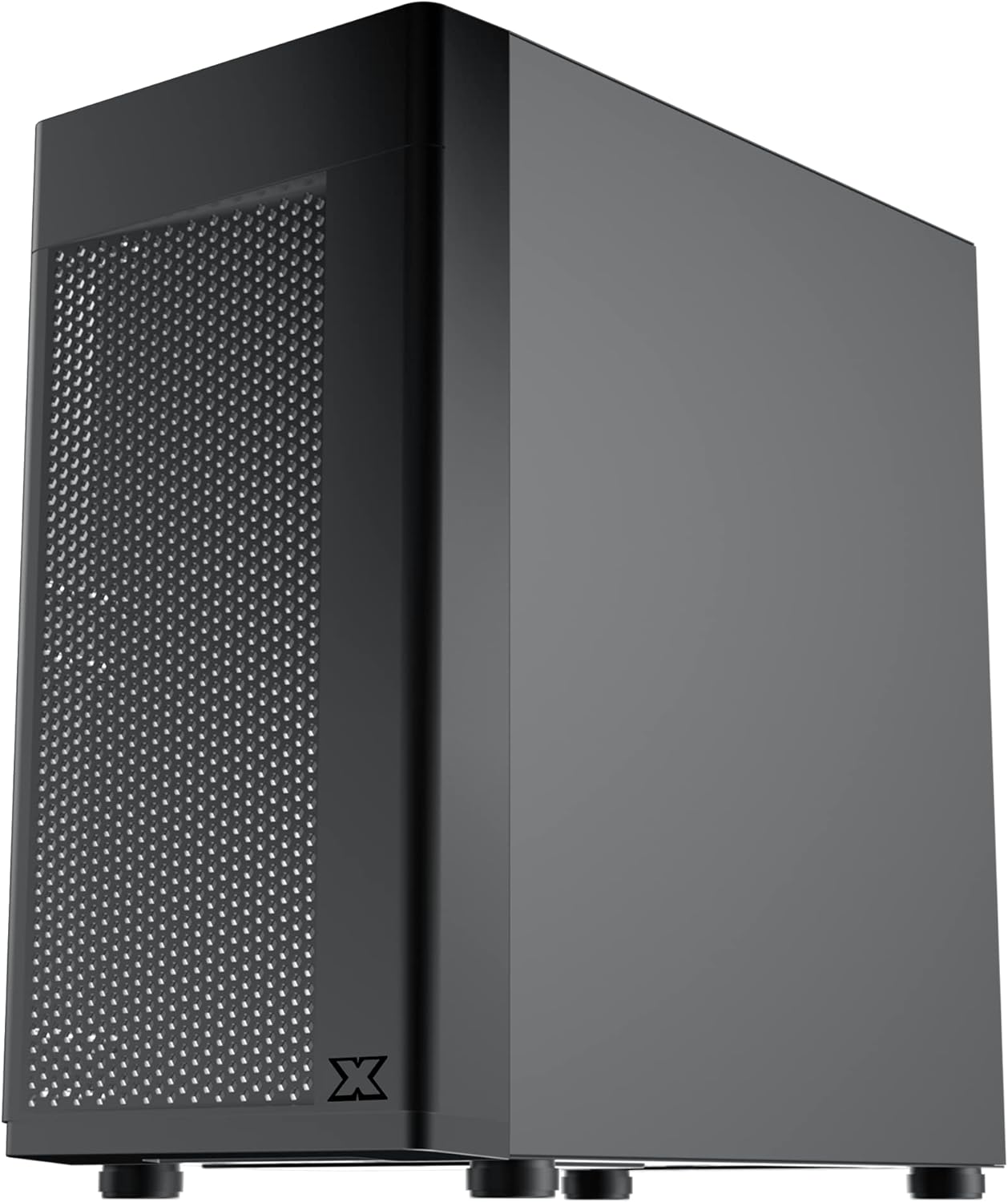
Figuur 5.1: Zijkant view of the case, showing the tempered glass panel secured by four thumb screws.
5.2 Installatie voedingseenheid (PSU)
- Locate the PSU mounting area at the bottom rear of the case, within the PSU shroud.
- Slide your PSU into the designated slot from the rear of the case. Ensure the PSU fan faces downwards (if the case has a bottom vent) or upwards, depending on your cooling preference and PSU design.
- Bevestig de voeding met schroeven aan de achterkant van de behuizing.
- Route necessary PSU cables through the cutouts in the PSU shroud to the main compartment.

Afbeelding 5.2: Intern view highlighting the PSU shroud and cable routing options.
5.3 Moederbordinstallatie
- Installeer het I/O-shield (indien van toepassing) in de opening aan de achterkant van de behuizing.
- Align your Micro-ATX motherboard with the pre-installed standoffs. Ensure the screw holes on the motherboard match the standoffs.
- Bevestig het moederbord met de meegeleverde schroeven. Draai ze niet te vast.

Afbeelding 5.3: Intern view of the case, showing the motherboard tray and standoff locations.
5.4 Installatie van de opslagdrive
The case supports 3.5-inch HDDs and 2.5-inch SSDs.
- 3.5" harde schijf: Locate the drive cage under the PSU shroud. Slide the HDD into the drive bay and secure with screws. Note: Some users find it easier to remove the drive caddy by unscrewing from the underside of the case first.
- 2.5" SSD: SSDs can typically be mounted on dedicated brackets behind the motherboard tray or on top of the PSU shroud. Secure with screws.
5.5 Graphics Card and Expansion Cards
- Remove the necessary expansion slot covers from the rear of the case. These are break-off covers, so bend them carefully until they detach.
- Insert your graphics card or other expansion cards into the appropriate PCIe slots on your motherboard.
- Bevestig de kaarten met schroeven.

Afbeelding 5.4: Achter view of the case, showing expansion slots and I/O shield opening.
5.6 Fan and Cooling Installation
The Xigmatek Aero supports multiple fan configurations for optimal airflow.
- Voorkant: Up to 2x 120mm or 140mm fans. Can also support a 240mm AIO liquid cooler.
- Bovenkant: Maximaal 2x 120mm ventilatoren.
- Achterkant: 1x 120mm ventilator.
Install fans by aligning them with the screw holes and securing them with fan screws. Pay attention to airflow direction (intake vs. exhaust).
5.7 Kabelbeheer
Gebruik de uitsparingen en bevestigingspunten achter de moederbordtray om kabels netjes weg te werken en vast te zetten. Dit verbetert de luchtcirculatie en het uiterlijk.

Figuur 5.5: View from the rear of the motherboard tray, showing space for cable routing.
5.8 Aansluitingen op het voorpaneel
Connect the front panel cables (USB 3.0, USB 2.0, Audio, Power LED, HDD LED, Power Switch, Reset Switch) to the corresponding headers on your motherboard. Refer to your motherboard manual for exact pin layouts.

Figuur 5.6: Boven view of the case, illustrating the front I/O ports including USB 3.0 and audio jacks.
5.9 Eindmontage
- Zodra alle componenten zijn geïnstalleerd en de kabels zijn weggewerkt, bevestigt u het achterste zijpaneel weer.
- Carefully reattach the tempered glass side panel and secure it with the four thumb screws.
6. Operationele overwegingen
To ensure optimal performance and longevity of your system:
- Luchtstroom: Ensure proper fan configuration for intake and exhaust to maintain good internal temperatures. The mesh front panel is designed for excellent air intake.
- Plaatsing: Place the PC case on a hard, flat surface to allow adequate airflow to the bottom-mounted PSU and any bottom intake fans. Avoid placing it on carpet.
7. Onderhoud
Regular maintenance helps preserve your system's performance and extends its lifespan:
- Stofvrij maken: Periodically clean dust from the case interior and fan filters. The top panel features a magnetic dust filter for easy removal and cleaning.
- Buitenreiniging: Gebruik een zachte, damp cloth to clean the exterior surfaces. Avoid abrasive cleaners. For the tempered glass and acrylic panels, use a microfiber cloth and a gentle glass cleaner.
8. Probleemoplossing
Als u tijdens of na de montage problemen ondervindt, kunt u het volgende overwegen:
- Systeem start niet op:
- Ensure all PSU cables are securely connected to the motherboard and components.
- Controleer of de kabel van de aan/uit-schakelaar op het voorpaneel correct is aangesloten op de connector op het moederbord.
- Check the PSU switch is in the 'ON' position.
- Ventilatoren draaien niet:
- Confirm fan cables are properly connected to motherboard fan headers or a fan controller.
- Slechte luchtstroom/hoge temperaturen:
- Check fan orientation (intake/exhaust).
- Ensure dust filters are clean.
- Controleer of er geen kabels zijn die de luchtstroom belemmeren.
9. Specificaties
| Functie | Detail |
|---|---|
| Modelnummer | EN46584 |
| Vormfactor | Micro-ATX Tower |
| Afmetingen (L x B x H) | 34.5x20x29cm |
| Gewicht | 3.53 kg |
| Materiaal | Tempered Glass, Acrylic, Steel |
| Moederbordcompatibiliteit | Micro ATX, Mini-ITX |
| PSU-montage | Onderste montage |
| Schijfruimtes | 1x 3.5" HDD, 2x 2.5" SSD (or 2x 3.5" HDD, 1x 2.5" SSD depending on configuration) |
| Uitbreidingsslots | 4 |
| Ventilatorsteun (voorkant) | 2x 120 mm / 140 mm |
| Fanondersteuning (boven) | 2x 120mm |
| Ventilatorsteun (achterkant) | 1x 120mm |
| Radiatorsteun (voor) | Tot 240 mm |
| I / O-poorten aan de voorzijde | 1x USB 3.0, 2x USB 2.0, HD Audio (Mic & Headphone) |
10. Garantie en ondersteuning
For warranty information and technical support, please refer to the official Xigmatek webwebsite of neem contact op met uw lokale verkoper. Bewaar uw aankoopbewijs voor garantieclaims.


