Invoering
This manual provides essential information for the proper installation, operation, and maintenance of your Zebronics Zeb-D370S DVD Player. Please read this manual thoroughly before using the device to ensure safe and efficient operation. Keep this manual for future reference.
Belangrijke veiligheidsinformatie
- Stel het apparaat niet bloot aan regen of vocht om brand of elektrische schokken te voorkomen.
- Open de c nietasing. Laat alle onderhoudswerkzaamheden over aan gekwalificeerd personeel.
- Zorg voor voldoende ventilatie rondom het apparaat. Blokkeer de ventilatieopeningen niet.
- Use only the power adapter supplied with the unit or specified by the manufacturer.
- Plaats het apparaat niet op een instabiele ondergrond.
- Haal de stekker uit het stopcontact tijdens onweer of wanneer het apparaat gedurende langere tijd niet wordt gebruikt.
Inhoud van het pakket
Controleer of alle artikelen in het pakket aanwezig zijn:
- Zebronics Zeb-D370S DVD Player Unit
- Afstandsbediening
- AV-kabel
- Stroomkabel
- Gebruiksaanwijzing
Product voorbijview
The Zebronics Zeb-D370S is a versatile DVD player featuring a built-in stereo speaker and amplifier, HDMI, USB, and SD card support, and dual karaoke microphone inputs. It supports multiple formats and offers 5.1 channel, coaxial, and optical audio outputs.
Bedieningselementen en poorten op het voorpaneel
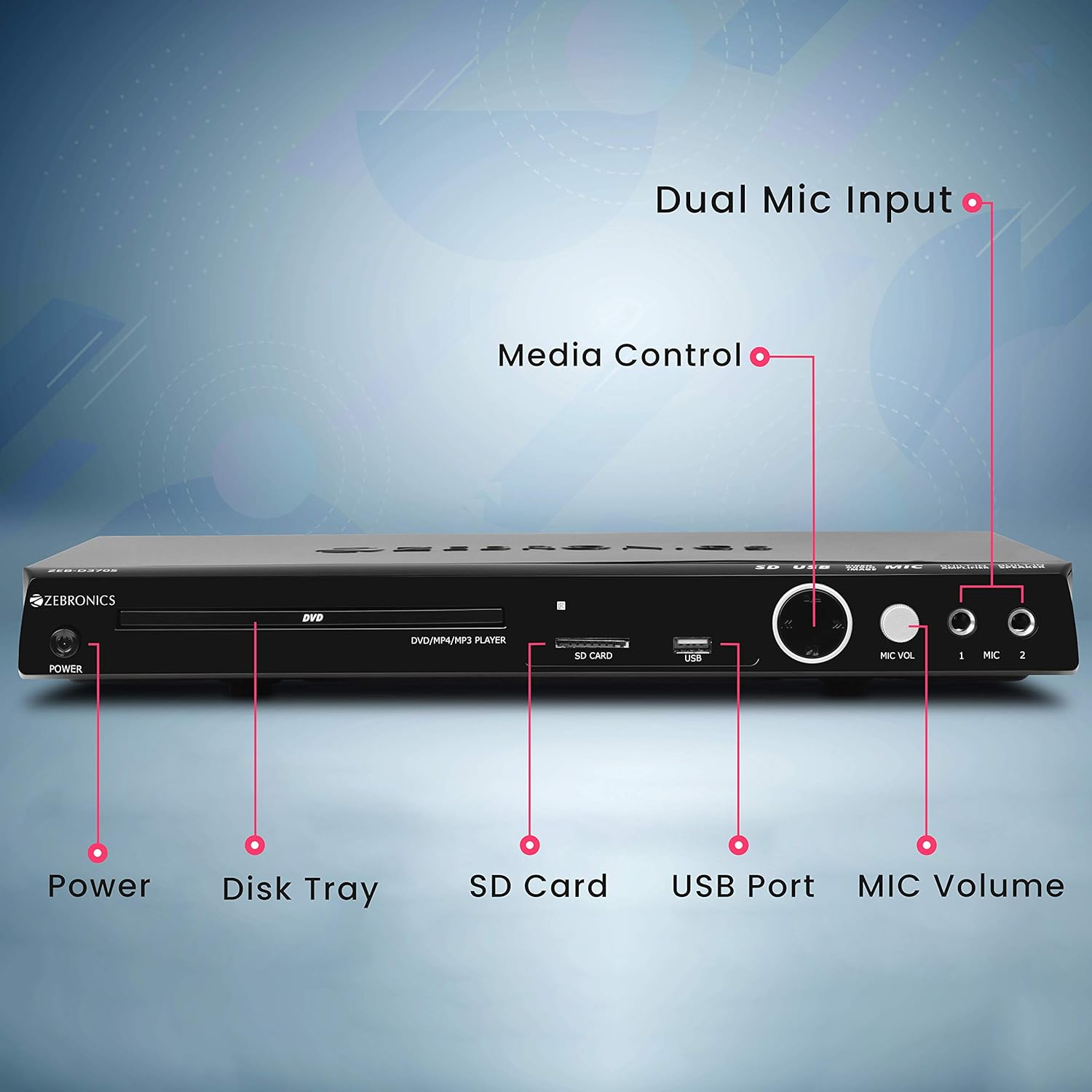
Front panel of the Zebronics Zeb-D370S DVD Player, showing the Power button, Disk Tray, SD Card slot, USB Port, MIC Volume control, and two Microphone inputs (MIC 1, MIC 2).
- Aan/uit-knop: Hiermee schakelt u het apparaat in of uit.
- Disk Tray: For inserting DVDs, CDs, VCDs, and SVCDs.
- SD-kaartsleuf: Voor het afspelen van media files vanaf een SD-kaart.
- USB-poort: Voor het afspelen van media files van een USB-station.
- MIC-volume: Hiermee kunt u het volume van de aangesloten microfoons aanpassen.
- MIC 1 & MIC 2: Inputs for connecting microphones for karaoke.
- Mediabedieningsknoppen: Play/Pause, Stop, Skip, etc.
Aansluitingen op het achterpaneel

Rear panel of the Zebronics Zeb-D370S DVD Player, detailing the Coaxial Output, Optical Output, 5.1 Channel Output, HDMI port, Composite video output, Component video output, S-Video output, and Ext-Audio Output.
- HDMI-uitgang: For high-definition video and audio connection to a TV or display.
- Samengestelde video-uitgang: Standaarddefinitie video-uitvoer.
- Component video-uitgang: Higher quality analog video output (YPbPr).
- S-Video-uitgang: Improved analog video output.
- Digital Audio Output (Optical & Coaxial): For connecting to external audio receivers or sound systems.
- Analog 5.1 Channel Output: For connecting to a 5.1 channel speaker system.
- Ext-Audio Output: Additional audio output connections.
- Luidsprekeruitgang: Terminals for connecting external speakers, utilizing the built-in ampverliezer.

Achterkant view of the Zebronics Zeb-D370S DVD Player highlighting the built-in amplifier, built-in speaker, and speaker output terminals.
Installatie-instructies
1. Stroomaansluiting
- Ensure the DVD player is placed on a stable, flat surface with adequate ventilation.
- Connect the power cable to the AC input on the rear of the DVD player.
- Plug the other end of the power cable into a standard electrical outlet (110V - 260V AC).
2. Video Connection to TV/Display
Kies een van de volgende verbindingsmethoden:
- HDMI (Recommended for best quality): Connect an HDMI cable from the HDMI output on the DVD player to an HDMI input on your TV.
- Componentvideo: Connect component video cables (Red, Green, Blue) from the DVD player's component outputs to the corresponding inputs on your TV.
- Samengestelde video: Connect a composite video cable (Yellow) from the DVD player's composite output to the yellow video input on your TV.
- S-video: Connect an S-Video cable from the DVD player's S-Video output to the S-Video input on your TV.
3. Audio-aansluiting
Choose one of the following audio connection methods:
- HDMI: If using HDMI for video, audio will also be transmitted via the HDMI cable.
- 5.1 Channel Analog Output: Connect RCA cables from the 5.1 channel outputs (Front Left, Front Right, Center, Subwoofer, Surround Left, Surround Right) on the DVD player to a compatible 5.1 channel ampluidspreker- of luidsprekersysteem.
- Digitale audio (optisch/coaxiaal): Connect an optical or coaxial cable from the respective output on the DVD player to a digital audio input on your amplifier or home theater system for surround sound.
- Ingebouwde luidsprekeruitgang: If using the built-in speakers, ensure no external speakers are connected to the 5.1 channel outputs unless desired.
4. Microfoonaansluiting (optioneel)
- Plug your microphones into the MIC 1 and/or MIC 2 inputs on the front panel.
- Adjust the MIC Volume knob to control microphone audio levels.
Gebruiksaanwijzing

Zebronics Zeb-D370S DVD Player with a disc inserted, remote control, and a visual representation of content playing on a screen, illustrating its multimedia capabilities.
1. Afspelen van de schijf
- Druk op de Stroom button to turn on the DVD player.
- Druk op de Openen/Sluiten button (usually on the remote or front panel) to open the disc tray.
- Place a compatible disc (DVD Video, DVD+RW/-RW/+R/-R, Dual Layer Disc, CD Audio, CD-R/-RW, VCD, SVCD) onto the disc tray with the label side facing up.
- Druk op de Openen/Sluiten Druk nogmaals op de knop om de lade te sluiten. De speler start automatisch de weergave of toont een menu.
- Use the remote control for playback functions such as Play, Pause, Stop, Fast Forward, Rewind, and Chapter Skip.
2. USB/SD-mediaweergave
- Insert a USB drive into the USB port or an SD card into the SD card slot on the front panel.
- The player should automatically detect the media and display a menu to browse files. If not, select the USB or SD source using the remote control's Bron or Invoer knop.
- Navigeer door uw files (VOB, MP4, DIVX, AVI, MPEG-1, MPEG-2, 3GP, MP3, WMA, AAC, JPEG, TXT) using the remote control and press Toneelstuk om het afspelen te starten.
3. Karaokefunctie
- Connect one or two microphones to the MIC 1 and MIC 2 inputs.
- Play a karaoke disc or a media file with instrumental tracks.
- Adjust the MIC Volume knob on the front panel to control the microphone audio level.
4. Geavanceerde functies
- CD Ripping: Convert audio CDs to digital formats (refer to on-screen menu for options).
- Picture Slideshow: View JPEG images from disc, USB, or SD card as a slideshow.
- Progressieve scan: Provides a smoother, flicker-free image on compatible displays.
- Zoom IN/OUT: Magnify or reduce the displayed image during playback.
- High Speed Search: Quickly scan through disc or media content.
- Kinderslot: Restrict playback of certain content based on ratings.
- Directe herhaling: Jump back a few seconds during playback.
- Disc Resume: Resume playback from where it was last stopped on a disc.
Onderhoud
- Het apparaat schoonmaken: Use a soft, dry cloth to clean the exterior of the DVD player. Do not use liquid cleaners or abrasive materials.
- Schijfverzorging: Pak de schijven vast aan de randen. Houd ze schoon en vrij van krassen. Gebruik een zachte, pluisvrije doek om de schijven vanuit het midden naar buiten af te vegen.
- Ventilatie: Zorg ervoor dat de ventilatieopeningen niet geblokkeerd zijn om oververhitting te voorkomen.
Probleemoplossing
If you encounter issues with your DVD player, refer to the table below for common problems and solutions:
| Probleem | Mogelijke oorzaak | Oplossing |
|---|---|---|
| Geen stroom | Stroomkabel niet aangesloten; Stopcontact werkt niet | Controleer de aansluiting van de stroomkabel; probeer een ander stopcontact |
| Geen video-uitvoer | Incorrect video cable connection; Incorrect input selected on TV | Ensure video cables are securely connected; Select the correct input source on your TV (e.g., HDMI 1, AV) |
| Geen audio-uitvoer | Incorrect audio cable connection; TV/amplifier volume too low; Mute activated | Check audio cable connections; Increase volume; Deactivate mute function |
| Schijf speelt niet af | Disc is dirty or scratched; Disc format not supported; Disc inserted incorrectly | Clean the disc; Ensure disc is compatible; Insert disc with label side up |
| USB/SD media not detected | USB drive/SD card not inserted correctly; Incompatible file format; Corrupted media | Reinsert USB/SD; Check supported file formats; Try a different USB/SD device |
Specificaties

Dimensions of the Zebronics Zeb-D370S DVD Player: 360mm (width), 220mm (depth), and 50mm (height).
| Functie | Detail |
|---|---|
| Modelnaam | Zeb D370S |
| Merk | ZEBRONICS |
| Productafmetingen | 28 x 39 x 82 mm (1.4 kg) |
| Oplossing | 1920 x 1080 (Supported resolutions: 480i/576i/480p/576p/720p/1080i/1080p) |
| Speciale kenmerken | Surround Sound, Built-in Amplifier, Built-in Stereo Speaker, Karaoke Mic Input |
| Audio-uitvoermodus | Stereo, Surround (2CH / 5.1CH / Virtual Surround Sound) |
| Configuratie van het Surround Sound-kanaal van de luidspreker | 5.1 |
| Ondersteunde audioformaten | Dolby Digital, MP3, WMA, AAC |
| Video Playback System | NTSC / PAL / AUTO |
| Aansluitingstype | HDMI, USB, SD Slot, MIC 1 & MIC 2, Composite, Component, S-Video, Digital Audio Output (Optical & Coaxial), Analog 5.1Ch Output, Ext-Audio Output x 2 |
| Media Type (Playback Disc) | DVD Video, DVD+RW/-RW/+R/-R, Dual Layer Disc, CD Audio, CD-R/-RW, VCD, SVCD |
| Media Files Ondersteund | VOB, MP4, DIVX, AVI, MPEG-1, MPEG-2, 3GP, MP3, WMA, AAC, JPEG, TXT |
| Bedrijfsvolumetage | 110V - 260V wisselstroom |
| Functies | CD Ripping, Picture SlideShow, Progressive scan, Zoom IN/OUT, High speed search, Parental lock, Instant replay, Disc resume |
Garantie en ondersteuning
For warranty information, technical support, or service inquiries, please refer to the warranty card included with your product or visit the official Zebronics webProbeer het apparaat niet zelf te repareren.


