Invoering
This manual provides detailed instructions for the installation, operation, and maintenance of your BINIZE Double Din Car Stereo. Please read this manual thoroughly before using the product to ensure proper functionality and to prevent damage. Keep this manual for future reference.
Product voorbijview
The BINIZE Double Din Car Stereo is a 10.1-inch multimedia player running on an Android 13 system. It offers a range of features designed to enhance your in-car entertainment and navigation experience.
Belangrijkste kenmerken:
- 10.1-inch capacitive touch screen with 1024x600 resolution.
- Android 13 Operating System with Quad-core Coretex-A7 processor (up to 1.3GHz).
- 2 GB RAM + 32 GB interne opslag.
- Wireless CarPlay and Android Auto support.
- Wired MirrorLink for Android and iOS devices.
- Ingebouwde Bluetooth voor handsfree bellen en audiostreaming.
- Integrated GPS receiver for online and offline navigation.
- FM Radio tuner.
- Support for AUX, front, and rear camera inputs.
- Steering Wheel Control compatibility (manual learning required).
- Built-in Wi-Fi receiver and support for 4G communication (via external dongle, not included).
- Expandable options for OBD and tire pressure monitoring (accessories sold separately).

Figure 1: BINIZE Double Din Car Stereo Front View waarbij de belangrijkste kenmerken zijn gemarkeerd.
Instellen en installeren
Proper installation is crucial for the optimal performance of your car stereo. If you are unfamiliar with car audio wiring and installation, professional assistance is recommended.
Fysieke afmetingen:
The unit measures approximately 251mm (width) x 146mm (height) x 56mm (depth). Ensure your vehicle's dashboard opening is compatible with these dimensions.
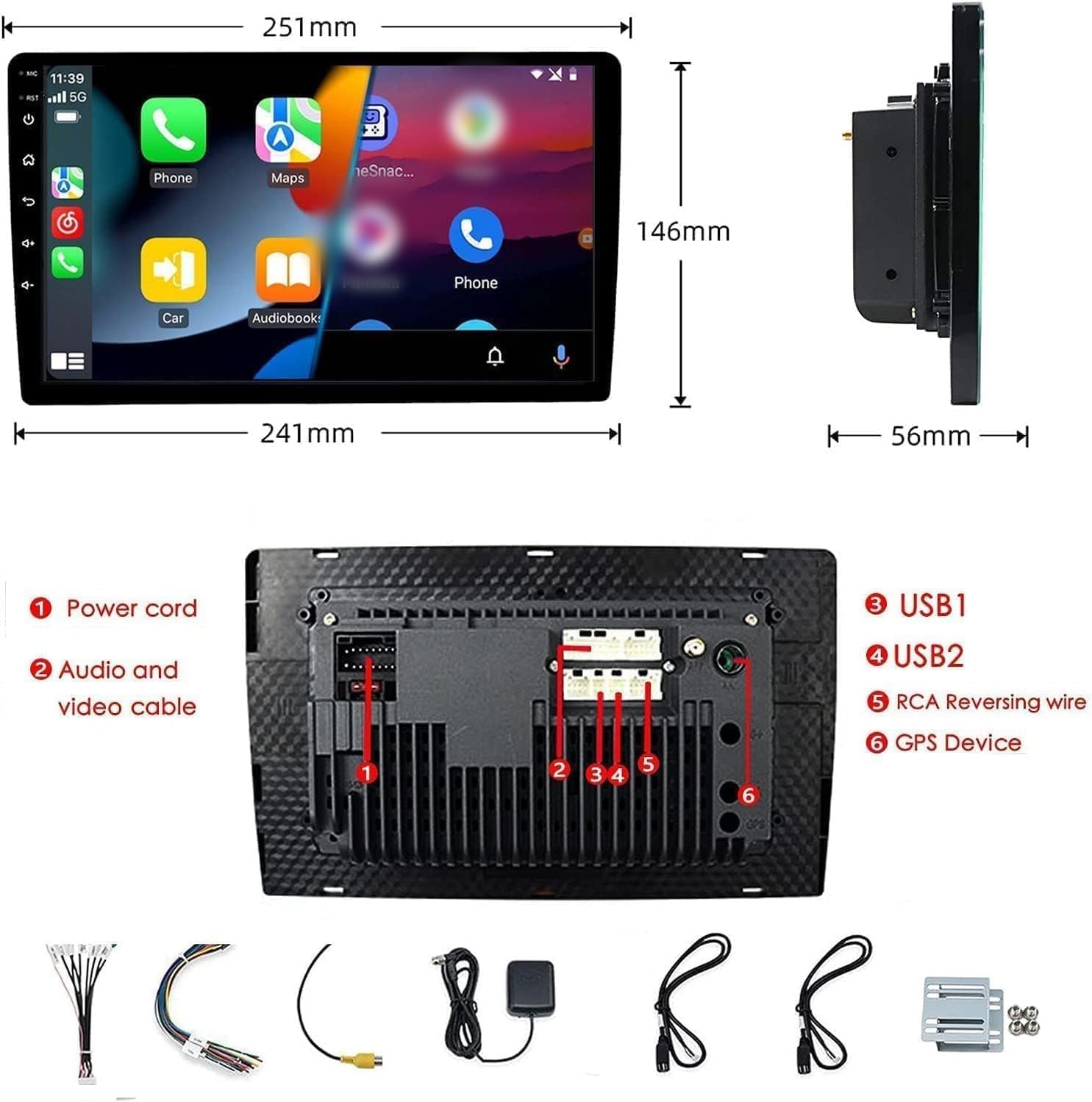
Figure 2: Unit dimensions and rear panel connection points.
Bedradingsverbindingen:
Raadpleeg het bijgevoegde bedradingsschema voor de specifieke aansluitingen. Belangrijke aansluitingen zijn onder andere:
- Stroomkabel: Aansluiten op de stroomvoorziening van het voertuig (constante 12V, accessoire 12V, massa).
- Audio and Video Cable: Voor externe audio-/videoapparaten.
- USB-poorten (USB1, USB2): For media playback, phone charging, and wired CarPlay/Android Auto.
- RCA Reversing Wire: Connect to the backup camera trigger wire.
- GPS Device: Connect the external GPS antenna for navigation functionality.
- Steering Wheel Control Wires (Key/SW): Voor integratie met de stuurwielbediening van het voertuig.
Zorg ervoor dat alle aansluitingen goed vastzitten en goed geïsoleerd zijn om kortsluiting te voorkomen.
Gebruiksaanwijzing
Aan/uit:
The unit will power on automatically when the vehicle's ignition is turned on. To manually power off or restart, use the power button on the front panel.
Aanraakschermbediening:
Navigate the interface by tapping, swiping, and pinching on the 10.1-inch capacitive touch screen, similar to a smartphone or tablet.
FM-Radio:
Access the FM Radio application from the main menu. You can scan for stations, save presets, and adjust volume. The unit supports standard FM frequencies.

Afbeelding 3: FM-radio-interface.
Bluetooth koppelen:
- Zorg ervoor dat Bluetooth is ingeschakeld op uw mobiele telefoon.
- Open de Bluetooth-app op de autoradio.
- Zoeken naar available devices on your phone and select "BINIZE" or a similar device name.
- Bevestig de koppelingscode op beide apparaten als daarom wordt gevraagd.
- Nadat u de apparaten hebt gekoppeld, kunt u handsfree bellen en audio streamen.
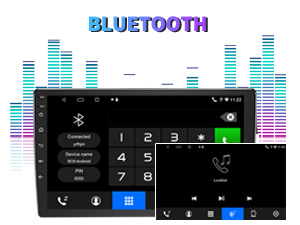
Figure 4: Bluetooth pairing screen.
Stuurwielbediening:
To use your vehicle's steering wheel controls, manual learning is required. Access the Steering Wheel Control settings in the system menu and follow the on-screen instructions to map your vehicle's buttons to the stereo functions.
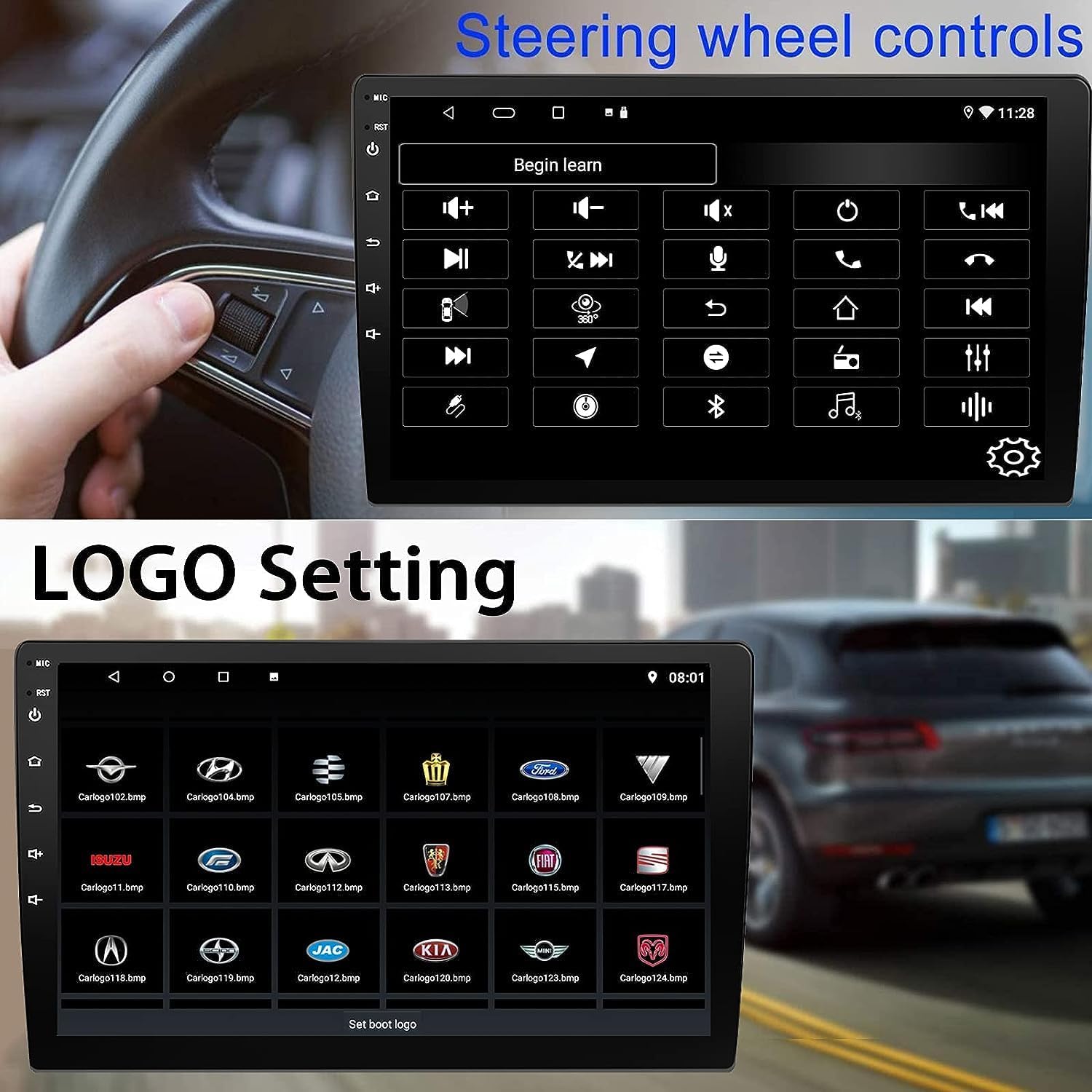
Figure 5: Steering Wheel Control setup screen.
Connectivity: CarPlay, Android Auto, and MirrorLink
Draadloze CarPlay:
Connect your iPhone wirelessly to access CarPlay features such as navigation, music, messages, and calls directly on the stereo display. Ensure Wi-Fi and Bluetooth are enabled on your iPhone.
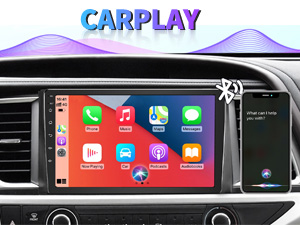
Afbeelding 6: Draadloze CarPlay-interface.
Draadloos Android Auto:
Connect your Android phone wirelessly to use Android Auto for navigation, communication, and entertainment apps. Ensure Wi-Fi and Bluetooth are enabled on your Android device.

Afbeelding 7: Draadloze Android Auto-interface.
MirrorLink:
MirrorLink allows you to display your smartphone's screen directly onto the car stereo. This feature works with both Android and iOS devices via a wired connection. Note that CarPlay/Android Auto and MirrorLink cannot be used simultaneously.

Figure 8: MirrorLink feature displaying a phone screen on the stereo.
Navigatie
The car stereo features an integrated GPS receiver, supporting both online and offline navigation. Connect to Wi-Fi or a mobile hotspot to use online navigation apps. For offline navigation, you may need to download map data.

Figure 9: GPS navigation map display.
Camera-ingang
Achteruitrijcamera:
The unit supports backup camera input. When properly connected, the display will automatically switch to the rear view when the vehicle is put into reverse, providing parking assistance with guidelines.
Voorkant View Camera:
The stereo also supports front view camera input, allowing for enhanced visibility when maneuvering in tight spaces.

Figure 10: Backup camera and front view camera displays.
Onderhoud
To ensure the longevity and optimal performance of your BINIZE car stereo, follow these maintenance guidelines:
- Het scherm schoonmaken: Gebruik een zachte, pluisvrije doek om het touchscreen voorzichtig schoon te vegen. Voor hardnekkige vlekken, lichtjes dampReinig de doek met water of een schermreiniger. Vermijd agressieve chemicaliën of schurende materialen.
- Algemene schoonmaak: Keep the unit and surrounding areas free from dust and debris. Use a soft brush or compressed air to clean vents and button areas.
- Software-updates: Periodically check for available software updates through the system settings to ensure you have the latest features and performance improvements.
- Vermijd extreme temperaturen: Stel het apparaat niet gedurende langere perioden bloot aan extreme hitte of kou, aangezien dit de elektronische componenten kan beschadigen.
Probleemoplossing
Als u problemen ondervindt met uw autoradio, raadpleeg dan de volgende veelvoorkomende problemen en oplossingen:
| Probleem | Mogelijke oorzaak | Oplossing |
|---|---|---|
| Het apparaat wordt niet ingeschakeld. | Onjuiste bedrading; doorgebrande zekering; probleem met de stroomvoorziening van het voertuig. | Check power connections and vehicle fuses. Ensure constant 12V and accessory 12V are correctly wired. |
| Geen geluid. | Volume te laag; Dempen ingeschakeld; Probleem met luidsprekerbedrading. | Zet het volume hoger. Controleer of de dempfunctie is ingeschakeld. Controleer de luidsprekeraansluitingen. |
| CarPlay/Android Auto maakt geen draadloze verbinding. | Bluetooth/Wi-Fi off on phone; Pairing issue; Software glitch. | Ensure phone's Bluetooth and Wi-Fi are on. Try re-pairing the device. Restart both phone and stereo. Some users reported needing to open phone's Bluetooth settings each time. |
| Screen too bright/dim at night. | De weergave-instellingen zijn niet geoptimaliseerd. | Adjust brightness settings in the display menu. Consider using a screen dimming app if available. |
| Achteruitrijcamera wordt niet weergegeven. | Camera not connected; RCA reversing wire not connected or faulty. | Check camera and RCA reversing wire connections. Ensure the camera is powered. |
Specificaties
| Functie | Detail |
|---|---|
| Merk | BINIZE |
| Modelnummer | Binair maken |
| Besturingssysteem | Androïde 13 |
| Schermgrootte | 10.1 inch (26 cm zichtbare diagonaal) |
| Oplossing | 1024x600 |
| Verwerker | Quad-core Coretex-A7, 1.3GHz |
| Geheugen (RAM) | 2GB |
| Opslag (ROM) | 32GB |
| Connectiviteit | Bluetooth, Wi-Fi, USB, Auxiliary |
| Speciale kenmerken | Wireless CarPlay, Wireless Android Auto, MirrorLink, GPS Navigation, Touchscreen, Built-In Bluetooth |
| Audio-uitvoermodus | Stereo (2.0 surround sound-kanaalconfiguratie) |
| Artikelgewicht | 2.94 pond |
| Kleur | Zwart |
Garantie en ondersteuning
Garantie-informatie:
The BINIZE Double Din Car Stereo comes with a 1 jaar gratis garantie Vanaf de aankoopdatum. Deze garantie dekt fabricagefouten en storingen bij normaal gebruik. Bewaar uw aankoopbewijs voor garantieclaims.
Technische ondersteuning:
For any technical assistance, questions, or issues not covered in this manual, please contact our professional technical support team. You can reach us via Amazon email for 24/7 online technical support. Our team is available to assist with system upgrades and parts replacement.
We are committed to providing enthusiastic customer service and ensuring your satisfaction with the BINIZE product.


