1. Inleiding
This manual provides essential information for setting up, operating, and maintaining your Acer Aspire 5 Slim Laptop, Model A515-54-59W2. Designed for everyday computing, this laptop combines a 15.6-inch Full HD IPS display with a 10th Generation Intel Core i5 processor, 8GB of DDR4 RAM, and a fast 256GB PCIe NVMe SSD. It features Intel Wi-Fi 6 for reliable connectivity, a fingerprint reader for secure access, and a backlit keyboard for comfortable typing in various lighting conditions.
2. Instellen
2.1. Uitpakken en eerste inspectie
Haal alle onderdelen voorzichtig uit de verpakking. Controleer of de volgende onderdelen aanwezig zijn:
- Acer Aspire 5 Slim Laptop (Model A515-54-59W2)
- AC-adapter
- Stroomkabel
Controleer de laptop en accessoires op eventuele schade. Als er onderdelen ontbreken of beschadigd zijn, neem dan onmiddellijk contact op met uw winkelier of de Acer-ondersteuning.
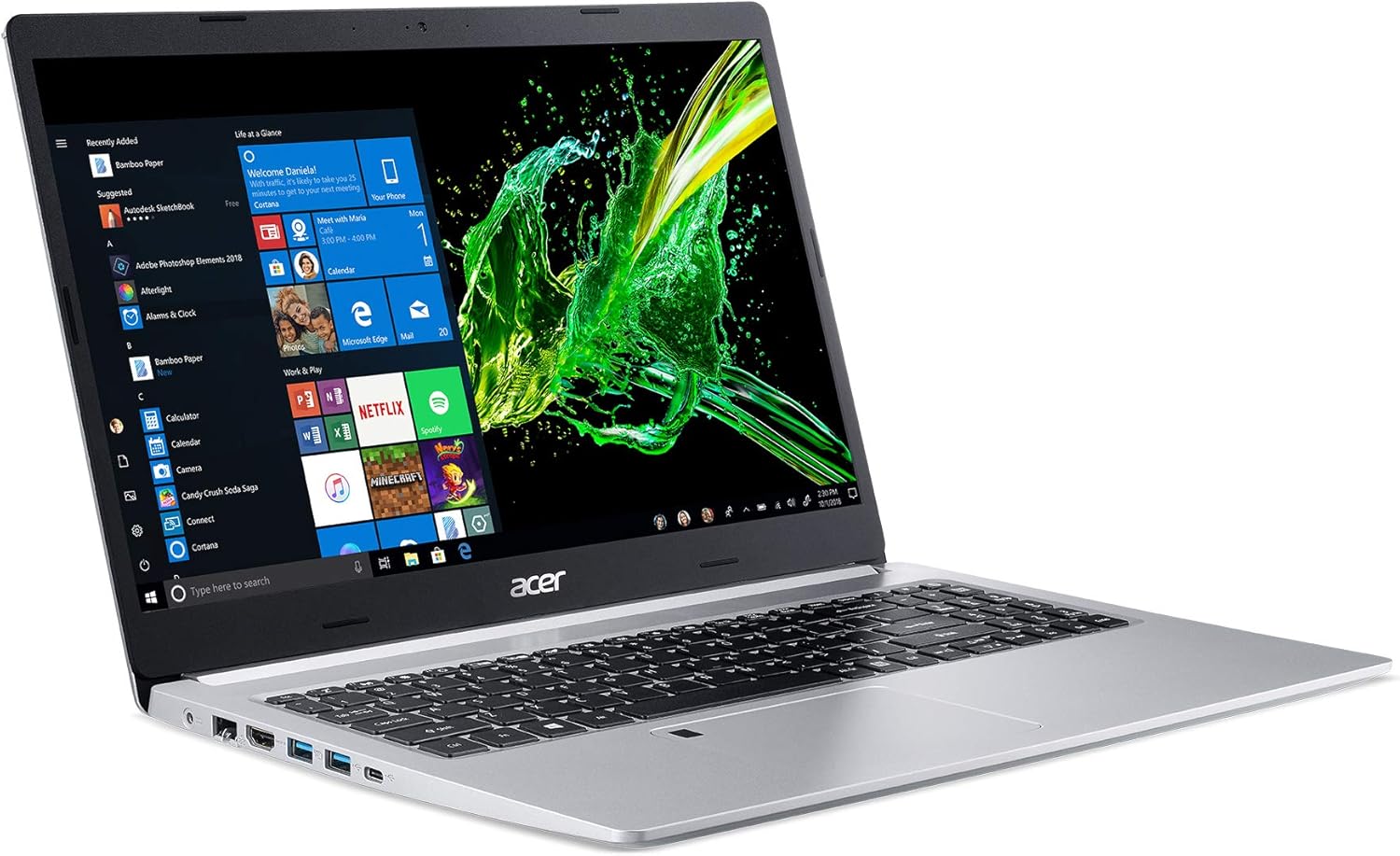
Figure 1: Acer Aspire 5 Slim Laptop
2.2. Initial Power-On and Operating System Setup
- Connect the AC adapter to the laptop's power port and then plug the power cord into an electrical outlet.
- Open het laptopscherm. De laptop kan automatisch inschakelen, of u moet mogelijk op de aan/uit-knop op het toetsenbord drukken.
- Follow the on-screen instructions to complete the Windows 10 Home setup process. This typically includes selecting your region, language, connecting to a Wi-Fi network, and creating a user account.
3. Kenmerken
3.1. Weergave
The Acer Aspire 5 features a vibrant 15.6-inch Full HD (1920 x 1080) widescreen LED-backlit IPS display. This display technology provides wide viewing angles and accurate color reproduction, enhancing your visual experience for work and entertainment.

Afbeelding 2: Weergavefuncties
3.2. Prestaties
Equipped with a 10th Generation Intel Core i5-10210U Processor, 8GB of DDR4 memory, and a 256GB PCIe NVMe SSD, the laptop delivers responsive performance for multitasking, productivity applications, and web browsing. The SSD ensures fast boot times and quick application loading.

Figure 3: Intel Core i5 10th Generation Processor
3.3. Connectiviteit
The laptop offers comprehensive connectivity options:
- Draadloze: Intel Wireless Wi-Fi 6 AX201 (802.11ax) Dual-Band (2.4GHz and 5GHz) with 2x2 MU-MIMO technology, Bluetooth 4.2
- Bedrade: 10/100/1000 Gigabit Ethernet LAN (RJ-45-poort)
- USB-poorten: 1 x USB 3.1 (Type-C) port (Gen 1 up to 5 Gbps), 2 x USB 3.1 Gen 1 Ports (one with Power-off Charging), 1 x USB 2.0 Port
- Video-uitgang: 1 x HDMI-poort met HDCP-ondersteuning

Figure 4: Extensive Connectivity Options
3.4. Levensduur van de batterij
Enjoy extended productivity with up to 9.5 hours of battery life, allowing you to work or stream on the go without frequent recharging.

Figure 5: Up to 9.5 Hours Battery Life
3.5. Toetsenbord en touchpad
The laptop features a backlit keyboard for comfortable typing in dimly lit environments. The precision touchpad supports multi-gesture input, and an integrated Acer Fingerprint Reader provides secure and convenient login via Windows Hello.

Figure 6: Backlit Keyboard and Fingerprint Reader
3.6. 360 Degree View
Observe the design and port placement of the Acer Aspire 5 from various angles.
Video 1: Acer Aspire 5 A515-54 360 Degree View. This short video provides a comprehensive look at the laptop's exterior, showcasing zijn slanke profile en havenlocaties.
4. Gebruiksaanwijzing
4.1. Aan/uit
- Inschakelen: Open het deksel of druk op de aan/uit-knop.
- Afsluiten: Klik op de Windows Startknop en selecteer vervolgens Energie > Afsluiten.
- Herstarten: Klik op de Windows Startknop en selecteer vervolgens Energie > Opnieuw opstarten.
- Slapen: Close the lid or click the Windows Start button, then select Power > Sleep.
4.2. Het toetsenbord en touchpad gebruiken
- The backlit keyboard can be toggled on/off or adjusted using the dedicated function keys (Fn + F8, for example, depending on model configuration).
- The touchpad supports standard mouse functions (tap to click, two-finger scroll, pinch to zoom) and Windows gestures.
- The fingerprint reader, integrated into the touchpad, allows for quick and secure login. Follow Windows Hello setup instructions to configure.
4.3. Randapparatuur aansluiten
Utilize the various ports (USB, HDMI) to connect external devices such as mice, keyboards, external drives, or external monitors. For optimal performance, use USB 3.1 ports for high-speed devices.

Afbeelding 7: Poorten aan de linkerkant

Afbeelding 8: Poorten aan de rechterkant
4.4. Using Wi-Fi and Bluetooth
- Wifi: Om verbinding te maken met een draadloos netwerk, klikt u op het Wi-Fi-pictogram in de taakbalk, selecteert u het gewenste netwerk en voert u het wachtwoord in als daarom wordt gevraagd.
- Bluetooth: To pair a Bluetooth device, go to Windows Settings > Devices > Bluetooth & other devices, turn on Bluetooth, and select 'Add Bluetooth or other device'.
4.5. Weergave-instellingen aanpassen
Right-click on the desktop and select 'Display settings' to adjust resolution, scale, and orientation. For color optimization, Acer Color Intelligence technology is pre-configured.
5. Onderhoud
5.1. Schoonmaken
- Gebruik een zachte, pluisvrije doek om het scherm en de buitenkant schoon te maken. Vermijd agressieve chemicaliën.
- Maak het toetsenbord en het touchpad regelmatig schoon om stof en vuil te verwijderen.
- Ensure ventilation vents are clear of obstructions to prevent overheating.
5.2. Software-updates
Keep your operating system and drivers updated to ensure optimal performance and security. Windows Update can be accessed via Settings > Update & Security > Windows Update.
5.3. Batterijverzorging
Om de levensduur van de batterij te verlengen, moet u voorkomen dat u de batterij vaak volledig ontlaadt. Bewaar de laptop op een koele, droge plaats wanneer u deze gedurende langere tijd niet gebruikt.
6. Probleemoplossing
- Laptop start niet op: Controleer of de netadapter goed is aangesloten en of het stopcontact werkt. Probeer een ander stopcontact.
- Trage prestaties: Close unnecessary applications, check for background updates, or restart the laptop.
- Problemen met wifi-connectiviteit: Restart your router and modem. Ensure Wi-Fi is enabled on the laptop and drivers are updated.
- Schermproblemen: Adjust display settings. If the screen remains blank or distorted, contact support.
7. Specificaties
| Functie | Detail |
|---|---|
| Modelnaam | A515-54-59W2 |
| Schermgrootte | 15.6 inch |
| Schermresolutie | 1920 x 1080 pixels (Full HD IPS) |
| Verwerker | 10th Gen Intel Core i5-10210U (up to 4.2 GHz) |
| RAM | 8GB DDR4 |
| Opslag | 256 GB PCIe NVMe SSD |
| Grafisch | Geïntegreerde Intel UHD Graphics 620 |
| Besturingssysteem | Windows 10 Startpagina |
| Draadloze connectiviteit | Intel Wi-Fi 6 AX201 (802.11ax), Bluetooth 4.2 |
| Havens | 1x USB 3.1 Type-C, 2x USB 3.1 Gen 1, 1x USB 2.0, 1x HDMI, 1x RJ-45 Ethernet |
| Levensduur van de batterij | Tot 9.5 uur |
| Gewicht | 3.97 pond (1.8 kg) |
| Afmetingen (LxBxH) | 14.31 x 9.86 x 0.71 inch |
| Kleur | Zilver |
| Speciale functie | Numeric Keypad, Fingerprint Reader, Backlit Keyboard |
8. Garantie en ondersteuning
Voor garantie-informatie en technische ondersteuning kunt u de bijgeleverde documentatie raadplegen of de officiële Acer-ondersteuningswebsite bezoeken. webwebsite. Bewaar uw aankoopbewijs voor garantieclaims.


