1. Product voorbijview
The Elecom M-FBL01DBXSBK is a 5-button wireless mouse designed for comfortable and quiet operation. It features a Blue LED sensor for versatile surface compatibility and a compact USB receiver.

Image 1.1: Elecom M-FBL01DBXSBK Wireless Mouse with its compact USB receiver.
2. Inhoud van het pakket
- Elecom M-FBL01DBXSBK Wireless Mouse
- USB draadloze ontvanger
- AA Alkaline Battery (for operation confirmation)
- Gebruikershandleiding (dit document)
3. Installatie-instructies
3.1. Batterij installatie
- Zoek het batterijklepje aan de onderkant van de muis.
- Schuif of til het deksel op om het compartiment te openen.
- Plaats één AA-alkalinebatterij en zorg ervoor dat de positieve (+) en negatieve (-) polen correct zijn uitgelijnd met de markeringen in het compartiment.
- Sluit het batterijklepje goed.

Image 3.1: The underside of the mouse, indicating the battery compartment and power switch.
3.2. De USB-ontvanger aansluiten
- Remove the compact USB receiver from its storage slot on the underside of the mouse.
- Sluit de USB-ontvanger aan op een beschikbare USB-A-poort van uw computer.
- Uw computer zou de benodigde drivers automatisch moeten detecteren en installeren. Dit kan even duren.
3.3. De muis inschakelen
After installing the battery and connecting the receiver, locate the power switch on the underside of the mouse and slide it to the 'ON' position. The mouse is now ready for use.
3.4. OS Compatibility
The Elecom M-FBL01DBXSBK Wireless Mouse is compatible with:
- Windows 11, Windows 10, Windows RT8.1, Windows 8.1, Windows 7, Windows Vista
- macOS High Sierra 10.13 en hoger
Ensure your operating system is updated to the latest version and any service packs are installed for optimal performance.
4. De muis bedienen
4.1. Basisfuncties
The mouse features five buttons and a scroll wheel:
- Linkerknop: Primaire klikfunctie.
- Rechterknop: Secundaire klikfunctie (contextmenu).
- Muis wieltje: Rollen documenten en web pages vertically. Can also be pressed for a middle-click function.
- Doorsturen knop: Navigeert vooruit in web browsers of file ontdekkingsreizigers.
- Terugknop: Navigeert achteruit in web browsers of file ontdekkingsreizigers.

Image 4.1: The five buttons of the Elecom M-FBL01DBXSBK mouse, including the scroll wheel.
4.2. Quiet Click Feature
All five buttons incorporate a silent switch mechanism, significantly reducing clicking noise. This allows for quiet operation in various environments.

Image 4.2: The silent switch design minimizes operational noise.
4.3. Blue LED Sensor
The mouse is equipped with a Blue LED optical sensor, which provides accurate tracking on a variety of surfaces, including those with slight unevenness or dust. This enhances usability in diverse settings.

Image 4.3: The Blue LED sensor allows for comfortable use on various surfaces.
4.4. Draadloze connectiviteit
The mouse utilizes a 2.4 GHz wireless band for stable communication. The effective radio distance is approximately 3 meters (9.8 feet) on magnetic surfaces (e.g., steel desks) and up to 10 meters (32.8 feet) on non-magnetic surfaces (e.g., wooden desks).
4.5. Batterij-indicator
An integrated battery indicator light notifies you when the battery level is low, signaling that a replacement is needed.
4.6. Elecom Mouse Assistant Software
Button functions can be customized using the free downloadable Elecom Mouse Assistant software. This allows users to reassign functions to the mouse buttons for improved workflow efficiency.
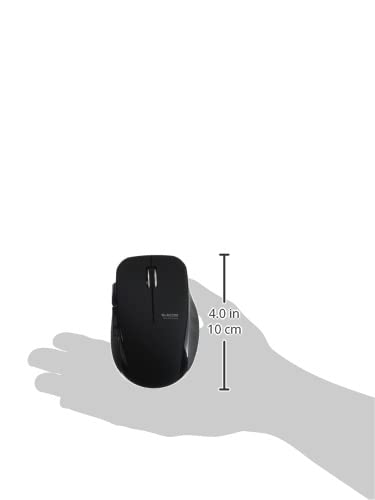
Image 4.4: The Elecom Mouse Assistant software enables button customization.
5. Onderhoud
5.1. Batterij vervangen
When the battery indicator signals low power, replace the AA battery with a new AA alkaline, manganese, or NiMH battery. Follow the battery installation steps outlined in Section 3.1.
5.2. Schoonmaken
To clean the mouse, gently wipe its surface with a soft, dry cloth. Avoid using harsh chemicals or abrasive materials, as these can damage the finish. Ensure no liquid enters the mouse.
5.3. Receiver Storage
The USB receiver can be stored inside the mouse body when not in use or during transport. This helps prevent loss of the receiver.
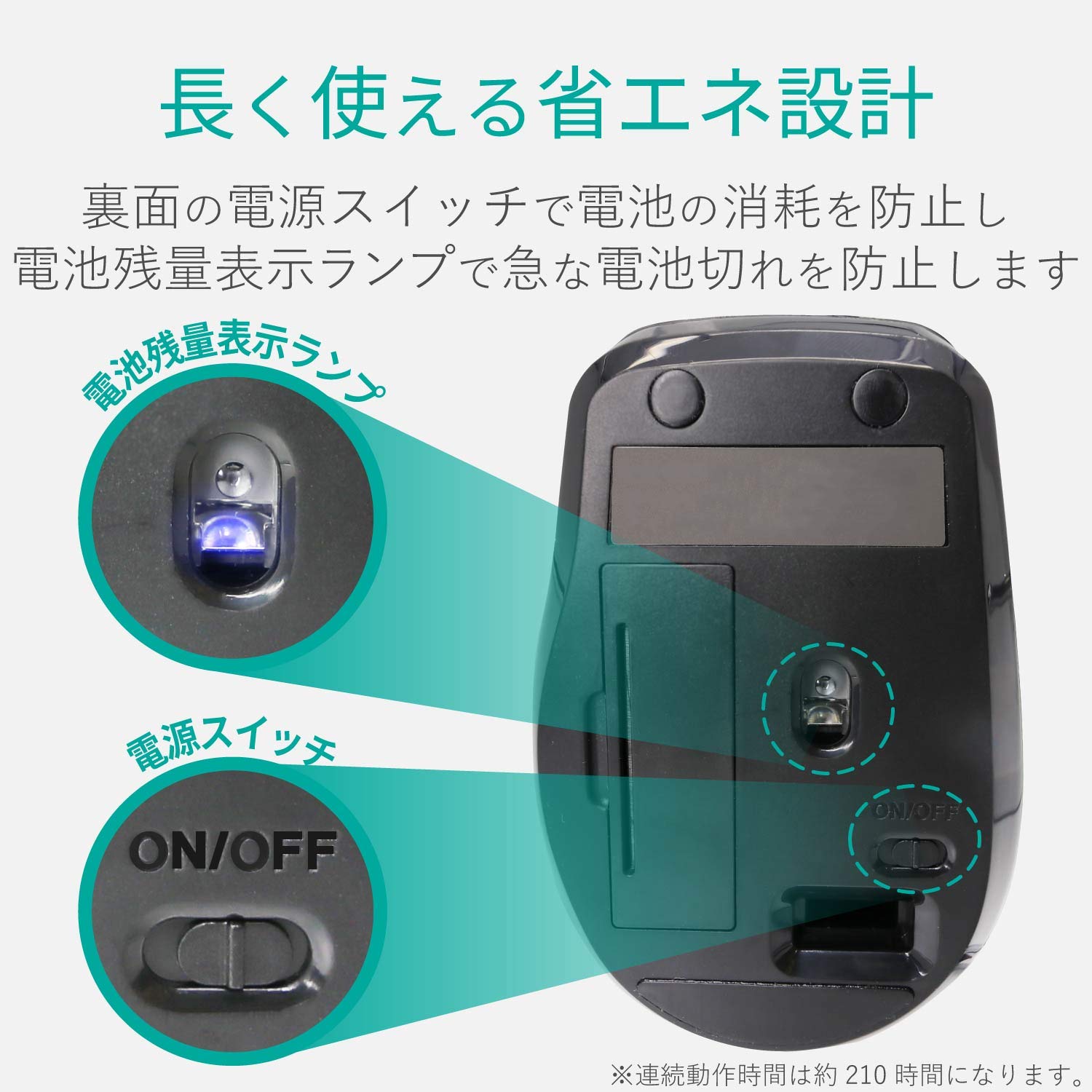
Image 5.1: The compact receiver can be stored within the mouse for convenience.
6. Probleemoplossing
- Muis reageert niet:
- Check if the mouse is powered on (power switch on the underside).
- Zorg ervoor dat de batterij correct is geplaatst en niet leeg is. Vervang de batterij indien nodig.
- Controleer of de USB-ontvanger goed is aangesloten op een werkende USB-poort op uw computer. Probeer een andere USB-poort.
- Start uw computer opnieuw op.
- Onregelmatige cursorbeweging:
- Clean the optical sensor area on the underside of the mouse.
- Zorg ervoor dat u de muis op een geschikte ondergrond gebruikt. Vermijd sterk reflecterende of transparante oppervlakken.
- Check for interference from other wireless devices. Move the mouse closer to the receiver.
- Knoppen werken niet goed:
- If using Elecom Mouse Assistant, ensure button assignments are correct.
- Reinstall the Elecom Mouse Assistant software if issues persist.
7. Specificaties
| Interface | USB |
| Connectorvorm | USB-A-mannetje |
| Compatibel besturingssysteem | Windows 11, 10, RT8.1, 8.1, 7, Vista; macOS High Sierra 10.13+ |
| Oplossing | 1600 tellen |
| Communicatiemethode | GFSK-methode |
| Radiofrequentie | 2.4GHz-band |
| Radio Distance | Magnetic objects: 3m (9.8 ft); Non-magnetic objects: 10m (32.8 ft) |
| Leesmethode | Optisch sensorsysteem (Blauwe LED) |
| Aantal knoppen | 5 (including wheel button) |
| Aantal wielen | 1 |
| Ontvanger opslag | Ja |
| Continue bedrijfstijd | Ongeveer 210 uur |
| Standby-tijd | Ong. 1666 dagen |
| Estimated Battery Usage Time | Ong. 478 dagen |
| Voeding (hoofdeenheid) | 1 AA alkaline, manganese, or NiMH battery |
| Nominaal voltage (Body) | 1.5V |
| Kleur | Zwart |
| Weight (Mouse) | Ongeveer 62 g (zonder batterij) |
| Externe afmetingen (ontvanger) | 14.5x18.0x6.3mm |
| Gewicht (ontvanger) | Ongeveer 2g |
8. Garantie en ondersteuning
8.1. Garantieperiode
Dit product wordt geleverd met een garantie van 6 maanden vanaf de aankoopdatum.
8.2. Product Inquiries
For product inquiries or technical support, please contact the Elecom General Information Center:
- TELEFOON: 0570-084-465
- FAX: 0570-050-012
- Openingstijden: 10:00 - 19:00 (24/7)


