1. Inleiding
The WD My Passport for Mac is a portable external hard drive designed for seamless integration with macOS environments. It offers reliable storage for your digital content, including photos, videos, music, and documents. This drive is pre-formatted for Mac and compatible with Apple's Time Machine backup software, providing a secure and convenient solution for data management and protection.

A black WD My Passport for Mac portable external hard drive, showcasing its sleek design with a textured bottom half and a smooth top half featuring the WD logo.
2. Inhoud van het pakket
Controleer of alle hieronder vermelde artikelen in uw productpakket zijn opgenomen:
- WD My Passport for Mac Portable External Hard Drive
- USB-C to USB Micro-B cable
- USB-A to USB Micro-B cable (compatible with USB 2.0)
- WD Discovery software (pre-loaded on drive)
- Snelstartgids

The retail packaging for the WD My Passport for Mac portable external hard drive, displaying product features such as USB-C/USB-A compatibility, 4TB capacity, 3-year warranty, and WD Security.
3. Instellen
The WD My Passport for Mac is designed for straightforward setup. It comes pre-formatted for macOS, eliminating the need for initial formatting before use.
3.1 De aandrijving aansluiten
- Locate an available USB port on your Mac computer.
- Select the appropriate cable: use the USB-C to USB Micro-B cable for USB-C ports, or the USB-A to USB Micro-B cable for standard USB-A ports.
- Connect the Micro-B end of the cable to the port on the WD My Passport drive.
- Connect the other end of the cable (USB-C or USB-A) to your Mac's USB port.
- The drive will power on automatically via the USB connection and should appear on your desktop or in Finder.
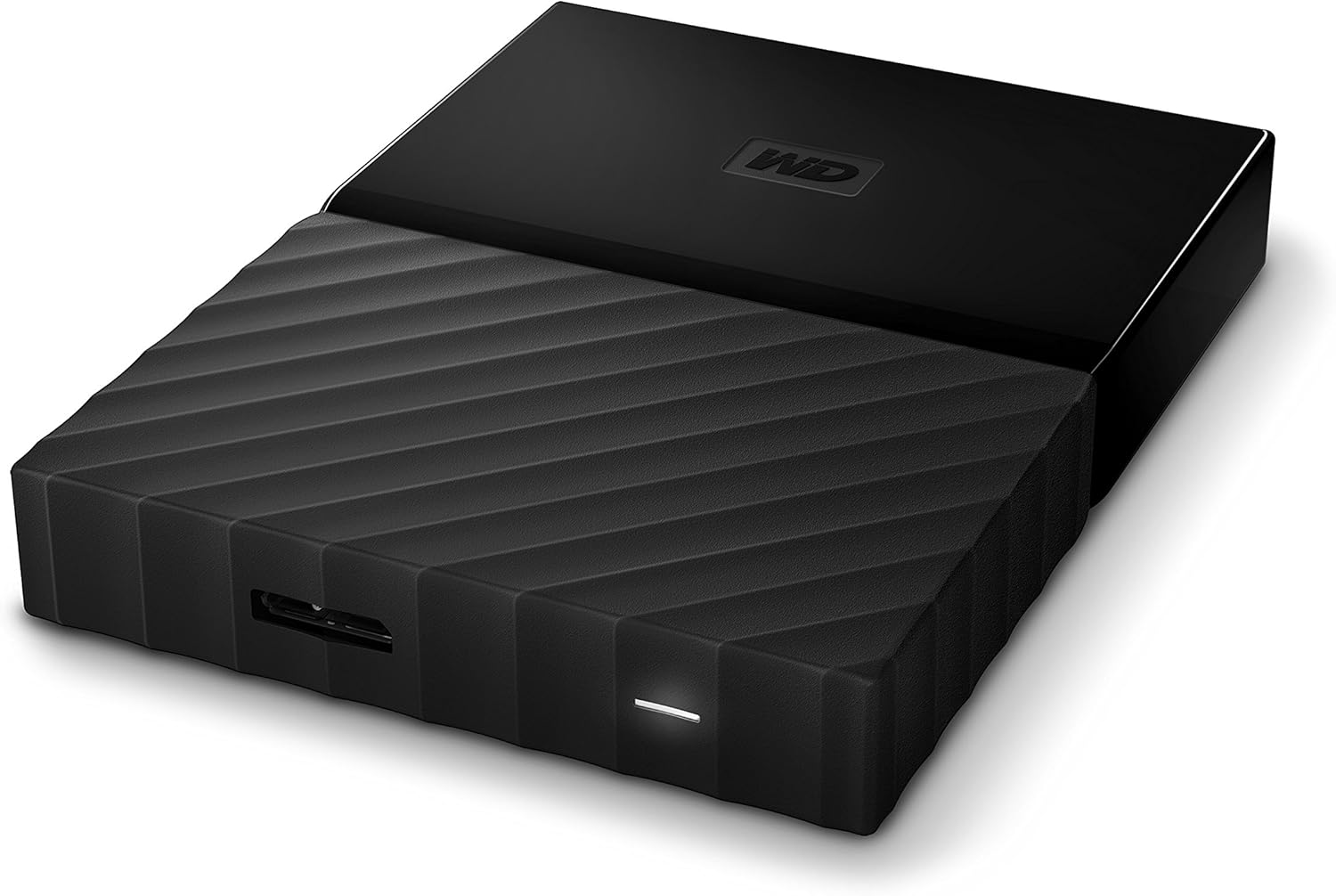
Een kant view of the WD My Passport for Mac portable external hard drive, highlighting the USB Micro-B port and a small LED indicator light on its edge.
3.2 Initial Software Installation (Optional)
The drive includes WD Discovery software. While not strictly necessary for basic storage, it can be used to manage drive settings, including password protection and diagnostics. You can choose to install this software from the drive's contents if desired. For optimal performance with Time Machine, some users prefer to disable the drive's internal sleep timer via WD Drive Utilities (available through WD Discovery) to prevent backup interruptions.
4. Gebruiksaanwijzing
4.1 Using with Apple Time Machine
The WD My Passport for Mac is fully compatible with Apple's Time Machine for automatic backups.
- Connect the WD My Passport drive to your Mac.
- When prompted, select the drive as your Time Machine backup disk. If not prompted, go to System Settings (or System Preferences) > General > Time Machine.
- Click 'Add Backup Disk' and select your WD My Passport drive.
- Time Machine will begin backing up your Mac automatically.
4.2 Gegevensoverdracht
Overdragen files, simply drag and drop them to and from the My Passport drive icon on your desktop or within Finder, similar to any other folder or drive.

The WD My Passport for Mac portable external hard drive connected via a USB cable to a MacBook, placed on a wooden desk alongside a cup of tea and notebooks, demonstrating its use in a typical workspace.
4.3 Password Protection and Hardware Encryption
The drive supports password protection with hardware encryption for enhanced data security. This feature can be enabled and managed using the WD Security software, which is part of the WD Discovery suite. Follow the on-screen instructions within the software to set up and manage your password.
5. Onderhoud
Proper maintenance ensures the longevity and reliability of your WD My Passport drive.
- Veilige ontkoppeling: Always eject the drive from your Mac's desktop or Finder before physically disconnecting the USB cable to prevent data corruption.
- Lichamelijke verzorging: Keep the drive in a clean, dry environment. Avoid extreme temperatures, direct sunlight, and physical shocks.
- Software-updates: Controleer regelmatig de ondersteuning van Western Digital. website for firmware or software updates for your drive.
- Sleep Timer Management: If experiencing issues with Time Machine backups, consider using the WD Drive Utilities software (via WD Discovery) to disable the drive's internal sleep timer. This can prevent the drive from entering a low-power state during critical operations.
6. Probleemoplossing
If you encounter issues with your WD My Passport for Mac, consider the following:
- Station niet herkend:
- Ensure the USB cable is securely connected to both the drive and your Mac.
- Try a different USB port on your Mac.
- Probeer een andere USB-kabel.
- Start uw Mac opnieuw op.
- Check Disk Utility (Applications > Utilities > Disk Utility) to see if the drive is detected but not mounted.
- Time Machine Backup Issues:
- Verify that the drive's sleep timer is not interfering with backups. Consider disabling it via WD Drive Utilities.
- Ensure your Mac's Time Machine settings are correctly configured to use the WD My Passport drive.
- Trage prestaties:
- Ensure you are using a USB 3.0 or USB-C port for optimal transfer speeds.
- Vermijd het gelijktijdig uitvoeren van meerdere veeleisende applicaties tijdens grote gegevensoverdrachten.
For further assistance, refer to the WD support webwebsite of neem contact op met de klantenservice.
7. Specificaties
| Modelnummer | WDBP6A0040BBK-WESE |
| Digitale opslagcapaciteit | 4 TB (4000 GB) |
| Interface | USB-C, USB 3.0 (USB 2.0 compatible) |
| Hardwareplatform | Mac |
| Rotatiesnelheid | 5400 toeren per minuut |
| Afmetingen (LxBxH) | 4.33 x 3.21 x 0.85 inch (110 x 81.5 x 21.5 mm) |
| Artikelgewicht | 8.6 ons |
| Kleur | Zwart |

An image illustrating the physical dimensions of the WD My Passport for Mac portable external hard drive, showing its length, width, and thickness in both millimeters and inches.
8. Garantie en ondersteuning
The WD My Passport for Mac Portable External Hard Drive comes with a 3-year manufacturer's limited warranty. For detailed warranty terms and conditions, please refer to the documentation included with your product or visit the official Western Digital support webplaats.
For technical support, product registration, and access to drivers or software updates, please visit the Western Digital support portal. You can find contact information and frequently asked questions on their webplaats.