1. Inleiding
Bedankt voor uw aankoopasing the Gingko Cube LED Click Clock. This innovative alarm clock combines elegant design with smart functionality, displaying time, date, and temperature. Its unique sound-activated display ensures a dark room at night, illuminating only when needed. Please read this manual carefully to ensure proper setup and operation of your device.
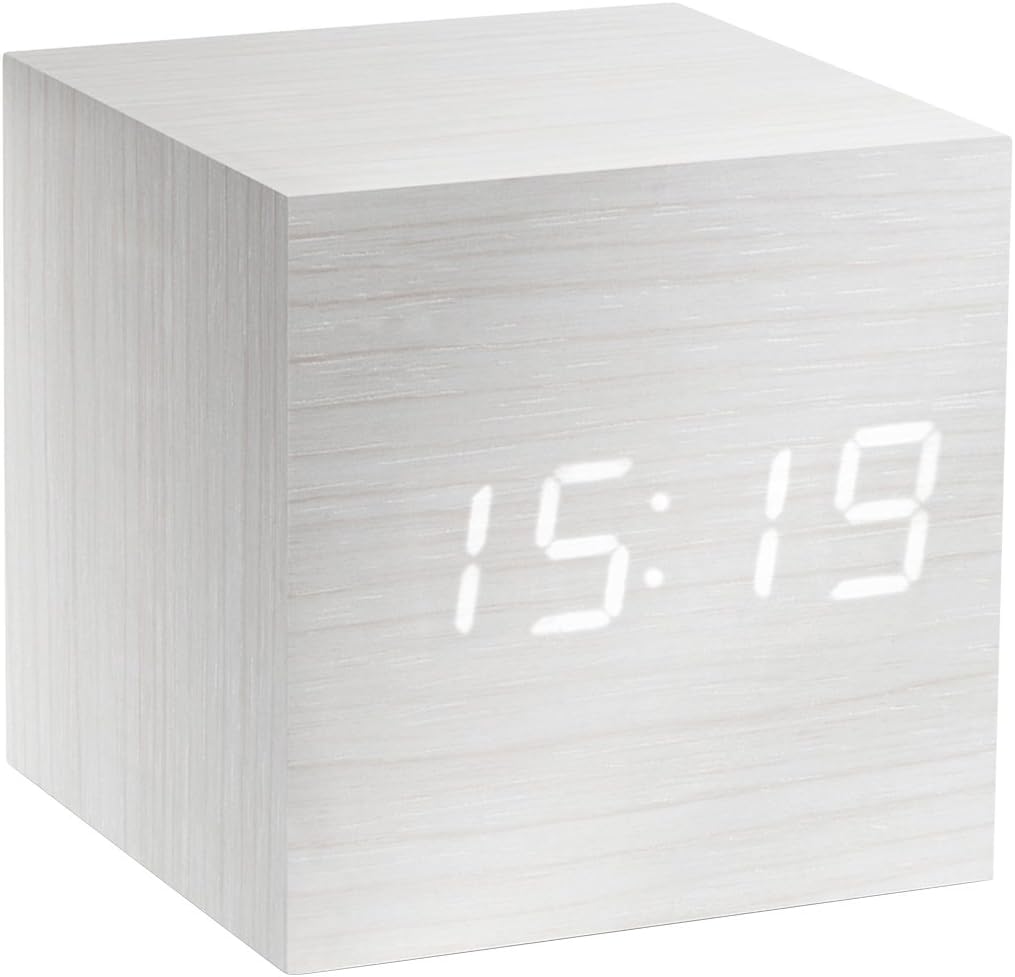
Figure 1: The Gingko Cube LED Click Clock displaying the time 15:19. The clock features a minimalist cube design with a white wood-grain finish and bright white LED digits.
2. Veiligheidsinformatie
- Stel het apparaat niet bloot aan water of overmatige vochtigheid.
- Vermijd extreme temperaturen, direct zonlicht of warmtebronnen.
- Probeer het apparaat niet te demonteren of aan te passen. Hierdoor vervalt de garantie.
- Use only the provided USB adapter or compatible power sources.
- Buiten bereik van kinderen houden.
- Gooi batterijen op verantwoorde wijze weg, volgens de plaatselijke voorschriften.
3. Inhoud van het pakket
Vink het vakje aan voor de volgende items:
- Gingko Cube LED Click Clock (Model GK08W13)
- USB-lichtnetadapter
- USB-kabel
- Gebruiksaanwijzing (dit document)
4. Product voorbijview
The Gingko Cube LED Click Clock is designed for simplicity and functionality. Its main features include a hidden LED display that appears through the wood-grain finish, and control buttons located on the back panel.

Afbeelding 2: Achter view of the Gingko Cube LED Click Clock. This image shows the battery compartment cover removed, revealing slots for three AAA batteries. Above the battery compartment, five small control buttons are visible: SET, UP, DOWN, V/S, and RESET.
4.1 bedieningsknoppen
- SET: Enters setting mode for time, date, and alarms. Confirms selections.
- UP: Verhoogt waarden tijdens het instellen.
- OMLAAG: Verlaagt waarden tijdens het instellen.
- V/S (Voice/Sound): Toggles between sound-activated display mode and permanent display mode.
- HERSTEL: Zet de klok terug naar de fabrieksinstellingen.
4.2 Stroominvoer
The clock can be powered via the included USB cable and adapter, or by 3 x AAA batteries (not included). An internal battery is included to retain settings during power outagen.
5. Instellen
5.1 Inschakelen
- Voeding via USB: Connect the small end of the USB cable to the DC5V port on the back of the clock. Plug the larger end into the USB power adapter, then plug the adapter into a wall outlet.
- Batterijen gebruiken: Open the battery compartment cover on the back of the clock. Insert 3 x AAA batteries, ensuring correct polarity (+/-). Close the battery compartment cover securely.
Het display licht op, wat aangeeft dat de klok is ingeschakeld.
5.2 Initial Settings (Time, Date, Temperature Format)
Houd de SET button for 3 seconds to enter setting mode. The display will flash, indicating the current setting is ready for adjustment. Use the UP En OMLAAG buttons to change values. Press SET om te bevestigen en naar de volgende instelling te gaan.
- Jaarinstelling: Adjust the year (e.g., 2024). Press SET.
- Maandinstelling: Adjust the month. Press SET.
- Datum instellen: Adjust the day. Press SET.
- 12/24-uursformaat: Select "12H" or "24H". Press SET.
- Uurinstelling: Adjust the hour. Press SET.
- Minuteninstelling: Adjust the minute. Press SET.
- Temperatuureenheid: Select "°C" (Celsius) or "°F" (Fahrenheit). Press SET.
The clock will exit setting mode automatically after a few seconds of inactivity or after the last setting is confirmed.
6. Gebruiksaanwijzing
6.1 Display Modes (Time, Date, Temperature)
The clock can cycle through displaying time, date, and temperature. By default, it will alternate between these displays.

Figure 3: The clock displaying the time 11:43, positioned on a dark desk next to a laptop. This illustrates the clock's compact size and clear LED display in a typical environment.
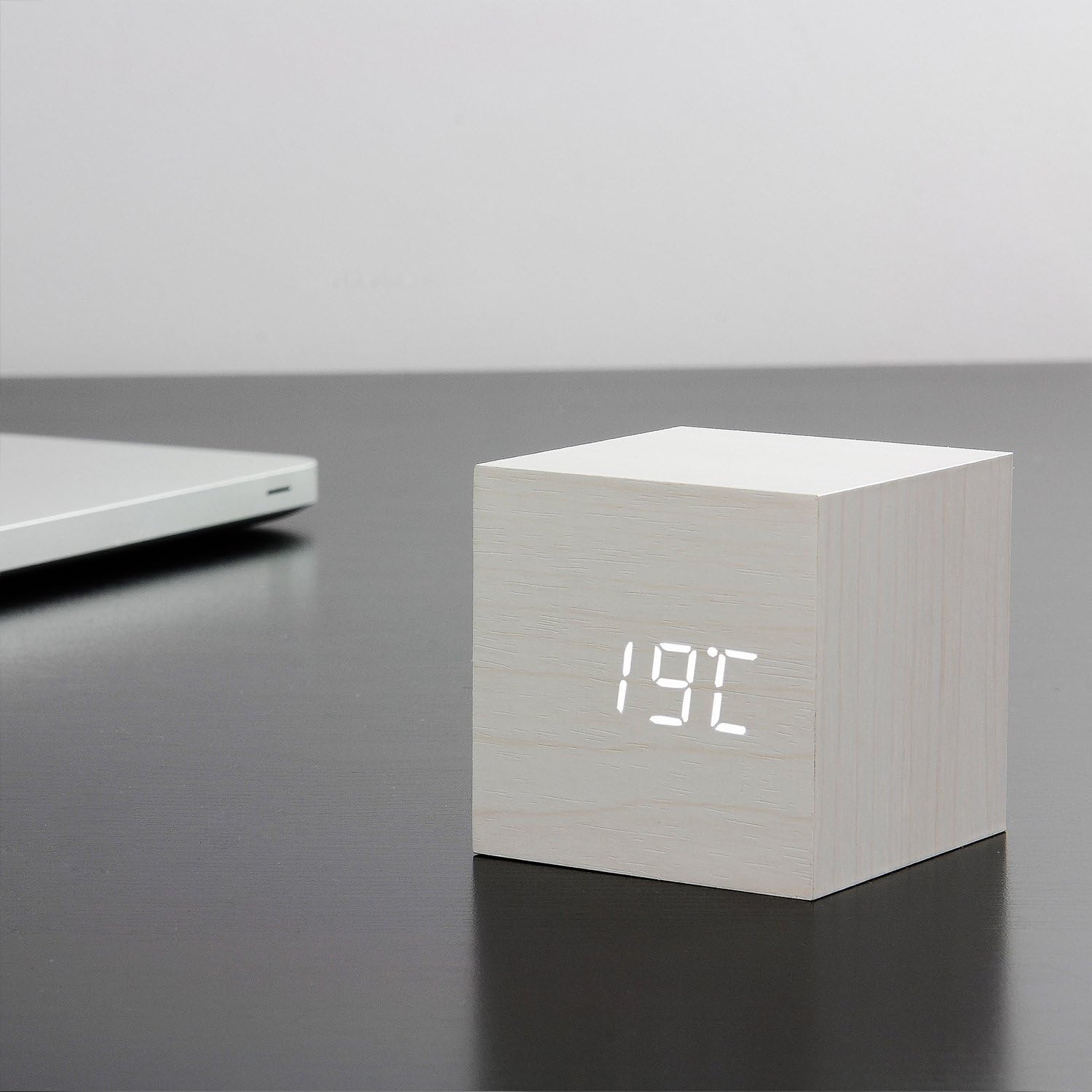
Figure 4: The clock displaying the temperature 19°C, also on a dark desk next to a laptop. This shows the clock's ability to display environmental temperature in addition to time and date.
6.2 Sound Activation (V/S Mode)
The clock features a sound-activated display mode, which conserves power and keeps your room dark. In this mode, the display turns off when the room is quiet and illuminates when a sound (like a clap or tap) is detected.
- Druk op de V / S button to toggle between sound-activated display (display turns off after a few seconds of silence) and permanent display (display remains on).
- When in sound-activated mode, a sound above 60dB (e.g., a clap, finger snap, or gentle tap on the clock/surface) will activate the display for approximately 10 seconds.
6.3 Alarminstellingen
The clock supports up to three different alarm settings (AL1, AL2, AL3).
- From the normal display mode, short press the SET button repeatedly until "AL1", "AL2", or "AL3" appears.
- To set an alarm, press and hold the SET button for 3 seconds when the desired alarm (e.g., "AL1") is displayed. The hour digits will flash.
- Gebruik UP En OMLAAG Om de alarmtijd in te stellen. Druk op SET.
- Gebruik UP En OMLAAG to set the alarm minute. Press SET.
- The display will show "ON:AL" or "OFF:AL". Use UP or OMLAAG Om het alarm in of uit te schakelen. Druk op SET bevestigen.
- Repeat for AL2 and AL3 if desired.
When an alarm sounds, it will last for 1 minute. To stop the alarm, press any button. The alarm will automatically turn off after 1 minute if no button is pressed.
6.4 Dimmerfunctie
The clock features an automatic dimmer function. The display brightness will automatically adjust between brighter (7:00 AM - 6:59 PM) and dimmer (7:00 PM - 6:59 AM) modes to suit ambient light conditions.
7. Onderhoud
- Maak het oppervlak van de klok schoon met een zachte, droge doek. Gebruik geen schurende reinigingsmiddelen of oplosmiddelen.
- If using batteries, replace them when the display becomes dim or erratic. Remove batteries if the clock will not be used for an extended period.
8. Probleemoplossing
| Probleem | Mogelijke oorzaak | Oplossing |
|---|---|---|
| Het scherm is uit of donker. | Sound-activated mode is on; low batteries; no power. | Tap the clock or make a sound to activate. Press V/S to switch to permanent display. Replace batteries or ensure USB power is connected. |
| Clock not responding to buttons. | Tijdelijke softwarestoring. | Press the RESET button on the back of the clock. Re-enter settings if necessary. |
| Het alarm gaat niet af. | Alarm is set to OFF; incorrect alarm time. | Check alarm settings (AL1/AL2/AL3) to ensure it is set to ON and the time is correct. |
| Incorrect time/date/temperature. | Settings not correctly configured. | Re-enter setting mode (Section 5.2) and adjust values. |
9. Specificaties
| Functie | Detail |
|---|---|
| Modelnummer | GK08W13 |
| Afmetingen (L x B x H) | 68 x 68 x 68 mm (2.68 x 2.68 x 2.68 inch) |
| Gewicht | 120 gram (0.26 lbs) |
| Materiaal | Plastic |
| Kleur | White / White LED |
| Weergavetype | Digitale LED |
| Energiebron | USB Cable (DC5V) or 3 x AAA Batteries |
| Functies | Time, Date, Temperature Display, Sound Activation, 3 Alarm Settings, Dimmer Function, Internal Battery for Settings Retention |
10. Garantie en ondersteuning
Gingko products are designed and manufactured to the highest standards. For warranty information or technical support, please refer to the official Gingko website or contact your retailer. Please have your model number (GK08W13) and purchase details ready when seeking support.
Voor meer informatie, bezoek: www.gingkodesign.com