Invoering
The DigiTech SDRUM is an intelligent drum machine pedal designed for guitarists and bassists. It utilizes innovative BeatScratch Technology to allow users to create drum patterns by simply strumming or scratching their guitar strings. The pedal then generates a professional-sounding drum beat with various embellishments and variations to complement the user's input. It supports storing up to 36 different songs and offers a choice of 5 drum kits covering a wide range of genres. Additionally, each song can have three different parts (e.g., verse, chorus, bridge) that can be switched on the fly for dynamic live performances and songwriting exploration.

Figuur 1: Boven view of the DigiTech SDRUM pedal, highlighting its various controls and the main footswitch.
Instellen
1. Stroomaansluiting
The SDRUM requires a 9V DC power supply (500mA, center negative). Connect the power adapter to the 9VDC input jack on the rear of the pedal. The unit can also be powered by a 9V battery, though a power adapter is recommended for consistent performance.

Afbeelding 2: Achter view of the SDRUM, illustrating the power input and JamSync Out port.
2. Aansluiten op instrumenten en Ampverliezers
Connect your guitar or bass to the 'GUITAR IN' jack on the right side of the pedal. For output, connect the 'AMP OUT' jack naar je gitaar amplifier. For stereo output or connection to a mixer/PA system, use the 'L/MONO - MIXER OUT - R' jacks. The 'FS3X IN' jack is for an optional footswitch for extended control. A USB port is also available for potential firmware updates or computer connectivity.
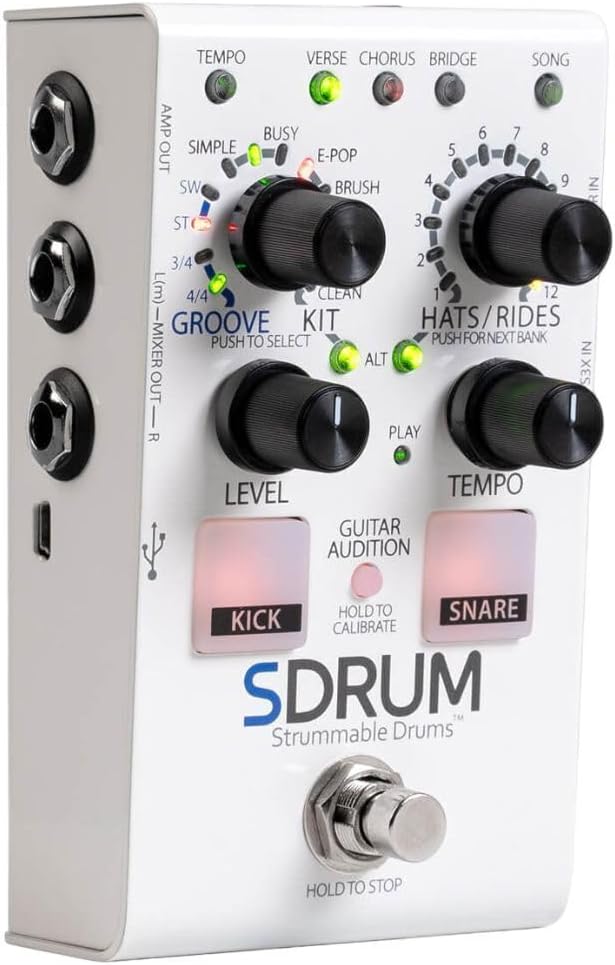
Figuur 3: Zijkant view of the SDRUM, showing the input and output connections for instruments and audio systems.
3. Initial Calibration (Guitar Audition)
Before creating your first beat, it is crucial to calibrate the SDRUM to your playing style and guitar's output. This ensures accurate detection of kick and snare patterns.
- Press and hold the 'GUITAR AUDITION' button (located between the KICK and SNARE pads). The KICK and SNARE pads will begin to flash.
- While holding the button, strum your guitar's low strings (typically E and A) to register kick drum sounds. The pedal will count 12 kick samples.
- Next, strum your guitar's high strings (typically G, B, and E) to register snare drum sounds. The pedal will count 12 snare samples.
- Release the 'GUITAR AUDITION' button once both sets of samples are registered. The SDRUM is now calibrated.
- Opmerking: You typically only need to recalibrate if you change your guitar or significantly alter your tone settings.
Gebruiksaanwijzing
1. Learning a Beat (Verse/Chorus/Bridge)
The SDRUM allows you to teach it drum patterns for different song sections (Verse, Chorus, Bridge). Each part can be up to 4 bars long, though 2-bar patterns are common.
- Tap the main footswitch once. The 'LEARN' LED will flash rapidly, indicating the pedal is ready to learn.
- Strum your guitar strings to create your desired kick and snare pattern. The SDRUM will analyze your strumming to generate a full drum beat.
- Finish your pattern precisely at the end of the bar where you want the drums to kick in. The pedal will automatically generate a full drum track based on your input.
- The SDRUM will automatically assign the learned pattern to the current song part (Verse, Chorus, or Bridge, indicated by the illuminated LED).
2. Playing and Switching Parts
Once a pattern is learned, you can easily play it back and switch between song parts.
- To start playback, simply tap the main footswitch. The 'PLAY' LED will illuminate, and the drum beat will begin.
- To switch between Verse, Chorus, and Bridge parts during playback, tap the main footswitch. The pedal will transition to the next part at the end of the current bar.
- To trigger a drum fill while staying on the current part (e.g., staying on the Verse), quickly double-tap the main footswitch. The SDRUM will play a fill and then return to the current part.

Figure 4: The main footswitch is used for starting/stopping playback and switching between song parts.
3. Afspelen stoppen
To stop the drum beat, press and hold the main footswitch. The drum beat will stop, often with a cymbal crash that rings out as long as the footswitch is held down.
4. Clearing Songs and Parts
You can clear an entire song or just a specific part.
- To Clear a Whole Song: Press and hold the main footswitch. The Verse, Chorus, and Bridge LEDs will flash sequentially, then all will flash simultaneously. Once all LEDs are flashing, release the footswitch. The entire song will be cleared.
- To Clear a Specific Part: While the song is playing, press and hold the main footswitch. Release the footswitch as soon as the LED for the currently active part (Verse, Chorus, or Bridge) flashes red. Only that specific part will be cleared, and the metronome will start, indicating the song's tempo is still active but the part is empty.
5. Control Knobs and Functions
- GROOVE/KIT: This knob selects the drum kit and groove complexity. Push to select different kits (Simple, Busy, E-Pop, Brush, Perc, Pwr, Clean). Rotate to adjust groove complexity.
- HATS/RIDES: This knob selects different hi-hat and ride cymbal styles. Push to select the next bank of styles.
- NIVEAU: Hiermee wordt het totale uitvoervolume van de drummachine aangepast.
- TIJD: Adjusts the tempo (BPM) of the drum beat. You can also tap the 'TEMPO' button (top left) to tap in a desired tempo.
- LIEDJE: This button allows you to select and save different songs (up to 36 memories).
Onderhoud
1. Schoonmaken
To clean the pedal, use a soft, dry cloth. Avoid using abrasive cleaners or solvents, as they may damage the finish or internal components.
2. Opslag
Store the SDRUM in a cool, dry place away from direct sunlight and extreme temperatures. If storing for an extended period, remove any installed 9V batteries to prevent leakage.
3. Batterij vervangen
If using a 9V battery, replace it when the pedal's performance degrades or the power indicator dims. To replace, open the battery compartment on the underside of the pedal, remove the old battery, and insert a new 9V battery, ensuring correct polarity.
Probleemoplossing
| Probleem | Mogelijke oorzaak | Oplossing |
|---|---|---|
| No sound from the pedal. | Incorrect connections, low power, or pedal bypassed. | Check all cable connections. Ensure power supply is adequate (9VDC, 500mA). Verify the pedal is engaged (not in bypass mode). |
| Inaccurate kick/snare detection during learning. | Improper calibration or inconsistent strumming. | Perform the 'Guitar Audition' calibration again, ensuring clear and consistent strums for kick and snare. Adjust guitar volume or tone if necessary. |
| Drum beat stops unexpectedly. | Footswitch held down too long or power interruption. | Ensure you are tapping the footswitch for part changes, not holding it. Check power connections. |
| Cannot clear a specific song part. | Incorrect clearing procedure. | Follow the specific instructions for 'Clearing a Specific Part' (press and hold, then release when the part LED flashes red). If you hold too long, it clears the whole song. |
Specificaties
- Model: SDRUM
- Afmetingen: 5.4 x 2.5 x 3.25 inch
- Artikelgewicht: 1 pond (16 ons)
- Energiebron: Corded Electric (9 Volts, 500mA recommended) or 1 x 9V battery
- Hardware-interface: USB
- Signaalformaat: Analoog
- Kleur: Wit
- Functies: BeatScratch Technology, 5 Drum Kits, 36 Song Memories, 12 Hats/Rides Styles
Garantie en ondersteuning
For warranty information, technical support, or service inquiries regarding your DigiTech SDRUM, please refer to the official DigiTech webBezoek de website of neem rechtstreeks contact op met hun klantenservice. Bewaar uw aankoopbewijs voor eventuele garantieclaims.


