1. Inleiding
Bedankt voor uw aankoopasing the ELECOM M-XGM10DBBK Wireless 5-Button BlueLED Mouse. This mouse is designed for comfort and precision, featuring an ergonomic shape that fits naturally in your hand and BlueLED technology for reliable tracking on various surfaces. This manual provides essential information for proper setup, operation, and maintenance of your device.
2. Product voorbijview
The M-XGM10DBBK mouse is part of the "EX-G" series, known for its ergonomic design and comfortable grip. It features five buttons, including dedicated back and forward buttons, to enhance productivity.
Belangrijkste kenmerken:
- Ergonomisch ontwerp: Shaped to fit the hand for ultimate grip comfort.
- BlueLED Sensor: Provides precise tracking on a wide range of surfaces, including glass and fabric.
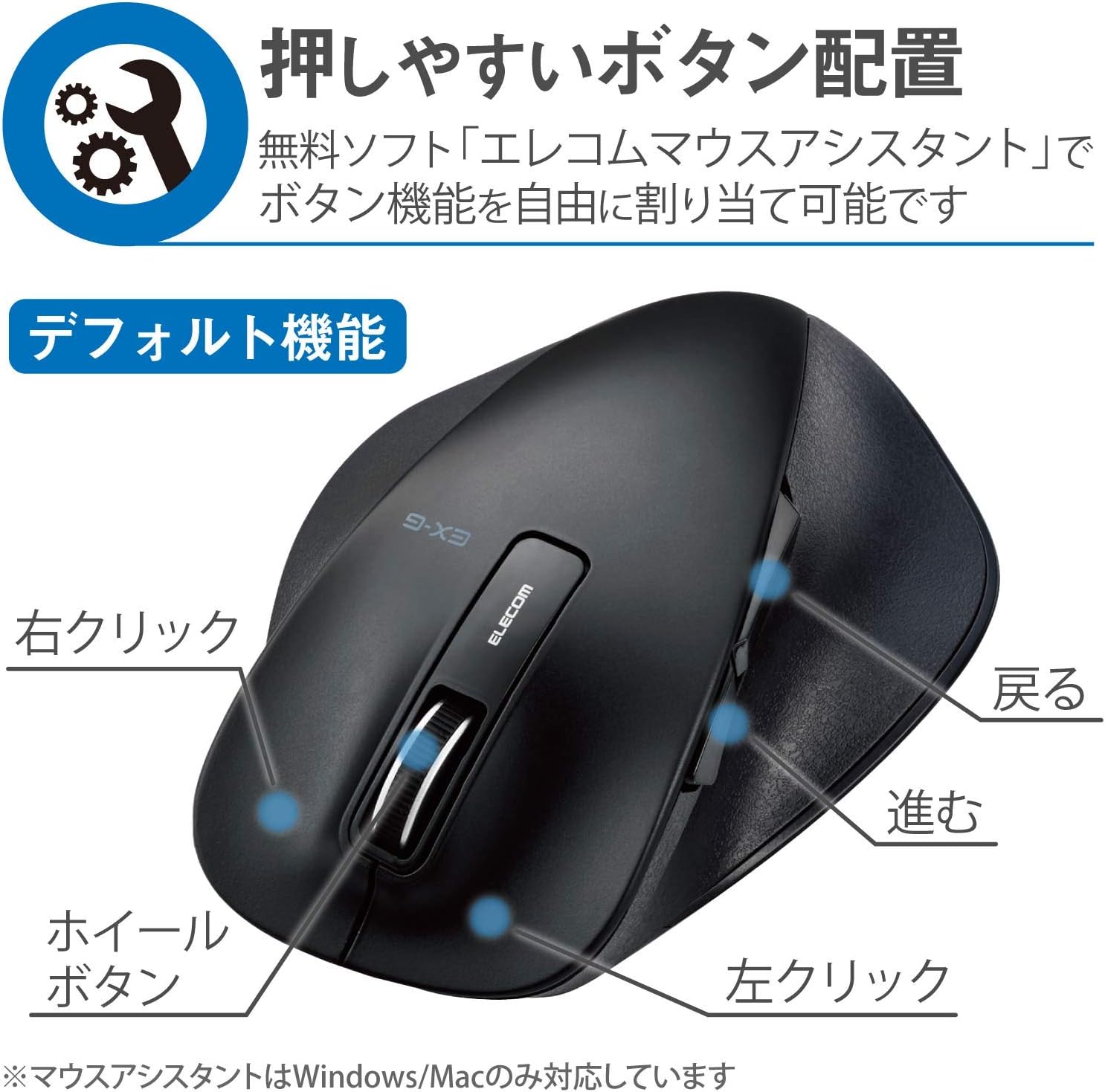
- Functionaliteit met 5 knoppen: Includes left, right, scroll wheel, and dedicated back/forward buttons.
- 2.4GHz draadloze verbinding: Offers a stable connection with a range of approximately 10 meters (3 meters on steel desks).
- Aanpasbare knoppen: Button functions can be re-assigned using the free "ELECOM Mouse Assistant" software (Windows/Mac only).
- Batterij-indicator: Een lamp indicates remaining battery life.
Componenten:
Familiarize yourself with the mouse components:

Figuur 2.1: Boven view van de muis, waarbij de belangrijkste knoppen worden gemarkeerd.
Figuur 2.2: Zijkant view of the mouse, showing the back and forward buttons.
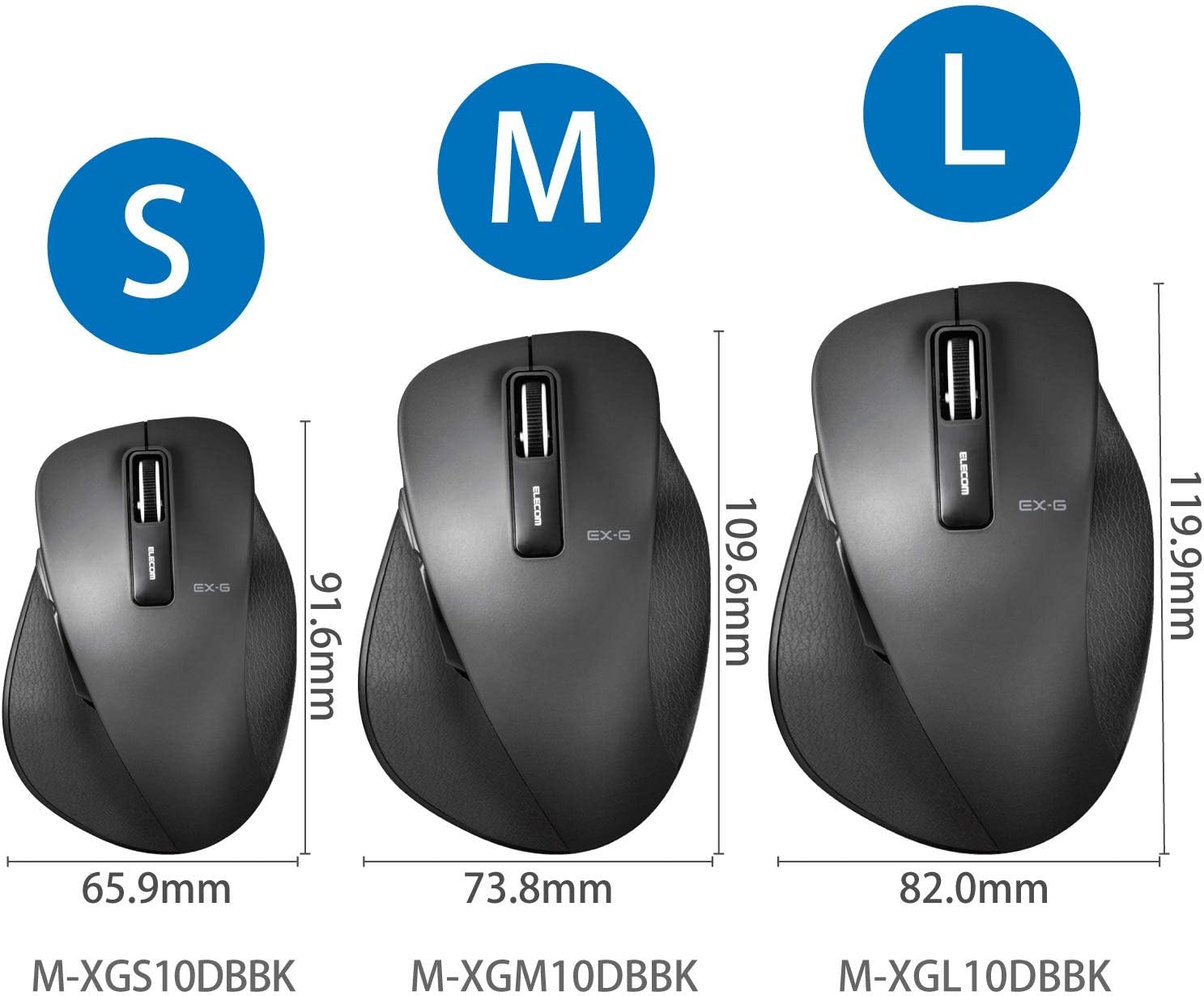
Figure 2.3: Size comparison of EX-G mice (S, M, L). The M-XGM10DBBK is the M size.

Afbeelding 2.4: Bodem view of the mouse, indicating the optical sensor, power switch, and receiver storage compartment.

Figure 2.5: Illustration of the durable Omron switches used for the left and right click buttons.
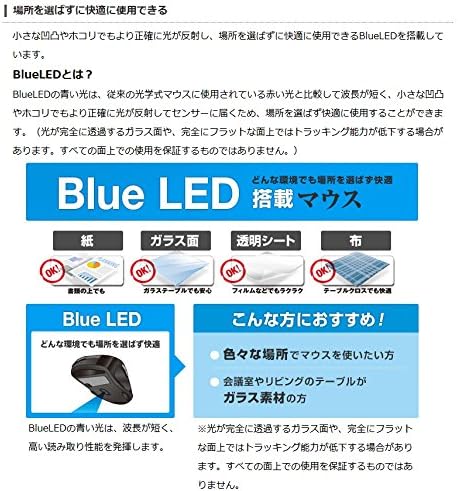
Figure 2.6: Explanation of BlueLED technology, demonstrating its versatility on different surfaces. Note: Tracking performance may decrease on completely transparent or perfectly flat surfaces.

Figure 2.7: Details on 2.4GHz wireless, battery indicator, and 2000 DPI resolution for smooth operation.

Figure 2.8: The ELECOM M-XGM10DBBK mouse is certified to work with Chromebooks.
3. Instellen
3.1 Batterij installatie
- Locate the battery cover on the bottom of the mouse.
- Schuif het deksel open.
- Insert one AA alkaline, manganese, or nickel-metal hydride battery, ensuring correct polarity (+/-).
- Sluit het batterijklepje goed.
3.2 Ontvangeraansluiting
- Remove the USB receiver from its storage compartment on the bottom of the mouse.
- Sluit de USB-ontvanger aan op een beschikbare USB-A-poort van uw computer.
- Uw computer zou de benodigde drivers automatisch moeten detecteren en installeren. Dit kan even duren.
3.3 Inschakelen
- Slide the power switch on the bottom of the mouse to the "ON" position.
- De muis is nu klaar voor gebruik.
4. Gebruiksaanwijzing
4.1 Basisfuncties
- Links klikken: Primaire selectie en activering.
- Klik met de rechtermuisknop: Opent contextmenu's.
- Muis wieltje: Rollen documenten en web pages vertically. Can also be clicked for middle-click functionality.
4.2 Back/Forward Buttons
The dedicated back and forward buttons located on the side of the mouse allow for quick navigation in web browsers en file ontdekkingsreizigers.
- Druk op de Rug button to go to the previous page or folder.
- Druk op de Vooruit button to go to the next page or folder.
4.3 Customizing Buttons (ELECOM Mouse Assistant)
For advanced customization, download the free "ELECOM Mouse Assistant" software from the official ELECOM website. This software allows you to re-assign functions to the mouse buttons according to your preferences. Please note that this software is compatible with Windows and macOS only.
5. Onderhoud
5.1 Reinigen
Om optimale prestaties en hygiëne te behouden, moet u uw muis regelmatig schoonmaken:
- Schakel de muis uit met de aan/uit-schakelaar.
- Veeg het oppervlak van de muis schoon met een zachte, droge doek.
- Voor hardnekkig vuil, lichtjes dampReinig de doek met water of een milde reinigingsoplossing en veeg hem daarna direct droog.
- Gebruik geen agressieve chemicaliën, schuurmiddelen of oplosmiddelen.
- Gently clean the optical sensor area on the bottom of the mouse with a cotton swab if tracking issues occur.
5.2 Batterij vervangen
When the battery indicator lamp flashes or the mouse performance degrades, replace the battery:
- Zet de muis uit.
- Open het batterijklepje.
- Verwijder de oude batterij en voer deze af volgens de plaatselijke voorschriften.
- Plaats een nieuwe AA-batterij en let daarbij op de juiste polariteit.
- Close the battery cover and turn the mouse back on.
6. Probleemoplossing
Als je problemen ondervindt met je muis, raadpleeg dan de volgende veelvoorkomende problemen en oplossingen:
| Probleem | Mogelijke oorzaak | Oplossing |
|---|---|---|
| Muis reageert niet | Low battery; Power switch off; Receiver not connected; Receiver interference. | Replace battery; Turn power switch ON; Ensure receiver is firmly plugged in; Try a different USB port; Move closer to the receiver. |
| Onregelmatige cursorbeweging | Vervuilde optische sensor; Ongeschikt oppervlak; Interferentie. | Clean optical sensor; Use on a suitable mouse pad or surface; Reduce interference from other wireless devices. |
| Knoppen werken niet | Softwareconflict; Stuurprogrammaprobleem. | Restart computer; Reinstall mouse drivers; Check for conflicting software. |
| Problemen met draadloze verbinding | Distance too far; Obstructions; Interference. | Ensure mouse is within range (10m); Remove obstructions between mouse and receiver; Avoid using near other 2.4GHz devices. |
7. Specificaties
| Functie | Detail |
|---|---|
| Modelnummer | M-XGM10DBBK |
| Verbindingsmethode | 2.4 GHz draadloos (USB-A-ontvanger) |
| Sensortype | BlueLED Optical |
| Knoppen | 5 buttons (Left, Right, Scroll Wheel, Back, Forward) |
| Oplossing | 2000DPI |
| Afmetingen (B x D x H) | 73.8 x 109.6 x 40.8 mm (M Size) |
| Gewicht | Ongeveer 151.95 g (inclusief batterij) |
| Energiebron | 1 x AA battery (Alkaline, Manganese, or Ni-MH) |
| Geschatte levensduur van de batterij | Approx. 722 days (based on typical usage) |
| Compatibel besturingssysteem | Windows 11, 10, RT8.1, 8.1, 7, Vista; macOS High Sierra 10.13, OS X 10.10; Chrome OS |
| Kleur | Zwart |
8. Garantie en ondersteuning
8.1 Garantie-informatie
Dit product wordt geleverd met een 6 maanden garantie vanaf de aankoopdatum. Bewaar uw aankoopbewijs voor garantieclaims. De garantie dekt fabricagefouten bij normaal gebruik. Schade veroorzaakt door verkeerd gebruik, ongelukken, ongeautoriseerde aanpassingen of normale slijtage valt niet onder de garantie.
8.2 Klantenservice
For technical assistance, troubleshooting, or warranty inquiries, please visit the official ELECOM website or contact ELECOM customer support. Contact details can typically be found on the ELECOM website under the 'Support' or 'Contact Us' section.


