Invoering
This manual provides instructions for setting up, operating, and maintaining your Mercury MW3030R Dual Band Wireless Router. Please read this manual carefully before use to ensure proper installation and optimal performance.
Veiligheidsinformatie
- Stel het apparaat niet bloot aan water of overmatige vochtigheid.
- Probeer het apparaat niet zelf te demonteren of te repareren.
- Gebruik alleen de stroomadapter die bij het apparaat is geleverd.
- Zorg voor voldoende ventilatie rondom de router om oververhitting te voorkomen.
Inhoud van het pakket
Controleer of uw pakket de volgende items bevat:
- Mercury MW3030R Wireless Router
- Stroomadapter
- Ethernet-kabel
- Quick Installation Guide (this manual serves as a detailed guide)
Product voorbijview
Maak uzelf vertrouwd met de onderdelen en indicatoren van de router.
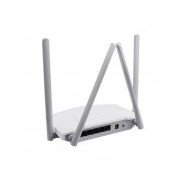
Figuur 1: Achterkant view of the Mercury MW3030R router. This image displays the four external antennas, the WAN port (typically blue), multiple LAN ports (typically yellow), and the power input jack. The reset button and WPS button are also usually located on the rear panel.
Figuur 2: Top-down view of the Mercury MW3030R router with its antennas folded. This perspective highlights the router's sleek, white casing and its overall compact form factor, suitable for various placements.
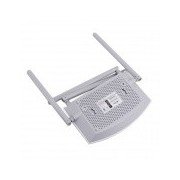
Figuur 3: Onderkant view of the Mercury MW3030R router. This image shows the ventilation holes designed for heat dissipation and the product label, which typically contains important information such as the default Wi-Fi name (SSID), password, and web management address.
LED-indicatoren:
- Voedings-LED: Geeft de energiestatus van de router aan.
- Internet-LED: Geeft de status van de internetverbinding aan.
- WLAN-LED: Geeft draadloze activiteit aan.
- LAN-LED's: Indicate connection status for each LAN port.
Instellen
1. Hardwareverbinding
- Inschakelen: Connect the power adapter to the router's power port and plug it into a wall outlet. Wait for the Power LED to become stable.
- Verbinding maken met internet (WAN): Connect one end of an Ethernet cable to your modem's LAN port and the other end to the router's WAN port (usually distinctively colored, e.g., blue).
- Connect Devices (LAN): For wired connections, connect your computer or other devices to the router's LAN ports (usually yellow) using Ethernet cables.
- antennes: Adjust the four antennas for optimal signal coverage.
2. Initiële configuratie (Web Koppel)
- Verbinden met router: Connect your computer to the router either via an Ethernet cable to a LAN port or wirelessly using the default Wi-Fi SSID and password printed on the router's label (refer to Figure 3).
- Toegang Web Browser: Open een web browser (e.g., Chrome, Firefox) and type the default access address (e.g., http://192.168.1.1 or http://tplinkwifi.net) in de adresbalk en druk op Enter.
- Login: Voer de standaardgebruikersnaam en het wachtwoord in (meestal beheerder for both, or as specified on the router's label).
- Snelle installatie uitvoeren: Follow the on-screen instructions of the Quick Setup Wizard to configure your internet connection type (e.g., PPPoE, Dynamic IP, Static IP) and wireless settings (SSID, password).
- Standaardwachtwoord wijzigen: For security, it is highly recommended to change the default login password for the router's web beheerinterface.
Gebruiksaanwijzing
Verbinding maken met wifi
- Zoek op je draadloze apparaat (smartphone, laptop) naar beschikbare wifi-netwerken.
- Select your router's Wi-Fi network name (SSID) that you configured during setup.
- Enter the Wi-Fi password you set.
- Uw apparaat zou nu verbonden moeten zijn met internet.
Dual-band-bediening
The MW3030R supports both 2.4GHz and 5.0GHz wireless bands. The 2.4GHz band offers wider coverage, while the 5.0GHz band provides faster speeds with less interference over shorter distances. You can connect your devices to either band based on your needs.
Gastnetwerk
Toegang tot de router web interface to enable and configure a separate guest network. This allows guests to access the internet without accessing your main network resources.
Onderhoud
- Firmware-updates: Controleer regelmatig de fabrikant. webSite voor firmware-updates. Het updaten van firmware kan de prestaties verbeteren, nieuwe functies toevoegen en beveiligingsproblemen verhelpen.
- De router opnieuw opstarten: Als je netwerkproblemen ondervindt, probeer dan de router opnieuw op te starten door de voedingsadapter los te koppelen, 10 seconden te wachten en deze vervolgens weer aan te sluiten.
- Schoonmaak: Houd de router schoon en stofvrij. Gebruik een zachte, droge doek. Gebruik geen vloeibare reinigingsmiddelen.
- Plaatsing: Plaats de router op een centrale plek, uit de buurt van obstakels en apparaten die storing kunnen veroorzaken (bijv. magnetrons, draadloze telefoons).
Probleemoplossing
Geen internettoegang
- Check if the Internet LED on the router is lit or blinking correctly.
- Zorg ervoor dat de Ethernetkabel van uw modem stevig is aangesloten op de WAN-poort van de router.
- Start uw modem en router opnieuw op.
- Controleer de instellingen van uw internetverbinding in de router web interface.
Trage draadloze verbinding
- Ensure your device is connected to the 5.0GHz band if it supports it, for faster speeds.
- Move closer to the router or adjust antenna positions.
- Controleer op interferentie van andere elektronische apparaten.
- Reduce the number of devices connected to the network or bandwidth-intensive activities.
Geen toegang tot de router Web Interface
- Zorg ervoor dat uw apparaat is verbonden met de router (bekabeld of draadloos).
- Verify the IP address you are typing in the browser is correct (e.g., http://192.168.1.1).
- Probeer de cache van uw browser te wissen of een andere browser te gebruiken.
- If you forgot the login password, you may need to perform a factory reset (Warning: This will erase all your settings).
Specificaties
| Functie | Beschrijving |
|---|---|
| Model | MW3030R |
| Draadloze standaarden | IEEE 802.11ac/n/g/b/a |
| Frequentie | 2.4 GHz en 5.0 GHz (dubbele band) |
| Draadloze snelheid | Up to 600Mbps (combined) |
| Antennes | 4 externe antennes |
| Interfaces | 1x WAN Port, Multiple LAN Ports (typically 3 or 4) |
| Stroomvoorziening | External Power Adapter (provided) |
Garantie en ondersteuning
The Mercury MW3030R router comes with a standard manufacturer's warranty. For detailed warranty information, technical support, or service inquiries, please refer to the official Mercury webof neem contact op met hun klantenservice via de website. Bewaar uw aankoopbewijs voor garantieclaims.


