1. Inleiding
This manual provides comprehensive instructions for the setup, operation, maintenance, and troubleshooting of your Genius Traveler 9005BT 4-D Bluetooth Mouse. Please read this manual thoroughly before using the device to ensure proper functionality and longevity.
Belangrijkste kenmerken:
- Precision 1200 dpi BlueEye engine for versatile surface tracking.
- Bluetooth 4-button wireless optical mouse.
- Ergonomic design suitable for both left and right-handed users.
- Turbo Scroll function for rapid document and web paginanavigatie.
- BlueEye technology allows operation on various surfaces including dusted glass, marble, carpet, and sofa upholstery.
- Compatible with multiple operating systems: Android 3.0+, Windows 7/XP/Vista, and Mac OS X 10.4 or later.
2. Inhoud van het pakket
Controleer of alle onderstaande artikelen in uw productpakket aanwezig zijn:
- Genius Traveler 9005BT Mouse
- CD driver for mouse 4-D Scroll function
- Two AA Alkaline batteries
- Meertalige gebruikershandleiding
3. Instellen
3.1. Batterij installatie
- Zoek het batterijklepje aan de onderkant van de muis.
- Schuif of til het deksel voorzichtig op om het compartiment te openen.
- Insert the two AA Alkaline batteries, ensuring correct polarity (+ and -) as indicated inside the compartment.
- Plaats het batterijklepje terug totdat het goed vastklikt.
3.2. Bluetooth-koppeling
To connect your Traveler 9005BT mouse to your device:
- Ensure the mouse is powered on. There is typically a power switch on the underside of the mouse.
- Activate Bluetooth on your computer, laptop, or Android device.
- On your device, navigate to the Bluetooth settings and initiate a search for new devices.
- The Genius Traveler 9005BT should appear in the list of available devices. Select it to begin the pairing process.
- Follow any on-screen prompts to complete the pairing. A successful connection will be indicated by a confirmation message on your device.
The mouse supports Bluetooth EDR 2.0 technology, providing a reliable working distance of up to 10 meters. It is compatible with Android 3.0+, Windows 7/XP/Vista, and Mac OS X 10.4 or later.
3.3. Driver Installation (for 4-D Scroll Function)
For optimal use of the 4-D Scroll function, install the provided driver:
- Insert the included CD driver into your computer's optical drive.
- Volg de instructies op het scherm om de benodigde software te installeren.
- Restart your computer if prompted to ensure the driver is fully installed and recognized.
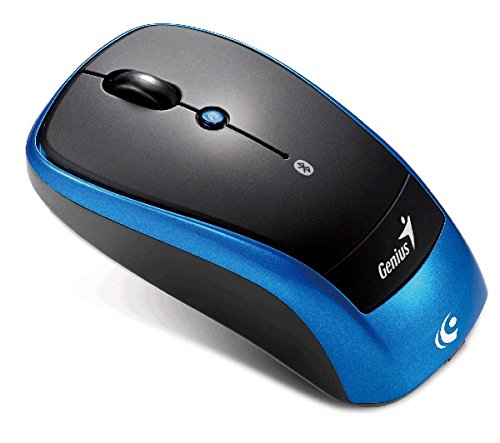
Een overhead view of the Genius Traveler 9005BT 4-D Bluetooth Mouse, showcasing its ergonomic design with a black top surface and blue sides. It features a scroll wheel, left and right click buttons, and a small button for 4-D scroll functionality.
4. De muis bedienen
4.1. Basisfuncties
- Links klikken: Press the left button for primary selection and activation.
- Klik met de rechtermuisknop: Press the right button to access contextual menus.
- Muis wieltje: Roll the wheel up or down to scroll vertically through documents and web pagina's.
4.2. 4-D Scroll Function
The Traveler 9005BT features a dedicated 4-D scroll function key. Once the driver is installed, this function allows for more natural and convenient scrolling by simply moving your mouse in the direction you wish to scroll (up, down, left, or right) while holding down the 4-D scroll button.
4.3. Turbo Scroll
Engage the Turbo Scroll feature for hyper-fast navigation through lengthy documents, spreadsheets, and web pages. This function allows you to accelerate scrolling speed, significantly improving efficiency when reviewing extensive content.
4.4. BlueEye Technology
The integrated BlueEye technology enables the mouse to operate on a wide variety of surfaces that traditional optical mice may struggle with. This includes challenging textures such as dusted glass, marble, carpet, and sofa upholstery, providing flexibility in your workspace.
5. Onderhoud
5.1. Schoonmaken
Om optimale prestaties en uiterlijk te behouden:
- Zorg ervoor dat de muis is uitgeschakeld voordat u hem schoonmaakt.
- Gebruik een zachte, droge, pluisvrije doek om de buitenkant schoon te vegen.
- Voor hardnekkig vuil, lichtjes dampReinig de doek met water of een milde, niet-schurende reiniger. Vermijd overmatige vochtigheid.
- Do not use harsh chemicals, solvents, or abrasive materials, as these can damage the mouse's finish or internal components.
- Reinig het optische sensorgebied aan de onderkant van de muis regelmatig met een wattenstaafje om problemen met de tracking te voorkomen.
5.2. Batterij vervangen
When the mouse's performance degrades or it stops responding, it may be time to replace the batteries. Follow the battery installation steps outlined in Section 3.1.
6. Probleemoplossing
If you encounter issues with your Genius Traveler 9005BT mouse, refer to the following common solutions:
- Muis reageert niet:
- Zorg ervoor dat de muis is ingeschakeld.
- Controleer en vervang de batterijen indien nodig.
- Verify that Bluetooth is enabled on your device and the mouse is paired correctly. Try re-pairing if needed.
- Plaats de muis dichter bij uw apparaat om bereikproblemen uit te sluiten.
- Onregelmatige cursorbeweging:
- Maak de optische sensor aan de onderkant van de muis schoon.
- Ensure you are using the mouse on a suitable surface. While BlueEye technology is versatile, extreme surfaces or highly reflective ones can still cause issues.
- Check for any obstructions around the optical sensor.
- 4-D Scroll Function Not Working:
- Confirm that the 4-D scroll driver has been installed correctly from the provided CD.
- Start uw computer opnieuw op na de installatie van de stuurprogramma's.
- Bluetooth-verbindingen worden verbroken:
- Zorg ervoor dat er geen andere apparaten Bluetooth-interferentie veroorzaken.
- Werk de Bluetooth-stuurprogramma's van uw apparaat bij.
- Koppel de muis opnieuw met uw apparaat.
If these steps do not resolve the issue, consult the multi-language user manual included in your package or contact Genius customer support.
7. Specificaties
| Functie | Detail |
|---|---|
| Merk | Genie |
| Modelnummer | Traveler 9005BT |
| Bewegingsdetectietechnologie | Optical (BlueEye) |
| DPI | 1200dpi |
| Connectiviteit | Bluetooth EDR 2.0 |
| Aantal knoppen | 4 |
| Handoriëntatie | Ambidexter |
| Energiebron | 2 x AA-alkalinebatterijen (niet inbegrepen) |
| Compatibele besturingssystemen | Windows® 7, Vista, XP / Android 3.0+ / Mac OS X 10.4+ |
| Hardwareplatform | Laptop, pc |
8. Garantie en ondersteuning
For warranty information, please refer to the documentation provided with your purchase or contact your retailer. Genius products typically come with a limited warranty. For technical support or further assistance, please consult the multi-language user manual included in your package or visit the official Genius webwebsite voor contactgegevens.


