1. Inleiding
The Intel NUC DE3815TYKHE is a compact, fanless mini PC designed for various applications, including thin clients, digital signage, and embedded solutions. This kit provides a flexible platform with support for a 2.5-inch storage drive, offering a customizable computing experience in a small form factor.
2. Inhoud van het pakket
Controleer of alle artikelen in uw pakket aanwezig zijn:
- Intel NUC DE3815TYKHE Unit
- Wisselstroomadapter
- VESA Mounting Bracket (with screws)
- Snelstartgids (indien meegeleverd)
3. Fysieke overview
3.1 Voorpaneel
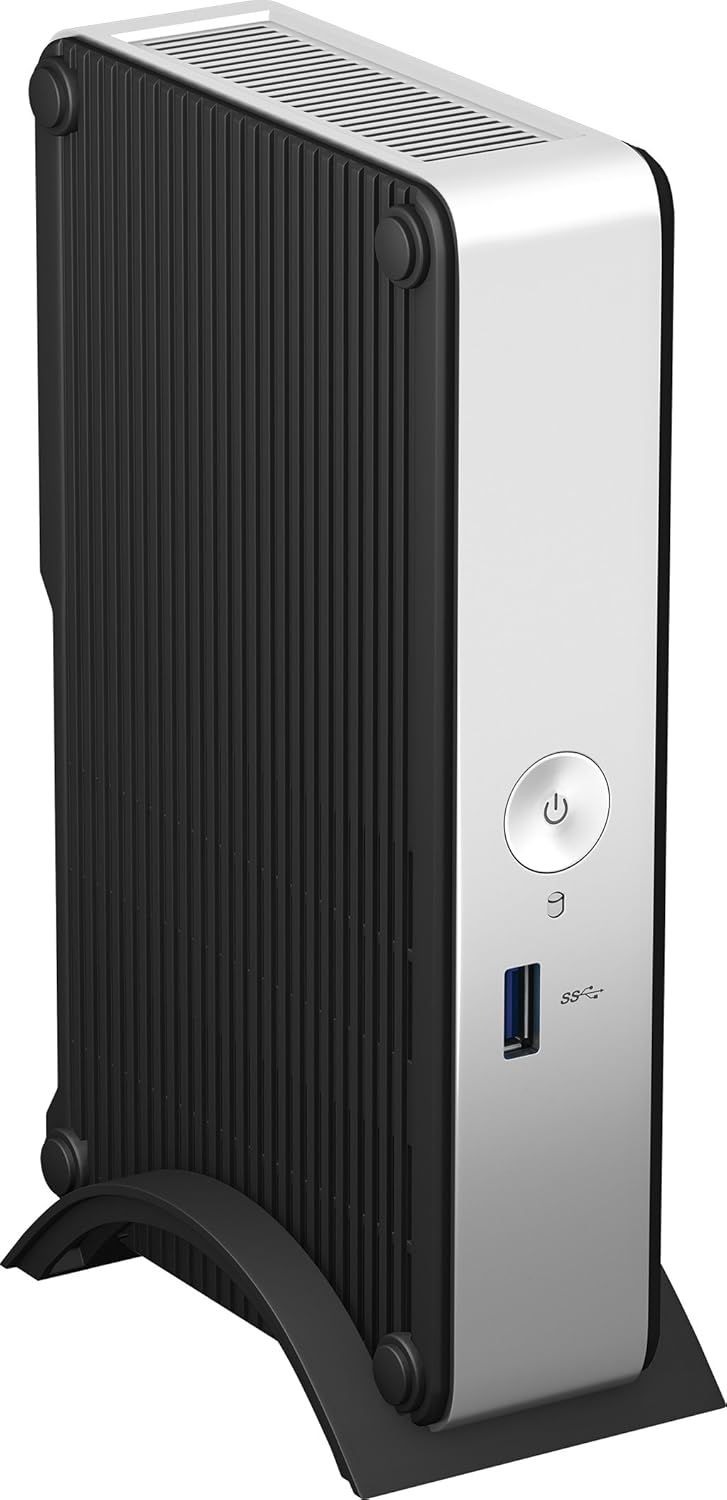
The front panel provides essential connectivity and controls.

Afbeelding 1: Voorkant view of the Intel NUC DE3815TYKHE. This image displays the compact, fanless design of the unit, highlighting the power button and a single blue USB 3.0 port on the front for easy access.
- Aan/uit-knop: Wordt gebruikt om het apparaat aan of uit te zetten.
- USB 3.0-poort: Voor het aansluiten van snelle USB-apparaten.
3.2 Achterpaneel
The rear panel houses various ports for display, network, and peripherals.

Afbeelding 2: Achterkant view of the Intel NUC DE3815TYKHE. This image details the available rear ports, including VGA, HDMI, two USB ports, an Ethernet port, and a headphone/microphone jack, along with the power input.
- VGA-poort: For connecting to older monitors or projectors.
- HDMI-poort: For connecting to modern displays with audio support.
- USB 2.0-poorten (x2): Voor het aansluiten van standaard USB-apparaten.
- Ethernetpoort (RJ-45): Voor bekabelde netwerkverbindingen.
- Hoofdtelefoon-/microfoonaansluiting: Voor audio-invoer en -uitvoer.
- Gelijkstroom ingangsvermogen: Voor het aansluiten van de netadapter.
3.3 Interne componenten
Accessing the internal components is necessary for memory and storage installation.
Afbeelding 3: Intel NUC DE3815TYKHE unit displayed alongside its internal motherboard. This view illustrates the compact size of the main unit and the layout of the internal components, including the processor, memory slot, and connectors for storage.
- DDR3L SODIMM Slot: For installing system memory.
- 2.5-inch Drive Bay: For installing a SATA HDD or SSD.
- Draadloze antennes: Built-in for wireless connectivity.
- eMMC Storage: 4GB embedded storage for operating system or data.
4. Instellen
Follow these steps to prepare your Intel NUC for operation.
4.1 Geheugen (RAM) installeren
- Unscrew and remove the bottom cover of the NUC unit.
- Locate the DDR3L SODIMM slot on the motherboard.
- Align the notch on the SODIMM module with the notch in the slot.
- Insert the module at a 45-degree angle and press down until the retaining clips snap into place.
4.2 Installing a 2.5-inch Storage Drive
- With the bottom cover removed, locate the 2.5-inch drive bay.
- Connect the SATA data and power cables from the NUC to your 2.5-inch HDD or SSD.
- Secure the drive within the bay using the provided screws (if applicable).
- Replace the bottom cover and secure it with screws.
4.3 Randapparatuur aansluiten
- Weergave: Connect your monitor to the HDMI or VGA port.
- Toetsenbord en muis: Connect USB keyboard and mouse to any available USB ports.
- Netwerk: For wired internet, connect an Ethernet cable to the RJ-45 port. For wireless, ensure antennas are clear.
- Geluid: Connect headphones or speakers to the audio jack if needed.
4.4 Inschakelen
- Connect the AC power adapter to the DC power input on the rear panel.
- Sluit de stroomadapter aan op een stopcontact.
- Press the power button on the front panel to turn on the NUC.
5. Installatie van het besturingssysteem
The Intel NUC DE3815TYKHE supports multiple operating systems. You will need to install your preferred OS onto the internal eMMC storage or the 2.5-inch drive you installed.
- Prepare a bootable USB drive with your chosen operating system (e.g., Windows, Linux).
- Connect the USB drive to a USB port on the NUC.
- Power on the NUC and enter the BIOS/UEFI setup (usually by pressing F2 during boot) to configure the boot order.
- Volg de instructies op het scherm om het besturingssysteem te installeren.
6. Onderhoud
The fanless design of the Intel NUC DE3815TYKHE minimizes maintenance requirements.
- Schoonmaak: Periodically wipe the exterior with a soft, dry cloth. Avoid using liquid cleaners directly on the unit.
- Ventilatie: Ensure the ventilation slots are not obstructed to allow for proper passive cooling.
- Software-updates: Keep your operating system and drivers updated for optimal performance and security.
7. Probleemoplossing
Als u problemen ondervindt, raadpleeg dan de volgende veelvoorkomende stappen voor probleemoplossing.
- Geen stroom: Ensure the power adapter is securely connected to both the NUC and a working power outlet. Test the outlet with another device.
- Geen scherm: Verify that the monitor is powered on and correctly connected to the NUC's HDMI or VGA port. Try a different cable or monitor if possible.
- Besturingssysteem start niet op: Check the boot order in the BIOS/UEFI settings. Ensure the installed storage drive is detected and contains a valid operating system.
- Randapparatuur niet gedetecteerd: Ensure USB devices are properly seated in the ports. Try a different USB port or device.
- Geen netwerkverbinding: For wired connections, check the Ethernet cable and router. For wireless, ensure Wi-Fi is enabled in the OS and the NUC is within range of a network.
8. Specificaties
| Functie | Detail |
|---|---|
| Modelnaam | DE3815TYKHE |
| Verwerker | Intel Atom Processor (e.g., E3815) |
| RAM | 4 GB DDR3L 1333 (SODIMM slot for expansion) |
| Interne opslag | 4GB eMMC (embedded MultiMediaCard) |
| Opslaguitbreiding | Internal 2.5-inch SATA HDD/SSD bay |
| Grafisch | Intel Integrated Graphics |
| Video-uitgang | HDMI, VGA |
| USB-poorten | 1x USB 3.0 (voor), 2x USB 2.0 (achter) |
| Geluid | Hoofdtelefoon/microfoon combo-aansluiting |
| Netwerk | Ethernet (RJ-45), Built-in Wireless Antennas |
| Ontwerp | Zonder ventilator |
| Ondersteuning voor besturingssysteem | Multiple OS options (e.g., Windows, Linux) |
| Kleur | Metallic gray plastic ring with black sides |
9. Garantie en ondersteuning
Voor garantie-informatie en technische ondersteuning kunt u terecht bij de officiële Intel-website. webwebsite of neem contact op met uw verkooppunt. Bewaar uw aankoopbewijs voor garantieclaims.
- Online hulp: Bezoek Intel Support for DE3815TYKHE for drivers, downloads, and troubleshooting resources.
- Contact: Refer to the Intel support page for contact options.


