
1. Overview
The Ulefone Tab A9 Pro is an 8.68-inch kids learning tablet designed for children aged 3-12. It features an 8.68" TÜV SÜD Eye Comfort Display, runs on Android 15 with a MediaTek G91 Octa-Core processor, and includes 8GB RAM and 128GB storage (expandable up to 2TB). This tablet is equipped with built-in learning apps, parental controls, and dual SIM support for connectivity on the go. It comes with a durable, shockproof EVA case and a DIY creativity kit.
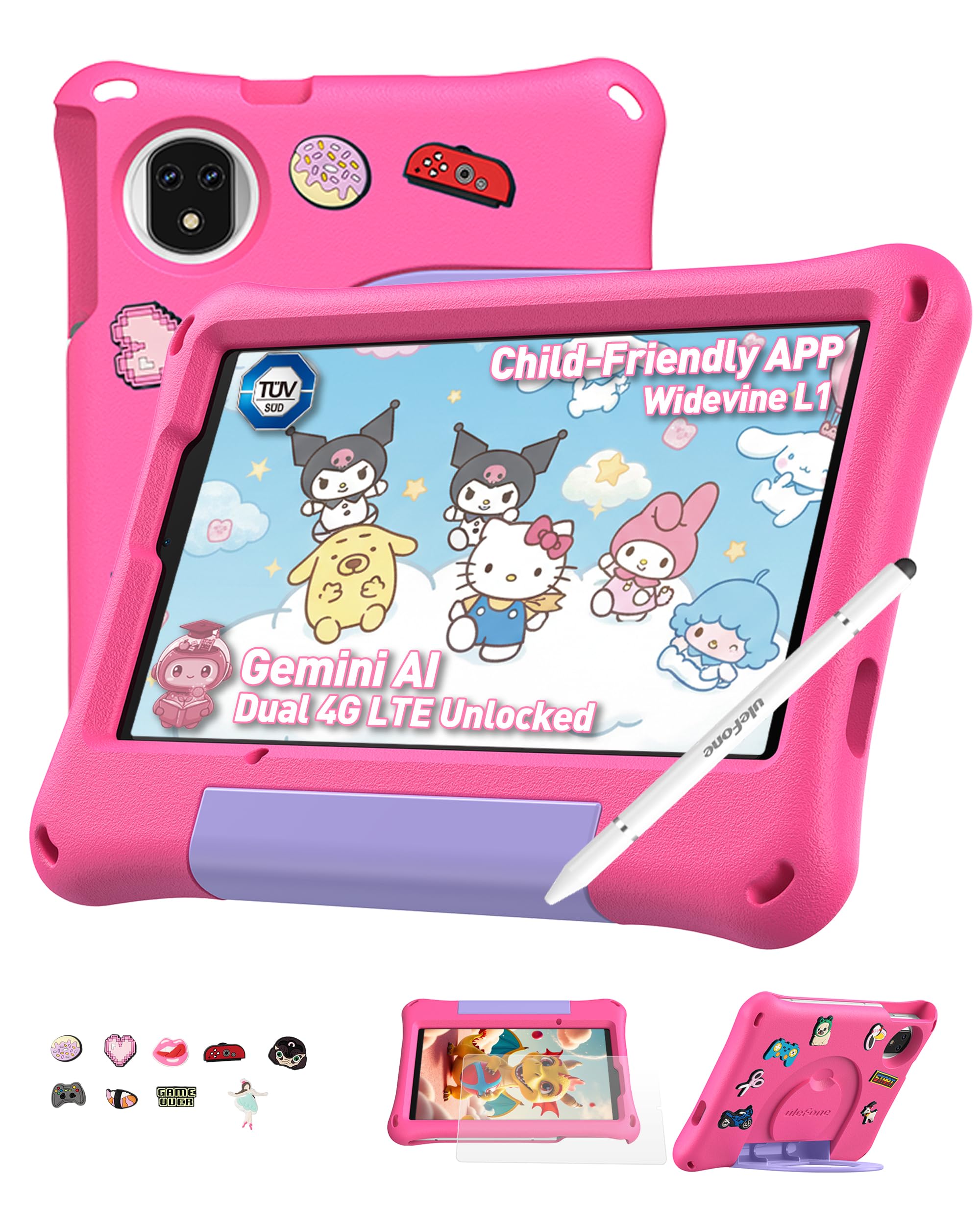
Figure 1: Ulefone Tab A9 Pro Kids Learning Tablet (Pink Edition) with its protective case and various features highlighted.
2. Wat is inbegrepen
The Ulefone Tab A9 Pro package contains the following items:
- 1x Ulefone Tab A9 Pro Tablet
- 1x Type-C to Type-C Charging Cable (1M)
- 1x Tempered Glass Screen Protector (pre-applied)
- 1x Cartoon Decor Kit (15 random accessories)
- 1x EVA Protective Case with adjustable stand
- 1x Capacitive Stylus
- 1x SIM Needle
- 1x AC Power Charger
- 1x Safety Prompt Statement
- 1x Charging Instruction Card
- 1x Gebruikershandleiding in meerdere talen

Figure 2: All items included in the Ulefone Tab A9 Pro Kids Learning Tablet package.
Video 1: Een unboxing en meerview of the Ulefone Tab A9 Pro Kids Learning Tablet, demonstrating its components and initial setup.
3. Belangrijkste kenmerken
- Zero Subscription & Parental Controls: The tablet provides a safe digital environment with no monthly fees. Advanced parental controls allow content filtering, screen time limits, and a secure space for children. It comes preloaded with GMS-certified educational apps.

Figure 3: The tablet features built-in parental control mode for a supervised experience.
Video 2: Demonstration of the advanced parental control features available on the Ulefone Tab A9 Pro Kids Tablet.
- Powerful Android 15 Performance: Equipped with Android 15 OS and a MediaTek G91 Octa-Core processor, 8GB RAM (4+4GB), and 128GB storage (expandable to 2TB). It includes Google Gemini AI for instant answers and supports demanding educational games and 3D applications.
- Eye-Protection Screen: The 8.68-inch IPS display features a 90Hz refresh rate and TÜV SÜD low blue light certification to reduce eye strain. Widevine L1 certification allows streaming HD content from platforms like Disney+ and Netflix.

Figure 4: The 8.68-inch 90Hz display with TÜV SÜD low blue light certification for eye comfort.
- Durable Case & DIY Gift Set: Comes with a rugged, shockproof EVA case with an adjustable stand. The DIY Creativity Kit includes 15 random cartoon accessories for case decoration and a stylus pen for interactive use.

Figure 5: The tablet's double protection with a pre-applied tempered glass screen protector and a soft silicone protective case.
- Travel Essentials: Features Dual SIM support and Dual-band Wi-Fi for connectivity. A 5040mAh battery provides extended use. Includes 12MP+13MP rear cameras and an 8MP front camera with Face Unlock.

Figure 6: The tablet is designed for use at home and on-the-go, with dual SIM and Wi-Fi capabilities.

Figure 7: The tablet is equipped with 12MP + 13MP rear cameras and an 8MP front camera.
4. Installatiehandleiding
4.1 Eerste inschakeling
- Ensure the tablet is fully charged using the provided Type-C cable and AC power charger.
- Press and hold the Power button (usually located on the side) until the Ulefone logo appears on the screen.
- Volg de aanwijzingen op het scherm om uw taal en regio te selecteren en akkoord te gaan met de algemene voorwaarden.
4.2 Verbinding maken met wifi
- During initial setup or via Settings, navigate to "Network & internet".
- Schakel wifi in.
- Selecteer het gewenste Wi-Fi-netwerk uit de lijst.
- Voer indien gevraagd het Wi-Fi-wachtwoord in en tik op 'Verbinden'.
4.3 Ouderlijk toezicht instellen
The Ulefone Tab A9 Pro includes robust parental control features to manage your child's usage:
- Access the dedicated "Kids Mode" application or navigate to "Settings > Digital Wellbeing & parental controls".
- Maak een kinderpro aanfile and set up a parental password.
- Configure screen time limits, content restrictions, and app access permissions.
- Monitor activity and adjust settings as needed to ensure a safe and educational experience.
5. Uw tablet bedienen
5.1 Navigeren door de interface
- Startscherm: Swipe left or right to access different pages of apps.
- Meldingen: Veeg omlaag vanaf de bovenkant van het scherm om view meldingen en snelle instellingen.
- Recente apps: Tap the square icon (or swipe up and hold from the bottom) to see recently used applications.
- Rug: Tap the triangle icon (or swipe from the left/right edge) to go back to the previous screen.
5.2 De stylus gebruiken
The included capacitive stylus can be used for drawing, writing, and precise navigation. Simply touch the stylus tip to the screen as you would with your finger. The stylus has two ends for versatile use.
5.3 Apps installeren en beheren
- Vooraf geïnstalleerde apps: The tablet comes with various educational and entertainment apps.
- Google Play Store: Access the Google Play Store to download additional apps, games, and content. Ensure parental controls are configured to manage downloads.
- Apps verwijderen: To remove an app, long-press its icon on the home screen or app drawer, then drag it to the "Uninstall" option, or go to "Settings > Apps > See all apps" and select the app to uninstall.
6. Onderhoud en verzorging
- Schoonmaak: Gebruik een zachte, pluisvrije doek om het scherm en de behuizing schoon te maken. Vermijd agressieve chemicaliën of schurende materialen.
- batterij zorg: To prolong battery life, avoid extreme temperatures. Charge the tablet regularly, but do not leave it plugged in for extended periods after it's fully charged.
- Opslag: Store the tablet in a cool, dry place. When not in use, keep it in its protective EVA case.
- Software-updates: Periodically check for system updates in "Settings > System > System update" to ensure optimal performance and security.
7. Problemen met veelvoorkomende problemen oplossen
| Probleem | Oplossing |
|---|---|
| De tablet gaat niet aan. | Zorg ervoor dat de batterij is opgeladen. Sluit de oplader aan en wacht een paar minuten voordat u het apparaat opnieuw probeert in te schakelen. Als het apparaat niet reageert, voer dan een geforceerde herstart uit door de aan/uit-knop 10-15 seconden ingedrukt te houden. |
| Het scherm reageert niet. | Start de tablet opnieuw op. Als het probleem aanhoudt, controleer dan of het scherm schoon en vrij van vuil is. |
| Problemen met de wifi-verbinding. | Controleer of wifi is ingeschakeld in de instellingen. Herstart je router en de tablet. Zorg ervoor dat je binnen het bereik van het wifi-signaal bent. |
| Apps crashen of zijn traag. | Close background apps. Clear the cache of the problematic app (Settings > Apps > [App Name] > Storage & cache > Clear cache). Ensure sufficient storage space is available. Restart the tablet. |
| Ouderlijk toezicht werkt niet zoals verwacht. | Verify that the parental control settings are correctly configured in the Kids Mode app or system settings. Ensure the parental password is secure and not shared. |
8. Productspecificaties
| Functie | Specificatie |
|---|---|
| Merk | Ulefone |
| Modelnaam | Ulefone A9 Pro Kids Tablet Pink |
| Geheugenopslagcapaciteit | 128 GB (uitbreidbaar tot 2 TB) |
| Schermgrootte | 8.68 inch |
| Weergaveresolutie Maximaal | 800×1340 |
| Besturingssysteem | Androïde 15 |
| Verwerker | MediaTek G91 Octa-Core |
| Geïnstalleerd RAM-geheugen | 8 GB (4+4 GB) |
| Batterijcapaciteit | 5040 milliampEre Uur (mAh) |
| Achteruitrijcamera's | 12MP + 13MP |
| Voorcamera | 8MP (with Face Unlock) |
| Draadloze technologie | Bluetooth, Dual-band Wi-Fi |
| Cellulaire technologie | 4G (Note: Not compatible with AT&T or Cricket) |
| Koptelefoonaansluiting | 3.5mm |
| Afmetingen artikel (L x B x Dikte) | 8.37"L x 0.31"B x 4.93"D |
9. Garantie en klantenondersteuning
Ulefone provides a 2 jaar garantie for non-human damage. For any questions or support regarding your Ulefone Tab A9 Pro Kids Learning Tablet, please contact customer service via email at: support@ulefone.com.
Bewaar uw aankoopbewijs voor garantieclaims.