
1. Inleiding
This manual provides essential information for setting up, operating, and maintaining your Plimpton Kids Tablet 10 Inch, Model Kids 20. This device is designed to offer a secure and engaging digital experience for children, featuring the Android 15 operating system, an octa-core processor, and integrated Google Kids Space.
2. Wat zit er in de doos?
- 1 x PlimPad Kids Android 15 Tablet
- 1 x USB-adapter
- 1 x USB-oplaadkabel
- Gebruiksaanwijzing

3. Producteigenschappen
- Geavanceerde prestaties: Equipped with an enhanced Android 15 system, a 2.0GHz 8-core processor, 4GB RAM, and 64GB storage (expandable to 1TB).
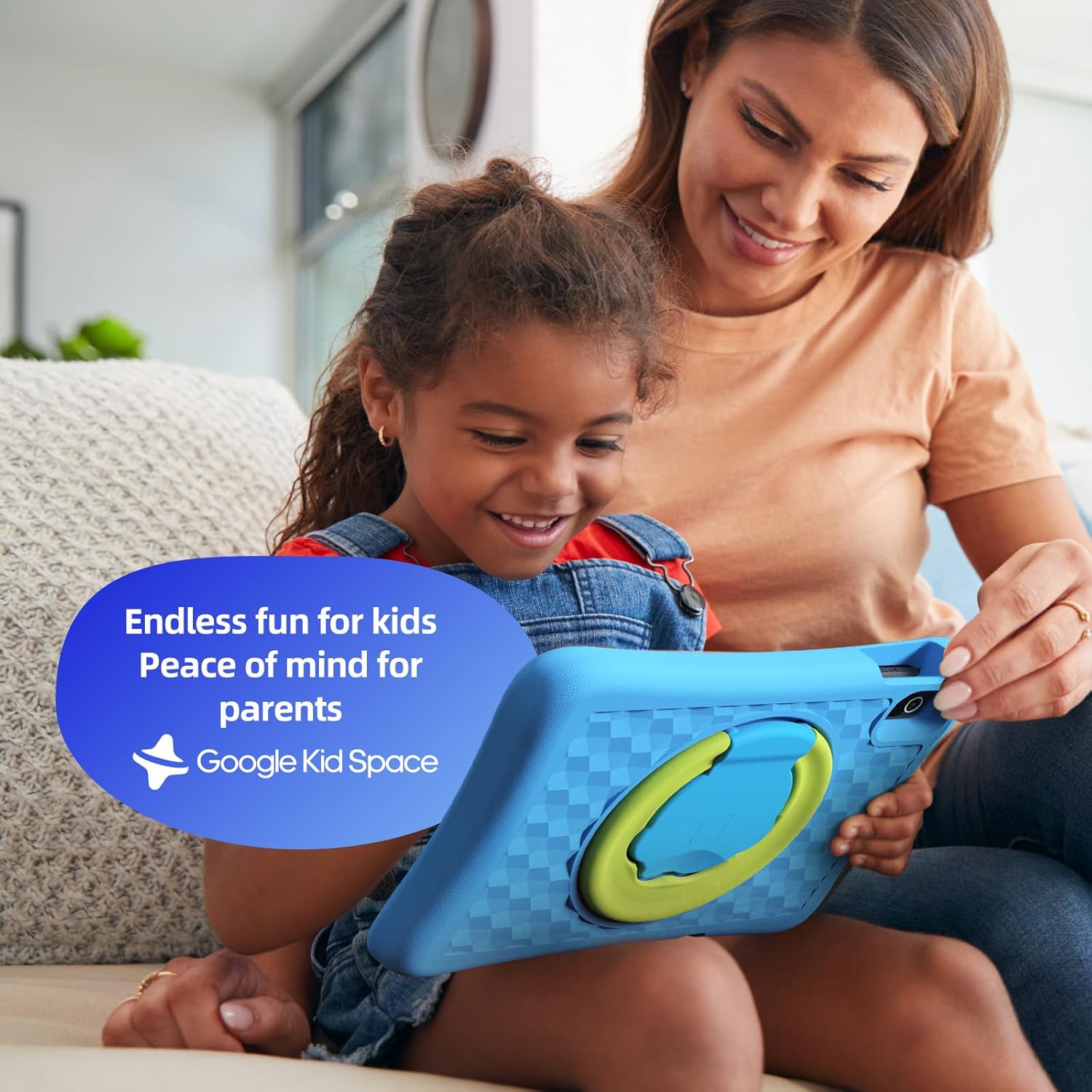
- Google Kids Space & Parental Control: Pre-installed with Google Kids Space and educator-endorsed apps. User-friendly parental controls allow content filtering, educational targets, and time restrictions.
- Eye Protection Display: 10.1" HD IPS glass screen (1280 x 800 resolution) with low blue light technology and automatic brightness adjustment to reduce eye fatigue.
- Duurzaam ontwerp: Rugged, anti-drop EVA protective case, odorless and resistant to deformation, with a 360° rotatable bracket.
- Geoptimaliseerde batterij: Upgraded power system for extended daily use, leveraging Android 15's efficiency for smarter power management.

4. Instellen
4.1 Eerste inschakeling
- Houd de aan/uit-knop aan de zijkant van de tablet ingedrukt totdat het scherm oplicht.
- Volg de instructies op het scherm om uw voorkeurstaal en -regio te selecteren.
4.2 Wi-Fi-verbinding
- From the initial setup screen or Settings menu, select 'Wi-Fi'.
- Kies uw thuis-wifinetwerk uit de lijst.
- Voer je wifi-wachtwoord in en tik op 'Verbinden'.
4.3 Google-account instellen
- Sign in with an existing Google account or create a new one. This account will be used for parental controls and app downloads.
- Follow the instructions to link your child's profile to your Google Family Link account for parental management.
4.4 Google Kids Space Configuration
- Once your Google account is set up, the tablet will guide you through configuring Google Kids Space.
- Select your child's age and interests to personalize content recommendations.
- Review and adjust parental control settings within Google Kids Space or via the Google Family Link app on your own device.
5. De tablet bedienen
5.1 Navigating Google Kids Space
Google Kids Space provides a child-friendly interface with curated content. Children can navigate through different categories like 'Play', 'Read', and 'Watch' to discover apps, books, and videos tailored to their age and interests.
5.2 Parental Controls with Google Family Link
Manage your child's digital experience remotely using the Google Family Link app on your smartphone. This allows you to:
- Stel dagelijkse schermtijdlimieten in.
- Approve or block apps from the Google Play Store.
- Track app usage and activity.
- Set device bedtime.
- Manage content restrictions for websites and searches.

5.3 Mediaconsumptie
The tablet supports various media types:
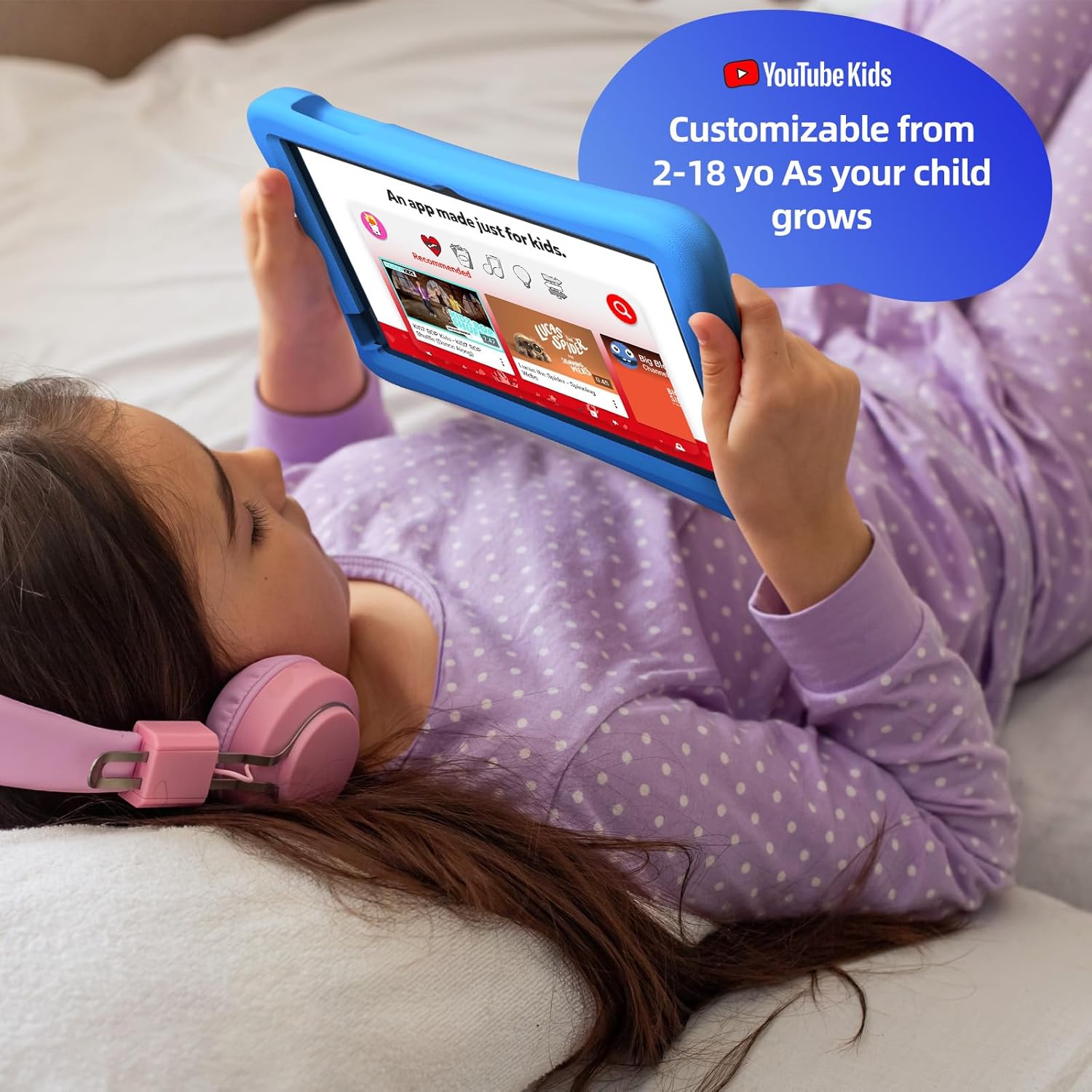
- Video's: Access YouTube Kids for age-appropriate video content. Parental controls can further refine available videos.
- Boeken: Explore a library of digital books within Google Kids Space, promoting reading and literacy.
- Spellen: A wide selection of educational and entertaining games are available, with new content regularly updated.

6. Onderhoud
6.1 Batterijonderhoud
- Charge the tablet fully before first use.
- Om de levensduur van de batterij te verlengen, moet u voorkomen dat deze regelmatig volledig leeg raakt.
- Use only the provided USB Adaptor and Charge Cable.
6.2 Reinigen
- Schakel de tablet uit voordat u gaat schoonmaken.
- Gebruik een zachte, pluisvrije doek om het scherm en de buitenkant af te vegen.
- Gebruik geen agressieve chemicaliën of schurende materialen.
6.3 Software-updates
Ensure the tablet's software is up-to-date for optimal performance and security. Connect to Wi-Fi and check for updates periodically in the Settings menu.
7. Probleemoplossing
7.1 Tablet gaat niet aan
- Zorg ervoor dat de batterij is opgeladen. Sluit de tablet aan op de oplader en wacht een paar minuten voordat u hem opnieuw probeert aan te zetten.
- Houd de aan/uit-knop 10-15 seconden ingedrukt om een harde reset uit te voeren.
7.2 Trage prestaties
- Sluit ongebruikte applicaties die op de achtergrond draaien.
- Wis de cachegegevens voor veelgebruikte apps in Instellingen > Apps.
- Zorg voor voldoende opslagruimte. Verwijder onnodige bestanden. files of apps.
7.3 Problemen met de wifi-verbinding
- Herstart je wifi-router en de tablet.
- Verwijder het netwerk in de wifi-instellingen en maak opnieuw verbinding.
- Zorg ervoor dat de tablet zich binnen het bereik van het wifi-signaal bevindt.
8. Specificaties
| Functie | Specificatie |
|---|---|
| Staande schermweergave | 10.1 inch |
| Schermresolutie | 1280 x 800 pixels |
| Verwerker | 2 GHz octa-core |
| Besturingssysteem | Androïde 15 |
| Grootte van het flashgeheugen | 64GB |
| RAM | 4GB |
| Uitbreidbare opslag | Up to 1 TB (SD card not included) |
| Gemiddelde batterijduur | 8 uur |
| Artikelgewicht | 1.76 pond |
| Productafmetingen | 10.86 x 7.83 x 1.22 inch |
| Kleur | Blauw |
9. Garantie en ondersteuning
The Plimpton Kids Tablet comes with a 2 jaar garantie. Bovendien is een 30-day worry-free return and replacement policy is provided. For any questions or concerns, please contact Plimpton customer support. Our team is dedicated to resolving any issues you may encounter.
For detailed support, refer to the customer support card included in your product packaging or visit the official Plimpton webplaats.