
Invoering
The ShanWan Wireless Controller is a versatile gaming peripheral designed for use across multiple platforms, including PC, iPhone, Android, Nintendo Switch, and Steam. It offers tri-mode connectivity (Bluetooth, 2.4G wireless, and USB-C wired) to ensure a seamless gaming experience. This manual provides detailed instructions for setup, operation, maintenance, and troubleshooting to help you maximize your controller's performance.
Note: This controller is not compatible with Xbox or PlayStation 4/5 consoles.
Inhoud van het pakket
- ShanWan Wireless Controller
- USB-C-oplaadkabel
- 2.4G draadloze dongle
- Gebruikershandleiding (dit document)
Controller voorbijview
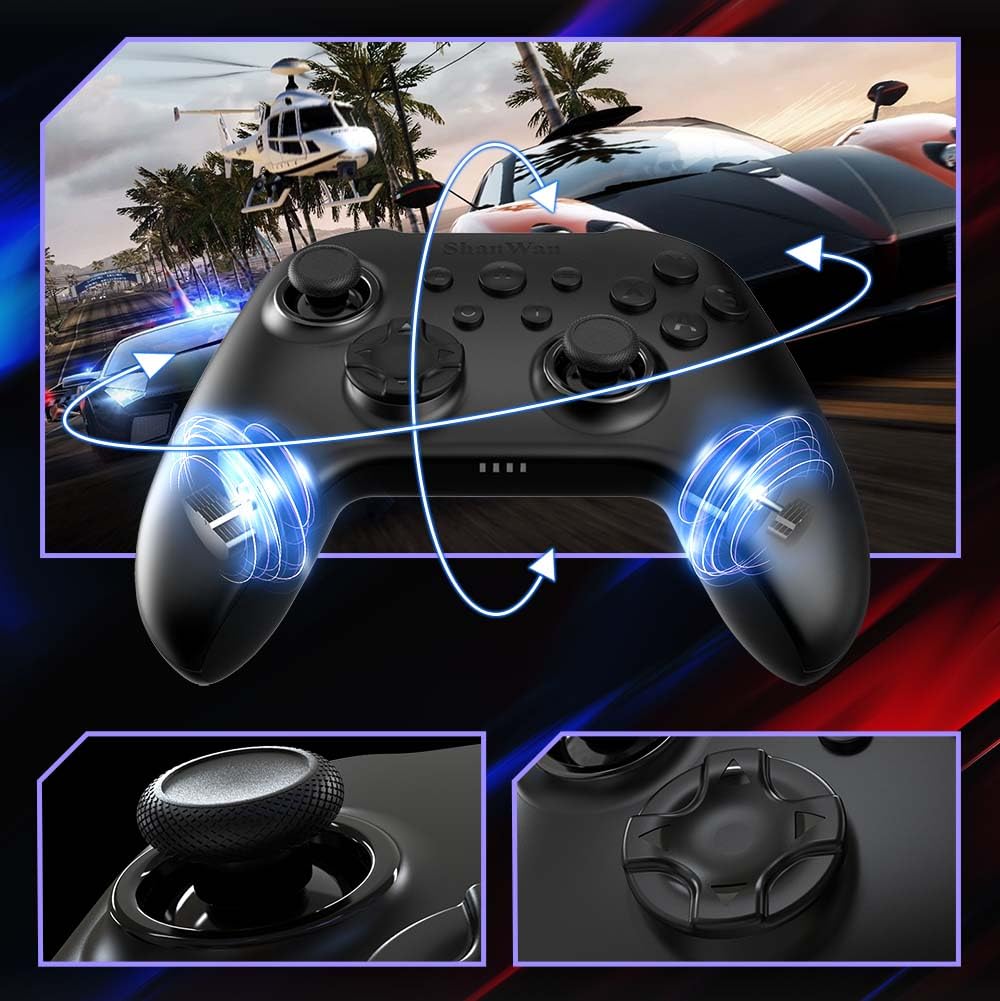
Afbeelding: Voorkant view of the ShanWan Wireless Controller, showcasing its ergonomic design, dual joysticks, D-pad, and face buttons (A, B, X, Y).
Afbeelding: Rug view of the ShanWan Wireless Controller, highlighting the mode switch for different platforms (X, D, S).
Belangrijkste kenmerken:
- Hall-effect joysticks: Designed for precision with no dead zones and anti-drift capabilities.
- Durable Gel Buttons: Conductive gel buttons tested for 1 million clicks for long-lasting performance.
- 6-assige gyroscoop: Provides precise motion sensing for immersive gameplay.
- Dubbele vibratiemotoren: Delivers strong and subtle haptic feedback for an enhanced gaming experience.
- Turbo-functie: Allows for rapid, repeated button presses.
Instellen
1. De controller opladen
Before initial use, fully charge the controller using the provided USB-C cable. Connect the USB-C end to the controller and the USB-A end to a power source (e.g., computer USB port, USB wall adapter). The charging indicator lights will show charging status and turn off when fully charged.
2. Verbinding maken met apparaten
The ShanWan Wireless Controller supports three connection modes: Bluetooth, 2.4G Wireless, and USB-C Wired. Ensure the mode switch on the back of the controller is set to the appropriate platform before attempting to connect.

Afbeelding: Visual representation of the controller's tri-mode connectivity, illustrating Bluetooth, 2.4G wireless, and USB-C wired options.
Mode Switch Settings:
- 'S' Mode: Voor Nintendo Switch.
- 'X' Mode: For PC (X-input), Android.
- 'D' Mode: For PC (D-input), iOS.
Bluetooth-verbinding:
- Set the mode switch on the back of the controller to the desired platform ('S', 'X', or 'D').
- Press and hold the pairing button (usually a small button on the top or back) until the indicator lights flash rapidly.
- On your device (PC, iPhone, Android, Switch), go to Bluetooth settings and search for new devices.
- Select "ShanWan Controller" or a similar name from the list to pair.
- Once paired, the indicator lights on the controller will become solid.
2.4G Wireless Connection (for PC/Switch):
- Set the mode switch on the back of the controller to 'X' (for PC) or 'S' (for Switch).
- Insert the 2.4G wireless dongle into a USB port on your PC or Switch dock.
- Press the Home button on the controller to power it on. It should automatically connect to the dongle.
- The indicator lights will become solid once connected.
USB-C-bekabelde verbinding:
- Connect the USB-C cable to the controller and the other end to your PC or Switch dock.
- The controller will automatically be recognized as a wired device.
- No specific mode switch setting is required for wired connection, but setting it to the correct platform mode ('X' for PC, 'S' for Switch) is recommended for optimal compatibility.
Gebruiksaanwijzing
Aan/uit:
- Inschakelen: Press the Home button once.
- Uitschakelen: Press and hold the Home button for 3-5 seconds, or the controller will automatically power off after a period of inactivity.
Beweging controle:
The built-in 6-axis gyroscope provides motion control capabilities, particularly useful for games on Nintendo Switch or other compatible platforms. Ensure the game supports motion controls for this feature to function.
Trillingsfeedback:
The dual vibration motors provide haptic feedback during gameplay. The intensity of the vibration can often be adjusted through game settings or the Gamepad Space app.
Turbo-functie:
To activate the Turbo function for a specific button:
- Press and hold the button you wish to set to Turbo.
- While holding the button, press the Turbo button (refer to controller layout for location).
- The button will now repeatedly register presses as long as it is held down.
Om de Turbo-functie voor een knop uit te schakelen, herhaal je de procedure.
Software Customization (Gamepad Space App):
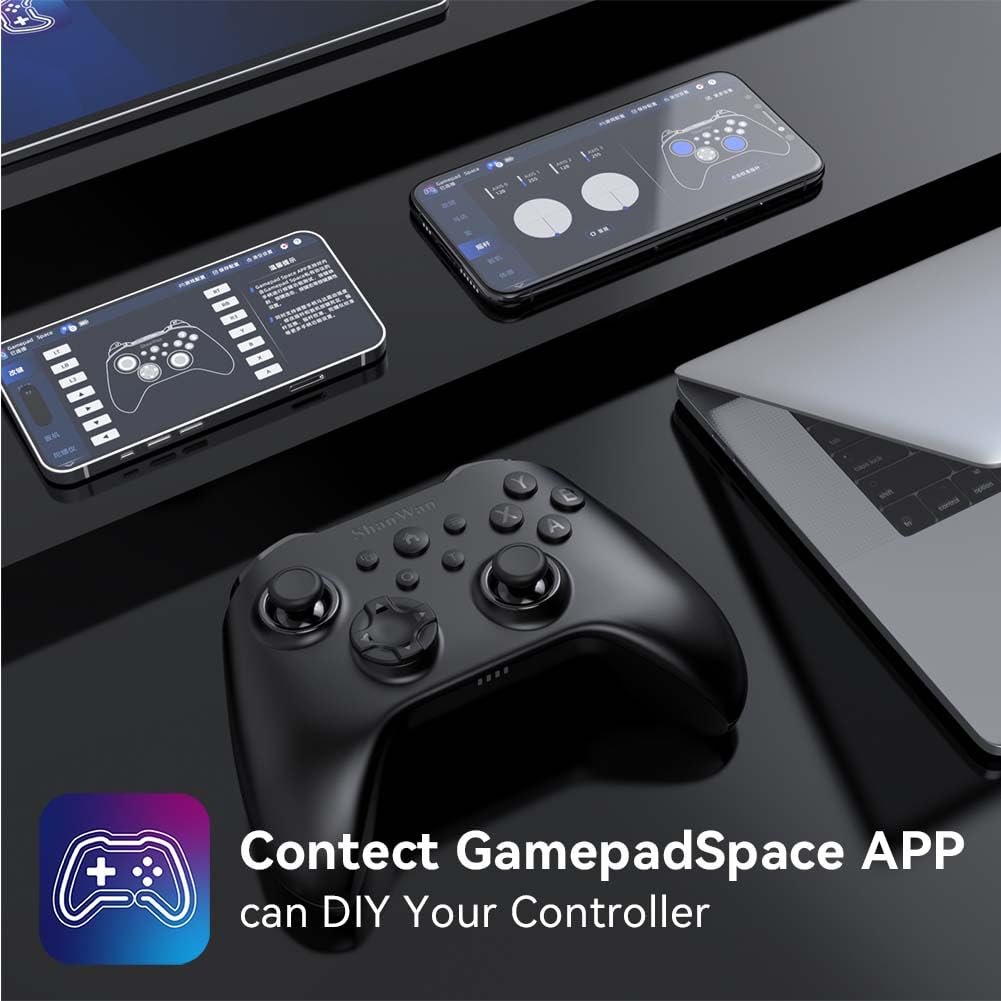
Enhance your gaming experience by customizing controller settings using the Gamepad Space mobile application.

Afbeelding: A ShanWan controller alongside smartphones displaying the Gamepad Space app, illustrating options for calibration and on-the-fly adjustments.
- Download the "Gamepad Space" app from your mobile device's app store.
- Connect your controller to your mobile device via Bluetooth.
- Binnen de app kunt u:
- Upgrade firmware.
- Adjust stick and trigger dead zones.
- Customize vibration intensity.
- Test buttons.
Onderhoud
- Schoonmaak: Reinig de controller met een zachte, droge doek. Vermijd het gebruik van agressieve chemicaliën of schurende materialen.
- Opslag: Bewaar de controller op een koele, droge plaats, uit de buurt van direct zonlicht en extreme temperaturen.
- batterij zorg: Om de levensduur van de batterij te verlengen, moet u voorkomen dat de controller vaak volledig ontlaadt. Laad hem regelmatig op, ook als u hem niet constant gebruikt.
Probleemoplossing
Controller maakt geen verbinding:
- Zorg ervoor dat de controller is opgeladen.
- Verify the mode switch on the back of the controller is set correctly for your platform (S, X, or D).
- For Bluetooth, ensure your device's Bluetooth is on and the controller is in pairing mode.
- For 2.4G wireless, ensure the dongle is properly inserted and the controller is in the correct mode.
- Probeer zowel de controller als je apparaat opnieuw op te starten.
Invoervertraging of onderbrekingen:
- Zorg ervoor dat er geen sterke elektromagnetische interferentie in de buurt is.
- Move closer to your device for a stronger wireless signal.
- Zorg ervoor dat de batterij van de controller niet bijna leeg is.
- Consider using a wired USB-C connection for the most stable experience.
Joystick Drift or Unresponsive Buttons:
- Calibrate the joysticks and test buttons using the Gamepad Space app.
- Ensure the controller's firmware is up to date via the Gamepad Space app.
- Maak de omgeving van de knoppen en joysticks schoon om eventueel vuil te verwijderen.
Specificaties
| Model | B0FS13DT2B |
| Connectiviteitstechnologie | Bluetooth, 2.4 GHz draadloos, USB-C bedraad |
| Compatibele apparaten | Android, iOS, Nintendo Switch, Nintendo Switch 2, PC |
| Controller-type | Spelcomputer |
| Aantal knoppen | 12 |
| Speciale kenmerken | Hall Effect Joysticks, 6-Axis Gyroscope, Dual Vibration, Turbo Function, Software Customization |
| Energiebron | Op batterijen |
| Artikelgewicht | 300 gram |
| Afmetingen artikel (D x B x H) | 2.5" x 4" x 6" |
Garantie en ondersteuning
ShanWan products are designed for reliability and performance. For specific warranty information, please refer to the documentation included with your purchase or visit the official ShanWan support website. If you encounter any issues not covered in this manual, please contact ShanWan customer support for assistance.
Online hulp: Visit the ShanWan Store on Amazon