
1. Product voorbijview
This manual provides detailed instructions for the Gamrombo Wireless Controller, designed for use with Xbox One, Xbox Series X|S, PC, and Windows 10/11 operating systems. Please read this manual carefully before use.
1.1 Pakketinhoud
- Gamrombo Wireless Controller (x2)
- 2.4GHz USB Adapter (x2)
- USB Type-C-oplaadkabel (x2)
- Gebruikershandleiding (dit document)
1.2 Controllerindeling
The Gamrombo Wireless Controller features a standard layout with responsive buttons, joysticks, and triggers for an enhanced gaming experience.

Afbeelding 1.1: Voorkant view of the Gamrombo Wireless Controllers and 2.4GHz USB Adapters.

Afbeelding 1.2: Gedetailleerd view of controller buttons, joysticks, and triggers.
2. Installatie en verbinding
2.1 Connecting to Xbox Consoles (Xbox One, Xbox Series X|S)
- Zorg ervoor dat je Xbox-console is ingeschakeld.
- Insert the 2.4GHz USB adapter into an available USB port on your Xbox console.
- Press and hold the Home button on the controller for 3 seconds to power it on. The indicator light on the controller will flash rapidly.
- Once the controller connects to the adapter, the indicator light will become solid, indicating a successful connection.
2.2 Connecting to PC (Windows 10/11)
- Zorg ervoor dat uw pc is ingeschakeld.
- Insert the 2.4GHz USB adapter into an available USB port on your PC. The system will automatically install the necessary drivers.
- Press and hold the Home button on the controller for 3 seconds to power it on. The indicator light on the controller will flash rapidly.
- Once the controller connects to the adapter, the indicator light will become solid. You can now use the controller for PC games.

Image 2.1: Controller compatibility with various platforms.
2.3 De controller opladen
To charge the controller, connect the included USB Type-C cable to the charging port on the controller and the other end to a USB power source (e.g., console, PC, or USB wall adapter). The indicator light will show charging status and turn off when fully charged.
3. Gebruiksaanwijzing
3.1 In-/uitschakelen
- Inschakelen: Houd de Home-knop 3 seconden ingedrukt.
- Uitschakelen: Press and hold the Home button for 5-8 seconds. The controller will automatically power off after 5 minutes of inactivity.
3.2 Turbofunctie
The Turbo function allows for rapid, repeated input of a button press, which can be beneficial in certain games.
- Houd de turboknop ingedrukt.
- While holding the Turbo button, press the desired action button (e.g., A, B, X, Y, LB, RB, LT, RT). The Turbo function is now activated for that button.
- To deactivate Turbo for a specific button, repeat the process: press and hold the Turbo button, then press the action button again.

Image 3.1: Instructions for activating the Turbo function.
3.3 Dubbele vibratie
The controller features dual motors for vibration feedback, providing an immersive gaming experience. Vibration intensity can vary based on game support and in-game settings.

Image 3.2: Dual-motor vibration feedback levels.
3.4 Audio Jack and Volume Control
The controller includes a standard 3.5mm stereo audio jack for connecting headsets. Volume can be adjusted directly on the controller.
- Volume omhoog: Push the volume slider to the right (+).
- Volume verminderen: Push the volume slider to the left (-).
- Stom: Press and hold the middle of the volume slider to mute audio.

Image 3.3: Audio jack and volume control details.
4. Onderhoud
- Schoonmaak: Reinig de controller met een zachte, droge doek. Vermijd het gebruik van agressieve chemicaliën of schurende materialen.
- Opslag: Bewaar de controller op een koele, droge plaats, uit de buurt van direct zonlicht en extreme temperaturen.
- batterij zorg: To prolong battery life, avoid fully discharging the controller frequently. Charge the controller regularly, even if not in active use.
5. Probleemoplossing
5.1 Verbindingsproblemen
- Controller maakt geen verbinding: Ensure the 2.4GHz USB adapter is securely plugged into the console/PC. Make sure the controller is charged. Try re-pairing by powering off and on the controller.
- Onderbroken verbinding: Ensure there are no strong wireless interference sources nearby. Try moving closer to the console/PC.
5.2 Controller Firmware Upgrade
If you experience persistent connection issues, particularly with Xbox consoles, a firmware upgrade may be required. The upgrade process is performed on a Windows PC.

Image 5.1: Information regarding controller firmware upgrade for connection issues.
- Upgrade Program Download: we.tl/t-I78iIsdPhP
- Video Upgrade Steps: youtu.be/2Q_x2bhtcUU
- The upgrade typically takes 2-3 minutes and ensures continued compatibility with Xbox devices.
5.3 Andere problemen
- Knoppen reageren niet: Ensure the controller is powered on and connected. Restart the controller and try again.
- Trilling werkt niet: Controleer de instellingen in het spel om er zeker van te zijn dat trillen is ingeschakeld.
6. Specificaties
| Functie | Detail |
|---|---|
| Connectiviteit | 2.4GHz Wireless |
| Verenigbaarheid | Xbox One, Xbox Series X|S, PC (Windows 10/11) |
| Batterijcapaciteit | 650mAh |
| Oplaadtijd | 2-3 uur |
| Bedrijfstijd | 8-10 uur |
| Audio-aansluiting | 3.5 mm stereo |
| Trilling | Dubbele motoren |
| Bewegingssensor | 6-Axis (for supported games/platforms) |
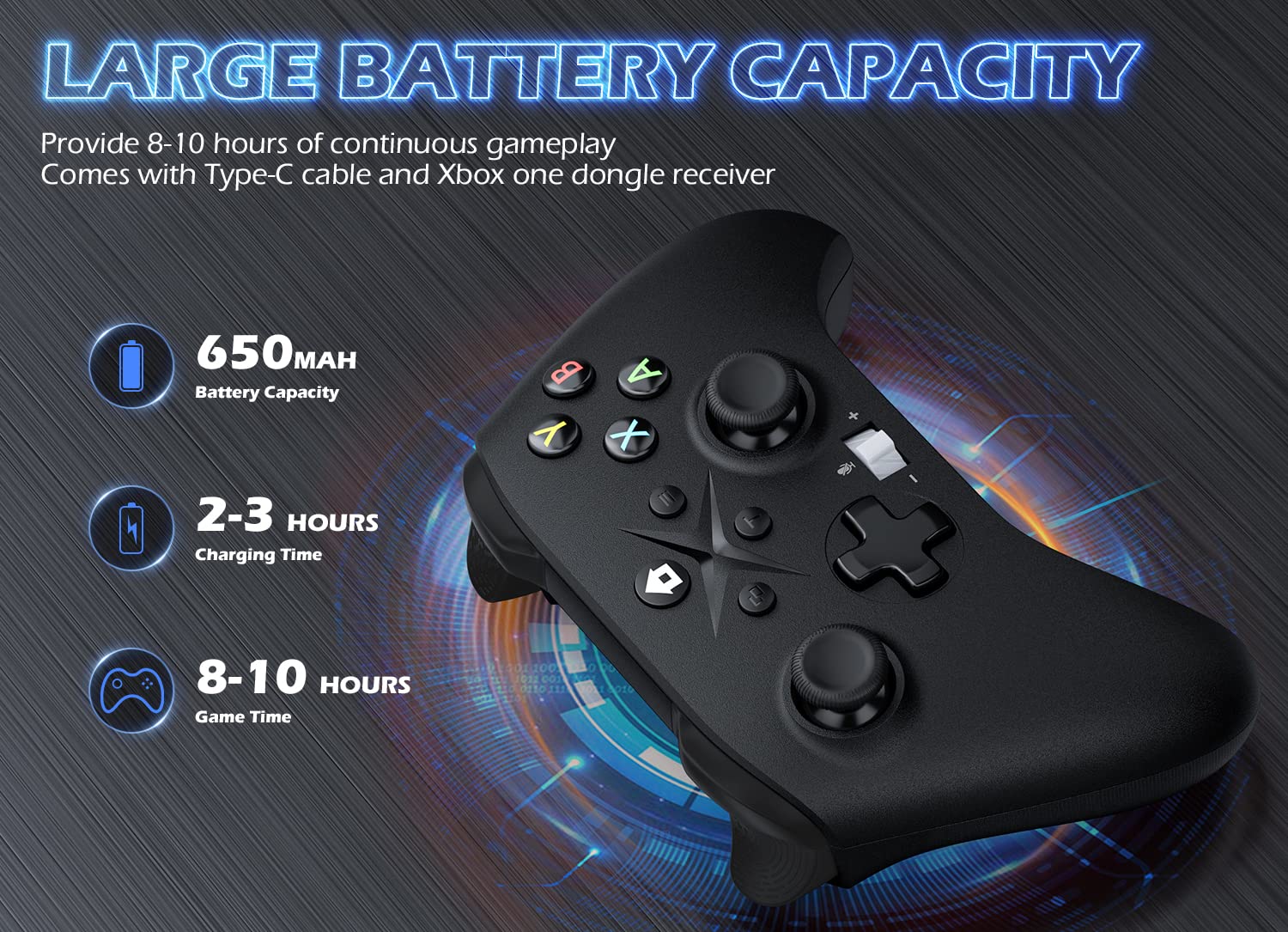
Image 6.1: Battery specifications.
7. Belangrijke veiligheidsinformatie
- Stel de controller niet bloot aan extreme temperaturen, hoge luchtvochtigheid of direct zonlicht.
- Zorg ervoor dat de controller niet valt en dat er geen harde stoten of schokken op de controller worden uitgeoefend.
- Do not attempt to disassemble or modify the controller. This may void the warranty and cause damage.
- Houd de controller en de bijbehorende accessoires buiten het bereik van kleine kinderen.
- Gebruik uitsluitend de meegeleverde oplaadkabel of een gecertificeerd equivalent.
8. Klantenservice
For further assistance or inquiries, please contact Gamrombo customer support through the retailer's platform or the official Gamrombo webplaats.