
CRUA CR340AU
CRUA 34-inch Ultrawide Gaming Monitor User Manual
Model: CR340AU
1. Veiligheidsinformatie
Lees alle instructies aandachtig door voordat u deze monitor gebruikt. Bewaar deze handleiding voor toekomstig gebruik.
- Stel de monitor niet bloot aan regen of vocht om brand of elektrische schokken te voorkomen.
- Open de monitor nietasing. Er bevinden zich geen onderdelen in het apparaat die door de gebruiker zelf onderhouden kunnen worden. Laat al het onderhoud uitvoeren door gekwalificeerd personeel.
- Plaats de monitor op een stabiele, vlakke ondergrond om te voorkomen dat deze valt.
- Zorg voor voldoende ventilatie rondom de monitor. Blokkeer de ventilatieopeningen niet.
- Gebruik uitsluitend de stroomadapter die bij de monitor is geleverd.
- Haal de stekker uit het stopcontact als de monitor gedurende langere tijd niet wordt gebruikt.
2. Inhoud van het pakket
Controleer of alle artikelen in uw pakket aanwezig zijn:
- CRUA 34-inch Ultrawide Gaming Monitor
- Monitorstandaard (voet en nek)
- Voedingsadapter en kabel
- HDMI-kabel
- DisplayPort (DP)-kabel
- Gebruiksaanwijzing
- Schroeven voor standaardmontage
3. Instellen
3.1 De standaard monteren
- Haal de monitor voorzichtig uit de verpakking en leg hem op een zachte ondergrond ter bescherming.
- Attach the stand neck to the monitor's rear panel using the provided screws.
- Bevestig de voet van de standaard aan de hals van de standaard en zet deze vast met de daarvoor bestemde schroef.
- Plaats de gemonteerde monitor op een stabiel bureau.
The monitor stand allows for tilt adjustment to find your optimal viewhoek.
3.2 Wandmontage (optioneel)
This monitor supports VESA wall mounting (75x75mm). To wall mount:
- Verwijder de standaard van de monitor als deze er al op zit.
- Attach a compatible VESA 75x75mm wall mount bracket (not included) to the monitor's rear panel using appropriate screws.
- Volg de instructies die bij uw muurbeugel zijn geleverd voor een veilige installatie.

Afbeelding: Achterkant view of the monitor highlighting the 75x75mm wall mount area and various input ports.
3.3 Verbinding maken met een apparaat
Connect your computer or gaming console to the monitor using one of the available ports:
- DisplayPort (DP 1.4): For optimal performance, especially for high refresh rates and FreeSync.
- HDMI (HDMI 1.4 x2): Compatible with most devices.
Sluit de voedingsadapter aan op de DC-ingang van de monitor en steek deze vervolgens in een stopcontact.
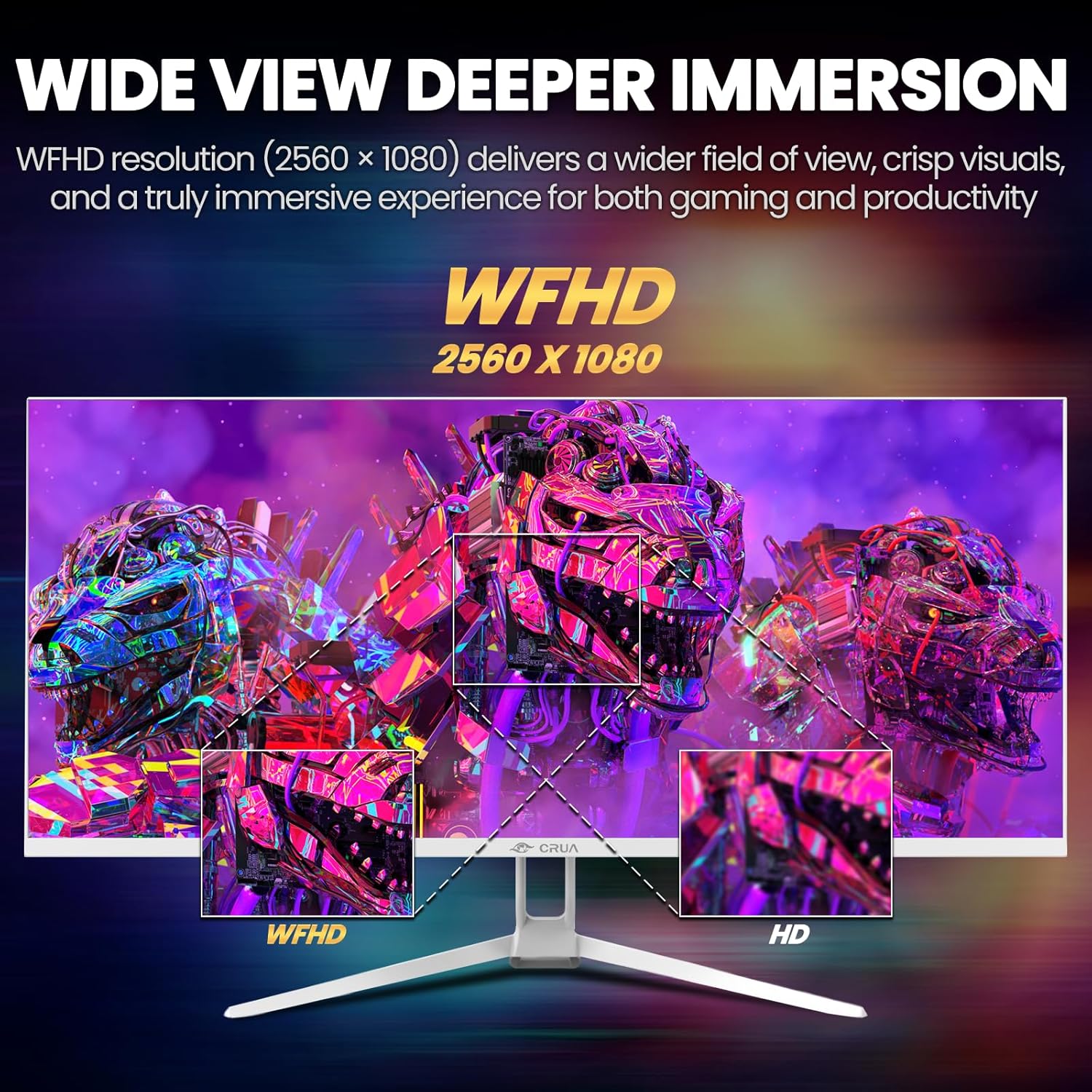
Image: A detailed diagram illustrating the monitor's connectivity options, including two HDMI 1.4 ports, one DisplayPort 1.4, an audio output, a USB charging port, and the DC power input.
4. Gebruiksaanwijzing
4.1 In-/uitschakelen
Press the power button, typically located on the bottom or rear of the monitor, to turn it on or off. The power indicator light will illuminate when the monitor is on.
4.2 OSD-menu (On-Screen Display)
The OSD menu allows you to adjust various monitor settings. Access it by pressing the OSD menu button (often a joystick-like button or a set of dedicated buttons) on the monitor.
- Navigatie: Use the OSD buttons or joystick to navigate through the menu options.
- Selectie: Druk op de selectieknop om een submenu te openen of een instelling te bevestigen.
- Uitgang: Gebruik de afsluitknop om terug te gaan of het OSD-menu te sluiten.
4.3 Beeldinstellingen
Adjust visual parameters for optimal viewind:
- Helderheid: Regelt de algehele helderheid van het scherm.
- Contrast: Past het verschil tussen lichte en donkere gebieden aan.
- Kleurtemperatuur: Selects preset color modes (e.g., Warm, Cool, User).
- Blauwlichtfilter: Vermindert de uitstoot van blauw licht om oogvermoeidheid bij langdurig gebruik te minimaliseren.
- Beeldverhouding: Set to 21:9 for ultrawide content or other options as needed.

Image: The CRUA ultrawide monitor showcasing its 21:9 aspect ratio, demonstrating how it provides more horizontal screen space compared to a standard 16:9 display.
4.4 Audio-instellingen
The monitor includes built-in speakers. Adjust volume through the OSD menu or your connected device. An external audio output port is also available for headphones or external speakers.
4.5 AMD FreeSync
To enable AMD FreeSync for tear-free gaming, ensure your graphics card supports FreeSync and that it is enabled in your graphics card's control panel. Then, activate FreeSync within the monitor's OSD menu.

Image: A visual comparison demonstrating the effect of AMD FreeSync, showing a torn image when FreeSync is off and a smooth image when FreeSync is on, highlighting the 120Hz refresh rate.
5. Onderhoud
5.1 Het scherm schoonmaken
- Schakel de monitor uit en trek de stekker uit het stopcontact.
- Gebruik lichtjes een zachte, pluisvrije doek dampschoongemaakt met water of een speciale schermreiniger.
- Wipe the screen gently. Do not press hard or use abrasive cleaners.
5.2 Algemeen onderhoud
- Houd de monitor uit de buurt van direct zonlicht, warmtebronnen en overmatig stof.
- Plaats geen zware voorwerpen op de monitor of de kabels ervan.
- Do not spray cleaning liquids directly onto the monitor.
6. Probleemoplossing
Als u problemen ondervindt met uw monitor, raadpleeg dan de volgende veelvoorkomende problemen en oplossingen:
| Probleem | Mogelijke oplossing |
|---|---|
| Geen beeld op het scherm | Ensure power cable is securely connected and the monitor is turned on. Check video cable (HDMI/DP) connections to both monitor and computer. Select the correct input source via the OSD menu. |
| Het beeld flikkert of is instabiel. | Check video cable connections. Ensure your graphics card drivers are up to date. If using FreeSync, try disabling it temporarily to see if the issue persists. Adjust refresh rate in your computer's display settings. |
| Geen geluid uit ingebouwde luidsprekers | Increase volume via the OSD menu and your computer's sound settings. Ensure the correct audio output device is selected on your computer. Check if the audio cable (if used) is properly connected. |
| Kleuren lijken onjuist | Reset picture settings to factory defaults via the OSD menu. Adjust color temperature and individual RGB values if available. |
If the problem persists after trying these solutions, please contact CRUA customer support.
7. Specificaties
Key technical specifications for the CRUA 34-inch Ultrawide Gaming Monitor (Model CR340AU):
| Functie | Specificatie |
|---|---|
| Schermgrootte | 34 inch |
| Paneeltype | IPS |
| Oplossing | 2560 x 1080 (WFHD) |
| Beeldverhouding | 21:9 |
| Vernieuwingsfrequentie | 120Hz |
| Reactietijd | (Not specified in provided data, typical for IPS is 1-5ms GTG) |
| Helderheid | 350 cd/m² |
| Kleurengamma | 120% sRGB |
| Kleurdiepte | 8-bit (16.7 Million Colors) |
| Viewing hoeken | 178° (Horizontaal/Verticaal) |
| Adaptieve synchronisatie | AMD FreeSync |
| Connectiviteit | 2x HDMI 1.4, 1x DisplayPort 1.4, Audio Out, USB Charging, DC Power Input |
| Ingebouwde luidsprekers | Ja |
| Muurbevestiging | VESA-75x75 mm |
| Productafmetingen | 9.4 x 24.13 x 17.47 inch |
| Artikelgewicht | 14.92 pond |
8. Garantie en ondersteuning
CRUA provides high-quality computer monitors and customer service. For any questions or support needs regarding your CRUA 34-inch Ultrawide Gaming Monitor, please contact CRUA customer support.
Refer to your purchase documentation or the official CRUA website voor specifieke garantievoorwaarden en contactinformatie.
Ask a question about this manual
Ask about setup, troubleshooting, compatibility, parts, safety, or missing instructions. Manuals+ will review the question and use this page’s manual context to help answer it.