
Xbox EP2-29563
Xbox Wireless Controller Storm Breaker Special Edition
Model: EP2-29563
Merk: Xbox
Invoering
The Xbox Wireless Controller Storm Breaker Special Edition is designed to provide an enhanced gaming experience across multiple platforms. This controller features a unique aesthetic with classic grays and blacks, offset with whites, along with textured grips for improved handling. It offers seamless connectivity and customizable controls to optimize your gameplay.
Belangrijkste kenmerken
- Storm Breaker Special Edition Design: Features a distinctive gray, black, and white pattern.
- Textured Triggers: Provides enhanced grip and control during gameplay.
- Rubberen handgrepen: Located on the back cases for secure handling.
- Wireless & Bluetooth Connectivity: Easily pairs with Xbox consoles, PCs, and mobile devices.
- Share-knop: Seamlessly capture and share screenshots and game recordings.
- Aanpasbare knoptoewijzing: Personalize controls using the Xbox Accessories app.
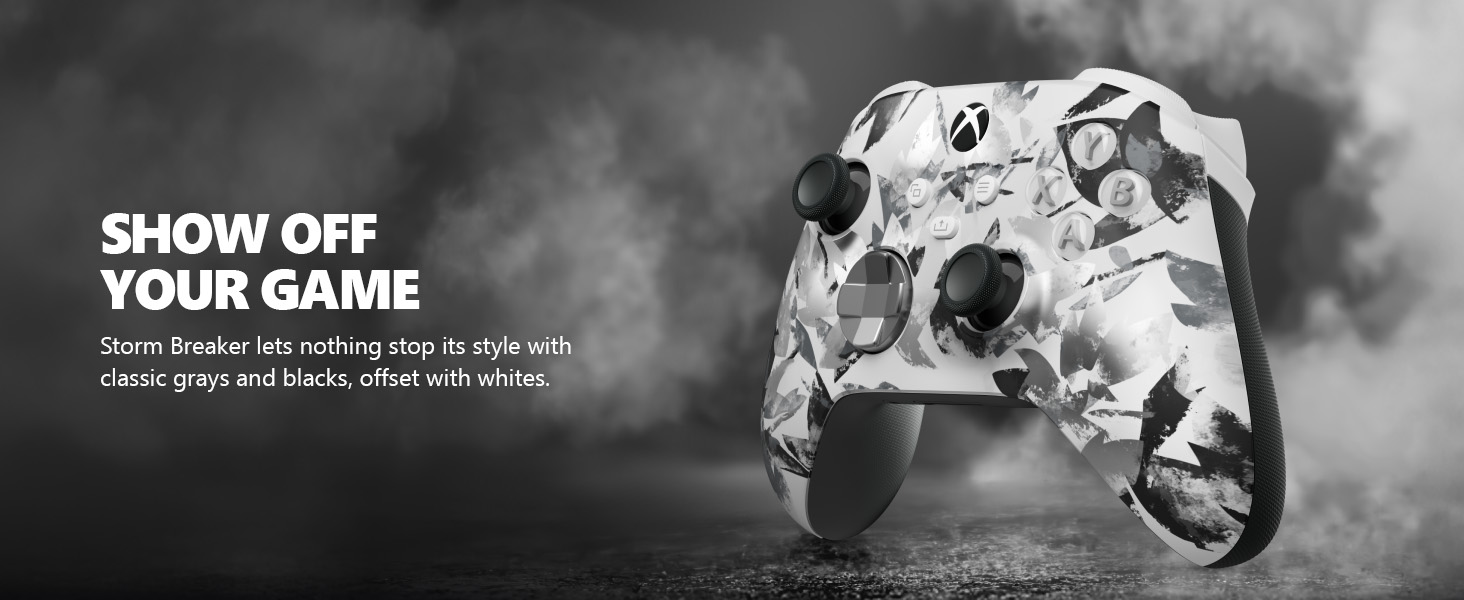
Image: The Xbox Wireless Controller Storm Breaker Special Edition showcasing its distinctive color scheme.
Instellen
1. Batterij installatie
The controller requires two AA batteries (included). To install:
- Zoek het batterijvak aan de achterkant van de controller.
- Press the small tab and lift the battery cover.
- Plaats de twee AA-batterijen en let daarbij op de juiste polariteit (+ en -).
- Plaats de batterijklep terug totdat deze op zijn plaats klikt.
2. Koppelen met apparaten
The controller supports both Xbox Wireless and Bluetooth for versatile connectivity.
- For Xbox Console:
- Zet uw Xbox-console aan.
- Druk op de Xbox-knop op je controller om hem aan te zetten.
- Houd de knop Koppelen ingedrukt (⏚) on the top of the controller until the Xbox button flashes rapidly.
- Press the Pair button on your Xbox console (usually near the USB port or on the front).
- De Xbox-knop op de controller wordt continu actief zodra deze is aangesloten.
- For PC (Windows 10/11) via Bluetooth:
- Zorg ervoor dat Bluetooth op uw pc is ingeschakeld.
- Druk op de Xbox-knop op je controller om hem aan te zetten.
- Houd de knop Koppelen ingedrukt (⏚) on the top of the controller until the Xbox button flashes rapidly.
- Ga op uw pc naar Instellingen > Apparaten > Bluetooth en andere apparaten.
- Selecteer 'Bluetooth of ander apparaat toevoegen' en vervolgens 'Bluetooth'.
- Choose "Xbox Wireless Controller" from the list and follow on-screen prompts.
- Voor mobiele apparaten (Android/iOS):
- Schakel Bluetooth in op uw mobiele apparaat.
- Druk op de Xbox-knop op je controller om hem aan te zetten.
- Houd de knop Koppelen ingedrukt (⏚) on the top of the controller until the Xbox button flashes rapidly.
- On your mobile device, search for Bluetooth devices and select "Xbox Wireless Controller" to pair.
Video: Een overview of the Xbox Wireless Controller, demonstrating its physical features and ports, useful for understanding setup.
Bediening van de regelaar
1. Basisbedieningen
- Duimstokken: Use for movement and camera control.
- D-pad: Ideal for precise directional input in games and menu navigation.
- A, B, X, Y-knoppen: Primary action buttons for in-game commands.
- Triggers (LT/RT) & Bumpers (LB/RB): Used for various actions like shooting, accelerating, or menu selection.
2. Deelknop
The dedicated Share button (⤓) allows you to quickly capture and share your gaming moments:
- Press once to take a screenshot.
- Press and hold to record the last 30 seconds of gameplay.
3. Hoofdtelefoonaansluiting
A 3.5mm audio jack is located at the bottom of the controller, allowing you to connect compatible headsets for in-game audio and chat.
4. Customization with Xbox Accessories App
Download the Xbox Accessories app on your Xbox console or Windows PC to customize button mapping and create personalized controller profiles.
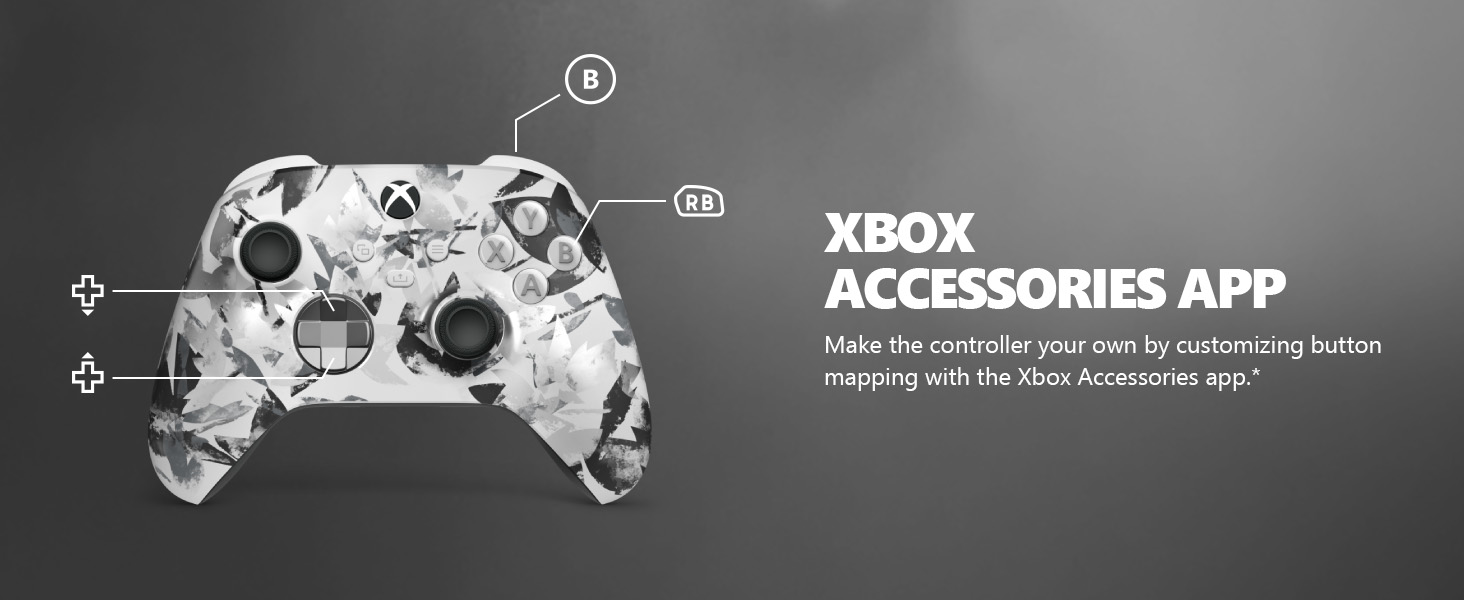
Image: The Share button and an illustration of button mapping customization via the Xbox Accessories app.
Onderhoud
- Schoonmaak: Gebruik een zachte, droge doek om de controller schoon te maken. Vermijd schurende reinigingsmiddelen of oplosmiddelen.
- batterij zorg: Verwijder de batterijen als de controller gedurende langere tijd niet wordt gebruikt om lekkage te voorkomen.
- Opslag: Bewaar de controller op een koele, droge plaats, uit de buurt van direct zonlicht en extreme temperaturen.
Probleemoplossing
- Controller maakt geen verbinding:
- Zorg ervoor dat de batterijen correct zijn geplaatst en opgeladen.
- Probeer het koppelingsproces opnieuw zoals beschreven in het gedeelte 'Installatie'.
- Controleer of er sprake is van interferentie van andere draadloze apparaten.
- Update de firmware van je controller via de Xbox Accessoires-app.
- Knoppen reageren niet:
- Maak het gebied rond de knoppen schoon om eventueel vuil te verwijderen.
- Test the controller with another device or game to isolate the issue.
- Korte batterijduur:
- Gebruik nieuwe, hoogwaardige AA-batterijen.
- Consider using a rechargeable battery pack (sold separately) for extended play.
Specificaties
| Functie | Detail |
|---|---|
| Modelnummer | EP2-29563 |
| Connectiviteit | Xbox draadloos, Bluetooth |
| Verenigbaarheid | Xbox Series X|S, Xbox One, Windows 10/11, Android, iOS |
| Energiebron | 2 AA-batterijen (meegeleverd) |
| Audio poort | 3.5 mm hoofdtelefoonaansluiting |
| Afmetingen | 6.91 x 5.61 x 2.76 inch |
| Gewicht | 14.1 ons |
| Fabrikant | Microsoft |
Garantie en ondersteuning
For warranty information and technical support, please refer to the documentation included with your product or visit the official Xbox support webwebsite. Bewaar uw aankoopbewijs voor garantieclaims.
Online hulp: ondersteuning.xbox.com