
1. Inleiding en voorbijview
Thank you for choosing the Ninkear L12Pro Gaming Mini PC. This compact yet powerful desktop computer is designed to deliver exceptional performance for a wide range of applications, from demanding gaming and 4K video editing to business productivity and multi-display setups. Featuring an Intel Core i9-12900HK processor, 32GB of RAM, and a 1TB NVMe SSD, the L12Pro offers a seamless and responsive computing experience. This manual provides essential information for setting up, operating, maintaining, and troubleshooting your new Mini PC.
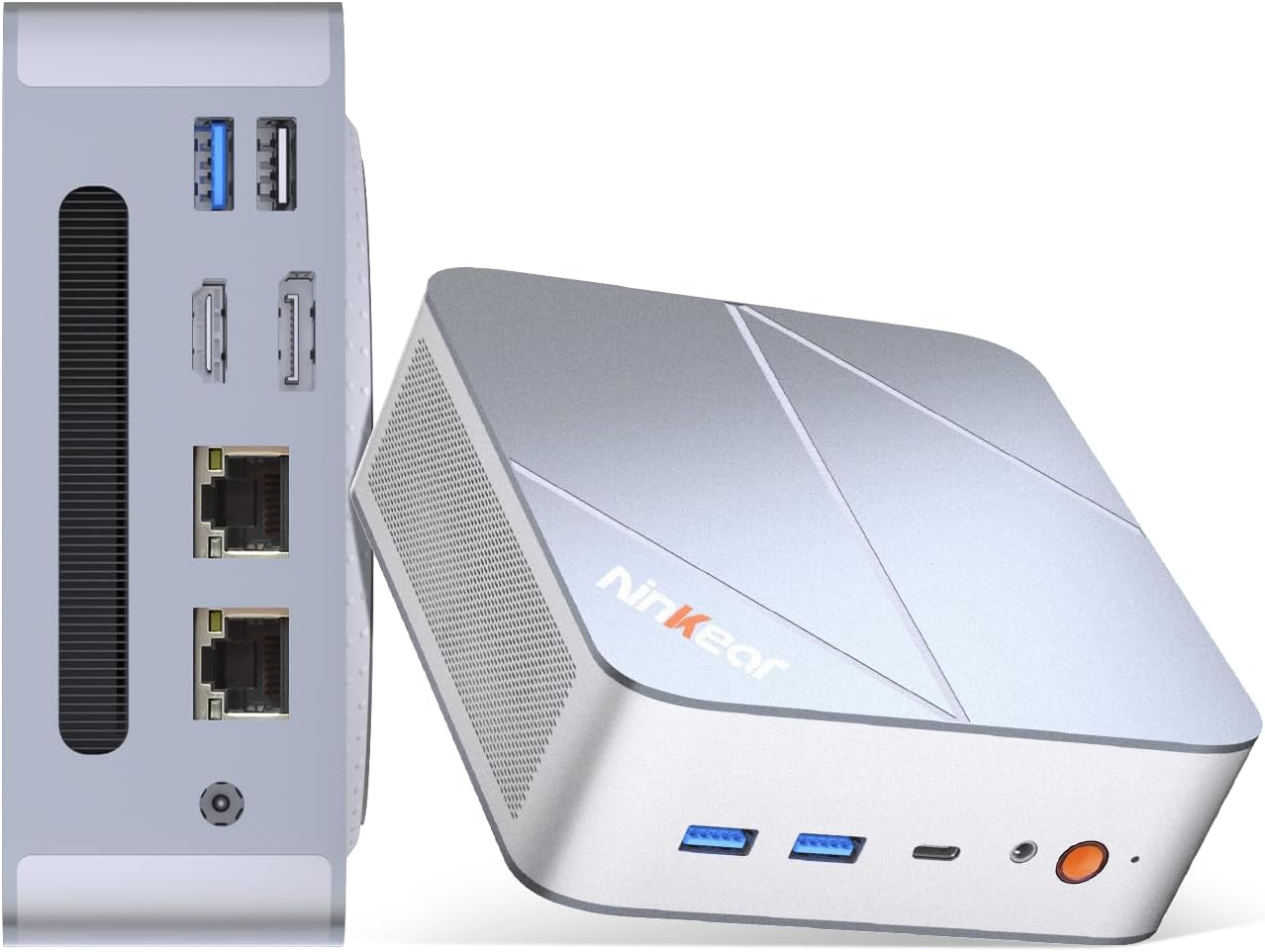
Figure 1.1: Ninkear L12Pro Mini PC - Front and Side View met havens.
2. Producteigenschappen
- Bliksemsnelle prestaties: Powered by Intel’s 12th Gen i9-12900HK processor (14 cores, 20 threads, up to 5.0GHz), capable of handling 4K video editing, coding, and intensive multitasking.
- Snelle geheugen- en opslagoplossingen: Equipped with 32GB DDR4 RAM and an ultra-fast 1TB NVMe SSD for instant file access, smooth application performance, and rapid boot times.
- Triple 8K UHD Display Support: Create an immersive multi-screen setup with HDMI 2.0 (up to 4K@60Hz), DisplayPort 1.4 (up to 8K@60Hz), and USB4/Thunderbolt 4 (up to 8K@60Hz) outputs.
- Compact and Flexible Design: Small form factor allows for versatile placement behind monitors, under desks, or in backpacks, offering powerful desktop capabilities in a portable size.
- Geavanceerde connectiviteit: Features USB4.0, USB-C, WiFi 6, Bluetooth 5.2, dual 2.5G LAN ports, and multiple USB 3.2 Gen 2 and USB 2.0 ports for comprehensive peripheral support and high-speed data transfer.
- Efficiënt koelsysteem: Designed with an all-metal cooling system for quiet and efficient operation, ensuring stable performance even under heavy loads.
- Uitbreidbare opslag: Supports additional M.2 NVMe PCIe SSD (up to 4TB) and an optional 2.5-inch HDD for expanded storage capacity.

Afbeelding 2.1: Belangrijkste kenmerken en specificatiesview.

Figure 2.2: Triple 8K Display Setup for Enhanced Productivity.

Figure 2.3: Comprehensive Connectivity Options.
3. Wat zit er in de doos?
Controleer bij het openen van de verpakking of de volgende items aanwezig zijn:
- Ninkear L12Pro Mini PC
- HDMI-kabel
- Stroomadapter
- Gebruikershandleiding (dit document)
4. Installatiehandleiding
Follow these steps to set up your Ninkear L12Pro Mini PC:
- Unpack the Mini PC: Haal de mini-pc en alle accessoires voorzichtig uit de verpakking.
- Verbinding maken met een beeldscherm:
- Connect one end of the HDMI cable (included) to the HDMI port on the Mini PC and the other end to an available HDMI input on your monitor or TV.
- For DisplayPort or USB4/Thunderbolt 4 connections, use appropriate cables (not included) to connect to compatible displays.
- For triple display setup, connect additional monitors using the available DisplayPort, USB4/Thunderbolt 4, or a USB-C to HDMI/DP adapter (not included).
- Randapparatuur aansluiten:
- Plug your USB keyboard and mouse into any available USB ports on the Mini PC.
- If using wireless peripherals, ensure their receivers are plugged into a USB port.
- Aansluiten op stroom: Plug the power adapter into the DC-in port on the Mini PC, then plug the other end into a power outlet.
- Netwerkverbinding (optioneel):
- For a wired connection, connect an Ethernet cable from your router or modem to one of the 2.5G LAN ports on the Mini PC.
- For a wireless connection, the Mini PC supports WiFi 6. You will configure this after the initial boot.
- Eerste keer opstarten: Press the power button on the front of the Mini PC. The system will power on and begin the initial setup process for Windows 11 Pro. Follow the on-screen instructions to complete the operating system setup.
5. Gebruiksaanwijzing
5.1 In-/uitschakelen
- Inschakelen: Druk eenmaal op de aan/uit-knop.
- Uitschakelen: Klik op de Startknop in Windows en selecteer vervolgens Energie > Afsluiten.
- Opnieuw opstarten: Klik op de Startknop in Windows en selecteer vervolgens Aan/uit > Opnieuw opstarten.
- Geforceerd afsluiten: If the system is unresponsive, press and hold the power button for approximately 5-7 seconds until the unit powers off. Use this only as a last resort.
5.2 Weergaveconfiguratie
The Ninkear L12Pro supports up to three independent displays simultaneously. After connecting your monitors, Windows will typically detect them automatically. If not, or to configure display settings:
- Klik met de rechtermuisknop op een lege plek op uw bureaublad.
- Select "Display settings".
- From here, you can detect displays, arrange them, change resolution, and set display modes (Extend, Duplicate, Second screen only).
5.3 Netwerkconnectiviteit
- Bekabeld (Ethernet): Ensure an Ethernet cable is connected to one of the 2.5G LAN ports. Windows will automatically establish a connection.
- Draadloos (Wi-Fi):
- Click the Wi-Fi icon in the system tray (bottom right of the taskbar).
- Selecteer het gewenste Wi-Fi-netwerk uit de lijst.
- Voer het netwerkwachtwoord in als daarom wordt gevraagd en klik op 'Verbinden'.
5.4 Externe apparaten aansluiten
The Mini PC offers a variety of ports for connecting external devices:
- USB-poorten: Use USB 3.2 Gen 2 ports for high-speed devices like external hard drives or SSDs, and USB 2.0 for standard peripherals like keyboards, mice, or printers.
- USB4/Thunderbolt 4: This versatile port supports high-speed data transfer (40Gbps), video output, and power delivery (with compatible devices).
- Audio kabel: Sluit een hoofdtelefoon of externe luidsprekers aan op de 3.5 mm audioaansluiting.
6. Onderhoud
Proper maintenance ensures the longevity and optimal performance of your Ninkear L12Pro Mini PC:
- Houd ventilatieopeningen vrij: Ensure the ventilation openings on the Mini PC are not obstructed. Blocked vents can lead to overheating and reduced performance.
- Regelmatig schoonmaken: Gebruik een zachte, droge doek om de buitenkant van de mini-pc schoon te maken. Gebruik perslucht om stof in de ventilatieopeningen te verwijderen. Gebruik geen vloeibare reinigingsmiddelen rechtstreeks op het apparaat.
- Software-updates: Regularly update your Windows operating system, drivers, and applications to ensure security, stability, and performance.
- Veilig afsluiten: Sluit de mini-pc altijd correct af via het besturingssysteem om gegevensverlies te voorkomen.
- Omgevingsomstandigheden: Operate the Mini PC in a clean, dry environment, away from direct sunlight, excessive heat, and humidity.

Figure 6.1: Smart Cooling System for Quiet Operation.
7. Probleemoplossing
If you encounter issues with your Ninkear L12Pro Mini PC, refer to the following common problems and solutions:
| Probleem | Mogelijke oorzaak | Oplossing |
|---|---|---|
| Geen stroom | Niet aangesloten voedingsadapter; Probleem met stopcontact; Defecte voedingsadapter. | Zorg ervoor dat de voedingsadapter goed is aangesloten op de mini-pc en op een werkend stopcontact. Probeer een ander stopcontact. |
| Geen weergave | Monitor not connected; Incorrect input selected on monitor; Faulty cable; Display driver issue. | Check display cable connections. Ensure monitor is on and set to the correct input source (HDMI, DP, USB-C). Try a different cable or monitor. Update display drivers in Windows. |
| No Internet Connection (Wired) | Ethernetkabel losgekoppeld; probleem met router/modem; probleem met netwerkstuurprogramma. | Controleer de verbinding van de ethernetkabel. Start uw router/modem opnieuw op. Controleer de netwerkadapterinstellingen in Apparaatbeheer van Windows. |
| Geen internetverbinding (Wi-Fi) | Wi-Fi disabled; Incorrect password; Router too far; Driver issue. | Ensure Wi-Fi is enabled in Windows. Re-enter Wi-Fi password. Move closer to the router. Update Wi-Fi drivers. |
| Trage prestaties | Too many applications running; Overheating; Low disk space; Malware. | Close unnecessary applications. Ensure vents are clear. Free up disk space. Run a malware scan. |
8. Specificaties
Detailed technical specifications for the Ninkear L12Pro Mini PC:
| Functie | Detail |
|---|---|
| Merk | Ninkear |
| Modelnummer | L12Pro |
| Verwerker | Intel Core i9-12900HK (14 Cores, 20 Threads, up to 5.0GHz) |
| RAM | 32 GB DDR4 (uitbreidbaar tot 64 GB) |
| Opslag | 1TB NVMe SSD (M.2 PCIe 3.0, Expandable up to 4TB) |
| Grafische coprocessor | Intel Iris Xe Graphics (96EU) |
| Maximale schermresolutie | 8K (7680x4320) via DisplayPort/USB4, 4K (4096x2160) via HDMI |
| Video-uitgangen | 1x HDMI 2.0, 1x DisplayPort 1.4, 1x USB4/Thunderbolt 4 |
| USB-poorten | 3x USB 3.2 Gen 2, 1x USB 2.0, 1x USB4/Thunderbolt 4 (Type-C) |
| Netwerk | Dual 2.5G LAN (RJ45), WiFi 6 (802.11ax) |
| Bluetooth | Bluetooth 5.2 |
| Besturingssysteem | Windows 11 Pro |
| Artikelgewicht | 2.51 pond (ongeveer 1.14 kg) |
| Afmetingen | 10.44 x 6.73 x 2.79 inch (verpakkingsafmetingen) |
| Kleur | Premium Brushed Silver |
9. Garantie en ondersteuning
The Ninkear L12Pro Mini PC comes with a standard manufacturer's warranty. For specific warranty terms and conditions, please refer to the documentation included with your purchase or visit the official Ninkear webplaats.
For technical support, troubleshooting assistance, or any inquiries regarding your product, please contact Ninkear customer service through their official channels.
Online hulp: Bezoek de Ninkear Store on Amazon Voor veelgestelde vragen en contactmogelijkheden.