
1. Instellen
This section guides you through the initial setup of your Tivoli Audio Model Three Bluetooth Clock Radio.
1.1 Uitpakken en plaatsen
Carefully remove the unit from its packaging. Place the radio on a stable, flat surface such as a tabletop. Ensure adequate ventilation around the unit.
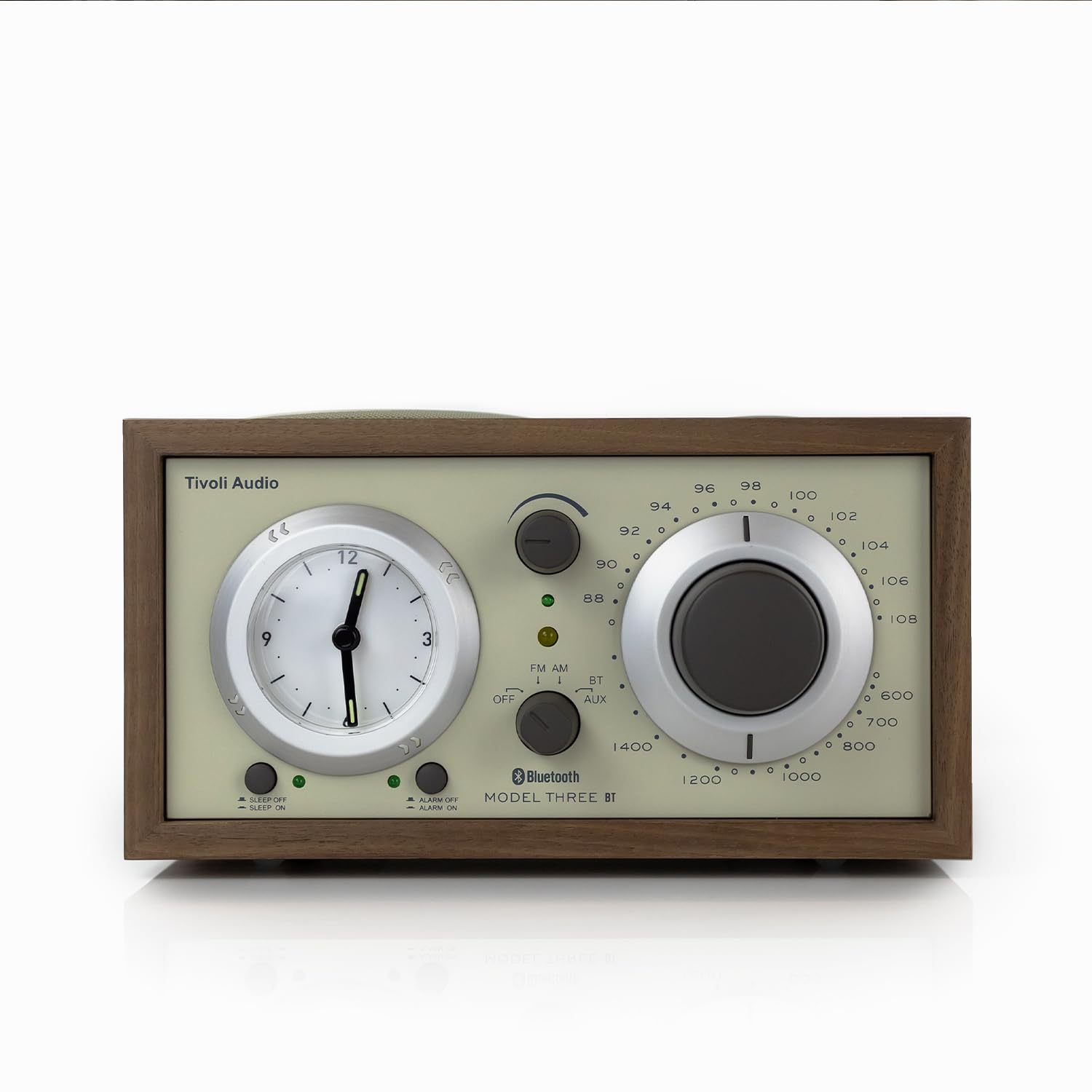
Voorkant view of the Tivoli Audio Model Three Bluetooth Clock Radio in Walnut/Beige.
1.2 Stroomaansluiting
Connect the provided power cord to the AC IN port on the back of the radio, then plug it into a wall outlet. The unit operates on corded electric power.
1.3 Battery Installation (for Clock)
The analog clock requires 1 AA battery (included) for operation. Locate the battery compartment on the back of the unit, insert the AA battery, ensuring correct polarity, and close the compartment. This battery powers the clock function independently of the main power supply.
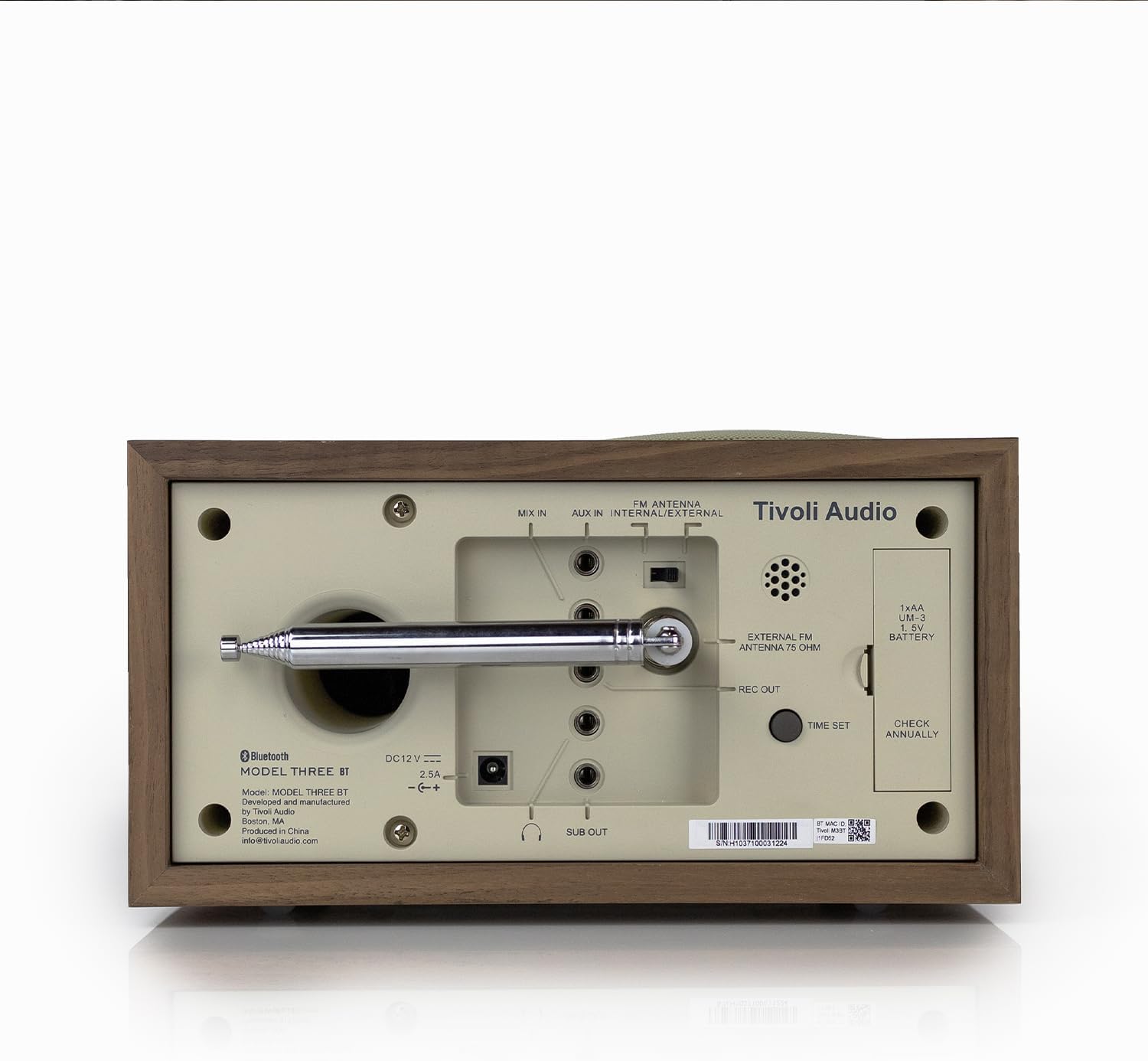
Achterkant view of the radio, highlighting the battery compartment and various input/output ports.
1.4 Antenneaansluiting
For optimal FM reception, extend the built-in telescopic FM antenna. For external FM or AM antenna connections, refer to the ports on the back of the unit.
1.5 Initiële tijdsinstelling
To set the analog clock, use the 'TIME SET' control, typically a small knob or button on the back or side of the clock face. Rotate or press to adjust the hour and minute hands to the current time. Be aware that this is an analog clock and may require manual adjustment for time changes.
2. Gebruiksaanwijzing
Learn how to use the various features of your Model Three Clock Radio.
2.1 In-/uitschakelen en modusselectie
Use the main function knob/switch to turn the unit ON or OFF. This control also allows you to select between FM, AM, Bluetooth (BT), and Auxiliary (AUX) input modes.

Close-up of the front panel showing the mode selector, tuning dial, and volume knob.
2.2 Radiobediening (AM/FM)
- Schakel de modusselector naar FM or AM.
- Draai de grote Afstemknop to select your desired radio station. The tuning indicator light will illuminate when a strong signal is received.
- Pas de Volumeknop op uw gewenste luisterniveau.
2.3 Bluetooth-koppeling
- Schakel de modusselector naar BT (Bluetooth). The Bluetooth indicator light will begin to flash, indicating it is in pairing mode.
- Schakel Bluetooth in op uw mobiele apparaat (smartphone, tablet, enz.) en zoek naar beschikbare apparaten.
- Select "Tivoli Audio Model Three" from the list of devices.
- Once paired, the Bluetooth indicator light on the radio will stop flashing and remain solid. You can now stream audio wirelessly to your radio.
2.4 hulpingang
To play audio from an external device (e.g., MP3 player, older smartphone), connect a 3.5mm audio cable from your device's headphone jack to the AUX IN port on the back of the radio. Switch the mode selector to Hulp. Control playback and volume from your external device.
2.5 Wekker, slaaptimer en snooze-functie
- Alarm instellen: Use the dedicated alarm set buttons (e.g., ALARM SET, ALARM ON/OFF) to configure your desired wake-up time. Refer to the specific button labels on your unit for precise instructions.
- Slaaptimer: Activate the sleep timer function to automatically turn off the radio after a set period.
- Snooze knop: When the alarm sounds, press the Snooze button to temporarily pause the alarm for a few minutes.
2.6 USB-A & USB-C Charging Ports
The radio features built-in USB-A and USB-C charging ports on its side. These ports provide 5V 1A power output for charging compatible phones and tablets. Simply connect your device's charging cable to the appropriate USB port.

Kant view of the radio, highlighting the USB-A and USB-C charging ports.
3. Onderhoud
Goed onderhoud zorgt voor een lange levensduur en optimale prestaties van uw radio.
3.1 Reinigen
Wipe the cabinet and controls with a soft, dry cloth. Avoid using abrasive cleaners, waxes, or solvents as they may damage the finish. Do not spray liquids directly onto the radio.
3.2 Clock Battery Replacement
The analog clock's AA battery should be checked annually and replaced as needed to ensure accurate timekeeping. A weak battery may cause the clock to stop or lose time. Refer to section 1.3 for battery installation details.
4. Probleemoplossing
If you encounter issues with your radio, consult the following common solutions.
- Geen stroom: Ensure the power cord is securely plugged into both the radio and a working wall outlet.
- Slechte radio-ontvangst: Extend the FM telescopic antenna fully. Try repositioning the radio or the antenna. If using an external antenna, ensure it is correctly connected.
- Problemen met Bluetooth-koppeling: Make sure the radio is in BT mode and its indicator light is flashing. Ensure your device's Bluetooth is enabled and within range. Try forgetting the device on your phone and re-pairing.
- Clock Not Keeping Time / Difficult to Set: Verify the AA battery for the clock is fresh and correctly installed. The analog clock requires manual adjustment; ensure you are using the correct 'TIME SET' control.
- USB-oplaadpoorten werken niet: Check that the radio is powered on. Ensure your device's charging cable is fully inserted into the USB-A or USB-C port. Test with a different cable or device to rule out cable/device issues.
- No Audio from Auxiliary Input: Confirm the mode selector is set to AUX. Check the connection of the 3.5mm audio cable at both ends. Ensure the volume on your external device is turned up.
5. Specificaties
| Functie | Detail |
|---|---|
| Merk | Tivoli-audio |
| Model | Model Three |
| Kleur | Walnut / Beige |
| Weergavetype | Analoog |
| Stijl | Klassiek |
| Speciale kenmerken | Alarm, oplaadpoort, radio |
| Productafmetingen | 8.38"B x 4.5"H |
| Energiebron | Elektrische kabel |
| Binnen-/buitengebruik | Binnen |
| Materiaal | Walnut (Wood Frame) |
| Batterijen | 1 AA-batterijen vereist (meegeleverd) |
| Montagetype | Tafelblad |
| Connectiviteitstechnologie | Bluetooth, 3.5 mm aux-ingang |
| Artikelgewicht | 5.21 pond |
6. Garantie en ondersteuning
Your Tivoli Audio Model Three Bluetooth Clock Radio is covered by a manufacturer's warranty. For specific warranty details, registration, and technical support, please visit the official Tivoli Audio website of neem contact op met hun klantenservice.
Voor meer informatie en ondersteuning kunt u terecht op de website. Tivoli Audio Store on Amazon.