Other Features:<
/b> Access additional settings and diagnostics.<
/li><
/ul>The Audeze HQ app is available for PC and Mac. Visit the official Audeze website for download links.<
/p><
/section>4. Maintenance<
/h2>
Proper care will extend the life and performance of your Audeze Maxwell headset.<
/p>
- Cleaning:<
/b> Use a soft, dry cloth to wipe down the earcups and headband. For stubborn dirt, a slightly damp cloth can be used, but ensure no moisture enters the internal components.<
/li>
- Storage:<
/b> Store the headset in a cool, dry place away from direct sunlight and extreme temperatures. Use the included carrying pouch or a dedicated headset stand to protect it when not in use.<
/li>
- Avoid Liquids:<
/b> Do not expose the headset to water or other liquids.<
/li>
- Cable Care:<
/b> Handle cables gently. Avoid sharp bends or excessive pulling.<
/li><
/ul>
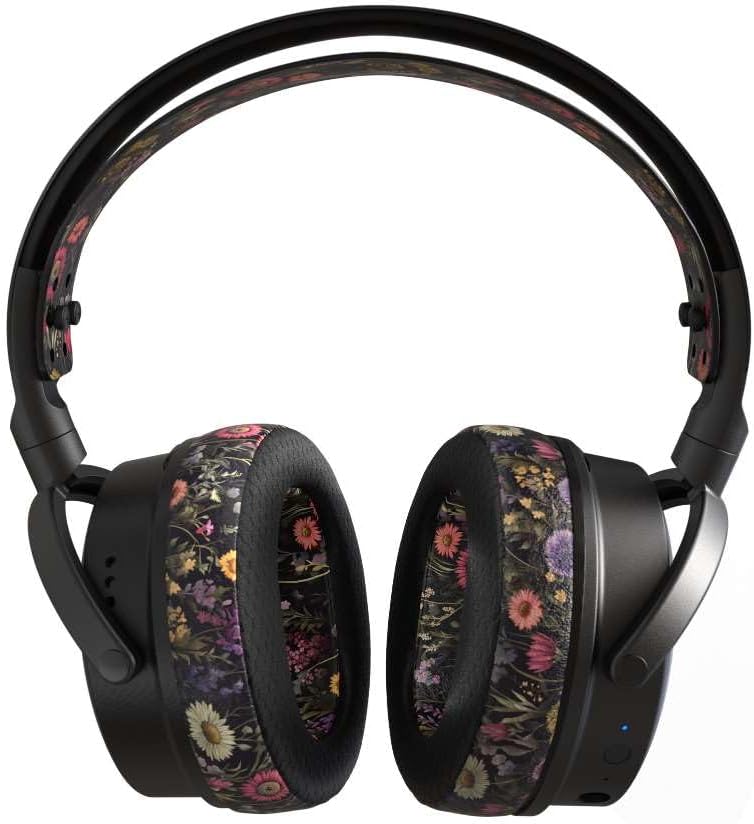
Figuur 4: Voorzijde view of the headset, showcasing the unique Flora design.<
/p><
/div><
/section>
5. Troubleshooting<
/h2>
If you encounter issues with your Audeze Maxwell headset, try the following solutions:<
/p>
5.1 No Sound / Low Volume<
/h3>- Check Volume:<
/b> Ensure the volume wheel on the headset is turned up.<
/li>
- Device Volume:<
/b> Verify the volume settings on your connected device (console, PC, phone).<
/li>
- Correct Output Device:<
/b> Confirm that "Audeze Maxwell" is selected as the audio output device in your system's sound settings.<
/li>
- Re-pair:<
/b> For wireless or Bluetooth connections, try disconnecting and re-pairing the headset.<
/li>
- Dongle Connection:<
/b> If using the wireless dongle, ensure it is securely plugged in and its LED indicates a connection.<
/li><
/ul>
5.2 Microphone Not Working<
/h3>- Check Mute:<
/b> Ensure the microphone mute button on the headset is not activated.<
/li>
- Microphone Connection:<
/b> Verify the boom microphone is securely inserted into its port.<
/li>
- Input Device:<
/b> Select "Audeze Maxwell" as the input (microphone) device in your system's sound settings or communication application.<
/li>
- Application Settings:<
/b> Check microphone settings within your game or communication software (e.g., Discord, Xbox Party Chat).<
/li><
/ul>
5.3 Connectivity Issues<
/h3>- Interference:<
/b> Move away from other wireless devices that might cause interference (e.g., Wi-Fi routers, other Bluetooth devices).<
/li>
- Distance:<
/b> Ensure you are within the effective range of the wireless dongle or Bluetooth connection.<
/li>
- Reboot:<
/b> Power cycle both the headset and the connected device.<
/li>
- Firmware Update:<
/b> Check the Audeze HQ app for any available firmware updates, as these often resolve connectivity bugs.<
/li><
/ul>
5.4 Headset Not Charging<
/h3>- Cable Check:<
/b> Ensure the USB-C charging cable is not damaged and is securely connected to both the headset and the power source.<
/li>
- Power Source:<
/b> Try a different USB port or wall adapter.<
/li>
- LED Indicator:<
/b> Observe the charging LED for any error indications.<
/li><
/ul><
/section>
6. Specifications<
/h2>
| Feature<
/th> | Detail<
/th><
/tr> |
|---|
| Model Name<
/td> | Maxwell Xbox (Flora Limited Edition)<
/td><
/tr> |
| Audio Driver Type<
/td> | 90mm Planar Magnetic Driver<
/td><
/tr> |
| Connectivity Technology<
/td> | Wireless (USB-C Dongle), Bluetooth 5.0, Wired (USB-C)<
/td><
/tr> |
| Compatible Devices<
/td> | Xbox, PlayStation, Mac, PC, Switch, Tablets, Smartphones<
/td><
/tr> |
| Battery Life<
/td> | 80+ Hours<
/td><
/tr> |
| Quick Charge<
/td> | 20 minutes for a full day of gaming<
/td><
/tr> |
| Noise Control<
/td> | Sound Isolation, A.I. Noise Filtering (Microphone)<
/td><
/tr> |
| Frequency Range<
/td> | 20Hz - 20kHz<
/td><
/tr> |
| Impedance<
/td> | 70 Ohm<
/td><
/tr> |
| Earpiece Shape<
/td> | Over-ear<
/td><
/tr> |
| Cable Feature<
/td> | Detachable (USB-C)<
/td><
/tr><
/table> Figure 5: Illustration of Audeze's 90mm Planar Magnetic Drivers, highlighting their advanced audio technology.<
/p><
/div><
/section>7. Warranty & Support<
/h2>7.1 Product Warranty<
/h3>Audeze products are covered by a limited warranty against defects in materials and workmanship. For specific warranty terms and conditions, including duration and coverage details, please refer to the warranty card included with your product or visit the official Audeze website.<
/p> 7.2 Customer Support<
/h3>For further assistance, technical support, or inquiries regarding your Audeze Maxwell headset, please contact Audeze customer support through their official channels.<
/p> |