
1. Inleiding
This manual provides instructions for the setup, operation, maintenance, and troubleshooting of your CRUA 27-inch 240Hz QHD IPS Gaming Monitor. This monitor features a 2560x1440 QHD resolution, a 240Hz refresh rate, an IPS panel for wide viewing angles, AMD FreeSync support, a blue light filter for eye protection, and built-in speakers. Please read this manual thoroughly before using the product.
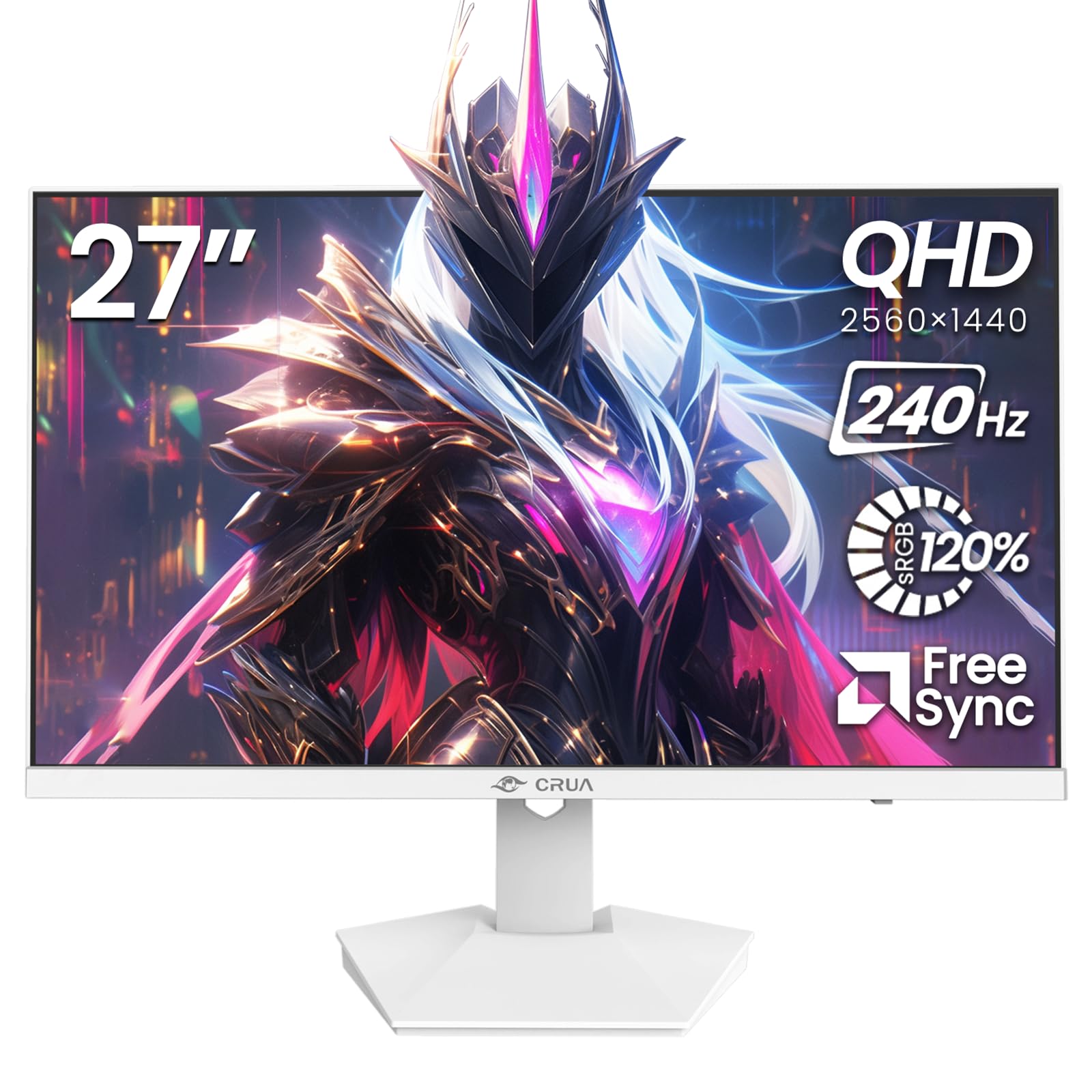
Afbeelding: Voorzijde view of the CRUA 27-inch 240Hz QHD IPS Gaming Monitor.
2. Inhoud van het pakket
Controleer of alle artikelen in het pakket aanwezig zijn:
- CRUA 27-inch 240Hz QHD IPS Gaming Monitor
- Monitorstandaard (voet en nek)
- Voedingsadapter en kabel
- HDMI-kabel
- DisplayPort (DP)-kabel
- Gebruikershandleiding (dit document)
3. Instellen
3.1 Standaardmontage
- Haal de monitor voorzichtig uit de verpakking en leg deze met het scherm naar beneden op een zachte, schone ondergrond om krassen te voorkomen.
- Bevestig de standaardhals aan het monitorpaneel. Zorg ervoor dat deze goed vastklikt.
- Bevestig de voet van de standaard aan de hals van de standaard. Draai eventuele schroeven vast.
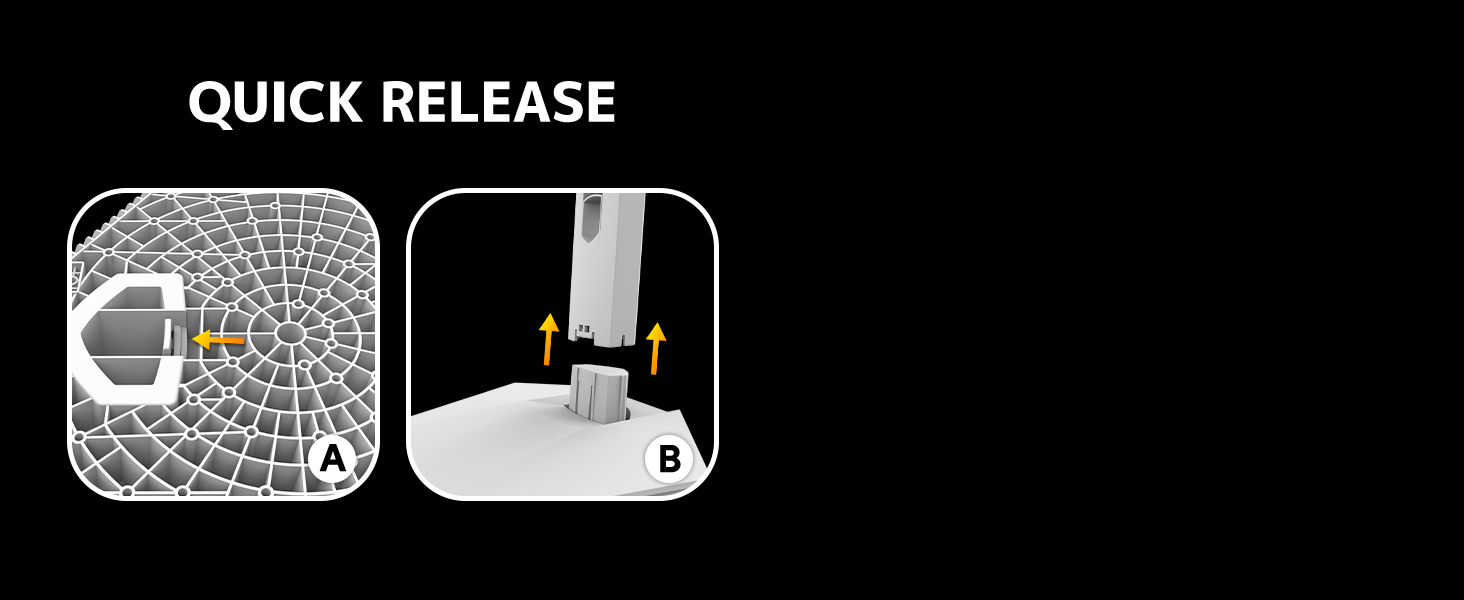
Image: Diagram illustrating the quick release stand assembly.
3.2 Wandmontage (optioneel)
The monitor supports VESA wall mounting (75mm x 75mm). To wall mount:
- Verwijder de standaard van de monitor als deze er al op zit.
- Bevestig een VESA-compatibele muurbeugel (niet meegeleverd) aan de monitor met behulp van de juiste schroeven.
- Volg de instructies die bij uw muurbeugel zijn geleverd voor een veilige installatie.

Afbeelding: Achterkant view of the monitor showing VESA mount points (75x75mm) and built-in speakers.
3.3 Aansluiten op een computer
Sluit de monitor op een van de volgende manieren aan op uw computer:
- DisplayPort (DP 1.4): For optimal performance, especially at 240Hz QHD resolution, use the included DisplayPort cable.
- HDMI (HDMI 2.0): Use an HDMI cable for QHD resolution at up to 144Hz.
Sluit de voedingsadapter aan op de voedingsingang van de monitor en steek deze vervolgens in een stopcontact.

Afbeelding: Achterkant view of the monitor displaying the input ports, including HDMI and DisplayPort.
4. Gebruiksaanwijzing
4.1 In-/uitschakelen
Press the power button located on the back of the monitor to turn it on or off. The power button may resemble a joystick for OSD navigation.
4.2 OSD-menu (On-Screen Display)
The OSD menu allows you to adjust various monitor settings. Use the joystick-like button on the back of the monitor to navigate the menu:
- Druk op de knop: Opent het OSD-menu.
- Omhoog/omlaag bewegen: Navigeert door menuopties.
- Naar links/rechts bewegen: Adjusts selected settings or enters sub-menus.
- Druk nogmaals op: Bevestigt de selectie of sluit een submenu af.
4.3 Weergave-instellingen
Via het OSD-menu kunt u het volgende aanpassen:
- Helderheid/contrast: Pas de algehele helderheid en contrastverhouding aan.
- Kleurinstellingen: Fine-tune color temperature, hue, and saturation. The monitor offers 120% sRGB color coverage for accurate and vibrant visuals.
- Invoerbron: Selecteer handmatig tussen HDMI- en DisplayPort-ingangen.

Image: Details on true color accuracy, including 120% sRGB, 8-bit color depth, and 16.7 million colors.
4.4 Gamingfuncties
- Vernieuwingsfrequentie: The monitor supports up to 240Hz refresh rate for smooth motion. Ensure your graphics card and cable support this rate.
- AMD FreeSync: Enable FreeSync in the OSD menu and on your AMD graphics card settings to eliminate screen tearing and stuttering.

Afbeelding: Visuele vergelijking die de vloeiendheid van een verversingsfrequentie van 240 Hz versus 60 Hz aantoont.

Image: Illustrates the effect of Adaptive Sync (FreeSync) on reducing screen tearing and stuttering.
4.5 Oogbescherming
The monitor includes a built-in blue light filter to reduce eye strain during extended use. This feature can be enabled or adjusted through the OSD menu.
5. Onderhoud
Om de prestaties en het uiterlijk van uw monitor te behouden:
- Het scherm schoonmaken: Veeg het scherm voorzichtig schoon met een zachte, pluisvrije doek. Gebruik voor hardnekkige vlekken een speciaal reinigingsmiddel voor monitoren en breng dit aan op de doek, niet rechtstreeks op het scherm.
- Het schoonmaken van de Casing: Gebruik een zachte, droge doek om de monitor schoon te vegenasing. Vermijd schurende reinigingsmiddelen of oplosmiddelen.
- Uitschakelen: Always turn off the monitor and unplug it from the power outlet before cleaning.
6. Probleemoplossing
| Probleem | Mogelijke oorzaak | Oplossing |
|---|---|---|
| Geen beeld op het scherm | Monitor is off or not receiving signal. | Ensure power cable is connected and monitor is on. Check video cable connection (HDMI/DP) to both monitor and computer. Select correct input source via OSD. |
| Beeldflikkering of -scheuring | FreeSync not enabled or incompatible settings. | Enable FreeSync in the monitor OSD and your graphics card control panel. Ensure your graphics card drivers are up to date. |
| Poor picture quality (blurry, incorrect colors) | Incorrect resolution, color settings, or faulty cable. | Set display resolution to 2560x1440. Adjust brightness, contrast, and color settings in the OSD. Try a different video cable. |
| Geen geluid uit ingebouwde luidsprekers | Volume too low, incorrect audio output selected. | Increase monitor volume via OSD. Ensure the monitor is selected as the audio output device in your computer's sound settings. |
| Dode pixels | Fabricagefout. | Refer to warranty information for pixel policy. Contact customer support if within warranty. |
7. Specificaties
| Functie | Specificatie |
|---|---|
| Modelnummer | CR270I |
| Schermgrootte | 27 inch |
| Paneeltype | IPS |
| Oplossing | 2560x1440 (QHD) |
| Vernieuwingsfrequentie | 240Hz |
| Beeldverhouding | 16:9 |
| Kleurengamma | 120% sRGB |
| Helderheid | 300 cd/m² |
| Contrastverhouding | 1000:1 |
| Viewhoek: | 178° (Horizontaal/Verticaal) |
| Video-ingangen | HDMI 2.0, DisplayPort 1.4 |
| Geluid | Ingebouwde luidsprekers |
| VESA Mount | 75mm x 75mm |
| Productafmetingen | 1.78 x 24 x 14 inch |
| Artikelgewicht | 12.62 pond |
8. Garantie en ondersteuning
CRUA provides high-quality computer monitors and premium services. If you have any questions or require assistance, please contact CRUA customer support. Refer to your purchase documentation for specific warranty terms and contact information.