
Epico Epico Keyboard Case
Gebruikershandleiding voor de Epico iPad-toetsenbordhoes
Model: Epico Keyboard Case
Invoering
Transform your iPad into a versatile workstation with the Epico iPad Keyboard Case. This innovative accessory features a detachable keyboard with seven-colour backlighting, a multi-finger gesture touchpad, and comprehensive iPadOS shortcuts. Designed for both functionality and protection, it enhances your iPad experience for typing, watching, and browsing.

Image: The Epico iPad Keyboard Case with an iPad inserted, shown in a tilted typing position.
Functies
- Verlicht toetsenbord: Seven distinct backlight colours with adjustable brightness levels for comfortable typing in any lighting condition.
- Touchpad Functionality: Multi-finger gesture touchpad provides precise control and enhanced navigation capabilities.
- Shortcut Integration: Comprehensive range of iPadOS shortcuts built into the keyboard for efficient device control and workflow optimisation.
- Veelzijdig ontwerp: Includes detachable keyboard and tilted backside stand for multiple viewhoeken en gebruiksmodi.
- Energieoplossing: Equipped with Li-ion battery and USB-C charging capability, operating independently from iPad's power source.
Inhoud van het pakket
- Epico iPad Keyboard Case
- USB-C naar USB-C oplaadkabel
- Gebruikershandleiding (dit document)
Instellen
1. Het toetsenbord opladen
Before first use, fully charge the keyboard. Connect the provided USB-C to USB-C charging cable to the keyboard's USB-C port and the other end to a compatible USB-C power adapter (not included).
Afbeelding: Zijkant view of the keyboard case, highlighting the USB-C charging port.
2. Uw iPad plaatsen
- Plaats uw iPad voorzichtig in de rand van de hoes.
- Press firmly but carefully to secure the iPad into the protective shell. Ensure all edges are properly seated.

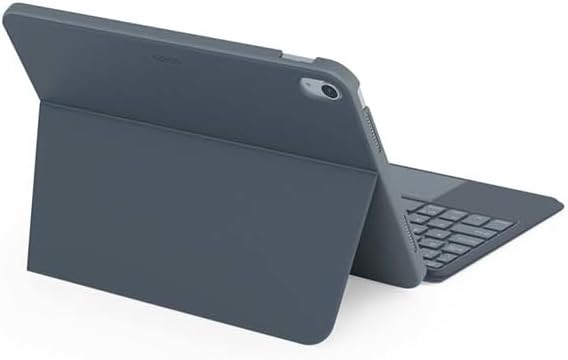
Afbeelding: Achterkant view of the Epico iPad Keyboard Case, demonstrating the secure fit of the iPad.
3. Koppelen met iPad
- Turn on the keyboard by sliding the power switch (usually located on the side or back of the keyboard).
- Ga op je iPad naar Instellingen > Bluetooth.
- Enable Bluetooth. The keyboard should appear in the "Other Devices" list as "Epico Keyboard" or similar.
- Tap on the keyboard name to pair. Follow any on-screen prompts.
- Once paired, the keyboard's indicator light will change, and it will be ready for use.
Gebruiksaanwijzing
Toetsenbordgebruik
The keyboard functions like a standard QWERTY keyboard. Ensure the keyboard is paired with your iPad before typing.

Afbeelding: Voorzijde view of the Epico iPad Keyboard Case, displaying the full keyboard layout and touchpad.
Achtergrondverlichting:
- Druk op de Gloeilamp key (often near the function keys) to cycle through backlight colours.
- Pers Fn + gloeilamp key to adjust backlight brightness levels.
Touchpad-gebaren
The integrated touchpad supports multi-finger gestures for enhanced navigation:
- Tik met één vinger: Links klikken.
- Tikken met twee vingers: Klik met de rechtermuisknop (contextmenu).
- Scrollen met twee vingers: Scroll omhoog/omlaag of naar links/rechts.
- Knijp om te zoomen: Zoom in/uit op de inhoud.
- Refer to iPadOS settings for additional gesture customization.
iPadOS Shortcuts
The keyboard includes dedicated function keys for common iPadOS shortcuts. These may vary slightly by iPadOS version, but typically include:
- Thuis: Keer terug naar het startscherm.
- Zoekopdracht: Activate Spotlight search.
- Helderheidsregeling: Schermhelderheid aanpassen.
- Mediacontrole: Afspelen/Pauze, Vorige/Volgende nummer.
- Volumeregeling: Pas het systeemvolume aan.
- Vergrendel scherm: Lock your iPad.
Onderhoud
Schoonmaak
- Use a soft, lint-free cloth to wipe the exterior of the case and keyboard.
- Voor hardnekkige vlekken, lichtjes dampMaak de doek schoon met water of een mild, niet-schurend schoonmaakmiddel.
- Avoid getting moisture into the keyboard keys or ports.
- Gebruik geen agressieve chemicaliën, oplosmiddelen of schurende materialen.
Opslag
When not in use for extended periods, store the keyboard case in a cool, dry place. Ensure the keyboard is turned off to preserve battery life.
Probleemoplossing
- Toetsenbord maakt geen verbinding:
Ensure the keyboard is charged and turned on. Check iPad's Bluetooth settings to confirm it's enabled and the keyboard is paired. Try unpairing and re-pairing the keyboard.
- Toetsen reageren niet:
Check battery level. Restart both the keyboard and your iPad. Ensure no debris is lodged under the keys.
- Achtergrondverlichting werkt niet:
Ensure the keyboard is on and charged. Cycle through backlight settings using the dedicated key.
- Touchpad reageert niet:
Ensure the touchpad is enabled (some keyboards have a function key to toggle it). Check iPadOS settings for touchpad functionality.
Specificaties
| Merk | Episch |
| Modelnaam | Epico Keyboard Case |
| Compatibele apparaten | Apple iPad |
| Connectiviteit | Bluetooth |
| Achtergrondverlichting | 7-Colour, Adjustable Brightness |
| Aanraakscherm | Multi-finger Gesture Support |
| Oplaadpoort | USB-C |
| Energiebron | Ingebouwde Li-ionbatterij |
| Artikelgewicht | 15.9 ounces (ongeveer 450 g) |
| Productafmetingen (LxBxH) | 9.94 x 7.24 x 0.48 inch (ongeveer 25.25 x 18.39 x 1.22 cm) |
| Materiaal | Kunststof, Metaal |
Garantie en ondersteuning
This Epico product is covered by a manufacturer's warranty. Please refer to the warranty card included with your purchase or visit the official Epico website voor gedetailleerde garantievoorwaarden.
For technical support, troubleshooting assistance, or inquiries about your product, please contact Epico customer service through their official webwebsite of de contactgegevens op uw aankoopbewijs.
Ask a question about this manual
Ask about setup, troubleshooting, compatibility, parts, safety, or missing instructions. Manuals+ will review the question and use this page’s manual context to help answer it.