
Ninkear MBOX 11 Mini PC
Ninkear Mini PC W-11 (MBOX 11) User Manual
Model: MBOX 11 Mini PC
Invoering
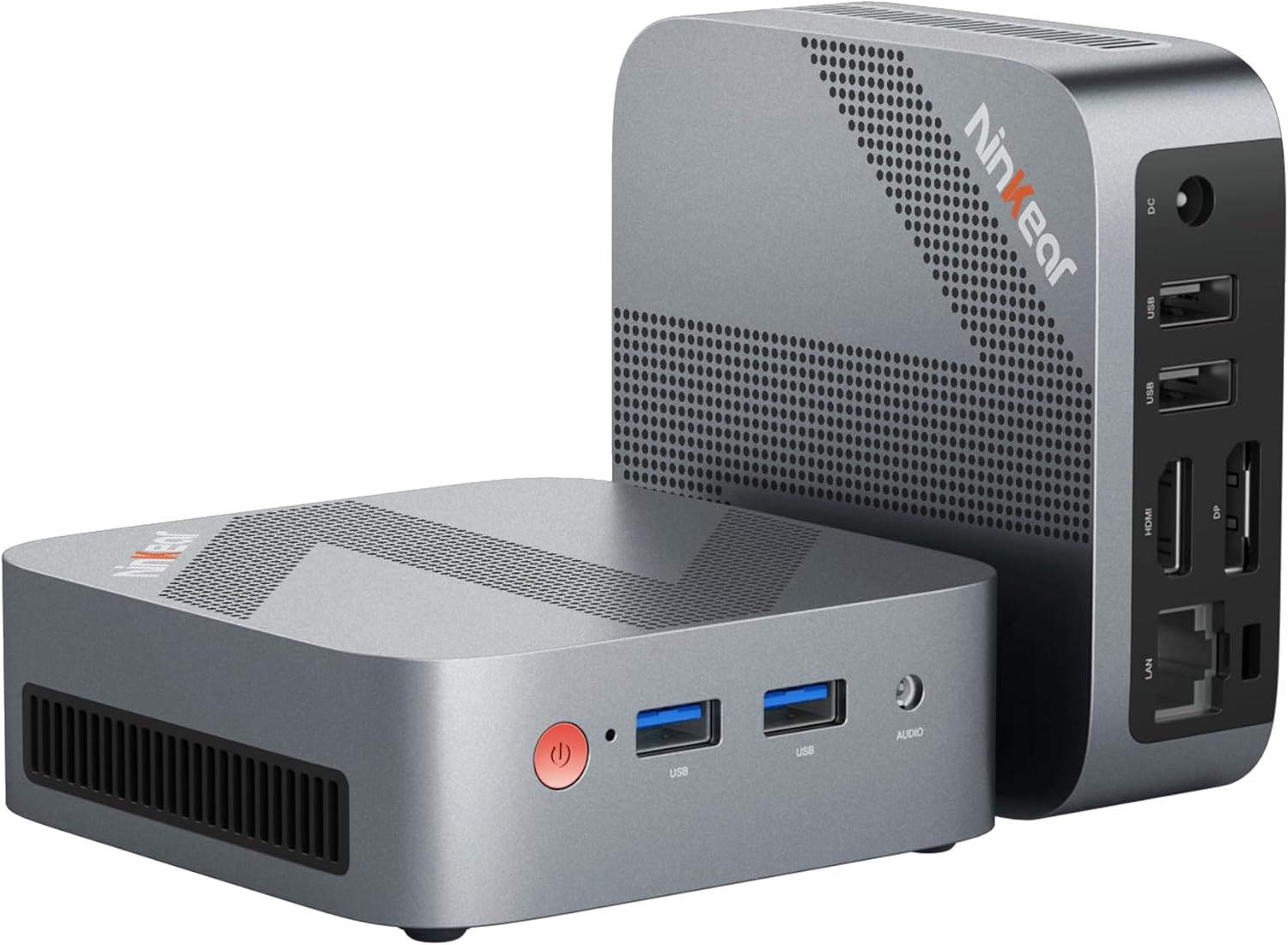
Figure 0.1: Ninkear Mini PC W-11. This compact and powerful mini PC is designed for various computing needs, from office work to multimedia entertainment.
This comprehensive user manual provides detailed instructions for the Ninkear Mini PC W-11 (MBOX 11 Mini PC). It covers initial setup, daily operation, maintenance, troubleshooting common issues, and full technical specifications. Please read this manual carefully to ensure proper use and to maximize the performance and longevity of your Ninkear Mini PC for office, home, and multimedia applications.
1. Instellen
1.1 Uitpakken en verpakkingsinhoud
Carefully unpack all components from the box. Ensure all items listed below are present. If any item is missing or damaged, please contact customer support.

Figure 1.1: Package Contents. The box includes the Ninkear Mini PC, a user manual, a charging cable, an HDMI cable, and a fixed bracket for mounting.
- Ninkear Mini PC (MBOX 11)
- Gebruiksaanwijzing
- Stroomadapter/oplaadkabel
- HDMI-kabel
- Fixed Bracket (for VESA mounting)
1.2 Fysieke verbindingen
Before powering on, connect all necessary peripherals to the Mini PC. Refer to the diagrams below for port identification.

Figure 1.2: Front and Rear Ports of the Ninkear Mini PC. The front features USB 3.0 ports and an audio jack, while the rear includes LAN, HDMI, DisplayPort, USB 2.0, and DC power input.

Figure 1.3: Multi-purpose Port Diagram. This diagram illustrates the layout and function of each port on the Ninkear Mini PC, including power, USB 3.0, headphone/MIC jack on the front, and RJ45, DP, HDMI, USB 2.0, and DC on the back.
- Verbinding maken met beeldscherm: Use the provided HDMI cable to connect the Mini PC's HDMI port to your monitor or TV. The device also supports DisplayPort (DP) for alternative display connections.
- Randapparatuur aansluiten:
- Toetsenbord en muis: Connect your USB keyboard and mouse to the available USB 3.0 ports on the front or USB 2.0 ports on the rear.
- Geluid: Connect headphones or speakers to the 3.5mm audio jack on the front.
- Netwerk: For a wired connection, connect an Ethernet cable to the RJ45 LAN port on the rear.
- Stroomaansluiting: Connect the power adapter to the DC input port on the rear of the Mini PC, then plug the adapter into a power outlet.
1.3 Eerste opstart en initiële configuratie
Once all connections are secure, press the power button on the front of the Mini PC. The device comes with Windows 11 pre-installed and ready for immediate use. Follow the on-screen prompts to complete the initial Windows setup, including language, region, network connection, and user account creation.
2. In bedrijf
2.1 Basisbediening
- Inschakelen: Druk op de aan/uit-knop aan de voorkant van het apparaat.
- Uitschakelen: From the Windows operating system, click the Start button, then select Power > Shut down. Alternatively, you can press and hold the power button for a few seconds to force a shutdown (not recommended for regular use).
- Opnieuw opstarten: From the Windows operating system, click the Start button, then select Power > Restart.
2.2 Configuratie met twee beeldschermen
The Ninkear Mini PC supports dual 4K@60Hz display output via its HDMI 2.0 and DisplayPort (DP) interfaces, allowing for enhanced multitasking and productivity.

Figure 2.1: 4K Dual Display Setup. The Mini PC can connect to two monitors simultaneously via HDMI and DisplayPort, supporting 4K resolution at 60Hz for an extended desktop experience.
- Sluit uw primaire monitor aan op de HDMI-poort.
- Connect your secondary monitor to the DisplayPort (DP).
- Zodra beide monitoren zijn aangesloten en ingeschakeld, zou Windows ze automatisch moeten detecteren.
- To configure display settings (extend, duplicate, or show only on one screen), right-click on the desktop, select "Display settings," and adjust as needed.
2.3 Connectiviteit (Wi-Fi, Bluetooth, Ethernet)
The Mini PC offers versatile connectivity options for your network and wireless devices.

Figure 2.2: Multiple Connection Options. The Mini PC supports high-speed Ethernet (RJ45-1000M), WiFi 2.4/5.0 GHz, and Bluetooth 5.0 for comprehensive connectivity.
- Wifi: The Mini PC supports Wi-Fi 5 (802.11ac) for fast wireless internet access. To connect, click the Wi-Fi icon in the system tray, select your network, enter the password, and click Connect.
- Bluetooth: With Bluetooth 5.0, you can connect wireless peripherals suchs as keyboards, mice, headphones, and speakers. Go to Windows Settings > Bluetooth & devices to pair new devices.
- Ethernet: For a stable and high-speed wired network connection, plug an Ethernet cable into the RJ45 port. The Mini PC supports Gigabit Ethernet (1000M).
2.4 Opslaguitbreiding
The Ninkear Mini PC comes with a 512 GB M.2 SSD. For additional storage, you can upgrade the M.2 NVMe PCIe3.0 SSD or M.2 SATA SSD up to 2 TB.

Figure 2.3: Efficient and High-Capacity Storage. The Mini PC features 16GB DDR4 RAM and a 512GB M.2 SSD, with the SSD being upgradeable up to 2TB.
Consult a qualified technician or refer to detailed upgrade guides if you plan to expand the internal storage to avoid damaging the device.
3. Onderhoud
3.1 Reinigen
To maintain optimal performance and extend the lifespan of your Mini PC, regular cleaning is recommended.
- Buitenkant: Use a soft, dry, lint-free cloth to wipe the exterior surfaces. For stubborn smudges, slightly dampMaak de doek schoon met water of een mild, niet-schurend schoonmaakmiddel.
- Havens: Use compressed air to gently clear dust from the USB, HDMI, DP, and other ports. Avoid inserting any objects into the ports.
- Ventilatie: Ensure the ventilation holes are clear of dust and obstructions to allow for proper airflow and cooling.
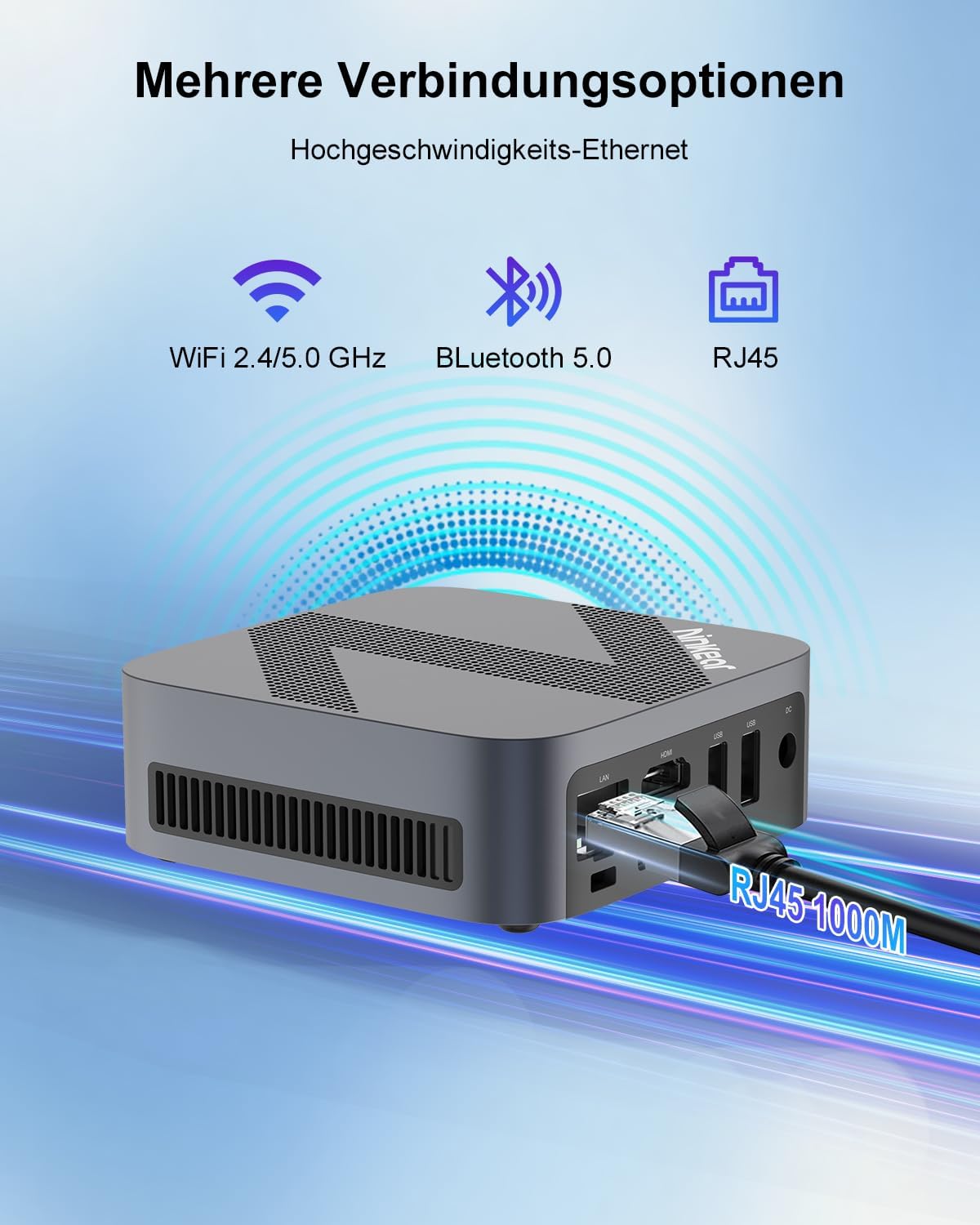
Figure 3.1: Powerful Cooling System. The Mini PC utilizes a copper pipe and aluminum heatsink design for efficient heat dissipation, ensuring quiet operation and low power consumption.
3.2 Software-updates
Regularly update your operating system and drivers to ensure system stability, security, and optimal performance.
- Windows-updates: Go to Windows Settings > Windows Update and check for available updates.
- Stuurprogramma-updates: While Windows Update often handles driver updates, you may occasionally need to check the Ninkear official website for the latest drivers for specific components if you encounter issues.
3.3 Opslagbeheer
To maintain the health and performance of your SSD, avoid filling it to full capacity. Periodically clean up unnecessary files en toepassingen.
- Schijfopruiming: Use the built-in Windows Disk Cleanup tool to remove temporary files and other non-essential data.
- Uninstall Programs: Remove programs you no longer use from Windows Settings > Apps > Installed apps.
4. Probleemoplossing
This section addresses common issues you might encounter with your Ninkear Mini PC. If the problem persists, please refer to the Warranty and Support section.
4.1 Geen stroom
- Controleer de stroomaansluiting: Zorg ervoor dat de stroomadapter goed is aangesloten op zowel de mini-pc als op een werkend stopcontact.
- Testuitgang: Try plugging another device into the same power outlet to confirm it is functional.
- Aan/uit-knop: Zorg ervoor dat u de aan/uit-knop stevig indrukt.
4.2 Geen weergave-uitvoer
- Kabelverbinding: Verify that the HDMI or DisplayPort cable is securely connected to both the Mini PC and the monitor.
- Monitor-ingang: Ensure your monitor is set to the correct input source (e.g., HDMI 1, DP).
- Test with Another Display/Cable: If possible, try connecting the Mini PC to a different monitor or using a different HDMI/DP cable to rule out display or cable issues.
- Opnieuw opstarten: Power cycle the Mini PC and the monitor.
4.3 Problemen met wifi- of Bluetooth-verbinding
- Enable Wi-Fi/Bluetooth: Zorg ervoor dat wifi en Bluetooth zijn ingeschakeld in de Windows-instellingen.
- Chauffeurscontrole: Verify that the Wi-Fi and Bluetooth drivers are installed and up to date in Device Manager.
- Router/Device Proximity: Move closer to your Wi-Fi router or Bluetooth device.
- Restart Router/Mini PC: Restart your Wi-Fi router and the Mini PC.
4.4 System Performance Issues (Slowdown, Lag)
- Sluit ongebruikte applicaties: Sluit alle applicaties die op de achtergrond draaien en die niet in gebruik zijn.
- Controleer Taakbeheer: Open Task Manager (Ctrl+Shift+Esc) to identify processes consuming high CPU, RAM, or disk resources.
- Schijfruimte: Zorg ervoor dat er voldoende vrije ruimte op de SSD is.
- Malwarescan: Voer een volledige systeemscan uit met antivirussoftware.
- Koeling: Zorg ervoor dat de mini-pc voldoende ventilatie heeft en niet oververhit raakt.
5. Specificaties
Below are the detailed technical specifications for the Ninkear Mini PC W-11 (MBOX 11 Mini PC).
| Functie | Specificatie |
|---|---|
| Merk | Ninkear |
| Model/serie | MBOX 11 |
| Modelnummer | MBOX 11 Mini PC |
| Kleur | Grijs |
| Productafmetingen | 9.9x9.9x3.3cm |
| Artikelgewicht | 240 gram |
| Processormerk | Intel |
| Processortype | Celeron N150 (4 Cores, 4 Threads) |
| Processorsnelheid | Tot 3.6 GHz |
| RAM-grootte | 16GB |
| Geheugentechnologie | DDR4, SO-DIMM |
| Max Supported Storage | 2 TB (M.2 NVMe PCIe3.0 SSD or M.2 SATA SSD) |
| Hard Drive Size (Included) | 512GB |
| Harde schijftechnologie | SSD |
| Grafische coprocessor | Intel UHD-graphics |
| Grafische interface | Geïntegreerd |
| Connectiviteitstype | Bluetooth 5.0, Wi-Fi 5 (WLAN) |
| HDMI-interfaces | 1 (HDMI 2.0) |
| DisplayPort Interfaces | 1 |
| USB-poorten | 2x USB 3.0 (voor), 2x USB 2.0 (achter) |
| Ethernet | RJ45 (Gigabit) |
| Audio-aansluiting | 1x 3.5mm Headphone/MIC Jack |
| Besturingssysteem | Windows 11 (W11 OS) |
| Batteries (Internal) | 1 C Battery required (included) |
| Capaciteit van lithiumbatterij | 6 Wattuur |
| Gewicht van lithiumbatterij | 10 gram |
| Number of Lithium-Ion Cells | 1 |
Opmerking: Specificaties kunnen zonder voorafgaande kennisgeving worden gewijzigd.
6. Garantie en ondersteuning
Ninkear is committed to providing high-quality products and excellent customer service.
6.1 Garantie-informatie
If you purchase the product and experience a failure due to product defects within 1 year, please contact Ninkear customer support. You will need to provide your order number, a video or photo of the defect, and a detailed description of the issue.
6.2 Klantenservice
For any questions, technical assistance, or warranty claims, please contact the Ninkear Official Store or the designated customer service center. They will guide you through the repair process or provide further assistance.
Voor meer informatie, bezoek de Ninkear Store on Amazon.
Ask a question about this manual
Ask about setup, troubleshooting, compatibility, parts, safety, or missing instructions. Manuals+ will review the question and use this page’s manual context to help answer it.