
EMEET E3141
EMEET Piko 4K Webcam-instructiehandleiding
Model: E3141 | Brand: EMEET
1. Inleiding
The EMEET Piko 4K Webcam is an advanced dual-camera AI-powered device designed for high-quality video streaming, conferencing, and content creation. It features a 4K main camera for ultra-clear visuals and an AI-assisted camera for rapid autofocus and precise face lighting, even in challenging low-light conditions. Equipped with a 3-microphone array and multiple sound modes, it ensures clear audio capture. This manual provides essential information for setting up, operating, and maintaining your EMEET Piko 4K Webglas.
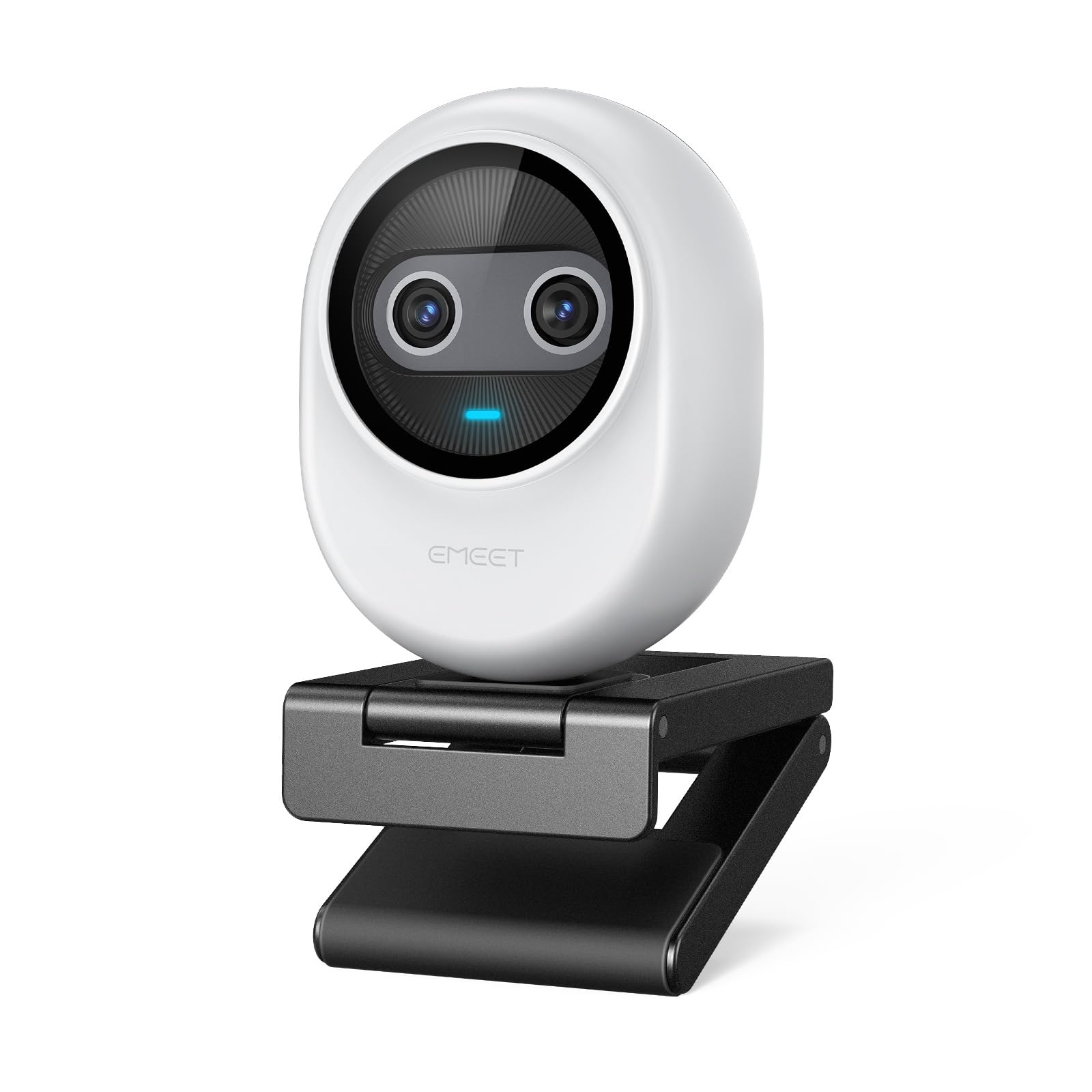
Figure 1: EMEET Piko 4K Webcam, White model.
2. Wat zit er in de doos?
Controleer of alle artikelen in het pakket aanwezig zijn:
- EMEET Piko 4K Webnokkenas
- USB CC-kabel
- Webcam Clip
- Gebruikershandleiding (dit document)

Figure 2: EMEET Piko Webcam and included accessories.
3. Instellen
3.1 Bevestig de Webcam Clip
- Lijn de webcam with the clip's mounting point.
- Druk voorzichtig op de webcam onto the clip until it securely snaps into place.
3.2 Montage van de Webnokkenas
- Op een monitor/laptop: Plaats de webcam clip over the top edge of your monitor or laptop screen. Adjust the clip to ensure stability.
- Op een statief: De webcam features a standard 1/4-inch screw thread at its base. Attach it to a compatible tripod (not included) for flexible positioning.

Figuur 3: Webcam mounted on a monitor for professional calls.
3.3 Verbinding maken met uw computer
- Connect one end of the provided USB C-C cable to the USB-C port on the back of the EMEET Piko Webglas.
- Connect the other end of the USB C-C cable to an available USB-C port on your computer. If your computer only has USB-A ports, a USB-C to USB-A adapter (not included) may be required.
- De webcam is plug-and-play and should be automatically recognized by your Windows or macOS operating system.

Figure 4: USB-C connectivity and broad compatibility with various platforms.
4. Belangrijkste kenmerken
4.1 Dual-Camera AI-Powered Video
The EMEET Piko features a revolutionary dual-camera system:
- 4K Main Camera: Equipped with a 1/2.8'' sensor, it captures video in Ultra HD 4K resolution, providing exceptional detail and clarity.
- AI-Assisted Camera: This secondary camera enhances the main camera's performance by providing rapid autofocus and precise face lighting adjustments, ensuring you are always well-lit and in focus. It excels in low-light environments.

Figure 5: Explanation of the 4K Imaging Camera and AI-Assisted Camera.
4.2 3 Mics Array & 3 Sound Modes
Experience clear audio with the integrated 3-microphone array and selectable sound modes:
- Noise Canceling Mode: Combines gain control with steady and sudden noise blocking, ideal for busy environments.
- Originele geluidsmodus: Captures authentic sounds and preserves ambient audio, recommended for quiet spaces.
- Live-modus: Adjusts gain and reduces background noise like air conditioning, ensuring clear audio for live streaming.

Figure 6: Visual representation of the 3-microphone array and sound mode selection.
4.3 Ontwerp en draagbaarheid
The EMEET Piko features a rounded, sleek design with fine matte textured materials. Its compact size makes it highly portable, smaller and lighter than a typical smartphone.

Figure 7: The sleek and compact design of the EMEET Piko Webglas.
4.4 Brede compatibiliteit
De webcam is compatible with Windows and MacOS operating systems and integrates seamlessly with popular platforms such as OBS, Twitch, YouTube, Xsplit, and ManyCam.
5. Gebruiksaanwijzing
5.1 Basisgebruik
Once connected, the EMEET Piko Webcam will function as a standard webcam. Select it as your preferred camera and microphone input in your video conferencing or streaming application.
5.2 EMEET Studio Software
For advanced control and customization, download and install the EMEET Studio software from the official EMEET website. Met deze software kunt u:
- Adjust video settings (brightness, contrast, sharpness, saturation, tone).
- Select different sound modes (Noise Canceling, Original Sound, Live Mode).
- Control AI features like autofocus and face tracking.
- Switch between landscape and portrait mode (requires compatible tripod).
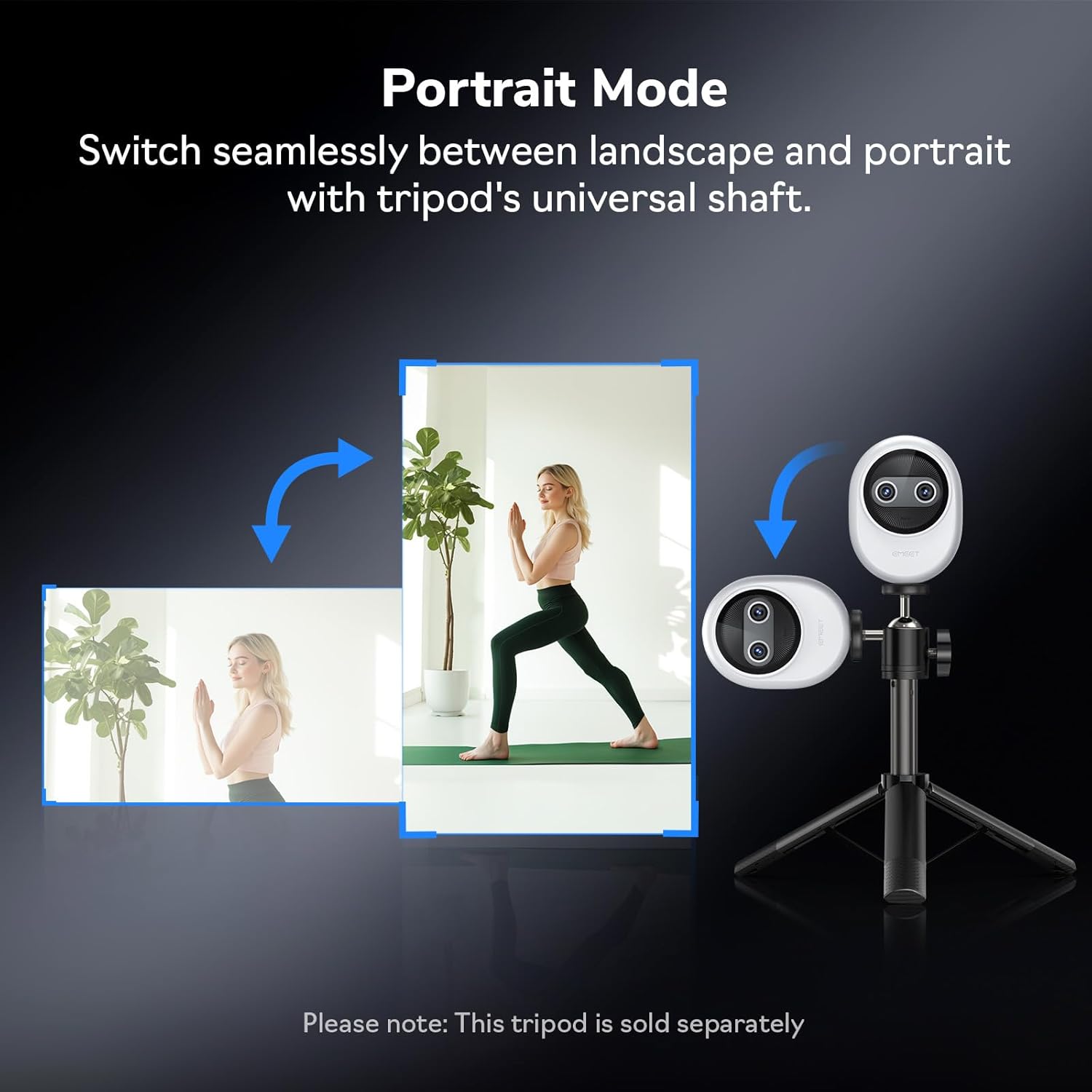
Figuur 8: Webcam demonstrating seamless switching to portrait mode.
5.3 Optionele afstandsbediening
An optional remote control (ASIN: B0FP281Z19) is available for wireless control of the webcam's functions, offering convenience during presentations or streaming sessions.

Figure 9: Optional remote control for the EMEET Piko Webglas.
6. Onderhoud
- Schoonmaak: Gebruik een zachte, droge doek om de webcam lens en body. Vermijd schurende reinigingsmiddelen of oplosmiddelen.
- Opslag: Wanneer niet in gebruik, berg de webcam in a cool, dry place. Consider using a privacy cover (optional accessory) to protect the lens.
- Firmware-updates: Regularly check the EMEET website voor firmware-updates om optimale prestaties en toegang tot nieuwe functies te garanderen.

Figure 10: Optional magnetic privacy cover for lens protection.
7. Probleemoplossing
- Geen video/audio:
- Zorg ervoor dat de USB-kabel goed is aangesloten op beide webcam en uw computer.
- Probeer een andere USB-poort op uw computer.
- Controleer of de webcam is selected as the primary video and audio device in your application settings.
- Start uw computer opnieuw op.
- Slechte videokwaliteit:
- Ensure adequate lighting in your environment. The AI-assisted camera performs best with some ambient light.
- Maak de webReinig de cameralens met een zachte doek.
- Check your application settings to ensure the correct resolution (e.g., 4K) is selected.
- Update webcam drivers or EMEET Studio software to the latest version.
- Problemen met autofocus:
- Zorg ervoor dat er zich geen obstakels voor de lens bevinden.
- In EMEET Studio, verify that AI autofocus is enabled.
- Avoid rapid, excessive movement directly in front of the camera if focus hunting occurs.
8. Specificaties
| Functie | Detail |
|---|---|
| Merk | EEMEET |
| Modelnummer | E3141 |
| Artikelgewicht | 1.44 ons |
| Productafmetingen | 2.2 x 1.7 x 0.87 inch |
| Kleur | Wit |
| Fotosensortechnologie | CMOS |
| Resolutie video-opname | 4K |
| Video-opname-indeling | YUY2 / MJPEG |
| Ondersteunde audioformaten | AAC-, MP3-formaat |
| Connectiviteitstechnologie | USB |
| Speciale kenmerken | 1/2.8'' Sensor, 3 Mic Array & 3 Sound Modes, Instant AI Autofocus & Adaptive Face Lighting, USB Webcam with Clip, World's 1st Dual-Camera AI-Powered 4K Webnokkenas |
9. Garantie en ondersteuning
EMEET products are designed for reliability and performance. For warranty information, technical support, or to register your product, please visit the official EMEET webwebsite of neem contact op met hun klantenservice. Bewaar uw aankoopbewijs voor garantieclaims.
10. Product voorbijview Video
Video 1: Official EMEET Piko 4K Webcamera voorbijview. This video highlights the key features and design of the webglas.
Ask a question about this manual
Ask about setup, troubleshooting, compatibility, parts, safety, or missing instructions. Manuals+ will review the question and use this page’s manual context to help answer it.