
1. Inleiding
This manual provides detailed instructions for the operation and maintenance of your TKOWTB 4K CCD Digital Camera. Please read this manual thoroughly before using the camera to ensure proper function and to maximize your user experience. This camera is designed for capturing high-quality photos and videos with advanced features such as 4K video recording, 64MP photos, IR night vision, and a 3-inch touch screen.
2. Product voorbijview
The TKOWTB 4K CCD Digital Camera combines advanced imaging technology with user-friendly features. It includes a triple-lens system (CCD main, CMOS telephoto, CCD 120° wide-angle), a built-in flash, and IR night vision for versatile shooting conditions.

Figuur 2.1: Voor- en achterkant view of the TKOWTB 4K CCD Digital Camera.
Belangrijkste kenmerken:
- 4K-video en 64MP-foto's: Record videos at 4K 30FPS and capture stunning 64MP images.
- 3-inch OLED-touchscreen: Intuitive interface for easy navigation and control.
- Drievoudig lenssysteem: Includes a CCD main lens, CMOS telephoto lens, and CCD 120° wide-angle lens for diverse shooting needs.
- Built-in Flash & IR Night Vision: Enhances image quality in low-light conditions and enables clear night photography.
- OTG-transmissie: Easily transfer photos and videos to your smartphone for sharing.
- Multimediafuncties: Supports music playback, movie mode (offline), audio recording, mini-games, and can function as a PC webglas.
- Batterij met lange levensduur: Equipped with a 3600mAh battery and supports multiple charging methods.
Component identificatie:

Figure 2.2: Location diagram showing TYPE-C charging port, on/off/lock screen key, shooting button, sound receiving hole, earphone hole, hanging rope hole, 1/4 bracket interface, and memory card slot.
3. Instellen
3.1. Batterij installeren en opladen
The camera comes with a built-in 3600mAh battery. To charge, connect the camera to a power source using the provided Type-C USB cable. The camera supports various charging methods including power banks, car chargers, and wall chargers.
3.2. Installatie van de geheugenkaart
Insert a TF card (up to 128GB, not included) into the memory card slot located on the side of the camera. Ensure the card is inserted correctly until it clicks into place.
3.3. Aan/uit
To power on the camera, long press the power button. To power off, long press the power button again. The screen will display 'hello' upon startup.
Video 3.1: This video demonstrates the initial power-on sequence and basic navigation of the camera's interface.
4. Gebruiksaanwijzing
4.1. Photo and Video Mode
From the main screen, tap the camera icon to enter photo and video mode. You can switch between photo and video recording by tapping the respective icons on the screen.
4.1.1. Adjusting Settings in Photo/Video Mode:
- Folding Menu: Tap the menu icon to reveal options like beauty function, photo grid, fill light, single shot/continuous shot, shutter sound, and date/time display.
- Focus: Tap the screen to autofocus. For manual focus, use the on-screen controls. Short press the camera button to autofocus.
- Filteren: Swipe left or right on the screen to switch between multiple color filters.
- Lenzen: The camera features a CCD main lens, CMOS telephoto lens, and CCD 120° wide-angle lens. Switch between these for different shooting perspectives.
- Flash & IR Night Vision: The built-in flash and infrared night vision lamp can be activated to improve lighting in dark environments.
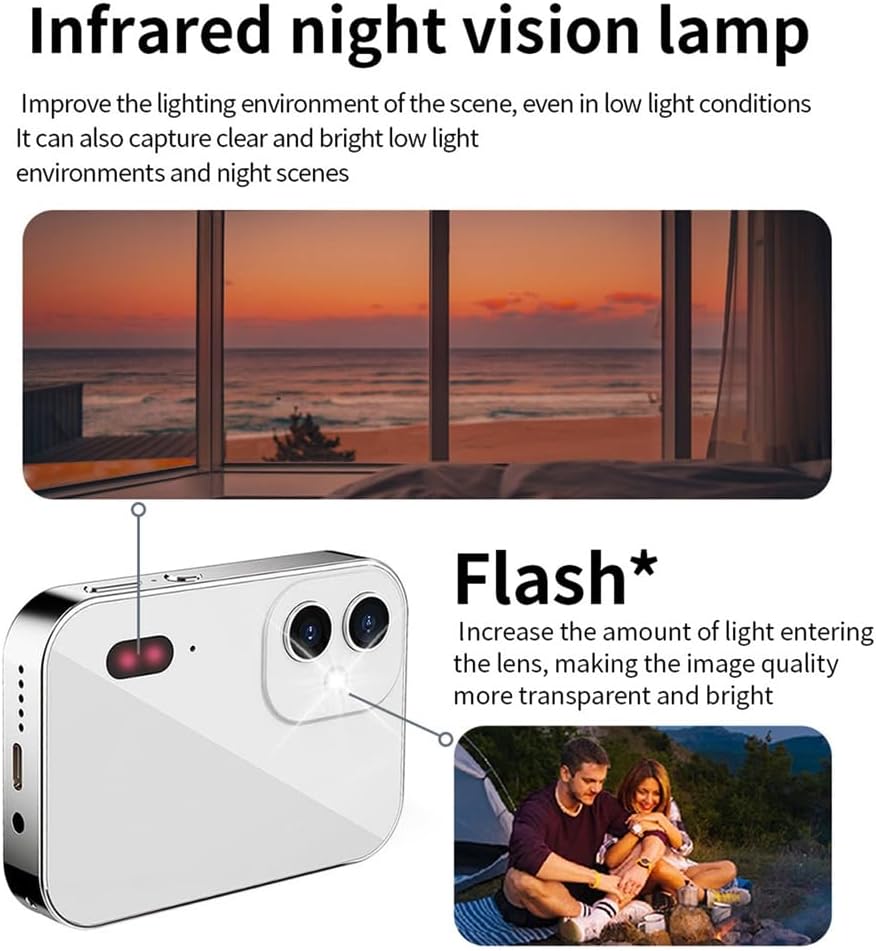
Figure 4.1: Explanation of the Infrared Night Vision Lamp and Flash, which enhance visibility in low-light conditions.
4.1.2. Taking Photos and Recording Videos:
- Foto's: In photo mode, press the shooting button to capture an image.
- Video's: In video mode, press the shooting button to start recording. Press again to stop.
4.2. Afspelen en File Beheer
From the main screen, tap the album icon to view your captured photos and videos. You can zoom in/out of photos using pinch gestures and swipe left/right to navigate through them. Long press on a photo to access options like deletion.
4.3. Muziek afspelen
Tap the music icon on the main screen to enter the music interface. You can play, pause, and skip songs. Adjust the volume by sliding up and down on the screen. The camera supports 3.5mm headphones for private listening.
4.4. Audio-opname
Tap the audio recording icon on the main screen to start recording. Tap again to pause or stop. Recorded audio files kan zijn viewed in the sound list.
4.5. Mini-Games
The camera includes pre-installed mini-games. Tap the game icon on the main screen to access and play them.
4.6. Systeeminstellingen
Tap the settings icon on the main screen to access various camera settings:
- Taal: Selecteer uw voorkeurstaal.
- Datum en tijd: Stel de huidige datum en tijd in.
- Behang: Change the desktop wallpaper.
- Volume: Pas het systeemvolume aan.
- Toetsgeluid: Enable or disable key press sounds.
- Boot Music: Enable or disable startup music.
- Aanraakkalibratie: Calibrate the touch screen for optimal responsiveness.
- Foto-instellingen: Adjust photo resolution, quality, and other parameters.
- Opname-instellingen: Configure video resolution and other recording options.
Video 4.2: This video provides a detailed tutorial on various camera functions, including photo/video mode, settings adjustments, and multimedia features.
Video 4.3: This video demonstrates the camera's vlogging capabilities and 3-inch touchscreen interface.
4.7. PC Camera Function (Webcamera)
Connect the camera to your computer using the USB cable. The camera can be used as a PC camera for live streaming or video conferencing, providing a high-quality video feed.
4.8. OTG Transmission
Utilize the OTG transmission feature to directly connect the camera to your smartphone. This allows for easy viewing and sharing of photos and videos on social media platforms without needing a computer.
5. Onderhoud
- Houd de camera schoon door hem af te vegen met een zachte, droge doek.
- Avoid exposing the camera to extreme temperatures, humidity, or direct sunlight.
- Probeer de camera niet te demonteren, want hierdoor vervalt de garantie.
- Store the camera in a protective case when not in use to prevent scratches and damage.
6. Probleemoplossing
- Camera gaat niet aan: Zorg ervoor dat de batterij is opgeladen. Sluit de camera aan op een stroombron en probeer het opnieuw.
- Foto's maken/video's opnemen is niet mogelijk: Check if a memory card is inserted and has sufficient storage space.
- Slechte beeldkwaliteit: Ensure the lens is clean. Check lighting conditions and adjust flash or IR night vision settings as needed.
- Touchscreen reageert niet: Try calibrating the touch screen in the settings menu. If the issue persists, power cycle the camera.
- Filewordt niet overgedragen: Ensure the OTG connection is secure and your smartphone supports OTG.
7. Specificaties
| Functie | Specificatie |
|---|---|
| Merk | TKOWTB |
| Modelnaam | 500740777A2 |
| Maximaal Webcam-beeldresolutie | 64 MP |
| Fotosensortechnologie | CCD, CMOS |
| Ondersteund File Formaat | JPEG, Video (MP4) |
| Optische zoom | 16x |
| Schermgrootte | 3 inch |
| Weergaveresolutie Maximaal | 64 MP |
| Geheugenopslagcapaciteit | 128 GB (TF card, not included) |
| Videoresolutie | 4K (3840 x 2160 pixels) |
| Framesnelheid | 30, 60 FPS |
| Batterijtype | Lithium-ion |
| Batterijcapaciteit | 3600 milliamp Uren |
| Oplaadpoort | Type-C |
| Koptelefoonaansluiting | 3.5 mm |
| Sluitertijd | 1/10s - 1/2650s |
| Type belichtingsregeling | Handmatig |
| Kleur | Wit |
| Artikelgewicht | 240 gram |
| Materiaal | Plastic |
8. Garantie en ondersteuning
For warranty information and technical support, please refer to the product packaging or contact the manufacturer directly. Keep your purchase receipt as proof of purchase for warranty claims.