
Invoering
Thank you for choosing the CRUA 27-inch 4K UHD 144Hz IPS Gaming Monitor. This monitor is designed to deliver an immersive visual experience with its high resolution, fast refresh rate, and vibrant color reproduction. This manual provides essential information for the proper installation, operation, and maintenance of your new monitor. Please read it thoroughly before use and retain it for future reference.
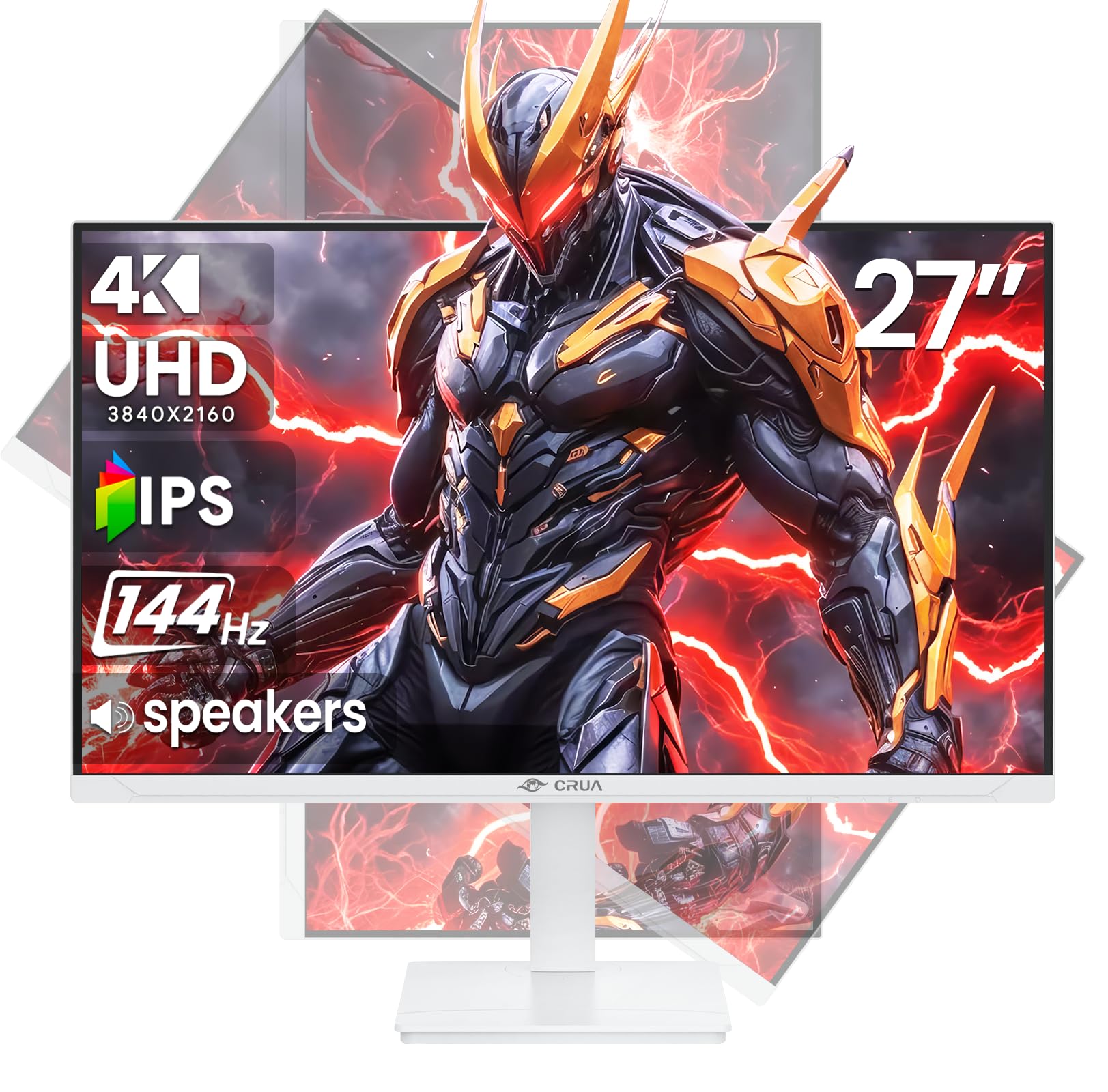
Afbeelding: Voorzijde view of the CRUA 27-inch 4K UHD 144Hz IPS Gaming Monitor.
Wat zit er in de doos?
Controleer de inhoud van uw pakket. Neem contact op met uw verkoper als er artikelen ontbreken of beschadigd zijn.
- 27-inch monitor
- DP-kabel
- Base and Support
- Gebruiksaanwijzing
- Stroomvoorziening
Producteigenschappen
- 27" 4K Display with IPS Panel: Experience ultra-clear visuals with a 3840x2160P resolution.
- 144 Hz vernieuwingsfrequentie: Enjoy fluid and sharp motion, ideal for competitive gaming and fast-paced content.
- 120% sRGB-kleurnauwkeurigheid: Delivers rich and accurate tones with 350cd/m² brightness and 1000:1 high-contrast.
- Ingebouwde luidsprekers: Provides clear audio for daily use.
- Full Ergonomic Adjustment: Features height, pivot, tilt, and rotation adjustments for optimal viewhoeken.
- Meerdere connectiviteitsopties: Equipped with 2x HDMI 2.1 and 2x DP 1.4 ports.
- AMD FreeSync Support: Synchronizes the monitor's refresh rate with your GPU for tear-free gaming.
- Wandmontage: Supports VESA 75mm x 75mm wall mounts for flexible installation.
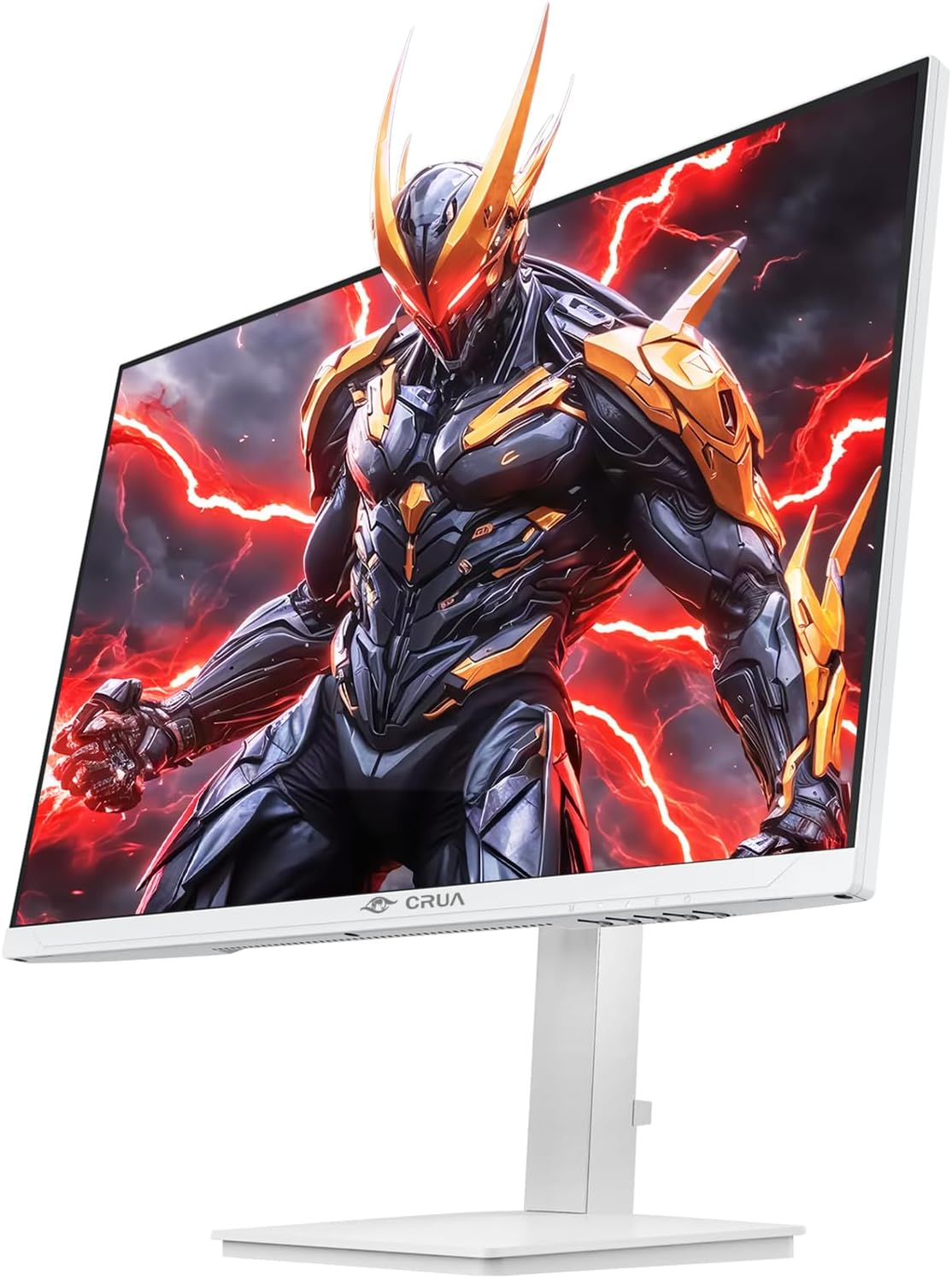
Afbeelding: Voorzijde view of the CRUA 27-inch 4K UHD 144Hz IPS Gaming Monitor displaying a game scene.

Afbeelding: Achterkant view of the CRUA 27-inch 4K UHD 144Hz IPS Gaming Monitor showing the stand and RGB lighting.

Afbeelding: Achterkant view of the CRUA 27-inch 4K UHD 144Hz IPS Gaming Monitor highlighting the input ports (2x DP 1.4, 2x HDMI 2.1, and 3.5mm Audio Port).

Image: Diagram illustrating the adjustable height (110mm), tilt (-5° to +15°), swivel (±30°), and pivot (90°) features of the CRUA 27-inch 4K UHD 144Hz IPS Gaming Monitor.
Installatie-instructies
1. De standaard monteren
- Haal de monitor en de standaard voorzichtig uit de verpakking.
- Bevestig de standaardhals aan het monitorpaneel. Zorg ervoor dat deze goed vastklikt of met de meegeleverde schroeven is bevestigd.
- Attach the base to the stand neck, securing it with the thumb screw or other fasteners.
- Plaats de gemonteerde monitor op een stabiel, vlak oppervlak.
2. Wandmontage (optioneel)
The monitor supports VESA 75mm x 75mm wall mounts. Remove the stand before attaching a compatible wall mount bracket (not included). Follow the instructions provided with your wall mount.
3. Kabels aansluiten
- Stroom: Connect the power supply to the monitor's power input and then to a power outlet.
- Video Input: Connect one end of the provided DP cable (or an HDMI cable) to the corresponding port on your computer's graphics card and the other end to a DP 1.4 or HDMI 2.1 port on the monitor.
- Audio-uitvoer (optioneel): If using external speakers or headphones, connect them to the 3.5mm audio jack on the monitor.
4. Eerste keer inschakelen
Press the power button on the monitor. The monitor should automatically detect the input signal. If not, you may need to manually select the input source using the OSD menu.
Gebruiksaanwijzing
1. Aan/uit
Druk op de aan/uit-knop op de monitor om deze in of uit te schakelen.
2. OSD-menunavigatie
The On-Screen Display (OSD) menu allows you to adjust various monitor settings. Navigate the menu using the joystick or buttons typically located on the back or bottom of the monitor.
- Druk op de joystick/knop om het OSD-menu te openen.
- Move the joystick up/down or use corresponding buttons to navigate through menu options.
- Beweeg de joystick naar links/rechts of gebruik de bijbehorende knoppen om waarden aan te passen of submenu's te openen.
- Press the joystick/button again to confirm selections or exit sub-menus.
3. Selectie ingangsbron
If the monitor does not automatically detect the correct input, open the OSD menu, navigate to "Input Source," and select the active input (e.g., HDMI1, HDMI2, DP1, DP2).
4. Weergave-instellingen aanpassen
Within the OSD menu, you can customize settings such as:
- Helderheid/contrast: Pas de algehele helderheid en het contrastniveau aan.
- Kleurinstellingen: Verfijn de kleurtemperatuur, gamma en individuele RGB-waarden.
- Fotokwaliteit: Select preset modes (e.g., Standard, Game, Movie) or customize sharpness and dynamic contrast.
- Resolutie en vernieuwingsfrequentie: Ensure your computer's display settings match the monitor's native 4K UHD (3840x2160P) resolution and 144Hz refresh rate for optimal performance.
- AMD FreeSync: Enable FreeSync in the OSD menu and your graphics card control panel for adaptive synchronization.
5. Audio-instellingen
Adjust the volume of the built-in speakers or connected external audio devices through the OSD menu's audio section. You can also mute the audio if desired.
6. Ergonomische aanpassingen
Pas de monitor naar wens aan viewpositie:
- Hoogte: Gently push or pull the monitor up or down along the stand.
- Kantelen: Tilt the screen forward or backward.
- Draaibaar: Draai de monitor naar links of rechts op de voet.
- Scharnier: Rotate the screen 90 degrees for vertical orientation.
Onderhoud
Het scherm schoonmaken
- Schakel de monitor altijd uit en haal de stekker uit het stopcontact voordat u hem schoonmaakt.
- Gebruik lichtjes een zachte, pluisvrije doek dampschoongemaakt met water of een speciale schermreiniger.
- Spuit de reiniger niet rechtstreeks op het scherm.
- Vermijd het gebruik van schurende reinigingsmiddelen, alcohol of oplossingen op basis van ammoniak, aangezien deze het schermoppervlak kunnen beschadigen.
Algemene verzorging
- Houd de monitor uit de buurt van direct zonlicht, warmtebronnen en overmatig stof.
- Zorg voor voldoende ventilatie rondom de monitor om oververhitting te voorkomen.
- Plaats geen zware voorwerpen op de monitor of de kabels.
- Raak het scherm niet aan met scherpe voorwerpen.
Probleemoplossing
| Probleem | Mogelijke oplossing |
|---|---|
| Geen beeld op het scherm |
|
| Geen geluid uit luidsprekers |
|
| Flikkerend of vervormd beeld |
|
| Knoppen reageren niet |
|
For further assistance, please refer to the CRUA support webwebsite of neem contact op met de klantenservice.
Specificaties
| Functie | Detail |
|---|---|
| Modelnummer | CR270E |
| Schermgrootte | 27 inch |
| Oplossing | 4K UHD (3840 x 2160 pixels) |
| Vernieuwingsfrequentie | 144Hz |
| Paneeltype | IPS |
| Beeldverhouding | 16:9 |
| Kleurengamma | 120% sRGB |
| Helderheid | 350 Candela (cd/m²) |
| Contrastverhouding | 1000:1 |
| Connectiviteit | 2x DP 1.4, 2x HDMI 2.1, 1x 3.5mm Audio Jack |
| Adaptieve synchronisatie | AMD FreeSync |
| Ergonomie | Height, Pivot, Tilt, Rotate Adjustable |
| Muurbevestiging | VESA-formaat 75 mm x 75 mm |
| Ingebouwde luidsprekers | Ja |
| Productafmetingen | 2.5 x 24 x 14 inch |
| Artikelgewicht | 11.38 pond |
Garantie en ondersteuning
CRUA provides high-quality computer monitors and premium services. For warranty information, technical support, or any questions regarding your monitor, please visit the official CRUA website or contact their customer service team. Details can typically be found on the product packaging or the CRUA brand store on Amazon.
Contactgegevens: Refer to your purchase documentation or the CRUA official webGa naar de website voor de meest actuele contactgegevens voor ondersteuning.