
Invoering
This manual provides essential information for the proper setup, operation, maintenance, and troubleshooting of your KTC H27T27 27-inch WQHD IPS Flat Monitor. Please read this manual thoroughly before using the product to ensure optimal performance and safety.
The KTC H27T27 monitor features a 27-inch WQHD (2560x1440) IPS panel with a 100Hz refresh rate, designed to deliver clear and detailed images with smooth motion. It includes FreeSync technology for enhanced visual fluidity during dynamic content. The IPS panel ensures vivid colors and wide viewhoeken.

Figure 1: KTC H27T27 27-inch WQHD IPS Flat Monitor Front View
Instellen
1. Uitpakken
Verwijder alle onderdelen voorzichtig uit de verpakking. Controleer of alle artikelen op de paklijst aanwezig en onbeschadigd zijn. Bewaar de originele verpakking voor toekomstig transport of onderhoud.
2. Montage van de standaard
- Leg de monitor met het scherm naar beneden op een zachte, schone ondergrond om krassen te voorkomen.
- Bevestig de voet van de standaard aan de hals van de standaard met behulp van de meegeleverde schroeven.
- Lijn de gemonteerde standaard uit met de bevestigingssleuf aan de achterkant van de monitor en bevestig deze stevig.
3. VESA-montage (optioneel)
The monitor supports VESA 100x100mm mounting. If using a VESA mount, remove the stand and attach the VESA compatible bracket to the monitor's rear panel using appropriate screws.
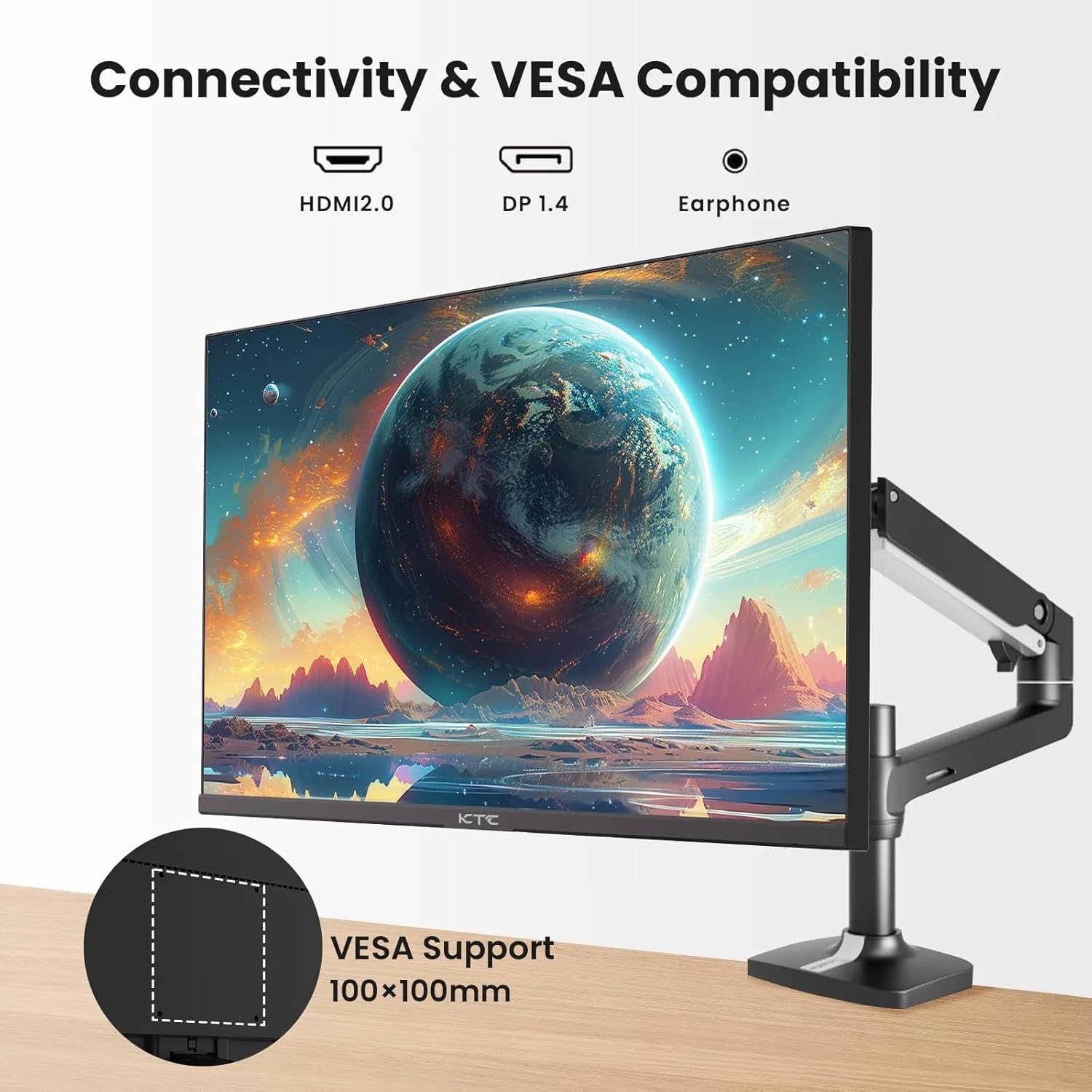
Figure 2: VESA Compatibility and Connectivity Ports
4. Kabels aansluiten
Connect the necessary cables to the monitor and your computer or other devices. Ensure all connections are secure.
- Stroomkabel: Connect the power adapter to the monitor's DC input port, then plug the power cable into a power outlet.
- Videokabel: Connect either an HDMI cable (HDMI 2.0) or a DisplayPort cable (DP 1.4) from your computer's graphics card to the corresponding input port on the monitor.
- Audio-uitvoer: If desired, connect headphones or external speakers to the 3.5mm audio output jack.

Afbeelding 3: Monitoringangspoorten
5. Eerste keer inschakelen
Press the power button on the monitor. The power indicator light will illuminate. If no image appears, ensure your computer is powered on and the correct input source is selected on the monitor.
Bediening
1. Aan/uit
Press the power button located on the monitor to turn it on or off. The power indicator will show the monitor's status.
2. OSD-menu (On-Screen Display)
Via het OSD-menu kunt u diverse monitorinstellingen aanpassen. Gebruik de bedieningsknoppen (meestal aan de achterkant of onderkant van de monitor) om door het menu te navigeren.
- Press a button to activate the OSD menu.
- Gebruik de navigatieknoppen om door de menuopties te navigeren.
- Press a selection button to enter a sub-menu or confirm a setting.
- Press an exit button to close the OSD menu.
3. Instellingen aanpassen
Veelvoorkomende instelbare opties zijn onder andere:
- Helderheid/contrast: Pas de algehele helderheid en het verschil tussen lichte en donkere gebieden aan.
- Kleurinstellingen: Wijzig de kleurtemperatuur, gamma en individuele RGB-waarden.
- Invoerbron: Selecteer handmatig tussen HDMI 1, HDMI 2 of DisplayPort-ingangen.
- Beeldmodus: Selecteer vooraf gedefinieerde weergavemodi (bijv. Standaard, Spel, Film).
4. Vernieuwingsfrequentie
The KTC H27T27 supports a 100Hz refresh rate, providing smoother motion compared to standard 60Hz displays. Ensure your graphics card and operating system are configured to output at 100Hz for the best experience.

Figure 4: 100Hz Refresh Rate Benefit
5. FreeSync-technologie
This monitor is compatible with AMD FreeSync technology, which synchronizes the monitor's refresh rate with your graphics card's frame rate. This helps eliminate screen tearing and stuttering for a smoother gaming and video experience. Ensure FreeSync is enabled in both the monitor's OSD menu and your graphics card's control panel.
Figure 5: FreeSync Technology in Action
Onderhoud
1. Het scherm schoonmaken
- Schakel de monitor uit en trek de stekker uit het stopcontact.
- Veeg het scherm voorzichtig af met een zachte, pluisvrije doek.
- Bij hardnekkige vlekken lichtjes dampReinig de doek met water of een speciale schermreiniger (niet rechtstreeks op het scherm spuiten).
- Vermijd het gebruik van schurende reinigingsmiddelen, alcohol of oplossingen op basis van ammoniak, aangezien deze het schermoppervlak kunnen beschadigen.
2. Algemene verzorging
- Houd de monitor uit de buurt van direct zonlicht, extreme hitte en vochtigheid.
- Zorg voor voldoende ventilatie rondom de monitor om oververhitting te voorkomen.
- Plaats geen zware voorwerpen op de monitor of de kabels ervan.
Probleemoplossing
Als u problemen ondervindt met uw monitor, raadpleeg dan de volgende veelvoorkomende problemen en oplossingen:
- Geen stroom:
- Ensure the power cable is securely connected to both the monitor and the power outlet.
- Controleer of het stopcontact werkt. - Geen signaal:
- Check that the video cable (HDMI or DisplayPort) is securely connected to both the monitor and your computer.
- Ensure your computer is powered on and not in sleep mode.
- Select the correct input source via the monitor's OSD menu. - Flikkerend of vervormd beeld:
- Check the video cable for damage or loose connections.
- Adjust the refresh rate settings on your computer.
- Disable or enable FreeSync in the OSD menu and graphics card settings to test. - Onjuiste kleuren:
- Reset color settings to factory defaults in the OSD menu.
- Adjust color temperature or individual RGB values.
Als het probleem blijft bestaan nadat u deze oplossingen hebt geprobeerd, neem dan contact op met de klantenservice.
Specificaties
| Functie | Specificatie |
|---|---|
| Merk | KTC |
| Modelnummer | H27T27 |
| Schermgrootte | 27 inch |
| Oplossing | 2560x1440 (WQHD) |
| Vernieuwingsfrequentie | 100Hz |
| Weergavetype | IPS |
| Reactietijd | 7 milliseconden |
| Adaptieve synchronisatie | GratisSync |
| Connectiviteit | 2x HDMI 2.0, 1x DisplayPort 1.4, 1x 3.5 mm audio-uitgang |
| Beeldverhouding | 1.78:1 |
| Schermoppervlak | Mat |
| Afmetingen artikel (D x B x H) | 1.85"D x 24.25"B x 14.33"H |
| Artikelgewicht | 4 kilogram |
Garantie en ondersteuning
Garantie-informatie
This KTC monitor is covered by a manufacturer's warranty. Please refer to the warranty card included in your product packaging for specific terms, conditions, and duration of coverage. Keep your purchase receipt as proof of purchase for warranty claims.
Klantenservice
For technical assistance, warranty service, or any product-related inquiries, please contact KTC customer support. Contact details can typically be found on the official KTC website of op de garantiekaart.
When contacting support, please have your monitor's model number (H27T27) and serial number ready.