
1. Inleiding
Thank you for choosing the PUTRIMS K12 Google TV Projector. This manual provides essential information for the safe and efficient use of your new projector. Please read it thoroughly before operation and keep it for future reference.

Figure 1.1: PUTRIMS K12 Projector
2. Veiligheidsinformatie
- Kijk niet rechtstreeks in de projectorlens als de lamp staat aan.
- Zorg voor goede ventilatie om oververhitting te voorkomen.
- Houd de projector uit de buurt van water en andere vloeistoffen.
- Gebruik uitsluitend de meegeleverde stroomadapter.
- Plaats de projector niet op onstabiele oppervlakken.
- Probeer de projector niet zelf te demonteren of te repareren. Neem contact op met de klantenservice voor hulp.
3. Inhoud van het pakket
Controleer of alle artikelen in uw pakket aanwezig zijn:
- PUTRIMS K12 Projector
- Afstandsbediening
- Stroomkabel
- HDMI-kabel
- Lensdop voor projector
- Gebruikershandleiding (dit document)
4. Product voorbijview
The PUTRIMS K12 projector is designed for a versatile home theater and business experience. It features a sleek design with essential ports for connectivity.
Figuur 4.1: Voorzijde view of the K12 Projector, showing the lens and auto-focus sensors.

Afbeelding 4.2: Achter view of the K12 Projector, highlighting HDMI, USB, and audio ports.
Video 4.1: General product overview and feature demonstration of the PUTRIMS K12 projector.
5. Instellen
5.1 Fysieke opstelling
The K12 projector offers flexible installation options to suit various environments:
- Tafelblad plaatsing: Plaats de projector op een stabiele, vlakke ondergrond.
- Statief montage: Use the M5 screw hole on the bottom to attach a tripod.
- Plafondmontage: Securely mount the projector to the ceiling using a compatible mount.
- Wandmontage: Attach the projector to a wall using a suitable bracket.

Figure 5.1: Diverse installation methods for the K12 Projector.
5.2 Eerste inschakeling
- Sluit het netsnoer aan op de projector en op een stopcontact.
- Druk op de aan/uit-knop op de projector of de afstandsbediening om deze in te schakelen.
- The projector will automatically perform auto-focus and keystone correction.
5.3 Netwerkverbinding (wifi)
To access online streaming services and updates, connect your projector to a WiFi network:
- Navigate to the 'Settings' menu on the projector.
- Select 'Network' or 'WiFi Settings'.
- Schakel wifi in en selecteer het gewenste netwerk uit de lijst.
- Voer het wachtwoord in als daarom wordt gevraagd en maak verbinding.
5.4 Bluetooth-verbinding
Connect external Bluetooth speakers or headphones for enhanced audio:
- Ga naar 'Instellingen' en selecteer 'Bluetooth'.
- Turn on Bluetooth and put your external device into pairing mode.
- Selecteer uw apparaat uit de lijst om te koppelen.
5.5 Schermspiegeling
Share content from your mobile devices or computer wirelessly:
- For iOS devices (Airplay): Ensure your iOS device and the projector are connected to the same WiFi network. Open the 'iOS Cast' interface on the projector. On your iOS device, open Control Center, tap 'Screen Mirroring', and select 'K12-xxxx' from the list.
- For Android/Windows devices (Miracast): Ensure your device and the projector are connected to the same WiFi network. Open the 'Miracast' interface on the projector. On your Android/Windows device, enable screen mirroring/cast feature and select 'K12-xxxx' to connect.
6. Gebruiksaanwijzing
6.1 Google TV-functies
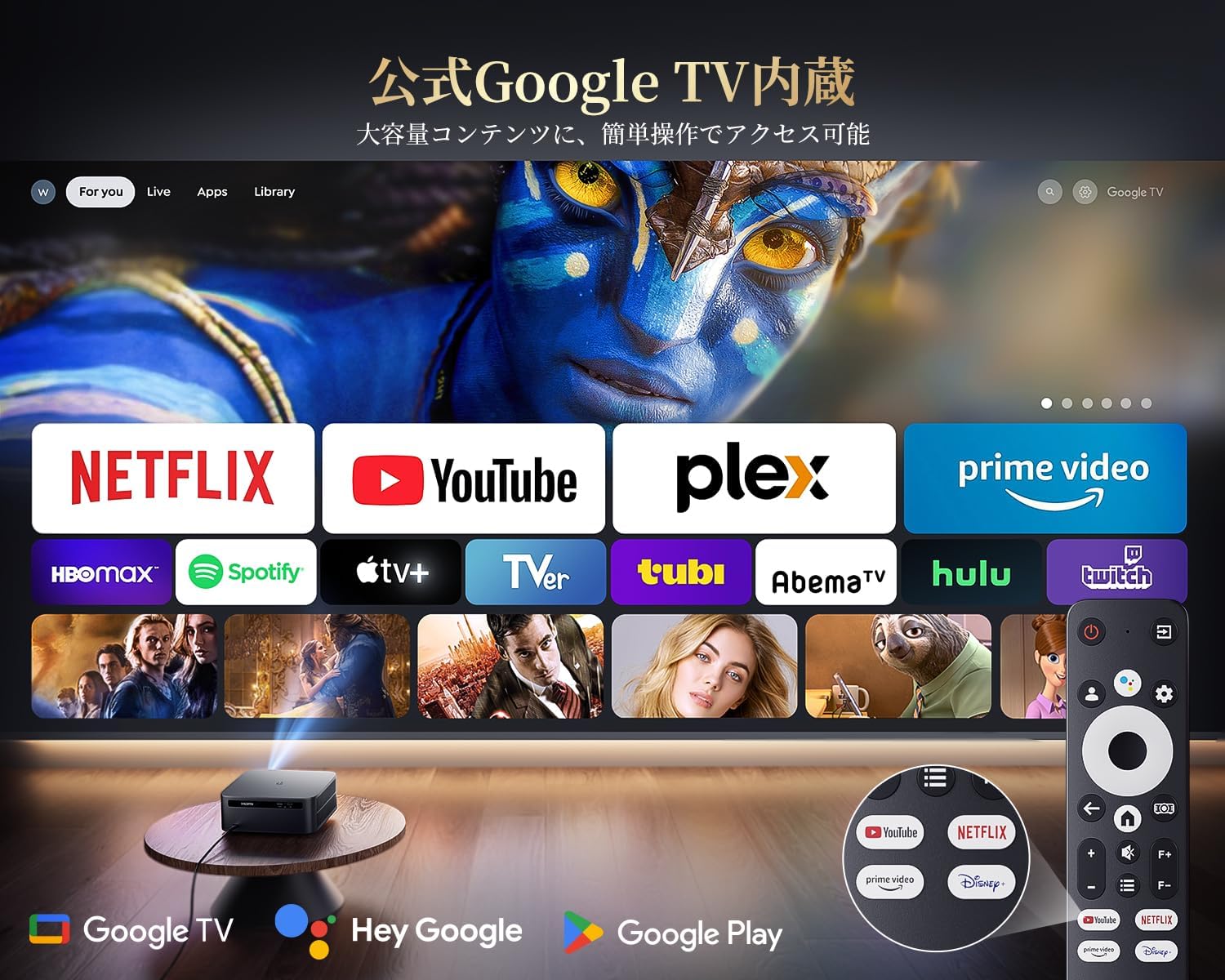
The PUTRIMS K12 comes with official Google TV, providing access to a vast library of content and applications.
- Streaming-apps: Directly access Netflix, Disney+, YouTube, Prime Video, Hulu, and many more with a single click.
- Google Play Store: Download and install over 10,000 applications and games.
- Regelmatige updates: The projector receives periodic updates to enhance security and stability.

Figure 6.1: Google TV interface with popular streaming applications.
6.2 Spraakbesturing
Utilize the Google Voice Assistant for convenient control of your projector and content.
- Press the voice control button on your remote.
- Speak commands such as "Open Netflix," "Play One Piece," "Tell me the weather," or "Increase volume."

Figure 6.2: Using the Google Voice Assistant with the remote control.
6.3 Beeldaanpassing
The K12 projector features advanced image adjustment capabilities for optimal viewind.
- Autofocus: The projector automatically adjusts the focus for a clear image upon startup or movement.
- Automatische trapeziumcorrectie: It automatically corrects horizontal and vertical trapezoidal distortions, ensuring a perfectly rectangular image even from an angle.
- Zoomfunctie: Adjust the screen size from 50% to 100% without moving the projector.
- Beeldverhouding: Ondersteunt beeldverhoudingen van 4:3 en 16:9.
- Helderheid / contrast: Customize brightness and contrast settings to your preference.

Afbeelding 6.3: Automatische scherpstelling en trapeziumcorrectie in actie.

Figure 6.4: Projection distances and corresponding screen sizes (100", 120", 150").
6.4 Externe apparaten aansluiten
The K12 projector offers multiple connectivity options for various devices:
- HDMI-ARC: Connect to soundbars, laptops, gaming consoles (Switch, PS5), or DVD players.
- USB-poort: Play media directly from USB memory sticks.
- 3.5 mm audiopoort: Aansluiten op externe audiosystemen.

Figure 6.5: Seamless connection with various external devices.
7. Onderhoud
7.1 Lensreiniging
To maintain optimal image quality, regularly clean the projector lens.
- Zorg ervoor dat de projector is uitgeschakeld en de stekker uit het stopcontact is gehaald.
- Gently wipe the lens with a soft, lint-free cloth or a cotton swab.
- Gebruik voor hardnekkige vlekken een lensreinigingsvloeistof die speciaal is ontworpen voor optische oppervlakken.
- Avoid using abrasive materials or harsh chemicals that could damage the lens.
8. Probleemoplossing
Hier zijn oplossingen voor veelvoorkomende problemen die u kunt tegenkomen:
- No image/signal: Check all cable connections (HDMI, power). Ensure the correct input source is selected on the projector.
- Wazig beeld: The projector features auto-focus. If the image remains blurry, ensure the lens is clean and there are no obstructions.
- Image not rectangular: The projector has auto-keystone correction. If issues persist, ensure the projector is placed on a stable surface and try repositioning it.
- Geen geluid: Check volume settings on both the projector and connected devices. Ensure external speakers are properly connected via Bluetooth or audio cable. If using HDMI ARC, verify the connection and settings.
- WiFi/Bluetooth connection issues: Ensure the projector and your device are within range of the router/device. Restart both the projector and the router/device.
- App crashes or malfunctions (for unofficial Android TV versions): The PUTRIMS K12 has an official Google TV license, which ensures stability. If you experience issues, ensure your system is updated.
Voor verdere assistentie kunt u terecht in het gedeelte Garantie en ondersteuning.
9. Specificaties
| Functie | Beschrijving |
|---|---|
| Merk | PUTRIMS |
| Model | K12 |
| Helderheid | 1500 ANSI Lumens |
| Oplossing | 1080P FHD (4K Support) |
| Besturingssysteem | Official Google TV |
| Stembediening | Google Spraakassistent |
| Focus | Omnidirectional Auto Focus |
| Keystone Correctie | Horizontal & Vertical Auto Keystone Correction |
| Zoom | 50%-100% |
| Maximale schermgrootte | 300 inch |
| Wi-Fi | Wi-Fi 6 |
| Bluetooth | Bluetooth 5.3 |
| Audio-uitgang | 20W HIFI Speaker, 3.5mm Audio Jack |
| Invoerpoorten | HDMI ARC, USB |
| Afmetingen | 40.5x30.2x17cm |
| Gewicht | 3.31 kg |
10. Garantie en ondersteuning
PUTRIMS is committed to providing excellent customer service. Your K12 projector comes with comprehensive support:
- Aftersales-service: 24 hours a day, 365 days a year.
- Technische ondersteuning: Professional technical assistance is available.
- Garantie: Free exchange or 100% refund guarantee for initial defects or natural failures under normal use.
If you have any questions or require assistance, please contact PUTRIMS customer support via the official email address provided in your product packaging or on the official webplaats.