
ShanWan Q36-XPS-KABRILAN
Gebruikershandleiding voor de ShanWan Bluetooth-gamepad-sleutelhanger-minicontroller
Model: Q36-XPS-KABRILAN
1. Inleiding
This manual provides comprehensive instructions for the ShanWan Bluetooth Gamepad Keychain Sized Mini Controller. Please read this manual carefully before use to ensure proper operation and to maximize your gaming experience. This device is designed for use with Android phones and tablets, PS4/Slim/Pro, iPhone, iPad, Nintendo Switch, and Windows PCs.
2. Product voorbijview
The ShanWan Mini Controller is a compact and versatile gamepad designed for portability and multi-platform compatibility. It features 17 buttons and a D-Pad, all within a keychain-sized form factor.
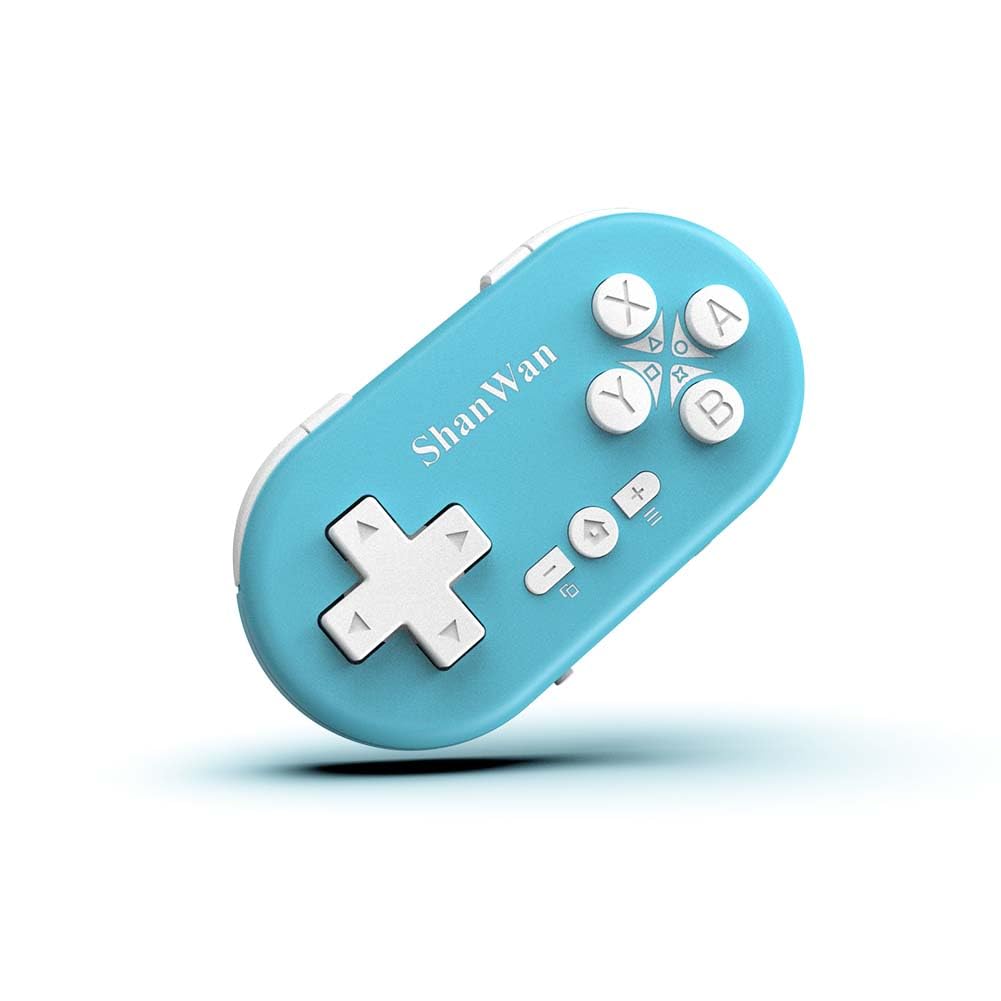
Figure 2.1: ShanWan Mini Bluetooth Gamepad, showcasing vanwege het compacte ontwerp en de knopindeling.

Figure 2.2: Dimensions of the ShanWan Mini Bluetooth Gamepad, measuring 2.83 inches in length, 1.57 inches in width, and 0.55 inches in thickness.
2.1 Pakketinhoud
- ShanWan Bluetooth Gamepad Keychain Sized Mini Controller
- USB-oplaadkabel
- Gebruikershandleiding (dit document)
3. Specificaties
| Functie | Detail |
|---|---|
| Modelnummer | Q36-XPS-KABRILAN |
| Connectiviteit | Bluetooth draadloos |
| Verenigbaarheid | Android, iOS, Windows, Nintendo Switch, PlayStation 4 |
| Batterijcapaciteit | 180mAh lithium-polymeer (meegeleverd) |
| Oplaadtijd | Ongeveer 1 uur |
| Bedrijfstijd | Tot 5-6 uur |
| Wireless Range | Tot 10 meter (33 voet) |
| Productafmetingen | 2.83 x 1.57 x 0.55 inch |
| Artikelgewicht | 1.44 ounces (ongeveer 41 gram) |
| Speciale kenmerken | Gyroscope motion sensing, One-button wake-up function |
4. Instellen en koppelen
4.1 De controller opladen
Before first use, fully charge the controller. Connect the provided USB charging cable to the controller's charging port and the other end to a USB power source (e.g., computer, USB wall adapter). The charging indicator light will show the charging status and turn off when fully charged. A full charge typically takes about 1 hour.
4.2 In-/uitschakelen
- Inschakelen: Press and hold the Home button (usually the button with a house icon) for a few seconds until the indicator lights turn on.
- Uitschakelen: Press and hold the Home button for approximately 5 seconds until the indicator lights turn off. The controller will also automatically power off after a period of inactivity to conserve battery.
4.3 Bluetooth-koppelingsinstructies
The controller supports multiple platforms. Ensure the mode switch on the controller is set to the correct platform before pairing.
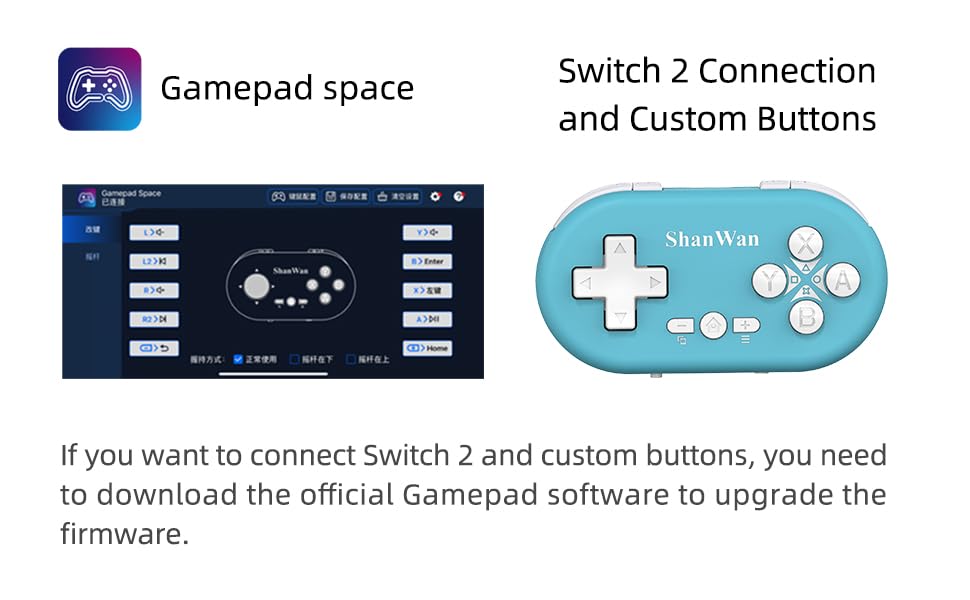
Figure 4.1: The mode switch on the controller, allowing selection between X (Xbox/PC), S (Switch), and P (PlayStation) modes for multi-device compatibility.
4.3.1 Koppelen met Nintendo Switch
- On your Nintendo Switch, navigate to the HOME Menu.
- Select "Controllers" then "Change Grip/Order".
- Set the controller's mode switch to "S" (Switch mode).
- Press and hold the "Pair" button on the controller until the indicator lights begin to blink rapidly.
- The Switch will detect the controller. Once paired, the LED indicator on the controller will remain solid, and the controller will be displayed on the Switch host screen.

Figure 4.2: Visual guide for connecting the controller to a Nintendo Switch, showing menu navigation and the pairing button location.
4.3.2 Pairing with Android/iOS Devices
- Set the controller's mode switch to the appropriate mode (e.g., "X" for Android, or a specific iOS mode if available, refer to device-specific instructions).
- On your Android or iOS device, go to Bluetooth settings.
- Zorg ervoor dat Bluetooth is ingeschakeld.
- Press and hold the "Pair" button on the controller until the indicator lights blink rapidly.
- Select "ShanWan Controller" or a similar name from the list of available devices on your phone/tablet.
- Zodra de verbinding tot stand is gebracht, zal het indicatielampje op de controller continu branden.
4.3.3 Pairing with PS4
- Set the controller's mode switch to "P" (PlayStation mode).
- On your PS4, go to "Settings" > "Devices" > "Bluetooth Devices".
- Press and hold the "Pair" button on the controller until the indicator lights blink rapidly.
- Select "ShanWan Controller" or a similar name from the list of available devices on your PS4.
- Zodra de verbinding tot stand is gebracht, zal het indicatielampje op de controller continu branden.
4.3.4 Pairing with Windows PC
- Set the controller's mode switch to "X" (Xbox/PC mode).
- On your Windows PC, go to "Settings" > "Devices" > "Bluetooth & other devices".
- Ensure Bluetooth is enabled and click "Add Bluetooth or other device".
- Selecteer "Bluetooth".
- Press and hold the "Pair" button on the controller until the indicator lights blink rapidly.
- Select "ShanWan Controller" or a similar name from the list of available devices.
- Zodra de verbinding tot stand is gebracht, zal het indicatielampje op de controller continu branden.
5. Gebruiksaanwijzing
5.1 Knopfuncties
The controller features standard gamepad buttons. Their specific function may vary slightly depending on the platform and game.
- D-pad: Directionele invoer.
- A, B, X, Y-knoppen: Actieknoppen.
- L1, L2, R1, R2-knoppen: Schouder- en trekkerknoppen.
- Thuis knop: Power on/off, return to home screen (platform dependent).
- Plus (+) / Min (-) knoppen: Start/Select or menu functions.
- Koppelknop: Start Bluetooth-koppeling.
5.2 Speciale functies
5.2.1 One-Button Wake-Up Function
After initial pairing, you can wake up the controller and reconnect it to the last paired device by simply pressing the Home button. This feature allows for quick resumption of gameplay.
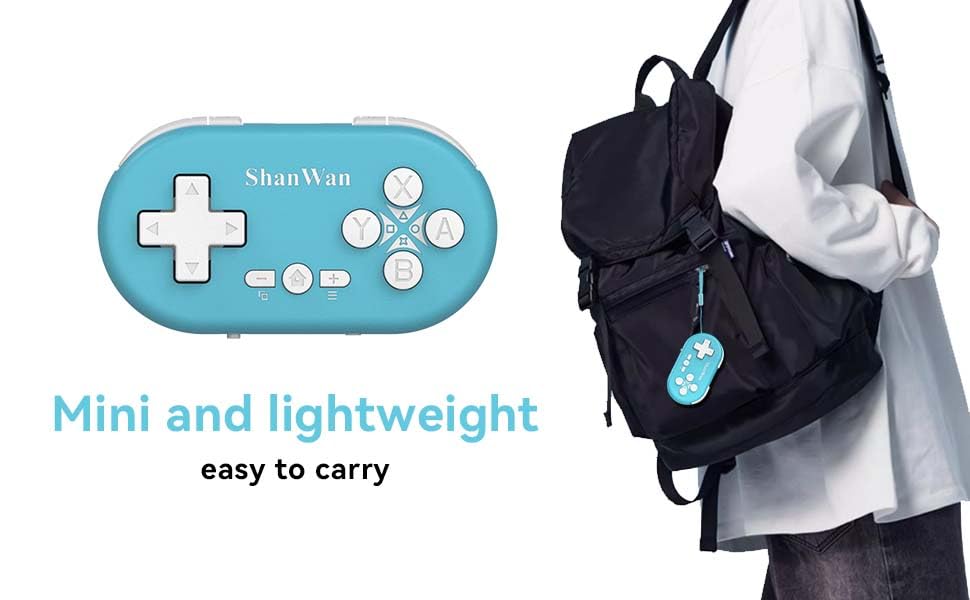
Figure 5.1: Illustration of the one-button wake-up function, highlighting the Home button used to quickly reactivate the controller.
5.2.2 Gyroscope Motion Sensing
The controller is equipped with a gyroscope for motion sensing effects, providing an immersive gaming experience in supported games, particularly on platforms like Nintendo Switch.
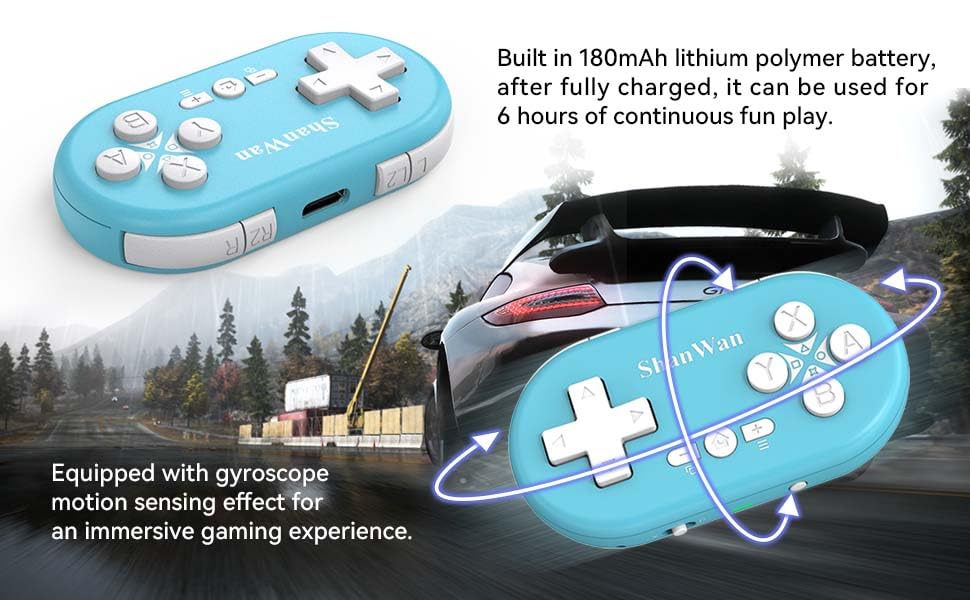
Figure 5.2: Visual representation of the gyroscope motion sensing effect, showing the controller being tilted to influence in-game actions.
5.2.3 Firmware Upgrade for Switch 2 and Custom Buttons
For compatibility with Switch 2 and to customize button mappings, it may be necessary to download the official Gamepad software and upgrade the controller's firmware. Refer to the manufacturer's official webGa naar deze website voor de nieuwste software en instructies.

Figure 5.3: Screenshot illustrating the "Gamepad Space" software interface, used for firmware upgrades and custom button configurations, particularly for Switch 2 compatibility.
6. Onderhoud
- Schoonmaak: Reinig de controller met een zachte, droge doek. Vermijd het gebruik van agressieve chemicaliën of schurende materialen.
- Opslag: Bewaar de controller op een koele, droge plaats, uit de buurt van direct zonlicht en extreme temperaturen.
- batterij zorg: Om de levensduur van de batterij te verlengen, moet u voorkomen dat de batterij vaak volledig ontlaadt. Laad de controller regelmatig op, ook als u deze langere tijd niet gebruikt.
- Vermijd impact: Laat de controller niet vallen en stel hem niet bloot aan harde stoten, aangezien dit interne onderdelen kan beschadigen.
7. Probleemoplossing
7.1 Controller Does Not Power On
- Zorg ervoor dat de controller volledig is opgeladen. Sluit hem aan op een stroombron en laat hem minstens 15 minuten opladen voordat u hem opnieuw probeert in te schakelen.
- Verify that the charging cable and power source are functioning correctly.
7.2 Unable to Pair Controller
- Ensure the controller is in pairing mode (indicator lights blinking rapidly).
- Check that the mode switch on the controller is set to the correct platform (S for Switch, X for Android/Windows, P for PS4).
- Make sure Bluetooth is enabled on your device (Switch, phone, PC, PS4).
- Move the controller closer to the device you are trying to pair with.
- Remove any previous pairings of the controller from your device's Bluetooth settings and try pairing again.
- Start zowel de controller als uw apparaat opnieuw op.
7.3 Invoervertraging of verbroken verbindingen
- Zorg ervoor dat de controller zich binnen het draadloze bereik van 10 meter van uw apparaat bevindt.
- Minimaliseer interferentie van andere draadloze apparaten (Wi-Fi-routers, andere Bluetooth-apparaten).
- Ensure the controller is fully charged. Low battery can affect connection stability.
- Probeer de controller opnieuw met je apparaat te koppelen.
- Update the controller's firmware if available (refer to Section 5.2.3).
7.4 Knoppen reageren niet correct
- Test the controller on a different game or application to determine if the issue is game-specific.
- Zorg ervoor dat de firmware van de controller up-to-date is.
- Perform a factory reset if possible (refer to manufacturer's support for specific instructions, as this model may not have a dedicated reset button).
8. Garantie en ondersteuning
ShanWan products are designed for reliability and performance. For warranty information, technical support, or further assistance, please visit the official ShanWan webwebsite of neem contact op met hun klantenservice. Bewaar uw aankoopbewijs als aankoopbewijs voor garantieclaims.
Official ShanWan Store: ShanWan Store on Amazon
9. Aanvullende informatie
The ShanWan Mini Controller's compact and lightweight design makes it highly portable, allowing users to carry it easily and enjoy gaming on the go.

Figure 9.1: The ShanWan Mini Bluetooth Gamepad attached to a backpack, illustrating its keychain-sized portability and ease of transport.

Figure 9.2: The ShanWan Mini Bluetooth Gamepad being used outdoors with a portable screen, demonstrating its ease of transport and use anywhere.