
Invoering
This manual provides essential instructions for setting up, operating, and maintaining your Plimpton PlimPad Kids20 tablet. This device is designed for children, featuring Android 14, an Octa-core processor, 8GB RAM (expandable), 64GB ROM (expandable to 1TB), and a durable EVA shockproof case. It includes pre-installed Google Kids Space and parental control features to ensure a safe and educational experience.
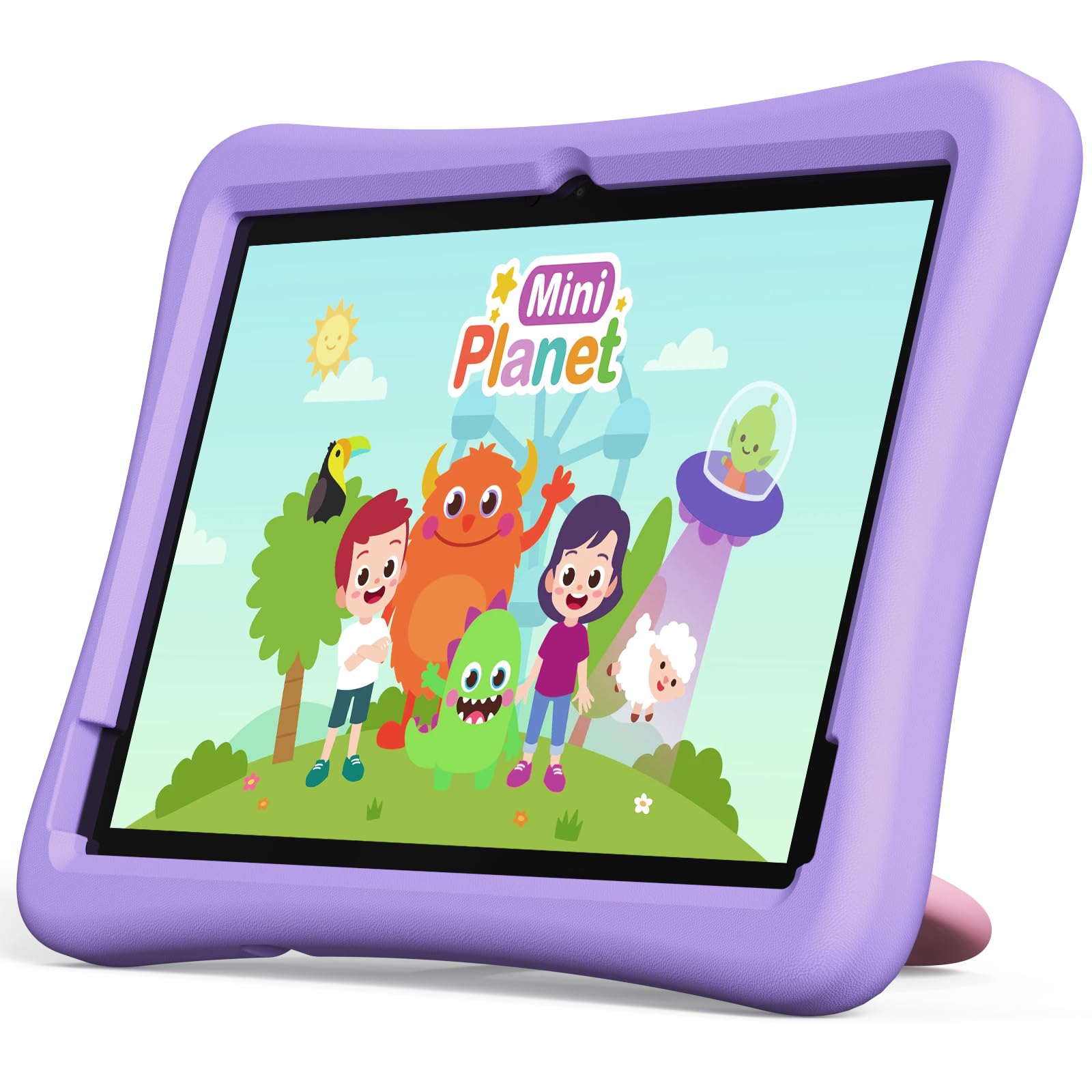
Image: The Plimpton PlimPad Kids20 tablet in its violet shockproof EVA case.
Wat zit er in de doos?
Controleer of alle onderdelen in het pakket aanwezig zijn voordat u met de installatie begint.
- 1x Plimpton PlimPad Kids20 Tablet
- 1x USB-adapter
- 1x 1.8m Charging Cable
- 1x Gebruiksaanwijzing
Instellen
1. De tablet opladen
Laad de tablet volledig op voordat u hem voor de eerste keer gebruikt.
- Connect the USB charging cable to the tablet's USB Type-C port.
- Steek de USB-adapter in een stopcontact.
- Het laadindicatielampje gaat branden. Het duurt enkele uren voordat de batterij volledig is opgeladen.
2. In-/uitschakelen
- Inschakelen: Houd de aan/uit-knop ingedrukt totdat het scherm oplicht.
- Uitschakelen: Houd de aan/uit-knop ingedrukt en selecteer vervolgens 'Uitschakelen' uit de opties op het scherm.
- Herstarten: Houd de aan/uit-knop ingedrukt en selecteer vervolgens 'Opnieuw opstarten' uit de opties.
3. Eerste installatie
Upon first power-on, follow the on-screen prompts to configure your tablet. This typically includes:
- Selecteer uw taal.
- Connecting to a Wi-Fi network (supports Wi-Fi 6, 2.4GHz + 5.0GHz).
- Setting up a Google account. This is crucial for accessing Google Kids Space and downloading apps.
- Datum en tijd instellen.
4. Een Micro SD-kaart plaatsen
The tablet supports Micro SD cards up to 1TB for expanded storage.
- Zoek de sleuf voor de microSD-kaart aan de zijkant van de tablet.
- Plaats de Micro SD-kaart voorzichtig in de sleuf totdat u een klik hoort.
- De tablet detecteert de nieuwe opslag. Mogelijk wordt u gevraagd deze te formatteren voor gebruik als draagbare of interne opslag.
De tablet bedienen
1. Basisnavigatie
The PlimPad Kids20 uses a capacitive touchscreen for interaction.
- Kraan: Selecteer een item of open een applicatie.
- Tik en houd vast: Krijg toegang tot contextmenu's of verplaats pictogrammen.
- Veeg: Navigate through screens or scroll within applications.
- Knijpen om te zoomen: Enlarge or reduce content (e.g., photos, web pagina's).
2. Google Kids Space
The tablet comes with Google Kids Space pre-installed, offering a curated selection of educational and entertaining content.

Image: A child and adult interacting with the tablet, showing the Google Kids Space interface.
- Access Kids Space from the home screen or app drawer.
- Content includes interactive educational apps, books, games, and videos.
- Content is teacher-approved and designed to promote learning and creativity.
3. Parental Controls (Google Family Link)
Manage your child's tablet usage and ensure a safe online environment using Google Family Link.

Image: A child using the tablet, with an overlay indicating Google Family Link for parental control.
- Download de Google Family Link-app op je eigen apparaat.
- Link your child's Google account on the tablet to your Family Link account.
- Through Family Link, you can:
- Set screen time limits.
- Approve or block app downloads.
- Beheren webtoegang tot de site.
- Track device location.
4. Connectiviteit
- Wifi: Connect to wireless networks via Settings > Network & internet > Wi-Fi. The tablet supports dual-band Wi-Fi (2.4/5 GHz) for fast and stable connections.
- Bluetooth 5.3: Pair with Bluetooth devices like headphones or speakers via Settings > Connected devices > Bluetooth.
5. Cameragebruik
De tablet beschikt over een 5MP camera aan de achterzijde en een 2MP camera aan de voorzijde.
- Open de Camera-app vanaf het startscherm of de app-lade.
- Schakel naar behoefte tussen de camera aan de voor- en achterkant.
- Tik op de sluiterknop om foto's te maken of video's op te nemen.
Onderhoud
1. Het reinigen van de tablet
- Gebruik een zachte, pluisvrije doek om het scherm en de behuizing schoon te maken.
- Voor hardnekkige vlekken, lichtjes dampMaak de doek schoon met water of een beeldschermreiniger.
- Vermijd agressieve chemicaliën of schurende materialen.
2. Software-updates
Controleer regelmatig of er software-updates beschikbaar zijn en installeer deze om optimale prestaties en beveiliging te garanderen.
- Ga naar Instellingen > Systeem > Systeemupdate.
- Volg de instructies op het scherm om beschikbare updates te downloaden en te installeren.
3. Opslagbeheer
To maintain performance, periodically manage the tablet's storage.
- Ga naar Instellingen > Opslag om view Opslaggebruik.
- Verwijder ongebruikte apps.
- Verwijder onnodig files, photos, or videos.
- Verplaats groot files to an inserted Micro SD card.
Probleemoplossing
If you encounter issues, try the following solutions before contacting support.
| Probleem | Oplossing |
|---|---|
| Tablet gaat niet aan. | Ensure the tablet is fully charged. Connect it to the charger for at least 30 minutes, then try powering on again. |
| Problemen met de wifi-verbinding. | Restart the tablet and your Wi-Fi router. Check Wi-Fi settings to ensure the correct network is selected and the password is entered correctly. |
| Apps crashen of lopen vast. | Close and reopen the app. Clear the app's cache (Settings > Apps > [App Name] > Storage & cache > Clear cache). If the problem persists, uninstall and reinstall the app. |
| Trage prestaties. | Sluit ongebruikte apps. Wis de cache en tijdelijke files. Consider uninstalling large, unused applications or moving data to an SD card. Restart the tablet. |
| Het scherm reageert niet. | Perform a forced restart by holding the Power button for approximately 10-15 seconds until the tablet restarts. |
Specificaties
Key technical specifications for the Plimpton PlimPad Kids20 tablet.
| Functie | Detail |
|---|---|
| Modelnaam | Plimpad Kids20 |
| Besturingssysteem | Androïde 14 |
| Verwerker | Allwinner A523 Octa-core (up to 2.0 GHz) |
| RAM | 8 GB (4 GB + 4 GB extended virtual memory) |
| Interne opslag (ROM) | 64GB |
| Uitbreidbare opslag | Up to 1 TB via Micro SD card |
| Schermgrootte | 10.1 inch |
| Weergaveresolutie | 1280 x 800 pixels (HD IPS) |
| Weergavetype | LCD, G+G wear-resistant glass |
| Batterijcapaciteit | 6000 mAh Lithium-ion (22.8 Wh) |
| Achteruitrijcamera | 5 Megapixels |
| Voorcamera | 2 Megapixels |
| Wi-Fi | Wi-Fi 6 (802.11ax), Dual-band (2.4 GHz + 5.0 GHz) |
| Bluetooth | Bluetooth 5.3 |
| Havens | USB Type-C, 3.5mm Headphone Jack, Micro SD slot |
| Speciale kenmerken | Stereo Speakers, USB OTG support, Eye-care screen, EVA shockproof case with 360-degree rotating handle |
| Afmetingen | 24L x 16.1B x 0.9H cm |
Garantie en ondersteuning
The Plimpton PlimPad Kids20 tablet comes with a 2 jaar gratis vervangingsgarantie.
For any issues, including screen damage or operational problems, please contact our professional after-sales customer service. Refer to the contact information provided with your purchase or on the official Plimpton webplaats.
Belangrijk: Do not attempt to repair the device yourself, as this may void your warranty.