
Invoering
This manual provides detailed instructions for the TECPHILE iPad Keyboard Case, Model T5509D. It covers setup, operation, maintenance, and troubleshooting to ensure optimal use of your device. Please read this manual thoroughly before using the product.
Verenigbaarheid
The TECPHILE iPad Keyboard Case (Model T5509D) is specifically designed for the following iPad Pro 12.9-inch models:
- iPad Pro 12.9-inch (6th Generation, 2022): Modellen A2436, A2764, A2437, A2766
- iPad Pro 12.9-inch (5th Generation, 2021): Modellen A2378, A2379, A2461, A2462
- iPad Pro 12.9-inch (4th Generation, 2020): Modellen A2233, A2229, A2069, A2232
- iPad Pro 12.9-inch (3rd Generation, 2018): Modellen A1876, A2014, A1895, A1983
This case is not compatible with any other iPad models.

Image: Compatibility chart for TECPHILE iPad Keyboard Case. Please verify your iPad model number on the back of your device to ensure compatibility.
Inhoud van het pakket
Controleer bij het openen van de verpakking of alle artikelen aanwezig zijn:
- TECPHILE iPad Keyboard Case (with integrated kickstand and pencil holder)
- Detachable Wireless Backlit Keyboard
- USB-C-oplaadkabel
- Gebruikershandleiding (dit document)
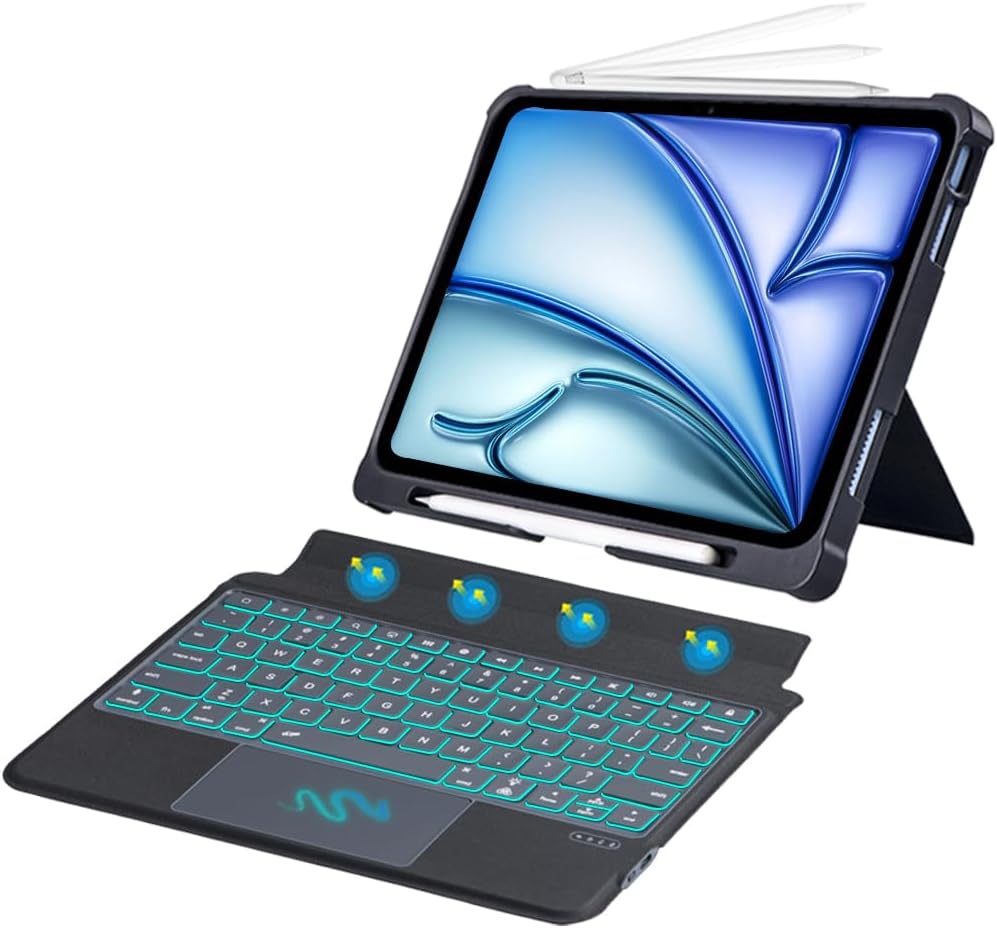
Afbeelding: Overview of the TECPHILE iPad Keyboard Case components, including the case with an iPad and the detached wireless keyboard.
Installatiehandleiding
1. Je iPad aan de hoes bevestigen
- Gently align your iPad Pro 12.9-inch with the case.
- Insert the iPad into the protective shell, ensuring all corners are securely fitted. The case provides full protection and features honeycomb heat release design.
- The case includes a dedicated pencil holder and supports wireless charging for your Apple Pencil.
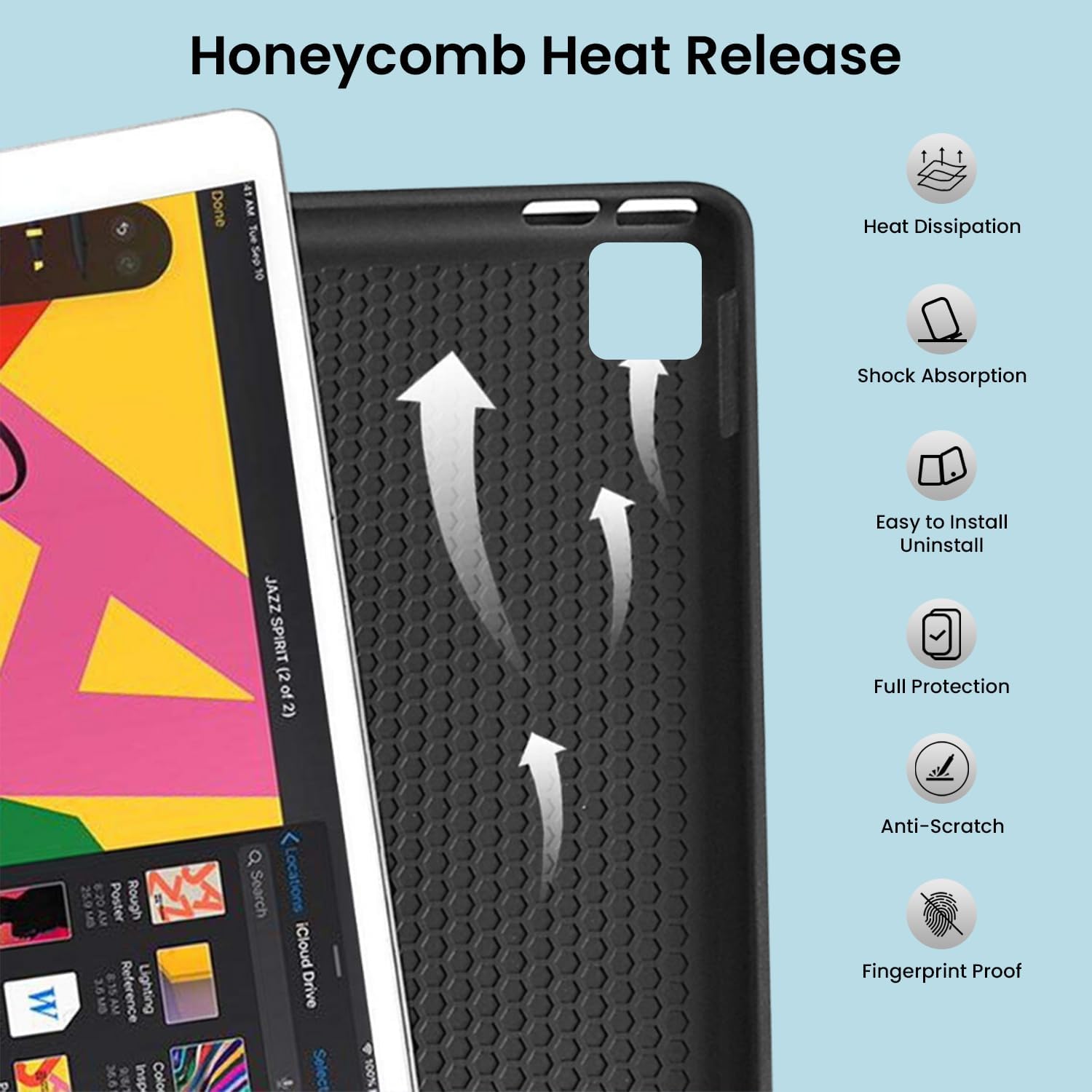
Image: Detail of the case's honeycomb structure for heat dissipation and protective features.

Image: Illustrates the wireless charging capability for the Apple Pencil and the integrated pencil holder.
2. Het toetsenbord opladen
Before initial use, fully charge the keyboard. The keyboard has a 500mAh battery capacity.
- Zoek de USB-C-oplaadpoort aan de zijkant van het toetsenbord.
- Connect the provided USB-C cable to the keyboard and a power source (e.g., USB wall adapter, computer USB port).
- The charging indicator light will illuminate. Once fully charged, the light may change or turn off.
A full charge provides approximately 80 hours of use without backlight or 5 hours with backlight enabled.

Image: Keyboard charging port and battery performance details.
3. Connecting the Keyboard via Bluetooth
The keyboard connects wirelessly to your iPad via Bluetooth.
- Zorg ervoor dat het toetsenbord is opgeladen en ingeschakeld.
- Druk op het toetsenbord op de Fn+Z keys simultaneously. The Bluetooth indicator light will start blinking, indicating it's in pairing mode.
- Ga op je iPad naar Instellingen > Bluetooth.
- Schakel Bluetooth in. Je iPad zoekt naar beschikbare apparaten.
- Locate and tap "Bluetooth Keyboard" (or similar name) in the list of devices to connect.
- Zodra de verbinding tot stand is gebracht, stopt het Bluetooth-indicatielampje op het toetsenbord met knipperen.

Image: Visual guide for Bluetooth pairing process.
Gebruiksaanwijzing
Toetsenbordfuncties
The detachable keyboard features a QWERTY layout with additional function keys for iPad control.
- Achtergrondverlichting Controle: Pers Fn-toets 💡 (light bulb icon) to turn on/off the backlight and cycle through 7 different colors. Press Fn-toets ☀️ (sun icon) to adjust the 3 levels of brightness.
- Full Shortcut Row: Access common iPad functions directly from the top row of keys.
- Intelligent Voice Input Function: Utilize the dedicated key for voice input.

Afbeelding: Gedetailleerd view of the keyboard's backlit keys and function controls.
Smart Multi-Gesture Trackpad
The integrated large trackpad supports multi-touch gestures for enhanced navigation.
- Basisnavigatie: Verplaats de cursor door met uw vinger over het trackpad te vegen.
- Click Functions: Supports right and left click functions.
- Multi-Finger Gestures: Utilize native iPad multi-finger gestures for scrolling, swiping, and other actions. Refer to your iPad's settings for a full list of supported gestures.
- Turn On/Off Trackpad: Pers Fn-toets 🖱️ (trackpad icon) to enable or disable the trackpad.
Adjustable Kickstand and Usage Modes
The case features an adjustable kickstand that allows for multiple viewhoeken en gebruiksmodi.
- Typemodus: Position the iPad upright with the keyboard attached for a laptop-like experience.
- View Modus: Adjust the kickstand to a comfortable angle for watching videos or presentations without the keyboard.
- Leesmodus: Fold the keyboard behind the iPad for a tablet-like reading experience.
- Schetsmodus: Lower the angle for drawing or writing with the Apple Pencil.
The kickstand offers a seamless range of angles, smoothly reclining from 30° to 160° while maintaining stability.

Image: Various usage modes enabled by the adjustable kickstand and detachable keyboard.
Automatische wek-/slaapfunctie
The keyboard case includes an auto wake/sleep function to conserve battery life. Closing the case will put your iPad to sleep, and opening it will wake it up.
Onderhoud
- Schoonmaak: Gebruik een zachte, damp Gebruik een doek om de buitenkant van de behuizing en het toetsenbord af te vegen. Vermijd agressieve chemicaliën of schurende materialen.
- Opslag: When not in use for extended periods, store the keyboard case in a cool, dry place. Ensure the keyboard is turned off to preserve battery life.
- batterij zorg: Om de levensduur van de batterij te verlengen, moet u voorkomen dat het toetsenbord vaak volledig ontlaadt. Laad het regelmatig op.
Probleemoplossing
Keyboard Not Connecting
- Controleer vermogen: Zorg ervoor dat het toetsenbord is ingeschakeld en dat de batterij voldoende is opgeladen.
- Bluetooth opnieuw koppelen:
- Ga op je iPad naar Instellingen > Bluetooth.
- Forget or unpair the "Bluetooth Keyboard" if it appears in "My Devices".
- Start je iPad opnieuw op.
- Put the keyboard into pairing mode (press Fn+Z).
- Zoeken naar and connect to the keyboard again on your iPad.
- Interferentie: Ga uit de buurt van andere draadloze apparaten die interferentie kunnen veroorzaken.
Toetsen reageren niet
- Batterijniveau: Laad het toetsenbord volledig op.
- Bluetooth-verbinding: Zorg ervoor dat het toetsenbord correct is verbonden via Bluetooth.
- Opnieuw opstarten: Schakel het toetsenbord uit en weer aan.
Trackpad Not Working
- Enable Trackpad: Zorg ervoor dat het trackpad is ingeschakeld door op te drukken Fn-toets 🖱️ (trackpad icon).
- iPad-instellingen: Check iPad accessibility settings for pointer control.
- Het trackpad schoonmaken: Zorg ervoor dat het oppervlak van de trackpad schoon en vrij van vuil is.
Specificaties
| Modelnaam | T5509D |
| Verenigbaarheid | iPad Pro 12.9" (6th, 5th, 4th, 3rd Gen) |
| Connectiviteit | Bluetooth |
| Toetsenbordindeling | QWERTY |
| Achtergrondverlichting | 7 kleuren, 3 helderheidsniveaus |
| Trackpad | Large Multi-Gesture Trackpad |
| Batterijcapaciteit | 500mAh (Lithium-ion) |
| Battery Life (Non-backlight) | Tot 80 uur |
| Battery Life (Backlight) | Tot 5 uur |
| Oplaadpoort | USB-C |
| Productafmetingen | 29x24x2cm |
| Artikelgewicht | 735 gram |
| Materiaal | Leatherite and ABS Plastic |
| Speciale kenmerken | Adjustable Kickstand (30°-160°), Detachable Keyboard, Pencil Holder, Wireless Pencil Charging Support, Auto Wake/Sleep, Honeycomb Heat Release |
Garantie en ondersteuning
For warranty information or technical support, please refer to the documentation included with your purchase or contact TECPHILE customer service through the retailer where the product was purchased. Please have your model number (T5509D) and purchase details ready when contacting support.