
Invoering
Welcome to the user manual for your new XIXIMENG R35 Plus Retro Handheld Game Console. This guide provides essential information for setting up, operating, maintaining, and troubleshooting your device to ensure an optimal gaming experience.
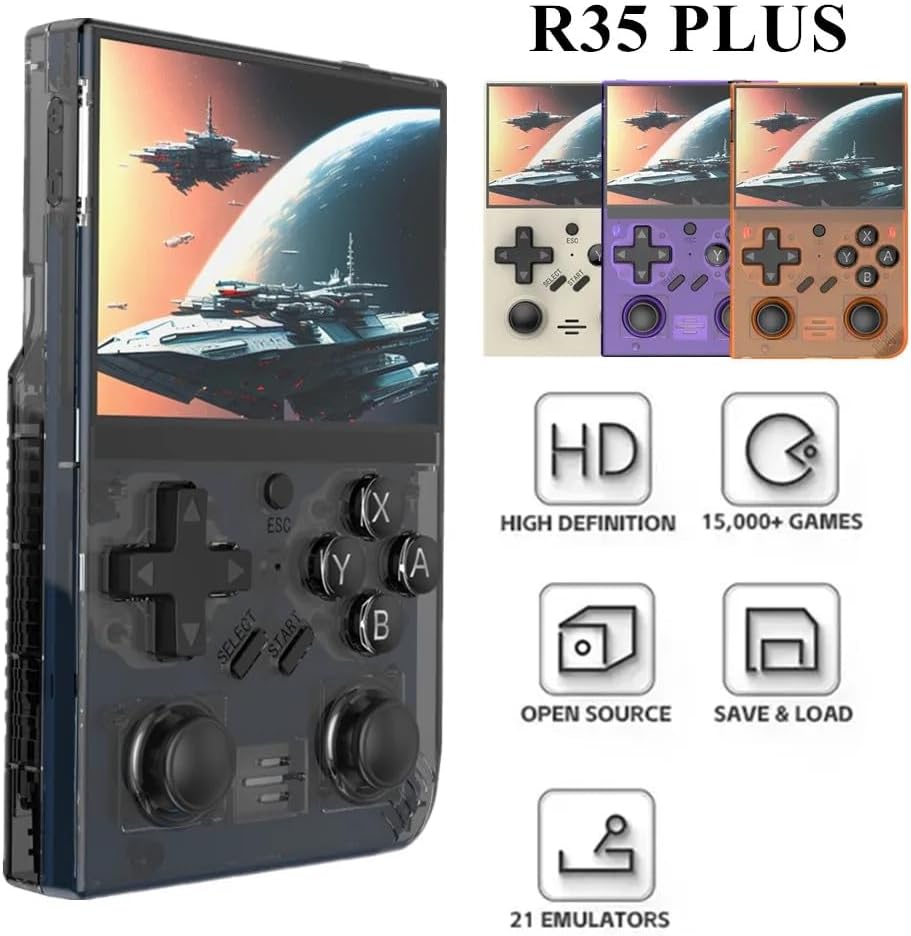
Image: The R35 Plus console showcasing het ontwerp en de belangrijkste kenmerken.
Product voorbijview
The R35 Plus is a portable retro gaming console featuring a 3.5-inch IPS screen, a 64-bit quad-core processor, and an open-source system. It comes pre-loaded with over 15,000 games and supports expansion via a TF card. Below is a detailed diagram of the console's buttons and ports.
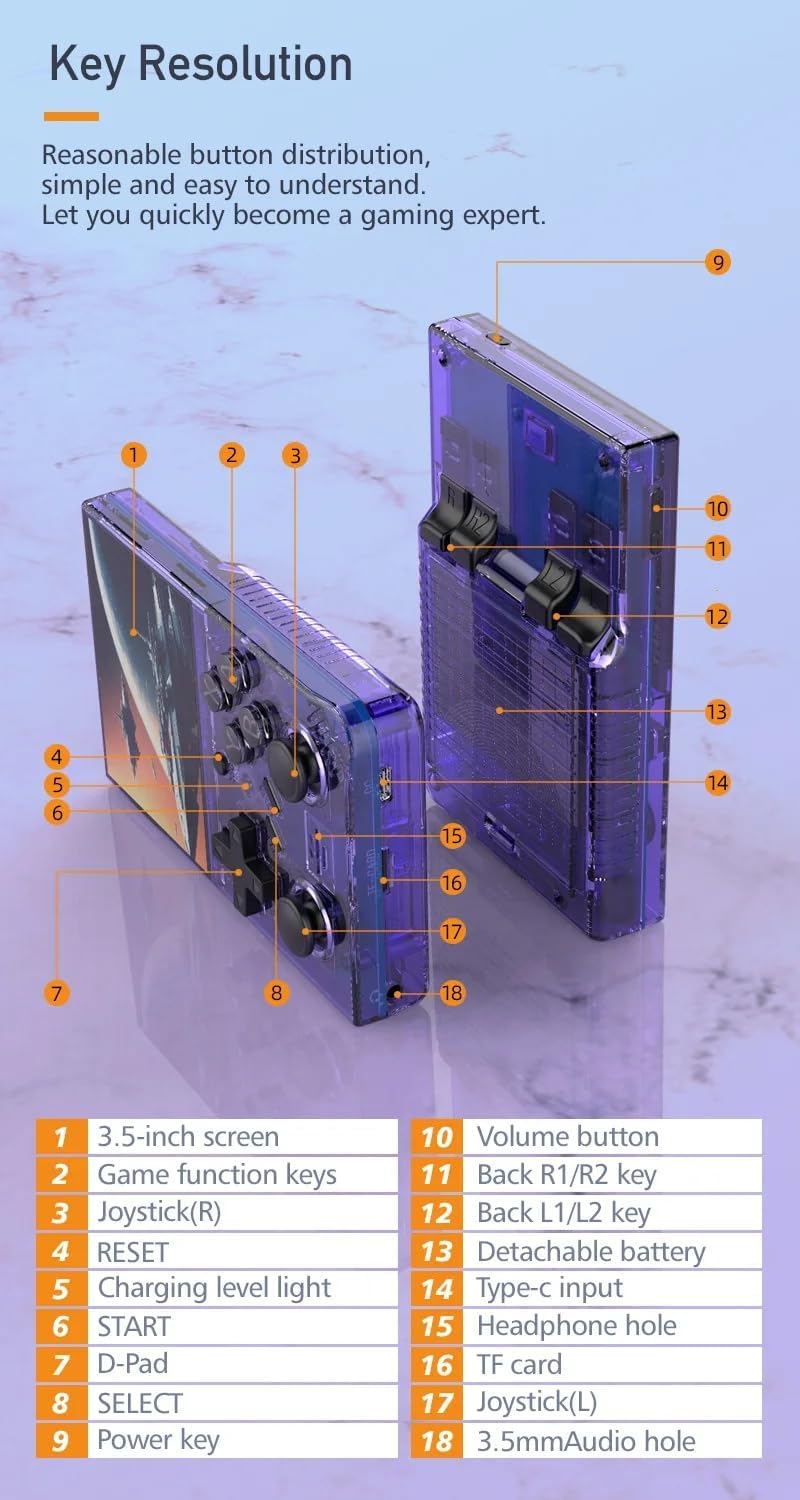
Image: Labeled diagram of the R35 Plus console's controls and ports.
- 3.5-inch scherm
- Game function keys (A, B, X, Y)
- Joystick (Right)
- RESET-knop
- Oplaadniveau-lampje
- START-knop
- D-pad
- SELECT-knop
- Aan / uit-toets
- Volumeknop
- Back R1/R2 keys
- Back L1/L2 keys
- Afneembaar batterijcompartiment
- Type-C invoerpoort
- koptelefoon gat
- TF-kaartsleuf
- Joystick (Left)
- 3.5mm Audio hole
Instellen
Charging the Console
Before first use, fully charge the console. Connect the console to a power source using the provided Type-C cable. The charging level light will indicate the charging status. A single full charge provides up to 6 hours of gameplay.

Image: The R35 Plus console's battery compartment and battery.
De TF-kaart plaatsen
Locate the TF card slot (labeled 16 in the diagram) on the console. Gently insert the pre-loaded TF card or your own compatible TF card into the slot until it clicks into place. Ensure the card is inserted correctly to avoid damage.
Aan/uitzetten
To power on, press and hold the Power key (labeled 9 in the diagram) until the screen illuminates. To power off, press and hold the Power key until the shutdown options appear on the screen, then select "Power Off".
Gebruiksaanwijzing
Basisbedieningen
The R35 Plus features a D-Pad (labeled 7), dual joysticks (labeled 3 and 17), and action buttons (A, B, X, Y, labeled 2), along with L/L1/R/R1 keys (labeled 11 and 12) on the back for enhanced gameplay.
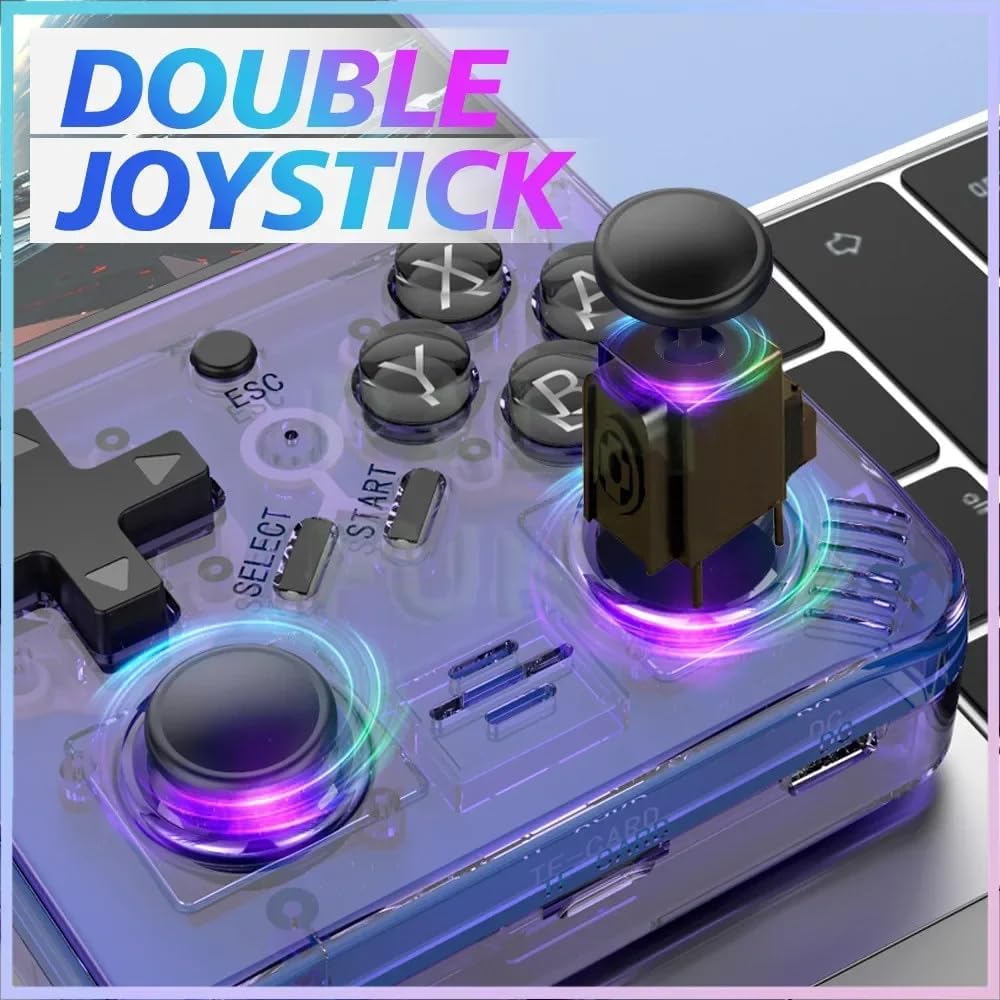
Image: The R35 Plus console's dual joysticks.

Image: The R35 Plus console's crystal buttons.
Navigeren door het systeem
Use the D-Pad or joysticks to navigate through the system menus. The A button typically confirms selections, while the B button cancels or goes back to the previous screen.
Spelletjes spelen
Select a game from the main menu. The console supports over 21 emulators, allowing you to play a wide variety of retro titles. Game controls will vary depending on the emulator and game.
Saving and Loading Game Progress
Most emulators on the R35 Plus support save states. Refer to the specific emulator's in-game menu or documentation for instructions on how to save and load your game progress. This often involves a combination of system buttons (e.g., SELECT + START) to access the emulator menu.
Verbinding maken met externe apparaten
The console includes a 3.5mm audio jack (labeled 15 and 18 in the diagram) for connecting headphones or external speakers, allowing for private listening or enhanced audio experience.
Onderhoud
Schoonmaak
Use a soft, dry, lint-free cloth to clean the console's exterior. Avoid using liquid cleaners, solvents, or abrasive materials, as these can damage the finish or internal components.
Opslag
Store the console in a cool, dry place away from direct sunlight, extreme temperatures, and high humidity. When not in use for extended periods, it is recommended to store it in its original packaging or a protective case.
Batterijverzorging
To prolong battery life, avoid fully discharging the battery frequently. Charge the console regularly, even if not in use for extended periods. Do not expose the battery to extreme heat or puncture it.
Probleemoplossing
De console gaat niet aan.
- Ensure the battery is charged. Connect the console to a power source using the Type-C cable and allow it to charge for at least 30 minutes before attempting to power on again.
- Try a different Type-C cable and power adapter to rule out faulty accessories.
Spellen laden niet of crashen
- Verify that the TF card is properly inserted into its slot. Remove and reinsert it firmly.
- Controleer of het spel files are corrupted or incompatible with the installed emulators. Try loading other games to isolate the issue.
- Ensure the console's firmware is up to date, if applicable.
Screen Issues (e.g., unresponsive, flickering)
- Try restarting the console.
- Zorg ervoor dat het scherm schoon is en geen fysieke beschadigingen heeft.
- Neem contact op met de klantenondersteuning als het probleem zich blijft voordoen.
Specificaties
| Functie | Detail |
|---|---|
| Schermgrootte | 3.5 inch |
| Oplossing | 640x480 |
| Systeem | Open Source, 64-bit Quad-Core Processor |
| Ingebouwde spellen | 15000+ |
| TF Card Expansion | Up to 64GB (15000+ games) |
| Ondersteunde emulators | 21 |
| Batterijcapaciteit | 3000mAh |
| Levensduur van de batterij | Tot 6 uur |
| Oplaadpoort | Type-C |
| Audio poort | 3.5 mm koptelefoonaansluiting |
| Bedieningselementen | D-Pad, Dual Joysticks, A/B/X/Y Buttons, L/L1/R/R1 Buttons |
| Productafmetingen | 6.37 x 1.41 x 5.5 inch |
| Artikelgewicht | 3.2 ons |
| Materiaal | Plastic |
Ondersteuningsinformatie
For further assistance, technical support, or warranty inquiries, please refer to the manufacturer's official website or contact their customer service directly. Please have your product model and ASIN Zorg dat je klaar bent om contact op te nemen met de supportafdeling.
- Fabrikant: XIXIMENG
- Model: R35 Plus
- ASIN: B0D25ZFGS9