
1. Inleiding
Thank you for choosing the EasySMX T37 Wireless Switch Pro Controller. This manual provides detailed instructions for setting up, operating, maintaining, and troubleshooting your controller. Please read this manual carefully before use to ensure optimal performance and longevity of your device. This controller is compatible with Nintendo Switch, Switch Lite, and Switch OLED consoles.
2. Product voorbijview
The EasySMX T37 is a wireless gamepad designed for an enhanced gaming experience on Nintendo Switch systems. It features an ergonomic design, dual turbo vibration, and 6-axis gyro motion control.

Afbeelding 2.1: Voorkant view of the EasySMX T37 Wireless Switch Pro Controller, showcasing vanwege de ergonomische vorm en de indeling van de knoppen.
3. Instellen
3.1 Koppelen met Nintendo Switch
- Schakel je Nintendo Switch-console in.
- Selecteer in het HOME-menu Beheerders > Grip/volgorde wijzigen.
- On the EasySMX T37 controller, press and hold the SYNC-knop (located on the top edge of the controller) for 3 seconds until the LED indicators start flashing rapidly.
- Once the controller is successfully paired, the player LED(s) on the bottom of the controller will light up solid.
3.2 De controller opladen
Connect the provided USB-C charging cable to the USB-C port on the controller and the other end to a USB power source (e.g., Switch dock, USB wall adapter, computer USB port). The LED indicators will show charging status and turn off when fully charged.
4. Gebruiksaanwijzing
4.1 Basisbedieningen
The controller features standard button layouts for Nintendo Switch compatibility:
- A/B/X/Y-knoppen: Actieknoppen.
- D-pad: Directionele invoer.
- Analoge sticks links/rechts: Bewegings- en camerabesturing.
- L/R/ZL/ZR-knoppen: Schouder- en trekkerknoppen.
- Thuis knop: Keert terug naar het startscherm van de Switch.
- CAPTURE Button: Maakt screenshots.
- PLUS (+) / MINUS (-) Buttons: Start-/Selecteerfuncties.

Image 4.1: A user holding the EasySMX T37 controller, demonstrating the comfortable grip and accessible button placement during gameplay.
4.2 Turbofunctie
The Turbo function allows for rapid, automatic pressing of a button, useful in action or arcade games.
- Turbo activeren: Press and hold the desired action button (A/B/X/Y/L/R/ZL/ZR), then press the Turbo-knop (T button). The button will now auto-fire.
- Turbosnelheid aanpassen: Terwijl je de Turbo-knop, verplaats de Rechter analoge stick omhoog of omlaag to cycle through three speeds: 5 shots/s, 12 shots/s, and 20 shots/s.
- Deactivate Turbo: Repeat the activation step (hold the action button, then press the Turbo button) or press and hold the Turbo-knop for 5 seconds to clear all Turbo settings.
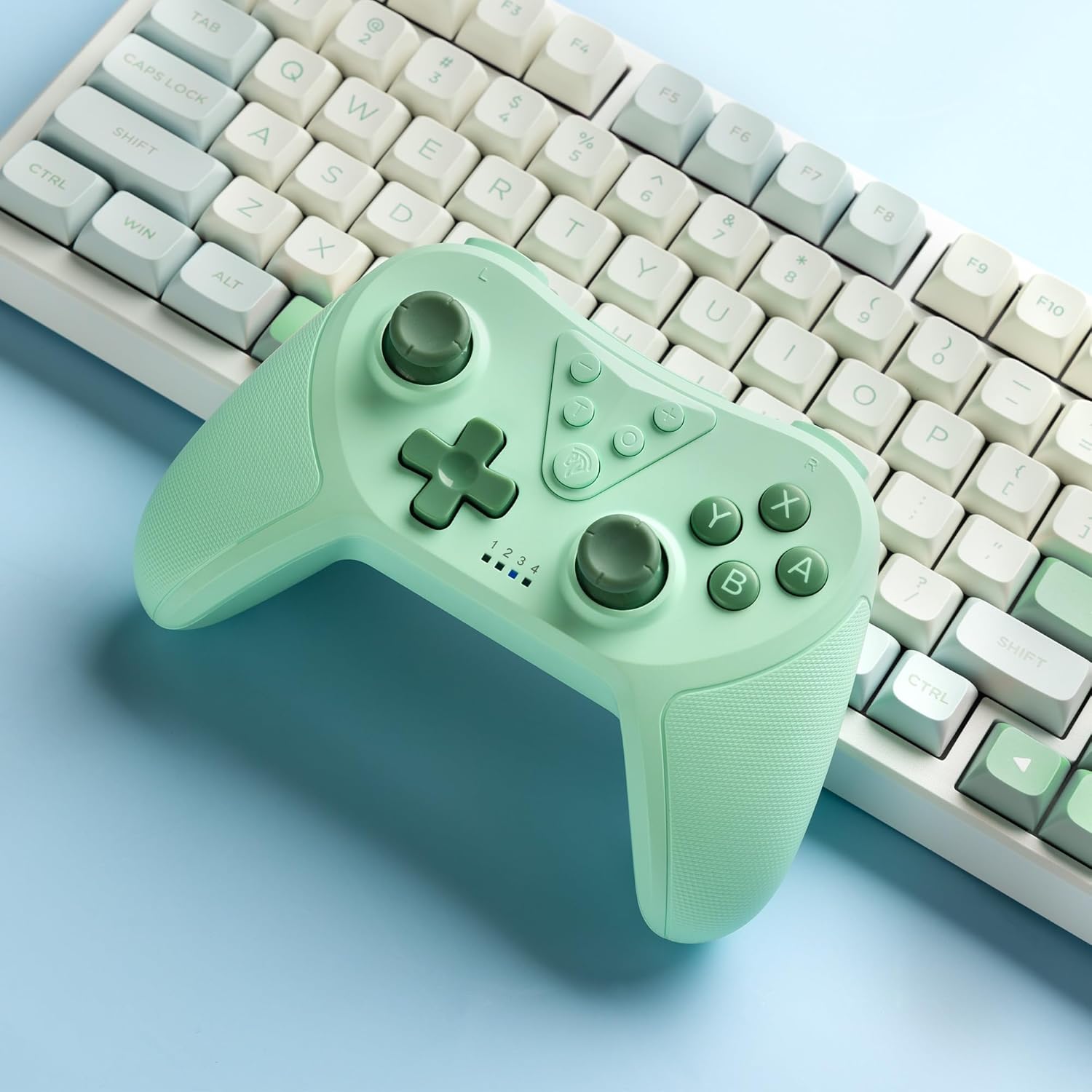
Image 4.2: Illustration of the Turbo function on the EasySMX T37 controller, showing the three adjustable speeds: 5, 12, and 20 shots per second.
4.3 Trillingsaanpassing
The controller features dual motors for adjustable vibration feedback, enhancing immersion in games.
- Trillingsintensiteit aanpassen: Houd de Turbo-knopen verplaats vervolgens de Left Analog Stick Up or Down to cycle through four vibration levels: 0% (off), 30%, 70%, and 100%.

Image 4.3: Visual representation of the Dual Vibration feature on the EasySMX T37 controller, indicating four intensity levels from 0% to 100%.
4.4 6-assige gyroscopische bewegingsbesturing
The built-in 6-axis gyroscope provides precise motion sensing, allowing for intuitive control in games that support motion input.

Image 4.4: Illustration depicting the 6-Axis Gyro Motion Control feature of the EasySMX T37 controller, showing how it interacts with a game on the Nintendo Switch screen.
5. Onderhoud
- Schoonmaak: Reinig de controller met een zachte, droge doek. Vermijd het gebruik van agressieve chemicaliën of schurende materialen.
- Opslag: Bewaar de controller op een koele, droge plaats, uit de buurt van direct zonlicht en extreme temperaturen.
- batterij zorg: Om de batterijduur te verlengen, moet u voorkomen dat u de controller regelmatig volledig ontlaadt. Laad hem regelmatig op, zelfs als u hem langere tijd niet gebruikt.
- Vermijd druppels: Bescherm de controller tegen vallen en stoten, aangezien deze interne componenten kunnen beschadigen.
6. Probleemoplossing
6.1 Controller maakt geen verbinding
- Zorg ervoor dat de controller is opgeladen.
- Verify the Switch console is updated to the latest system version.
- Probeer de controller opnieuw te koppelen door de stappen in paragraaf 3.1 te volgen.
- If issues persist, try resetting the controller by inserting a thin object into the small reset hole (if present, usually on the back) for a few seconds.
6.2 Buttons Unresponsive or Lagging
- Zorg ervoor dat de controller volledig is opgeladen.
- Move closer to the Switch console to ensure a strong wireless connection.
- Controleer of er fysieke obstakels of vuil rond de knoppen aanwezig zijn.
- Koppel de controller opnieuw.
6.3 Controller laadt niet op
- Zorg ervoor dat de USB-C-kabel stevig is aangesloten op zowel de controller als de stroombron.
- Probeer een andere USB-C-kabel of stroomadapter.
- Controleer of de stroombron werkt.
7. Specificaties
- Model: T37
- Connectiviteit: Draadloos (Bluetooth)
- Verenigbaarheid: Nintendo Switch, Switch Lite, Switch OLED
- Functies: Dual Turbo Function, Adjustable Vibration, 6-Axis Gyro Motion Control, Ergonomic Design
- Product Identifier (ASIN): B0CTTWN84L
8. Garantie en ondersteuning
For warranty information, technical support, or further assistance, please refer to the official EasySMX webwebsite of neem rechtstreeks contact op met hun klantenservice. Bewaar uw aankoopbewijs voor garantieclaims.